> ## Documentation Index
> Fetch the complete documentation index at: https://www.ayrshare.com/docs/llms.txt
> Use this file to discover all available pages before exploring further.
# Documentation MCP
> Connect the read-only Ayrshare Documentation MCP server to your AI agent to search Ayrshare's API documentation
This is the read-only **Documentation MCP** (it searches Ayrshare's API docs). To let an AI agent **drive** the Ayrshare API, see the [MCP Server](/docs/additional/mcp-action-server) (Action MCP).
The Model Context Protocol (MCP) is an open standard that enables applications to share context and tools with Large Language Models (LLMs).
By connecting the Ayrshare API documentation MCP server to your AI development tools like Cursor or Claude Desktop, you can give your AI agent direct access to Ayrshare's documentation.
This integration allows your AI agent to:
- Search through Ayrshare's API documentation
- Understand available endpoints and parameters
- Generate code that uses Ayrshare's APIs correctly
- Provide contextually accurate suggestions when working with Ayrshare services
This means instead of manually looking up API details, your AI assistant can reference the documentation directly and help you implement Ayrshare functionality more efficiently.
## How to Get Started
Ayrshare's MCP server is available at `https://www.ayrshare.com/docs/mcp`.
### Claude Desktop
1. Navigate to the Connectors page in the Claude settings.
2. Select Add custom connector.
3. Add `Ayrshare MCP` or any name you prefer as your MCP server name and `https://www.ayrshare.com/docs/mcp` as your MCP server URL.
4. Select Add.
5. When using Claude, select the attachments button (the plus icon).
6. Select your MCP server.
### Claude Code
```bash theme={"system"}
claude mcp add --transport http ayrshare https://www.ayrshare.com/docs/mcp
```
### VS Code
[](https://insiders.vscode.dev/redirect?url=vscode:mcp/install?%7B%22type%22%3A%22http%22%2C%22name%22%3A%22Ayrshare-MCP%22%2C%22url%22%3A%22https%3A%2F%2Fwww.ayrshare.com%2Fdocs%2Fmcp%22%7D)
1. Create a .vscode/mcp.json file.
2. In mcp.json, configure your server:
```json theme={"system"}
{
"servers": {
"Ayrshare MCP": {
"type": "http",
"url": "https://www.ayrshare.com/docs/mcp"
}
}
}
```
### Cursor
[](cursor://anysphere.cursor-deeplink/mcp/install?name=Ayrshare-MCP\&config=eyJ1cmwiOiJodHRwczovL3d3dy5heXJzaGFyZS5jb20vZG9jcy9tY3AifQ==)
1. Use Command + Shift + P (Ctrl + Shift + P on Windows) to open the command palette.
2. Search for “Open MCP settings”.
3. Select Add custom MCP. This opens the mcp.json file.
4. In mcp.json, configure your server:
```json theme={"system"}
{
"mcpServers": {
"Ayrshare MCP": {
"url": "https://www.ayrshare.com/docs/mcp"
}
}
}
```
## Using MCP Server Connection
Restart the app to apply the changes.
In Cursor, you can test the MCP connector by typing `How do you publish a post in Ayrshare. Use the MCP server.`
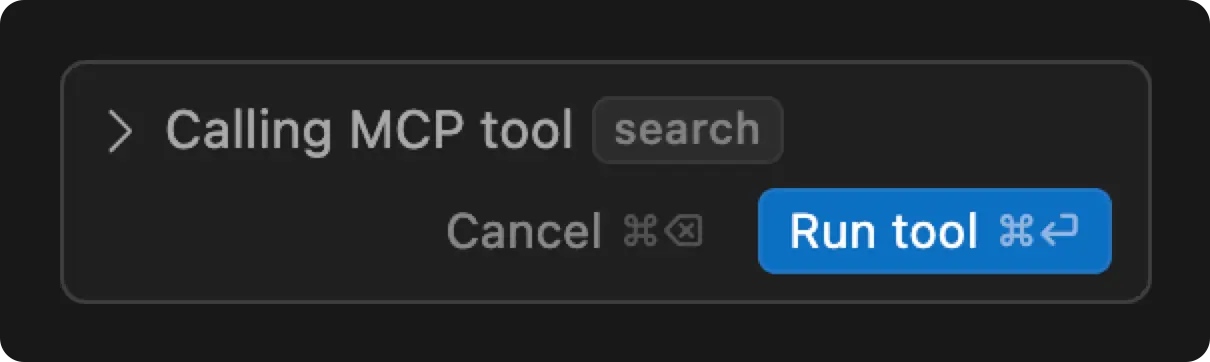 You will see the request to "Run tool" and Cursor will access the MCP server to get the response.