> ## Documentation Index
> Fetch the complete documentation index at: https://www.ayrshare.com/docs/llms.txt
> Use this file to discover all available pages before exploring further.
# Resize an Image
> Resize an image to social media dimensions, add watermarks, or crop
export const HeaderAPI = ({noProfileKey, profileKeyRequired}) => <>
API Key of the Primary Profile.
Format: Authorization: Bearer API_KEY
{!noProfileKey && (profileKeyRequired ?
Profile Key of a User Profile.
Format: Profile-Key: PROFILE_KEY
:
Profile Key of a User Profile.
Format: Profile-Key: PROFILE_KEY
)}
;
export const PlansAvailable = ({plans = [], maxPackRequired}) => {
let displayPlans = plans;
if (plans && plans.length === 1) {
const lowerCasePlan = plans[0].toLowerCase();
if (lowerCasePlan === "business") {
displayPlans = ["Launch", "Business", "Enterprise"];
} else if (lowerCasePlan === "premium") {
displayPlans = ["Premium", "Launch", "Business", "Enterprise"];
}
}
return
Available on {displayPlans.length === 1 ? "the " : ""}
{displayPlans.join(", ").replace(/\b\w/g, l => l.toUpperCase())}{" "}
{displayPlans.length > 1 ? "plans" : "plan"}.
{maxPackRequired && window.open('https://www.ayrshare.com/docs/additional/maxpack', '_self')} className="flex items-center mt-2 cursor-pointer">
Max Pack required
}
;
};
The social networks have [specific requirements](/media-guidelines) for social media images. The resize endpoint allows you to choose a social network compatible image size, add watermarks, change backgrounds, add effects, crop, and more.
By default resizing will change the dimensions of an image, but not crop the image. You may instead crop the image. See below for details.
## Header Parameters
## Body Parameters
URL of image to be resized. Must begin with `https://`
Social media platform for which the URL will be resized. See [platform
options](/apis/media/resize#platform-options) for details.
Send the media file as a multipart form-data object. Required if `imageUrl` not present.
URL and optional position of watermark to be applied to resized image. The watermark will appear
in the lower right corner of the image by default. See [watermark](/apis/media/resize#watermark)
for details.
Change opacity, colors, etc. See [effects options](/apis/media/resize#effects-options) for
details.
Object specifying `width` and `height` for resizing. If cropping, you may optionally specify the center `x` and `y` coordinates.
Default is the center of the image.
```json Dimensions theme={"system"}
{
"width": 500,
"height": 500,
"xCoordinate": 35, // optional for crop mode
"yCoordinate": 50 // optional for crop mode
}
```
Width and height required if platform is not specified.
Value: `resize`, `blur`, or `crop`. See [mode](/apis/media/resize#mode) for details.
Automatically convert to a JPG file, such as from a PNG to a JPG file. 75% quality will be used.
See [convert to a JPG](/apis/media/resize#convert-to-a-jpg-or-webp) for details.
Automatically convert to a WebP file, such as from a PNG to a WebP file. 75% quality will be used.
See [convert to a WebP](/apis/media/resize#convert-to-a-jpg-or-webp) for details.
### Platform Options
Specify a platform as a String to use predefined dimensions of the image, or you may specify your own with the `dimensions` field.
For example `"platform": "facebook"` will set the dimension of the image as width 1200px and height 630px.
- `facebook`: 1200px width, 630px height.
- `instagram`: 1080px width, 1080px height.
- `instagram_landscape`: 1080px width, 680px height.
- `instagram_portrait`: 1080px width, 1920px height.
- `instagram_special`: 1080px width, 800px height.
- `linkedin`: 1200px width, 627px height.
- `pinterest`: 1080px width, 1920px height.
- `tiktok`: 1080px width, 1920px height.
- `twitter`: 1600px width, 900px height.
Note, that resize to these dimensions will not crop the image.
If you want to crop the image, you can use the `mode` parameter set to `crop` with the `dimensions` and `xCoordinate` and `yCoordinate` fields.
### Mode
#### Resize
Resize is the default mode that will change the dimensions of an image while maintaining its aspect ratio.
Resize the image to the specified dimensions without cropping any content.
Example JSON:
```json Resize theme={"system"}
{
"mediaUrl": "https://img.ayrshare.com/012/gb.jpg",
"platform": "instagram",
"mode": "resize"
}
```
You can also specify custom dimensions using the `dimensions` field:
```json Resize with Dimensions theme={"system"}
{
"mediaUrl": "https://img.ayrshare.com/012/gb.jpg",
"mode": "resize",
"dimensions": {
"width": 800,
"height": 600
}
}
```
Either the `platform` or the dimensions field `width` and `height` must be specified.
#### Crop
Crop will cut off "crop" the image to the specified dimensions. By default the center coordinate will be the center of the image. You may also specify your own x/y coordinates.
Example JSON:
```json Crop theme={"system"}
{
"mediaUrl": "https://img.ayrshare.com/012/gb.jpg",
"platform": "instagram",
"mode": "crop"
}
```
You can also specify custom dimensions and optional crop coordinates using the `dimensions` field:
```json Crop with Dimensions theme={"system"}
{
"mediaUrl": "https://img.ayrshare.com/012/gb.jpg",
"mode": "crop",
"dimensions": {
"width": 1080,
"height": 1080,
"xCoordinate": 35,
"yCoordinate": 50
}
}
```
Either the `platform` or the dimensions field `width` and `height` must be specified.
For square crops, if `width` or `height` are less than the dimensions of the provided image, the small of the `width` or `height` will be used. For example, if the image is 1200x800 and the crop requested is 1080x1080, the image returned will be 800x800.
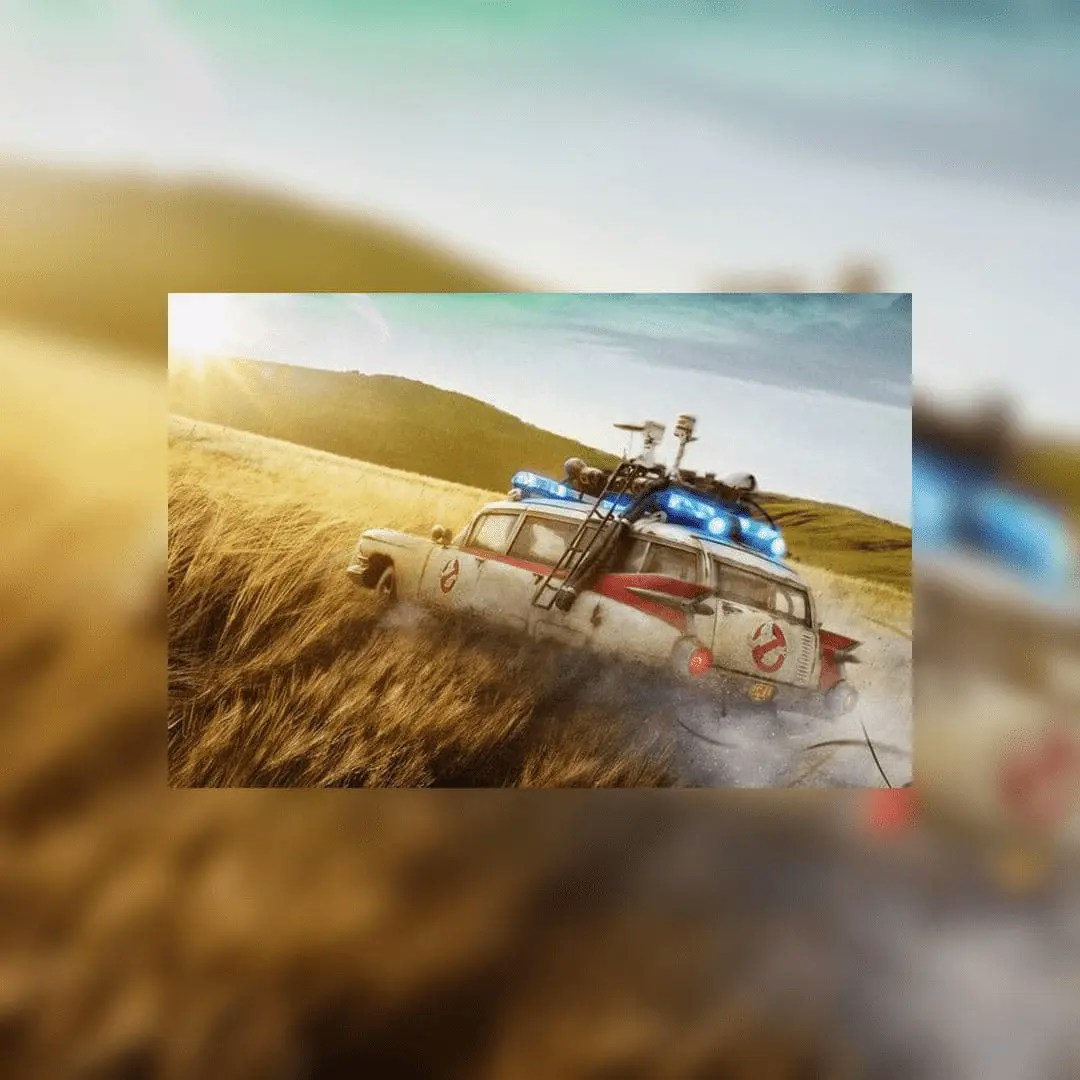
#### Blur
Blur effect will duplicate the image as a background and blur the image.
Example blur JSON:
```json Blur theme={"system"}
{
"mediaUrl": "https://img.ayrshare.com/012/gb.jpg",
"platform": "instagram",
"mode": "blur"
}
```
Example blur image:
 ### Watermark
#### Watermark Overview
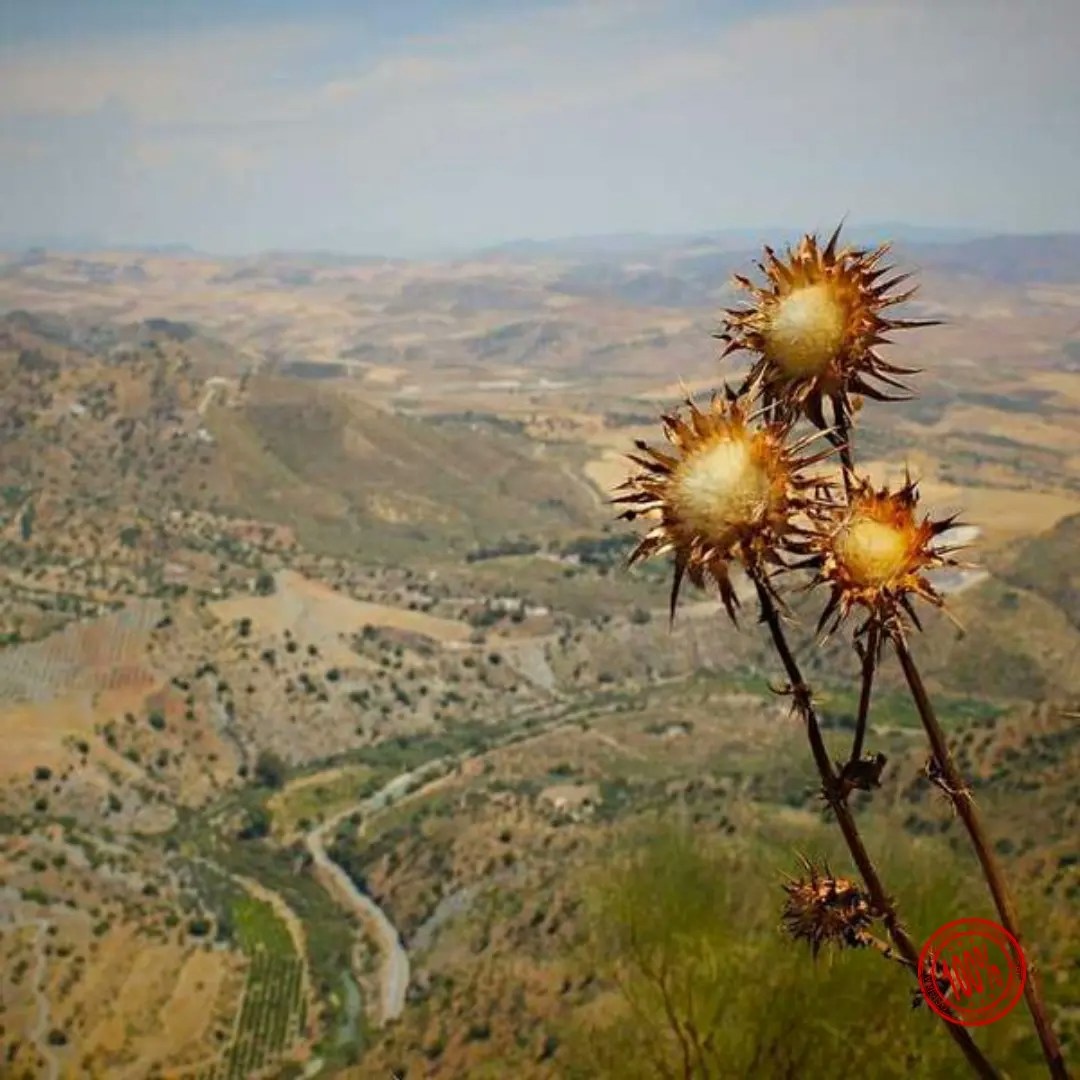
You may add a watermark to the image by providing a URL, which must begin with `https://` and an optional position.
The watermark will by default appear in the bottom right corner of the image - `southeast`.
We recommend a PNG with a transparent background.
Example watermark JSON:
```json Watermark theme={"system"}
{
"mediaUrl": "https://img.ayrshare.com/random/photo-13.jpg",
"platform": "instagram",
"watermark": {
"url": "https://img.ayrshare.com/012/100-percent.png",
"position": "northeast" // optional
}
}
```
Example watermark image in southeast position:
### Watermark
#### Watermark Overview
You may add a watermark to the image by providing a URL, which must begin with `https://` and an optional position.
The watermark will by default appear in the bottom right corner of the image - `southeast`.
We recommend a PNG with a transparent background.
Example watermark JSON:
```json Watermark theme={"system"}
{
"mediaUrl": "https://img.ayrshare.com/random/photo-13.jpg",
"platform": "instagram",
"watermark": {
"url": "https://img.ayrshare.com/012/100-percent.png",
"position": "northeast" // optional
}
}
```
Example watermark image in southeast position:
 #### Watermark Position
The position of the watermark can be one of the following:
#### Watermark Position
The position of the watermark can be one of the following:
- `north`
- `northeast`
- `east`
- `southeast`
- `south`
- `southwest`
- `west`
- `northwest`
- `center`
### Effects Options
#### Color Hexadecimal
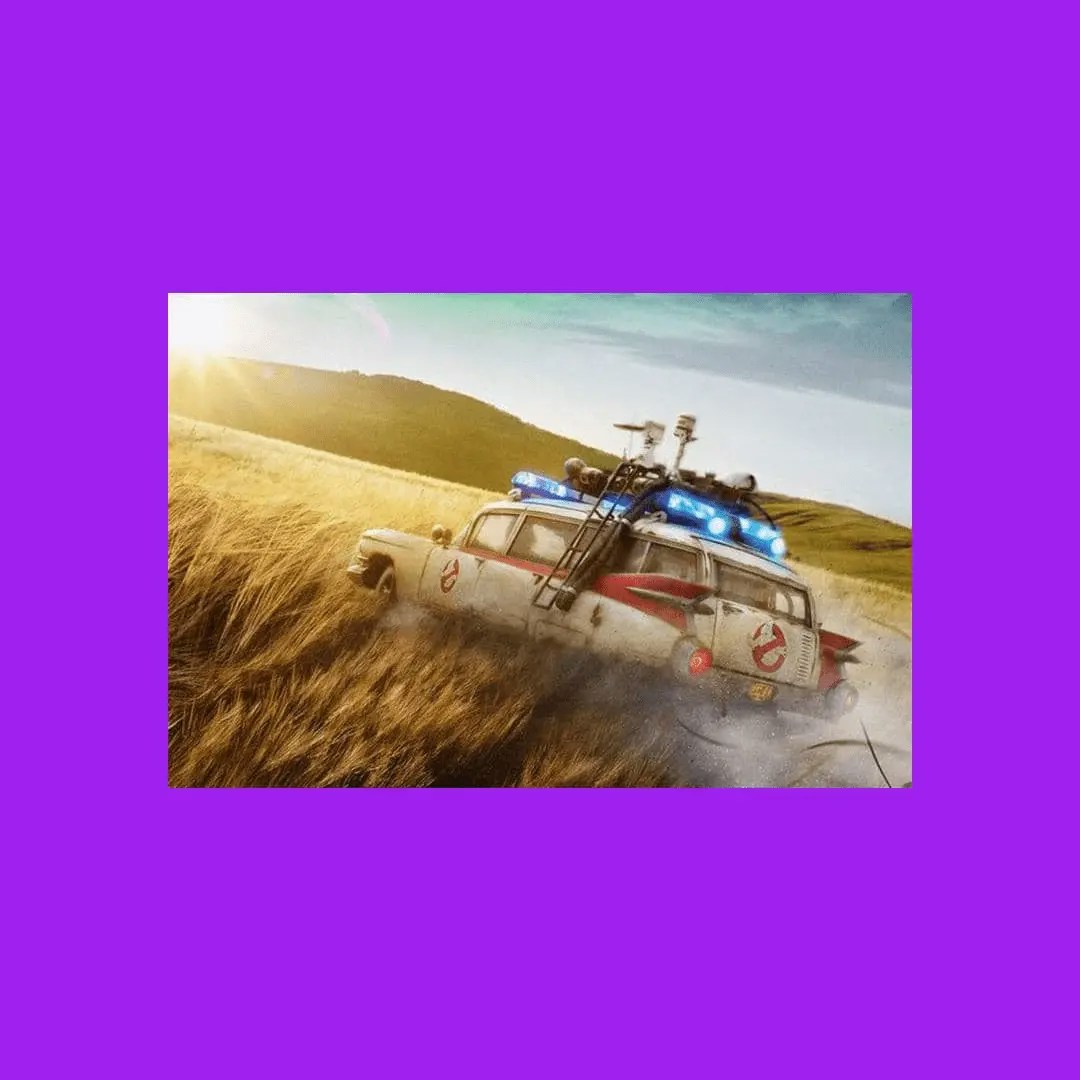
Hexadecimal value for color of background for blur. Only applicable if `"mode": "blur"`. String value, e.g. `"#A020F0"`
Example color background JSON:
```json Color Background theme={"system"}
{
"mediaUrl": "https://img.ayrshare.com/012/gb.jpg",
"platform": "instagram",
"mode": "blur",
"effects": {
"color": "#A020F0"
}
}
```
Example color background image:
 #### Color: Grayscale, Sepia, Invert
You made change the primary image color by specifying `grayscale`, `sepia`, or `invert`. The field `"blur": true` is not required and should not be used if you do not want a background.
Example grayscale JSON:
```json Grayscale theme={"system"}
{
"mediaUrl": "https://img.ayrshare.com/random/photo-13.jpg",
"platform": "instagram",
"effects": {
"color": "grayscale"
}
}
```
Example grayscale image:
#### Color: Grayscale, Sepia, Invert
You made change the primary image color by specifying `grayscale`, `sepia`, or `invert`. The field `"blur": true` is not required and should not be used if you do not want a background.
Example grayscale JSON:
```json Grayscale theme={"system"}
{
"mediaUrl": "https://img.ayrshare.com/random/photo-13.jpg",
"platform": "instagram",
"effects": {
"color": "grayscale"
}
}
```
Example grayscale image:
 #### Opacity
Set the opacity of the image. Number value range: 0 - 1.
Example opacity JSON:
```json Opacity theme={"system"}
{
"effects": {
"opacity": 0.2
}
}
```
#### Quality
For JPG or JEPG images specify the quality, or amount of compression, of the image.
The lower the number the more compressed, but lower the image quality.
The higher the number the less compressed, but the higher the image quality. Number value range: 0 - 100.
Example quality JSON:
```json Quality theme={"system"}
{
"effects": {
"quality": 20
}
}
```
### Convert to a JPG or WebP
The `convertToJpg` and `convertToWebP` options allow you to transform images from their original format (such as PNG) to JPG or WebP format respectively.
By default, the converted images will have a quality setting of 75%.
You can customize the compression level by using the [quality](/apis/media/resize#quality) parameter in the effects object.
Note that if your source image is already a JPG and you use `convertToJpg`, the API will simply resize the image to your specified dimensions without changing the format.
Example convert to JPG:
```json Convert to JPG theme={"system"}
{
"convertToJpg": true
}
```
Example convert to WebP:
```json Convert to WebP theme={"system"}
{
"convertToWebP": true
}
```
```bash cURL theme={"system"}
curl \
-H "Authorization: Bearer API_KEY" \
-H 'Content-Type: application/json' \
-d '{"mediaUrl": "https://img.ayrshare.com/012/gb.jpg", "platform": "instagram"' \
-X POST https://api.ayrshare.com/api/media/resize
```
```javascript JavaScript theme={"system"}
const API_KEY = "API_KEY";
fetch("https://api.ayrshare.com/api/media/resize", {
method: "POST",
headers: {
"Content-Type": "application/json",
Authorization: `Bearer ${API_KEY}`
},
body: JSON.stringify({
mediaUrl: "https://img.ayrshare.com/012/gb.jpg", // required
platform: "instagram"
})
})
.then((res) => res.json())
.then((json) => console.log(json))
.catch(console.error);
```
```python Python theme={"system"}
import requests
payload = {'mediaUrl': 'https://img.ayrshare.com/012/gb.jpg',
'platforms': 'instagram'}
headers = {'Content-Type': 'application/json',
'Authorization': 'Bearer API_KEY'}
r = requests.post('https://api.ayrshare.com/api/media/resize',
json=payload,
headers=headers)
print(r.json())
```
```php PHP theme={"system"}
"https://img.ayrshare.com/012/gb.jpg",
"platforms" => "instagram"
);
curl_setopt_array($curl, array(
CURLOPT_URL => 'https://api.ayrshare.com/api/media/resize',
CURLOPT_RETURNTRANSFER => true,
CURLOPT_ENCODING => '',
CURLOPT_MAXREDIRS => 10,
CURLOPT_TIMEOUT => 0,
CURLOPT_FOLLOWLOCATION => true,
CURLOPT_HTTP_VERSION => CURL_HTTP_VERSION_1_1,
CURLOPT_CUSTOMREQUEST => 'POST',
CURLOPT_POSTFIELDS => http_build_query($data),
CURLOPT_HTTPHEADER => array(
'Authorization: Bearer API_KEY',
'Accept-Encoding: gzip'
),
));
$response = curl_exec($curl);
curl_close($curl);
echo $response;
```
```csharp C# theme={"system"}
using System;
using System.Net.Http;
using System.Text;
using System.Text.Json;
using System.Threading.Tasks;
public class AyrshareApiClient
{
private readonly HttpClient _httpClient;
private readonly string _apiKey;
private const string BaseUrl = "https://api.ayrshare.com/api";
public AyrshareApiClient(string apiKey)
{
_apiKey = apiKey ?? throw new ArgumentNullException(nameof(apiKey));
_httpClient = new HttpClient();
_httpClient.DefaultRequestHeaders.Add("Authorization", $"Bearer {_apiKey}");
}
public async Task ResizeMediaAsync(string mediaUrl, string platform)
{
try
{
var requestData = new
{
mediaUrl = mediaUrl,
platform = platform
};
var content = new StringContent(
JsonSerializer.Serialize(requestData),
Encoding.UTF8,
"application/json"
);
var response = await _httpClient.PostAsync($"{BaseUrl}/media/resize", content);
response.EnsureSuccessStatusCode();
var jsonResponse = await response.Content.ReadAsStringAsync();
return jsonResponse;
}
catch (HttpRequestException ex)
{
throw new Exception($"Failed to resize media: {ex.Message}", ex);
}
}
public void Dispose()
{
_httpClient.Dispose();
}
}
```
```json 200: Success theme={"system"}
{
"status": "success",
"url": "https://media.ayrshare.com/9abf1426d6ce9122ef11c72bd62e59807c5cc083/8UbyBjHTxgHkAC1I37e6O.jpg",
"platform": "instagram",
"mode": "blur",
"effects": {
"color": "#A020F0"
}
}
```
```json 400: Failed Resize theme={"system"}
{
"action": "resize",
"status": "error",
"code": 312,
"message": "Invalid extension type. Extension: null. Please verify the extension is one of the following: png, jpg, jpeg and the file is accessible."
}
```
#### Opacity
Set the opacity of the image. Number value range: 0 - 1.
Example opacity JSON:
```json Opacity theme={"system"}
{
"effects": {
"opacity": 0.2
}
}
```
#### Quality
For JPG or JEPG images specify the quality, or amount of compression, of the image.
The lower the number the more compressed, but lower the image quality.
The higher the number the less compressed, but the higher the image quality. Number value range: 0 - 100.
Example quality JSON:
```json Quality theme={"system"}
{
"effects": {
"quality": 20
}
}
```
### Convert to a JPG or WebP
The `convertToJpg` and `convertToWebP` options allow you to transform images from their original format (such as PNG) to JPG or WebP format respectively.
By default, the converted images will have a quality setting of 75%.
You can customize the compression level by using the [quality](/apis/media/resize#quality) parameter in the effects object.
Note that if your source image is already a JPG and you use `convertToJpg`, the API will simply resize the image to your specified dimensions without changing the format.
Example convert to JPG:
```json Convert to JPG theme={"system"}
{
"convertToJpg": true
}
```
Example convert to WebP:
```json Convert to WebP theme={"system"}
{
"convertToWebP": true
}
```
```bash cURL theme={"system"}
curl \
-H "Authorization: Bearer API_KEY" \
-H 'Content-Type: application/json' \
-d '{"mediaUrl": "https://img.ayrshare.com/012/gb.jpg", "platform": "instagram"' \
-X POST https://api.ayrshare.com/api/media/resize
```
```javascript JavaScript theme={"system"}
const API_KEY = "API_KEY";
fetch("https://api.ayrshare.com/api/media/resize", {
method: "POST",
headers: {
"Content-Type": "application/json",
Authorization: `Bearer ${API_KEY}`
},
body: JSON.stringify({
mediaUrl: "https://img.ayrshare.com/012/gb.jpg", // required
platform: "instagram"
})
})
.then((res) => res.json())
.then((json) => console.log(json))
.catch(console.error);
```
```python Python theme={"system"}
import requests
payload = {'mediaUrl': 'https://img.ayrshare.com/012/gb.jpg',
'platforms': 'instagram'}
headers = {'Content-Type': 'application/json',
'Authorization': 'Bearer API_KEY'}
r = requests.post('https://api.ayrshare.com/api/media/resize',
json=payload,
headers=headers)
print(r.json())
```
```php PHP theme={"system"}
"https://img.ayrshare.com/012/gb.jpg",
"platforms" => "instagram"
);
curl_setopt_array($curl, array(
CURLOPT_URL => 'https://api.ayrshare.com/api/media/resize',
CURLOPT_RETURNTRANSFER => true,
CURLOPT_ENCODING => '',
CURLOPT_MAXREDIRS => 10,
CURLOPT_TIMEOUT => 0,
CURLOPT_FOLLOWLOCATION => true,
CURLOPT_HTTP_VERSION => CURL_HTTP_VERSION_1_1,
CURLOPT_CUSTOMREQUEST => 'POST',
CURLOPT_POSTFIELDS => http_build_query($data),
CURLOPT_HTTPHEADER => array(
'Authorization: Bearer API_KEY',
'Accept-Encoding: gzip'
),
));
$response = curl_exec($curl);
curl_close($curl);
echo $response;
```
```csharp C# theme={"system"}
using System;
using System.Net.Http;
using System.Text;
using System.Text.Json;
using System.Threading.Tasks;
public class AyrshareApiClient
{
private readonly HttpClient _httpClient;
private readonly string _apiKey;
private const string BaseUrl = "https://api.ayrshare.com/api";
public AyrshareApiClient(string apiKey)
{
_apiKey = apiKey ?? throw new ArgumentNullException(nameof(apiKey));
_httpClient = new HttpClient();
_httpClient.DefaultRequestHeaders.Add("Authorization", $"Bearer {_apiKey}");
}
public async Task ResizeMediaAsync(string mediaUrl, string platform)
{
try
{
var requestData = new
{
mediaUrl = mediaUrl,
platform = platform
};
var content = new StringContent(
JsonSerializer.Serialize(requestData),
Encoding.UTF8,
"application/json"
);
var response = await _httpClient.PostAsync($"{BaseUrl}/media/resize", content);
response.EnsureSuccessStatusCode();
var jsonResponse = await response.Content.ReadAsStringAsync();
return jsonResponse;
}
catch (HttpRequestException ex)
{
throw new Exception($"Failed to resize media: {ex.Message}", ex);
}
}
public void Dispose()
{
_httpClient.Dispose();
}
}
```
```json 200: Success theme={"system"}
{
"status": "success",
"url": "https://media.ayrshare.com/9abf1426d6ce9122ef11c72bd62e59807c5cc083/8UbyBjHTxgHkAC1I37e6O.jpg",
"platform": "instagram",
"mode": "blur",
"effects": {
"color": "#A020F0"
}
}
```
```json 400: Failed Resize theme={"system"}
{
"action": "resize",
"status": "error",
"code": 312,
"message": "Invalid extension type. Extension: null. Please verify the extension is one of the following: png, jpg, jpeg and the file is accessible."
}
```