> ## Documentation Index
> Fetch the complete documentation index at: https://www.ayrshare.com/docs/llms.txt
> Use this file to discover all available pages before exploring further.
# ربط Pinterest
> تفويض Pinterest مع Ayrshare
## كيفية ربط Pinterest مع Ayrshare
### إعداد لوحة Pinterest
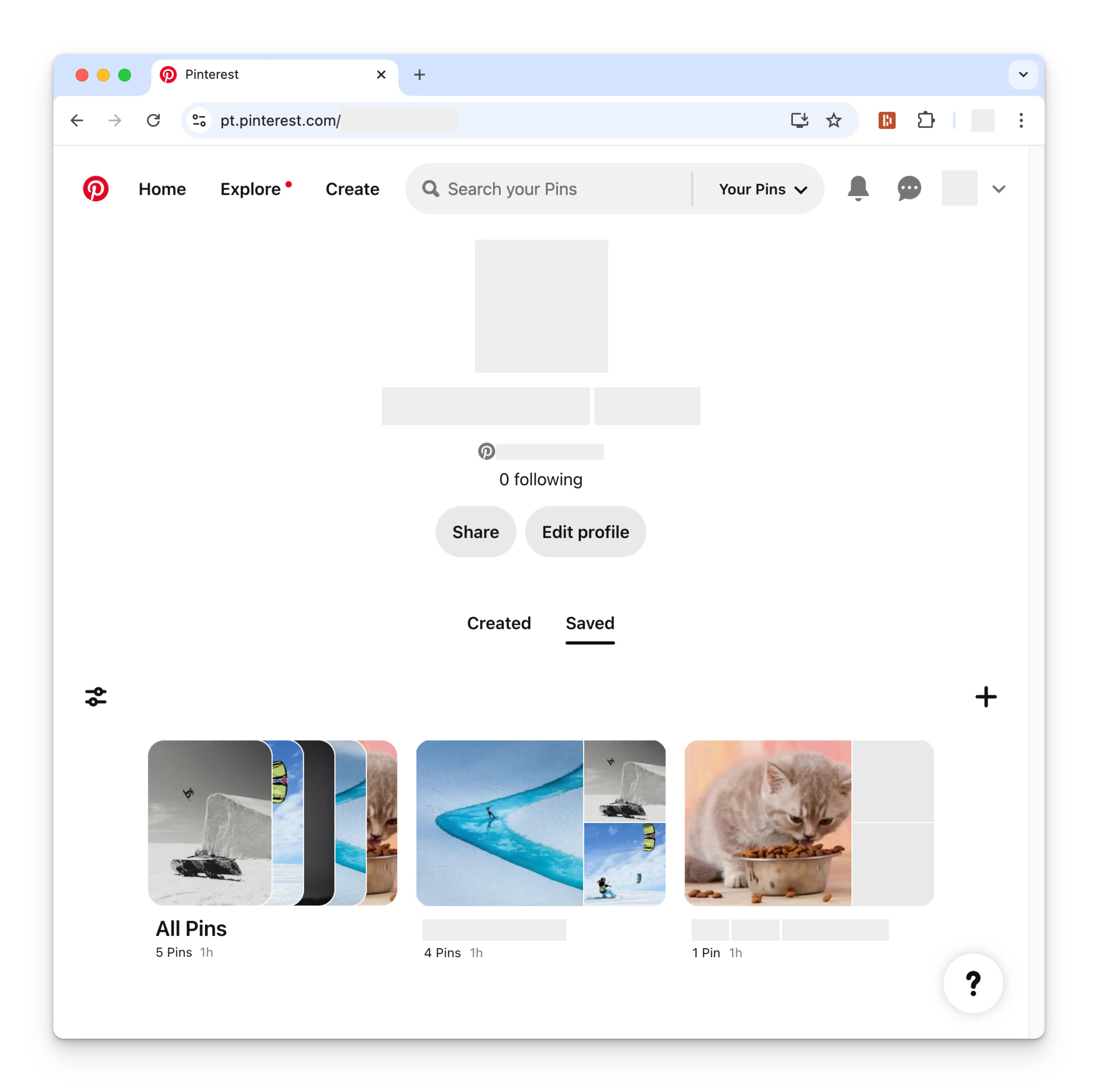
قبل ربط حساب Pinterest الخاص بك، يجب أن يكون لديك لوحة Pinterest واحدة على الأقل. للقيام بذلك،
انتقل إلى صفحة ملفك الشخصي على Pinterest وانقر على رمز **+** (زائد).
اتّبع التعليمات لإنشاء لوحة جديدة.
 ### ربط Pinterest
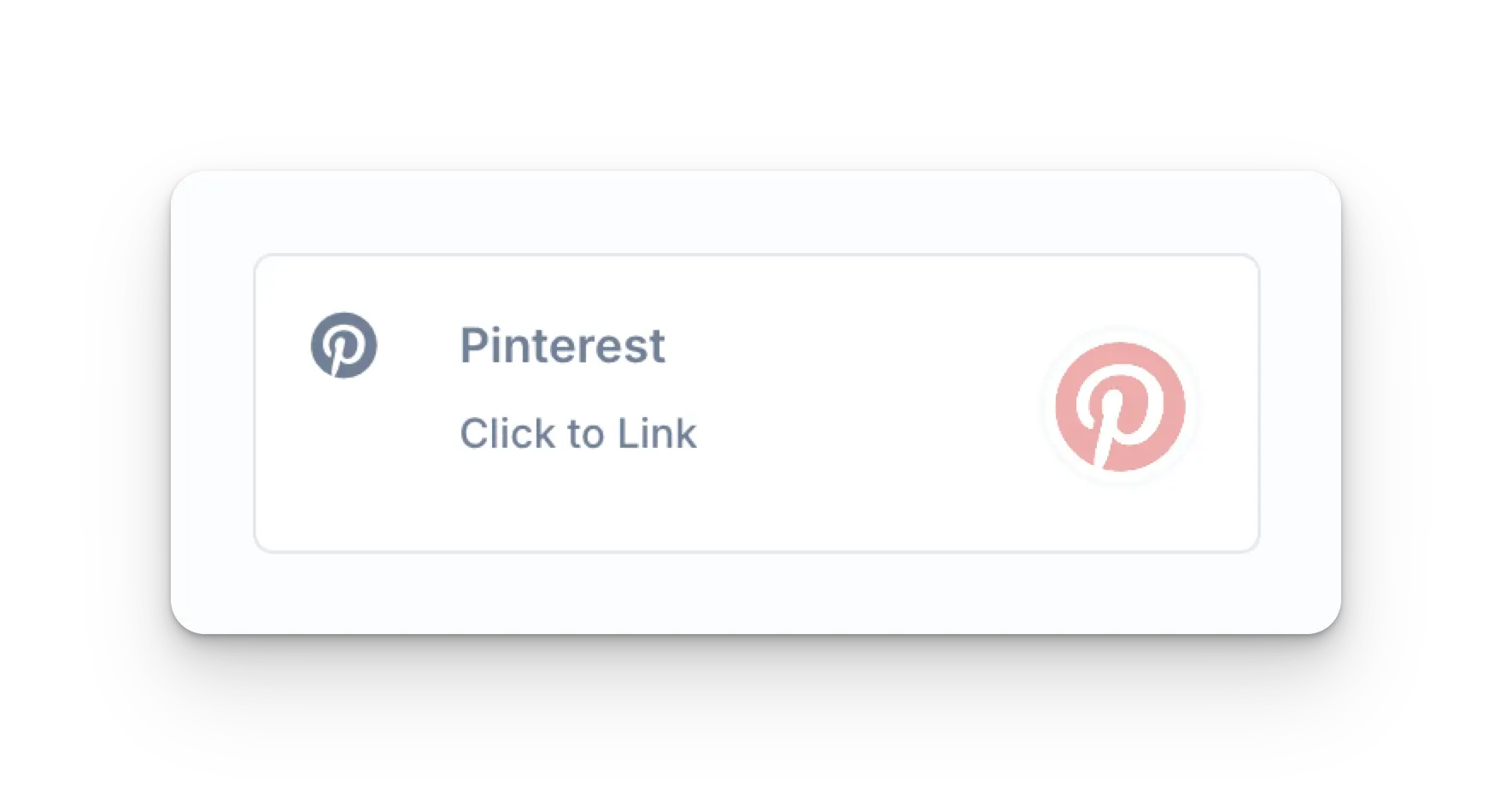
انقر على أيقونة Pinterest في صفحة Social Accounts.
### ربط Pinterest
انقر على أيقونة Pinterest في صفحة Social Accounts.
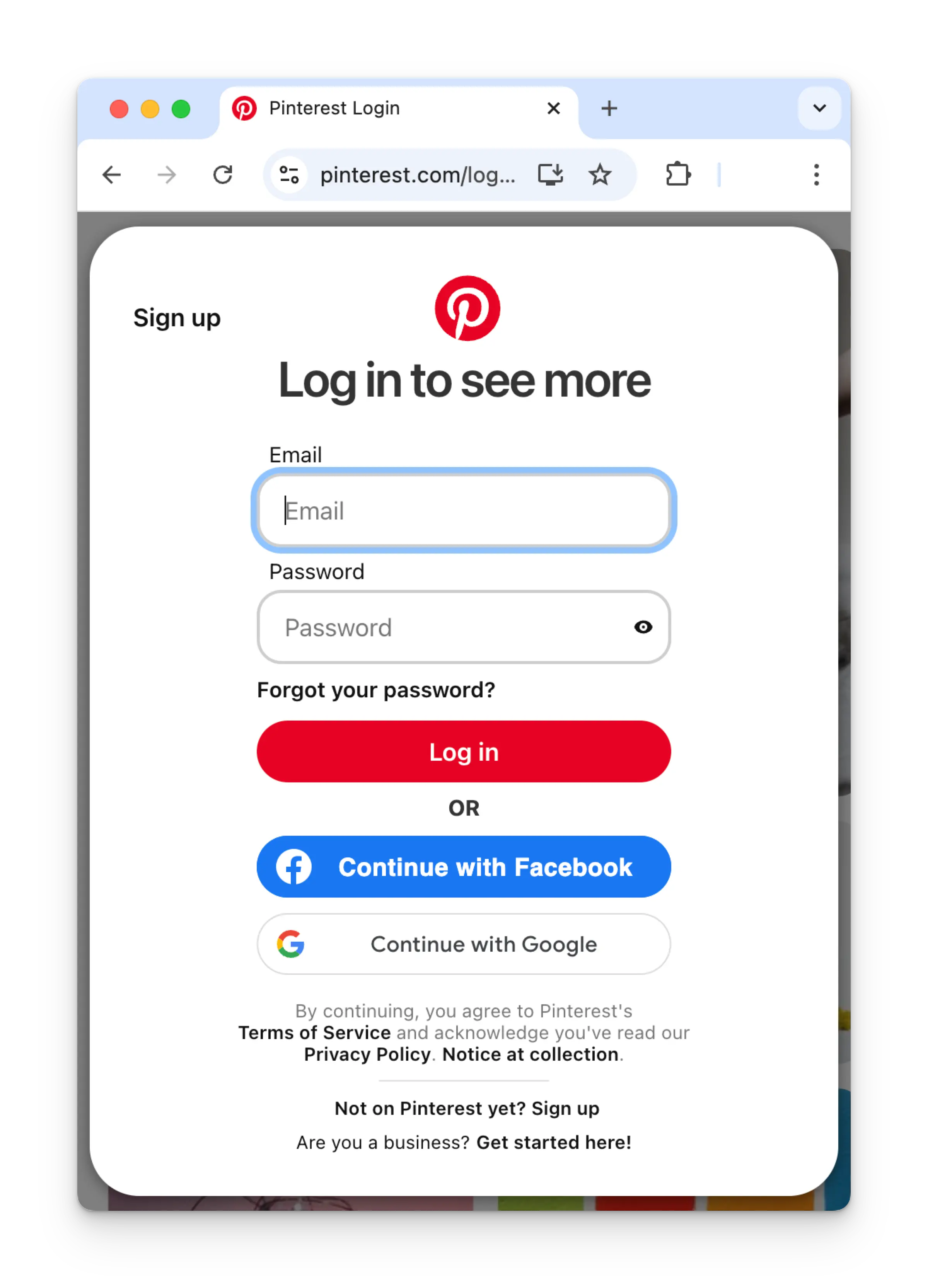
 إذا لم تكن قد سجّلت دخولك بعد، فستنتقل إلى صفحة تسجيل الدخول في Pinterest.
أدخِل بيانات اعتمادك وفقًا لذلك.
إذا كنت قد سجّلت دخولك بالفعل، يُرجى الانتقال إلى الخطوة التالية.
إذا لم تكن قد سجّلت دخولك بعد، فستنتقل إلى صفحة تسجيل الدخول في Pinterest.
أدخِل بيانات اعتمادك وفقًا لذلك.
إذا كنت قد سجّلت دخولك بالفعل، يُرجى الانتقال إلى الخطوة التالية.
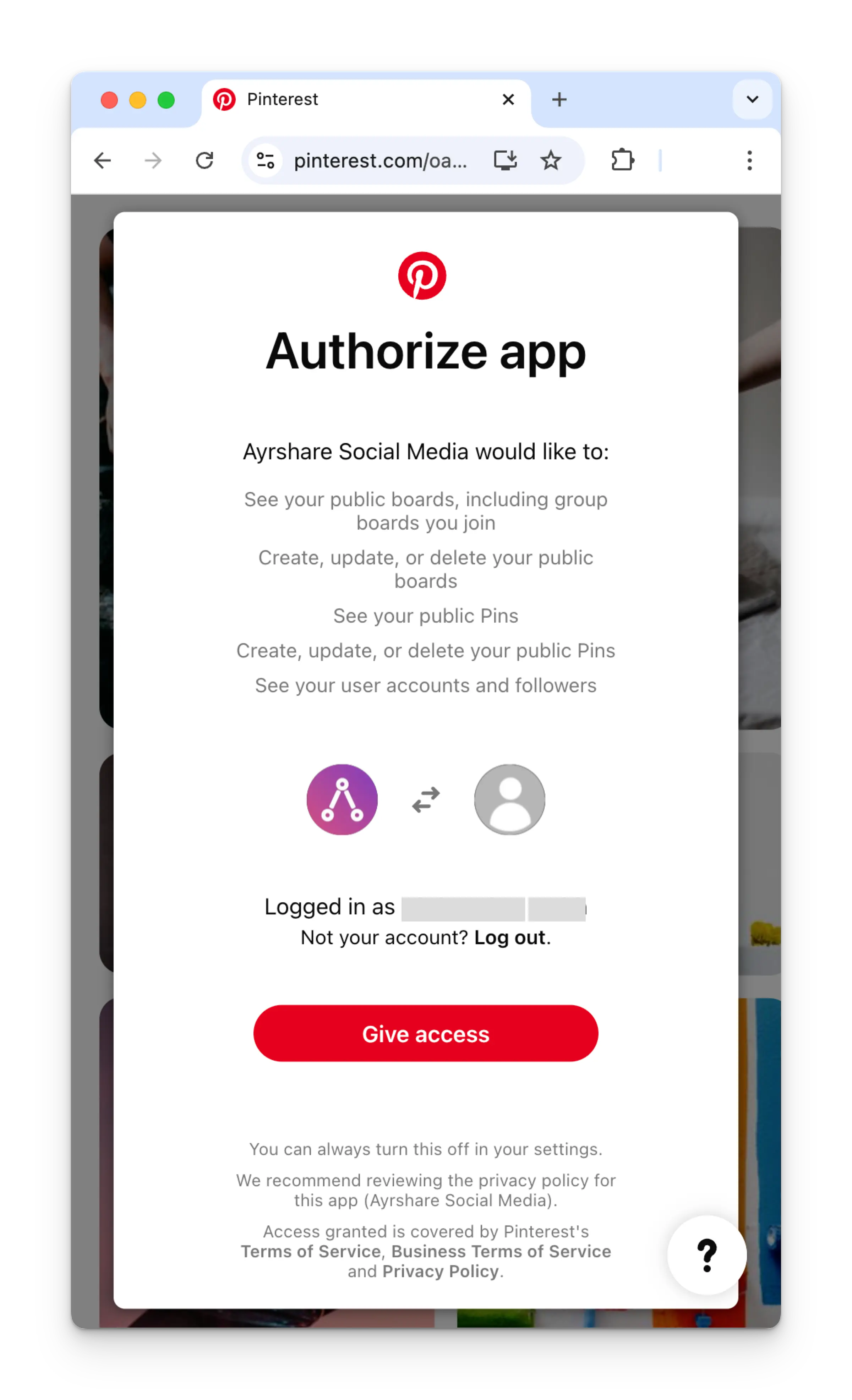
 إذا كنت قد سجّلت دخولك بالفعل، انقر على **Give access** في صفحة Authorize app.
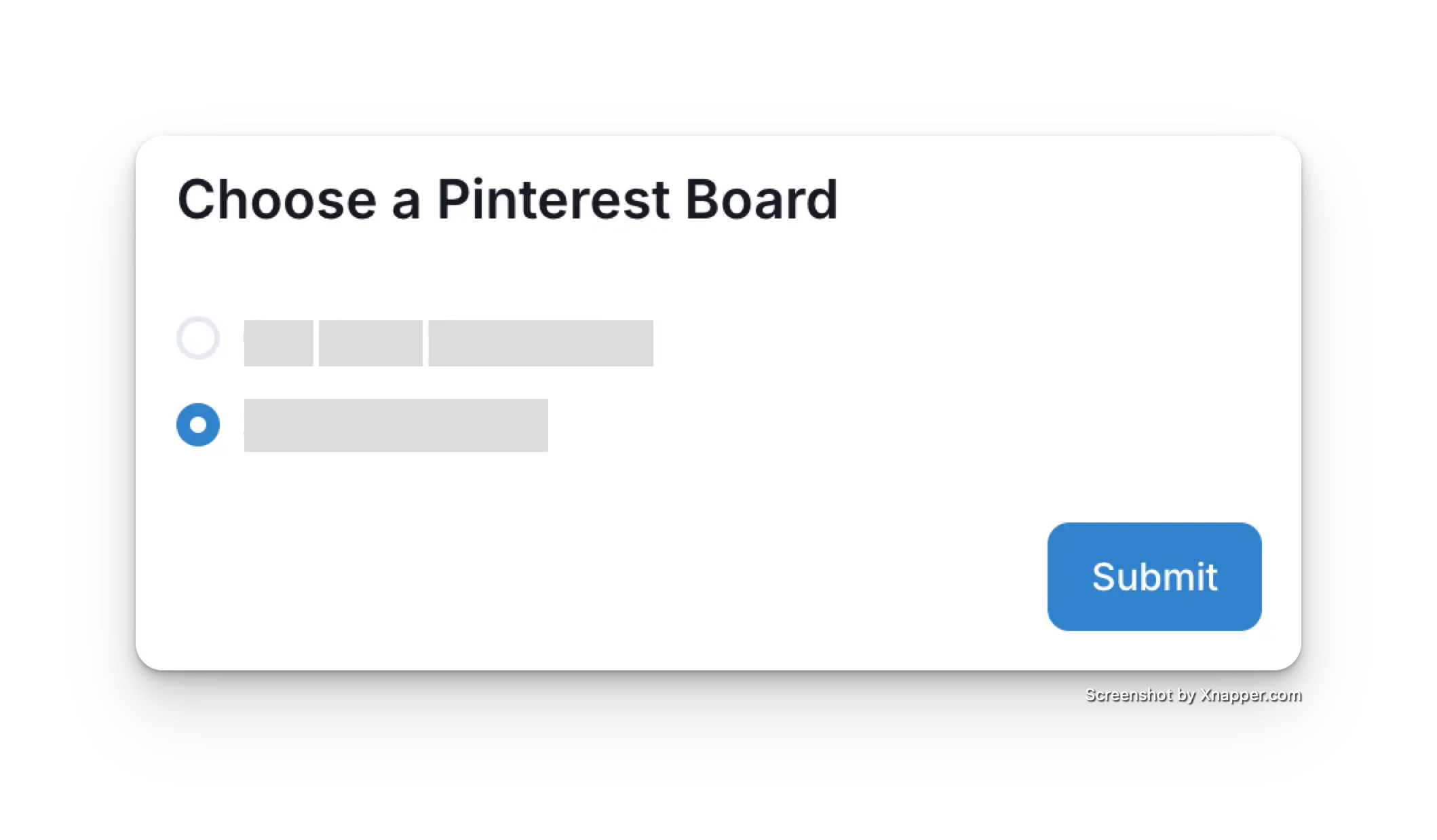
 بعد العودة إلى لوحة تحكم Ayrshare، اختر لوحة Pinterest المراد ربطها.
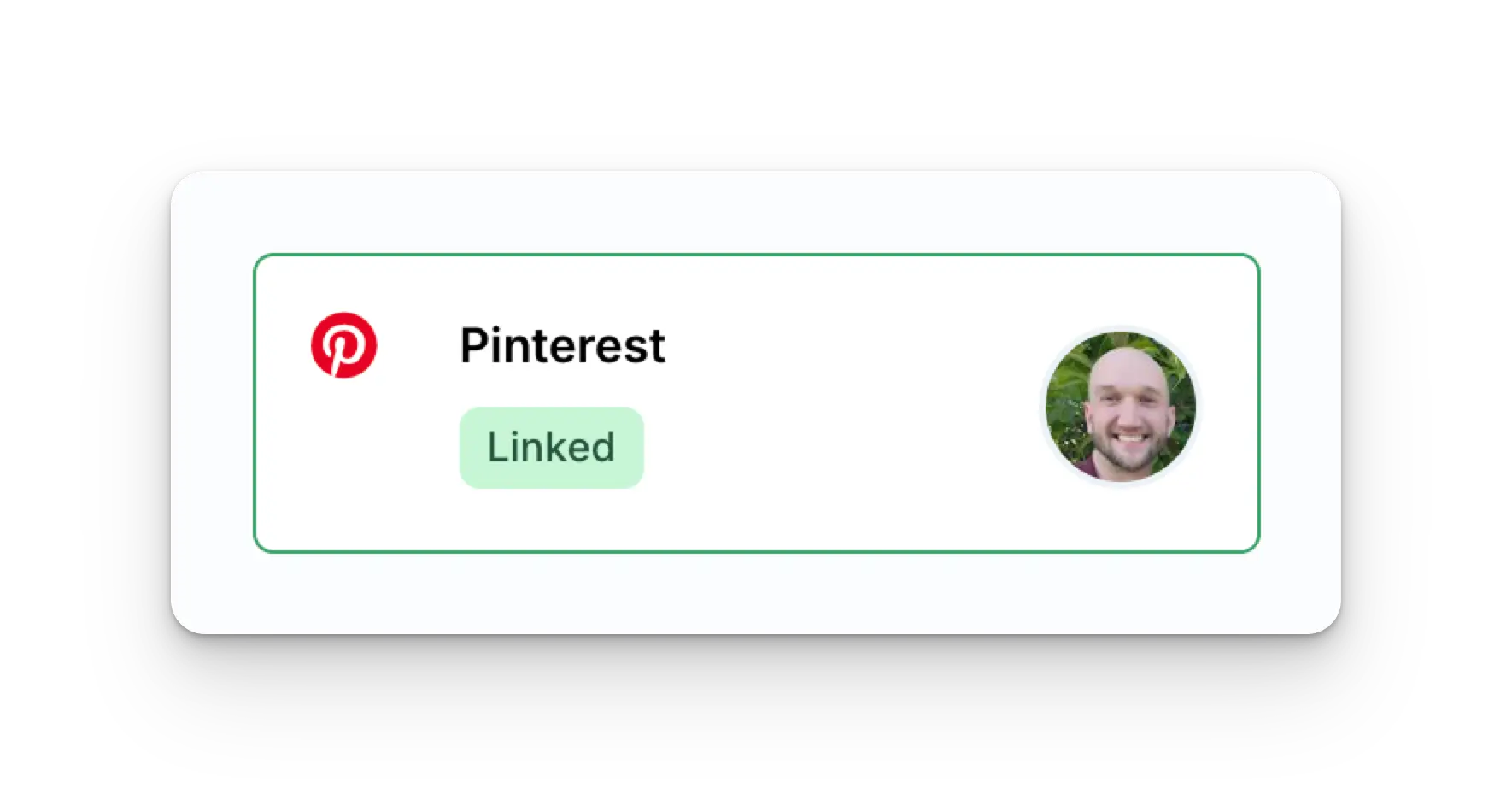
 ستُحدَّث الآن صفحة Social Accounts الخاصة بك بحساب Pinterest الخاص بك.
 ## معلومات إضافية عن Pinterest
* يُرجى الاطلاع هنا للحصول على تفاصيل حول
[النشر إلى Pinterest](/apis/post/social-networks/pinterest)،
[الحصول على التحليلات](/apis/analytics/overview)،
[إدارة التعليقات](/apis/comments/overview)، أو
[استرجاع السجل.](/apis/history/overview)
* لمزيد من المعلومات حول أحجام الصور الموصى بها، يُرجى الاطلاع على:
## معلومات إضافية عن Pinterest
* يُرجى الاطلاع هنا للحصول على تفاصيل حول
[النشر إلى Pinterest](/apis/post/social-networks/pinterest)،
[الحصول على التحليلات](/apis/analytics/overview)،
[إدارة التعليقات](/apis/comments/overview)، أو
[استرجاع السجل.](/apis/history/overview)
* لمزيد من المعلومات حول أحجام الصور الموصى بها، يُرجى الاطلاع على: