> ## Documentation Index
> Fetch the complete documentation index at: https://www.ayrshare.com/docs/llms.txt
> Use this file to discover all available pages before exploring further.
# YouTube API
> 使用 YouTube API 发布内容的选项
YouTube 发布要求你的 YouTube 账户至少拥有一个频道,并且是该频道的所有者。
要创建 YouTube 频道,请在 YouTube 仪表板上点击你的个人资料并选择 "Create a Channel"。
你也可以使用此直接链接创建 YouTube 频道:[http://m.youtube.com/create\_channel](http://m.youtube.com/create_channel)
如果你在查看 YouTube 频道时遇到问题,请参见 [YouTube 频道故障排除指南](/help-center/technical-support/youtube_channels_not_showing)。
YouTube 上传失败可能会返回错误代码 **453**(超时)或 **454**
(服务不可用),并带有 `retryAvailable: true`。你的集成可以根据此
标志自动使用退避策略重试瞬时失败。请参见完整列表的
[错误代码参考](/errors/errors-ayrshare)。
更多信息请参见 [YouTube 媒体指南](/media-guidelines/youtube) 和 [YouTube 授权](/dashboard/connect-social-accounts/youtube)。
## 发布到 YouTube
### 发布概览
使用 YouTube API 发布需要 `youTubeOptions` 对象,其中至少包含 `title` 参数 - 最多 100 个字符。
`title` 是唯一必填字段,可以使用 [transcribe 端点](/apis/generate/transcribe-video) 自动生成。
例如,要以默认设置发布 YouTube 视频:
```json YouTube Post theme={"system"}
{
// Required: Video description
"post": "My Best YouTube Description", // empty string is allowed
// Required: Platform to post to
"platforms": ["youtube"],
// Required: URL of video (only 1 allowed)
"mediaUrls": ["https://img.ayrshare.com/012/vid.mp4"],
"youTubeOptions": {
// Required: Video title (max 100 characters)
"title": "Your Best Title"
}
}
```
YouTube 视频默认为 `private`,但可见性可以设置为 `public` 或 `unlisted`。
详情请参见下面的可选字段。
### YouTube 帖子可选字段
下面列出了其他几个可选字段,包括视频 `visibility`、`tags` 和 `publishAt` 日期。请查看注释以了解要求和描述。
```json YouTube Post Optional Fields theme={"system"}
{
// Required fields
"post": "My Best YouTube Description", // Video description, up to 5,000 characters
"platforms": ["youtube"], // Platform to post to
"mediaUrls": ["https://img.ayrshare.com/012/vid.mp4"], // URL of video (1 allowed)
"youTubeOptions": {
// Required fields
"title": "Your Best Title", // Video Title (max 100 characters)
/** Optional Fields **/
// Visibility: "public", "unlisted", or "private" (default: "private")
"visibility": "private",
// Thumbnail settings - JPEG/PNG URL under 2MB, must end in png/jpg/jpeg
"thumbNail": "https://img.ayrshare.com/012/gb.jpg",
// Video organization
"playListId": "PLrav6EfwgDX5", // Playlist ID to add the video
"tags": ["dancing", "dogs"], // Tag array (400 chars total, 2+ chars each)
// Video settings
"madeForKids": false, // Self-declared kids content (default: false)
"license": "youtube", // "youtube" (default) or "creativeCommon"
"embeddable": true, // default: true
"publicStatsViewable": true, // default: true
"shorts": true, // Post as YouTube Short (max 3 minutes, adds #shorts)
"notifySubscribers": true, // Send notification to subscribers (default: true)
"categoryId": 24, // Video category (24 = Entertainment)
"containsSyntheticMedia": true, // Disclose that a video contains realistic Altered or Synthetic (A/S) content
// YouTube controlled publishing - UTC publish time. See below for details.
"publishAt": "2022-10-08T21:18:36Z",
}
}
```
- `title` 必须为 100 个字符或更少。`post` 必须为 5,000 个字符或更少。`post` 和 `title` 可以包含除 \< 和 > 之外的任何字符。
- 可以通过在浏览器中打开播放列表并复制 `list=` 后的值找到 Playlist Id。经过身份验证的用户和频道必须是播放列表的所有者才能添加视频。
- 如果你的视频不是以已知的视频扩展名(如 mp4)结尾,请使用 `isVideo` 参数。详情请参见 [/post 端点](/apis/post/post)。
- `publishAt` 字段允许 YouTube 控制发布时间。
视频将保持私有,直到发布时间时变为公开。
如果发布时间在过去,视频将立即变为公开。
使用 `publishAt` 字段时,不要使用帖子的 `scheduleDate` 字段。
- `containsSyntheticMedia` 字段用于披露视频包含真实的更改或合成 (A/S) 内容:让真实的人看起来说过或做过他们实际上并未说过或做过的事情、更改真实事件或地点的画面、生成实际上并未发生的看似真实的场景。
- `license` - 设置视频许可类型。接受的值:`"youtube"`(标准 YouTube 许可,默认)或 `"creativeCommon"`(Creative Commons - 署名)。
- `embeddable` - 布尔值(或字符串 `"true"` / `"false"`)。控制视频是否可以嵌入到第三方网站。默认:`true`。
- `publicStatsViewable` - 布尔值(或字符串 `"true"` / `"false"`)。控制视频观看页面上的**扩展统计面板**是否公开可见。无论此设置如何,基本的观看次数和喜欢数保持公开可见。默认:`true`。详情请参见 [YouTube Data API 参考中的 `status.publicStatsViewable`](https://developers.google.com/youtube/v3/docs/videos#status.publicStatsViewable)。
- 更多信息请参见 [YouTube 媒体指南](/media-guidelines/youtube)。
**变现和内容控制**
`madeForKids`、`license`、`embeddable` 和 `publicStatsViewable` 字段可以在上传时通过 Ayrshare API 设置。但是,直接变现开关(启用/禁用广告)、广告类型选择(前贴片、中贴片、后贴片)、收入分成和 Content ID 需要 YouTube CMS 凭据 — 仅供 MCN 和企业内容所有者使用 — 并且**不能**通过标准的 YouTube OAuth 或 Ayrshare API 使用。
## YouTube Shorts
YouTube Short 是一种短篇竖屏视频,长度最长可达 3 分钟。
它们类似于 TikTok 视频和 Instagram 或 Facebook Reels。
### 发布 YouTube Shorts
你可以通过在 `youTubeOptions` 对象中添加 `shorts` 参数发布最长 3 分钟的 YouTube Shorts 视频。
```json YouTube Shorts Post theme={"system"}
{
"youTubeOptions": {
"shorts": true
}
}
```
#shorts 话题标签将被添加到 YouTube 描述中。
### YouTube Shorts 的重要信息
-
将视频作为 Short 发送是向 YouTube 表明你希望视频显示为 Short,
但并不保证它会显示为 Short。视频必须满足 [Short
视频](/media-guidelines/youtube#shorts) 的要求,例如时长在 3 分钟或以内,且
宽高比为 9:16 的垂直方向,才会被 YouTube 视为 Short。
- YouTube Shorts 不支持缩略图。
-
有关使用 [API 发布 YouTube
Shorts](https://www.ayrshare.com/blog/post-youtube-shorts-with-an-api/) 的更多信息。
## YouTube 缩略图
自定义缩略图需要**已验证的 YouTube 频道**。缩略图无法应用(同时视频仍成功发布)的最常见原因是频道未经验证 — 请在 [https://www.youtube.com/verify](https://www.youtube.com/verify) 验证(电话验证)。你的 `thumbNail` 还必须是 **PNG 或 JPG/JPEG**,**大小为 2MB 或更小**,并从**可访问的 URL** 提供;Ayrshare 会在可能的情况下在发布前验证这些。当视频发布但缩略图失败时,YouTube 结果保持 `status: "success"` 并添加一个 `warnings` 数组(`feature: "thumbnail"`,`code: 307`)描述失败原因。请参见 [YouTube 缩略图未应用(未验证频道)](/help-center/technical-support/youtube_thumbnail_unverified_channel) 以获取完整的修复方法。
### 添加 YouTube 缩略图
YouTube 缩略图和其他功能(例如上传 15 分钟视频)需要验证你的电话号码。
`thumbNail` 是 JPEG 或 PNG 的 URL,大小小于 2MB。文件扩展名必须以 png、jpg 或 jpeg 结尾。
```json YouTube Thumbnail theme={"system"}
{
"youTubeOptions": {
"thumbNail": "https://img.ayrshare.com/012/gb.jpg"
}
}
```
YouTube Shorts 目前不支持缩略图。
### 在 YouTube Studio 中启用缩略图
你必须获得发布缩略图的 YouTube 权限。在 [YouTube Studio](https://studio.youtube.com/) 中转到 *Settings->Channel*。选择 "*Feature Eligibility*" 并点击 "*Features that require phone verification*"。输入你的电话号码以启用。
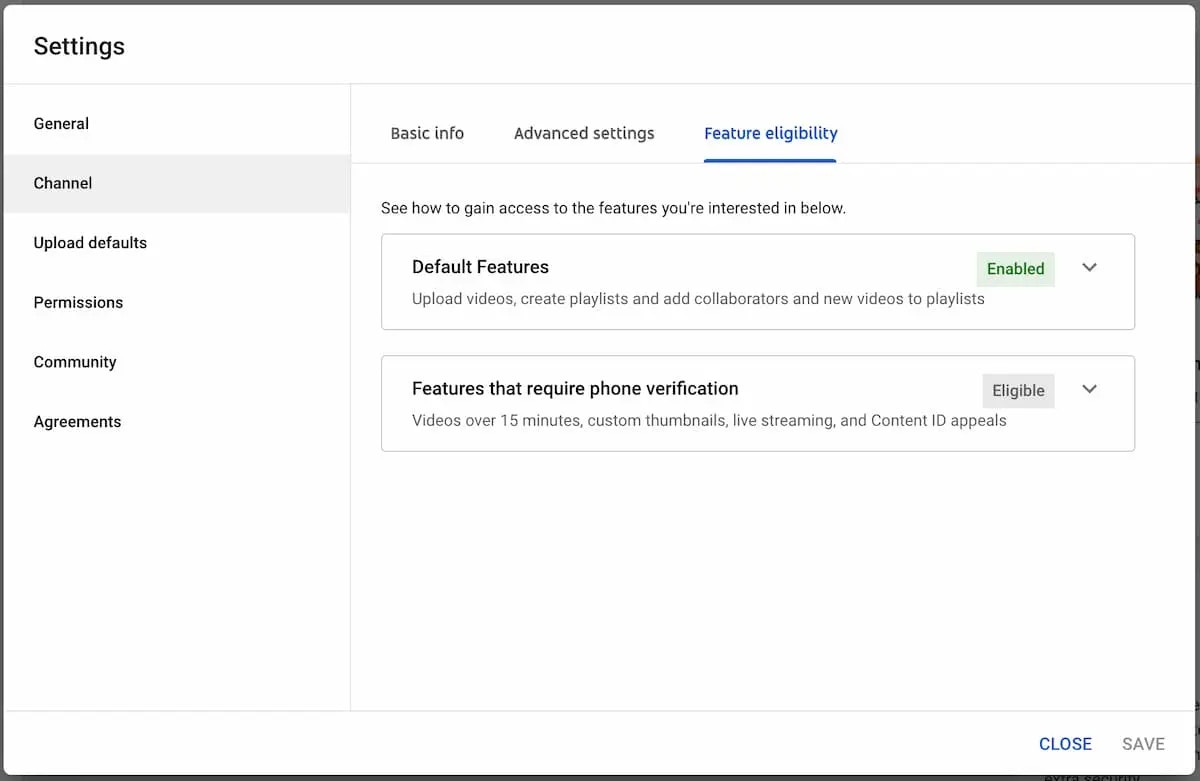 在你验证电话号码后,YouTube 可能需要长达 24 小时才能启用缩略图。请注意,YouTube 决定添加缩略图的资格。"已启用" 的电话验证并不保证 YouTube 允许上传缩略图。
如果你已验证 24 小时后仍有问题,请检查:
1. 你能否在 YouTube Studio 中手动上传缩略图。
2. 如果你使用的是品牌内容所有者账户(通常用于企业或组织频道),请确保你具有必要的权限。我们建议使用 "所有者" 权限。
3. 如果你仍然遇到问题,请查看此 [解决缩略图问题](https://www.youtube.com/watch?v=1bFmX2uQk0Y) 视频。
## 视频:通过 API 发布到 YouTube
## 上传限制
YouTube 通过 YouTube API 限制一个频道在 24 小时内可以上传的视频数量。
在你验证电话号码后,YouTube 可能需要长达 24 小时才能启用缩略图。请注意,YouTube 决定添加缩略图的资格。"已启用" 的电话验证并不保证 YouTube 允许上传缩略图。
如果你已验证 24 小时后仍有问题,请检查:
1. 你能否在 YouTube Studio 中手动上传缩略图。
2. 如果你使用的是品牌内容所有者账户(通常用于企业或组织频道),请确保你具有必要的权限。我们建议使用 "所有者" 权限。
3. 如果你仍然遇到问题,请查看此 [解决缩略图问题](https://www.youtube.com/watch?v=1bFmX2uQk0Y) 视频。
## 视频:通过 API 发布到 YouTube
## 上传限制
YouTube 通过 YouTube API 限制一个频道在 24 小时内可以上传的视频数量。
-
根据创作者的位置,频道可能可以通过获得高级功能的访问权限来增加其每日限制。
要了解更多信息,请访问此
[文章](https://notifications.google.com/g/p/ACnX6LbjUElgT-OfRLVjenkpdldv6pIJ5JYGZyPGTdJwRYmo3fXFkfXJsPGnswgns0BjJ6Bjxn2bqpqfBt6gBdkLoqESKA7mqLNllzcR2qnYUJn5KlJN5jPqCWl6DGr58cZEt94mMvxXATN6_PaBR1RYEpNMTYWN)。
-
限制可能因国家/地区或频道历史而异。版权警告可能会影响频道
历史资格,[社区准则
警告](https://support.google.com/youtube/answer/2802032) 会影响频道可以上传的
数量。
如果你收到上传限制错误,请等待 24 小时后再试。
## 描述链接
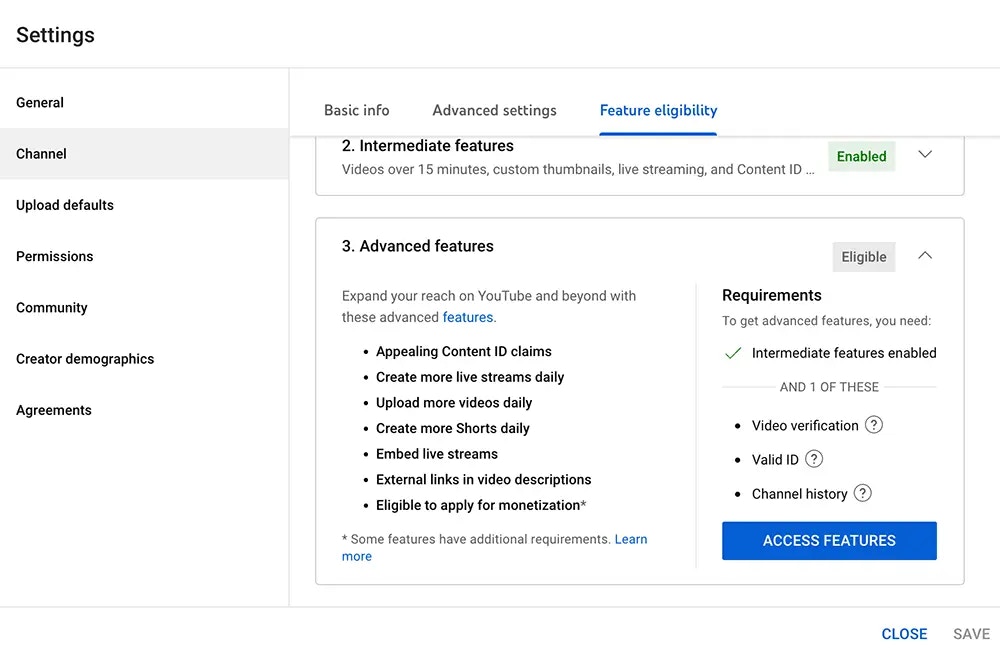
你必须在 YouTube Studio 中激活 **高级功能** 才能在 YouTube 视频描述中拥有可点击的链接。
转到 **YouTube Studio -> Settings -> Channel -> Feature Eligibility -> Advanced Features -> Access Features** 以激活高级功能。
 ## 播放列表
你可以通过在 `youTubeOptions` 对象中包含 `playListId` 将视频添加到 YouTube 播放列表。
请确保经过身份验证的用户和频道是该播放列表的所有者。
```json YouTube Playlist theme={"system"}
{
"youTubeOptions": {
"playListId": "PLrav6EfwgDX5"
}
}
```
## 视频字幕/说明
你可以通过包含 [SRT 文件](https://en.wikipedia.org/wiki/SubRip) 或 YouTube [SBV 文件](https://support.google.com/youtube/answer/2734698) 为视频添加 YouTube 字幕(也称为 YouTube 说明)。使用 `youTubeOptions` 对象中的 `subTitleUrl` 字段指定你的 SRT 或 SBV 文件的 URL。
```json YouTube Subtitles theme={"system"}
{
"youTubeOptions": {
"title": "My new post from Ayrshare to Youtube",
"subTitleUrl": "https://img.ayrshare.com/012/captions.srt",
"subTitleLanguage": "en",
"subTitleName": "English"
}
}
```
## 播放列表
你可以通过在 `youTubeOptions` 对象中包含 `playListId` 将视频添加到 YouTube 播放列表。
请确保经过身份验证的用户和频道是该播放列表的所有者。
```json YouTube Playlist theme={"system"}
{
"youTubeOptions": {
"playListId": "PLrav6EfwgDX5"
}
}
```
## 视频字幕/说明
你可以通过包含 [SRT 文件](https://en.wikipedia.org/wiki/SubRip) 或 YouTube [SBV 文件](https://support.google.com/youtube/answer/2734698) 为视频添加 YouTube 字幕(也称为 YouTube 说明)。使用 `youTubeOptions` 对象中的 `subTitleUrl` 字段指定你的 SRT 或 SBV 文件的 URL。
```json YouTube Subtitles theme={"system"}
{
"youTubeOptions": {
"title": "My new post from Ayrshare to Youtube",
"subTitleUrl": "https://img.ayrshare.com/012/captions.srt",
"subTitleLanguage": "en",
"subTitleName": "English"
}
}
```
-
`subTitleUrl`:有效的 SRT 或 SBV 文件。URL 必须以 `https://` 开头,以 `.srt` 或
`.sbv` 结尾,并且是有效的 SRT 或 SBV 文件。文件必须小于 100 MB。
-
`subTitleLanguage`:可选:字幕的语言。必须是有效的 [语言
代码](/iso-codes/language)。默认:"en"。
-
`subTitleName`:可选:字幕轨道的名称。该名称旨在
在播放期间作为选项对用户可见。支持的最大名称长度为 150 个字符。
默认:"English"。
**什么是 SRT 和 SBV 文件?**
SRT (SubRip Subtitle) 和 SBV (YouTube SubViewer) 是字幕文件格式,用于在视频中显示
带时间的文本。主要区别在于 SRT 使用 HH:MM:SS,MS 格式的时间戳,配以
箭头分隔符,而 SBV 使用 HH:MM:SS.MS 格式,配以逗号。
```text theme={"system"}
## SRT Format Example
1
00:00:01,000 --> 00:00:04,000
Welcome to our tutorial on subtitle formats.
2
00:00:04,500 --> 00:00:08,000
Today we'll learn about SRT and SBV files.
## SBV Format Example
0:00:01.000,0:00:04.000
Welcome to our tutorial on subtitle formats.
0:00:04.500,0:00:08.000
Today we'll learn about SRT and SBV files.
```
## 标签
你可以通过在 `youTubeOptions` 对象中包含 `tags` 数组为视频添加 YouTube 标签。
每个标签的长度必须至少为 2 个字符,所有标签的总长度必须为 500 个字符或更少。
```json YouTube Tags theme={"system"}
{
"youTubeOptions": {
"tags": ["dancing", "dogs"]
}
}
```
## YouTube 提及
虽然你可以在 YouTube 帖子中添加 `@handle`,但 YouTube 不支持在帖子文本中解析提及。
`@handle` 将保留为纯文本。
## 字符限制
更多信息请参见 [YouTube 字符限制](/help-center/technical-support/character_limits#youtube-character-limits)。
## 其他端点