> ## Documentation Index
> Fetch the complete documentation index at: https://www.ayrshare.com/docs/llms.txt
> Use this file to discover all available pages before exploring further.
# Facebook 关联
> 授权 Facebook 与 Ayrshare 建立连接
## 如何将 Facebook 与 Ayrshare 关联
仅支持 **Facebook Page**。Facebook 不支持个人 Facebook 账号。
请确保你是该 Facebook Page 的管理员,并对 Pages 及相关选项**授予所有权限**。
否则可能导致发布失败。
### 关联 Facebook
在 Social Accounts 页面点击 Facebook 图标。
 会弹出 Facebook 登录窗口 —— *请确保允许弹窗*。
如果你之前已经将 Facebook 与 Ayrshare 关联过,请直接跳到第 4 步。
会弹出 Facebook 登录窗口 —— *请确保允许弹窗*。
如果你之前已经将 Facebook 与 Ayrshare 关联过,请直接跳到第 4 步。
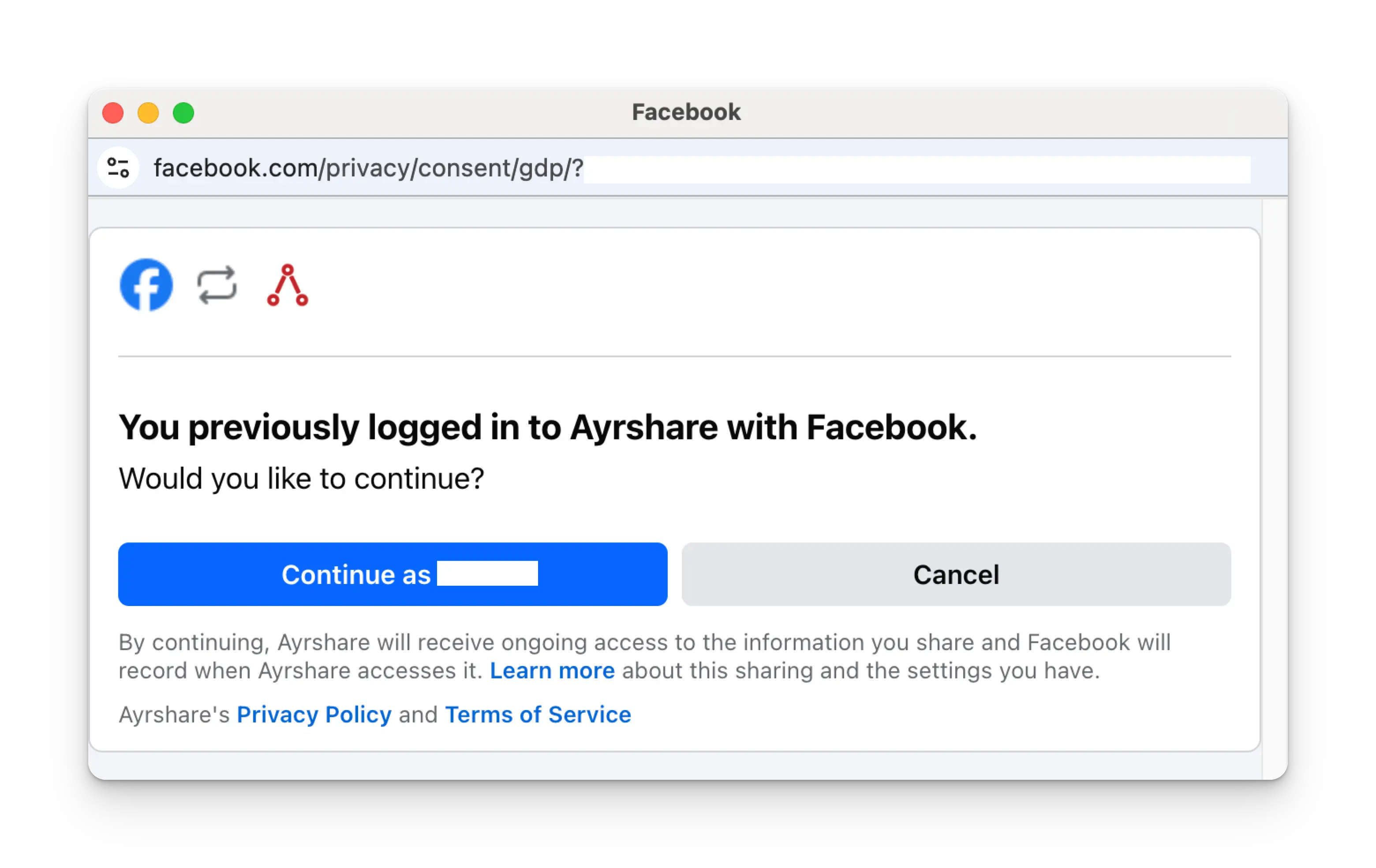
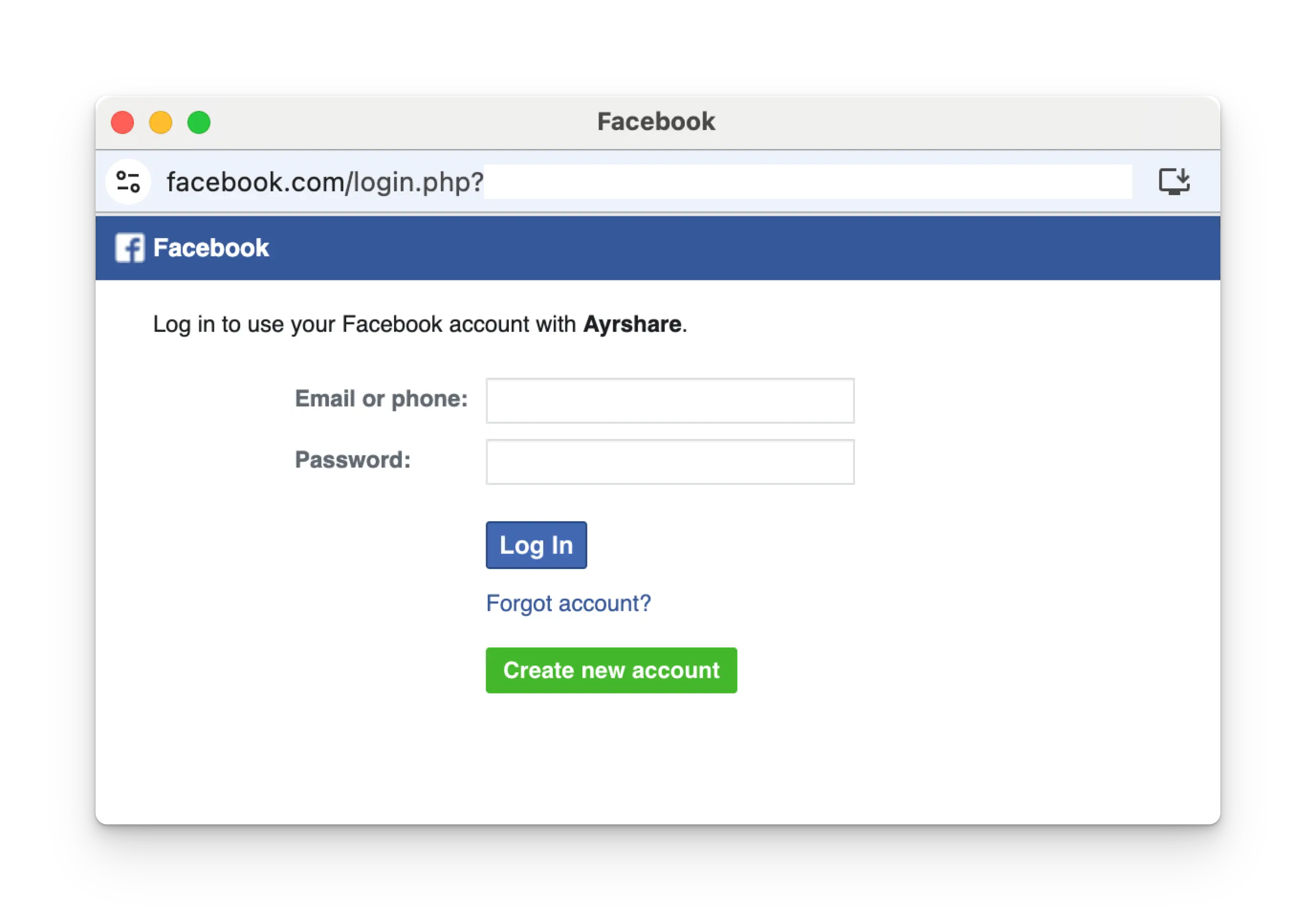 按照指引选择一个要关联的 Facebook Page。
在登录页点击 **Continue as NAME**。
按照指引选择一个要关联的 Facebook Page。
在登录页点击 **Continue as NAME**。
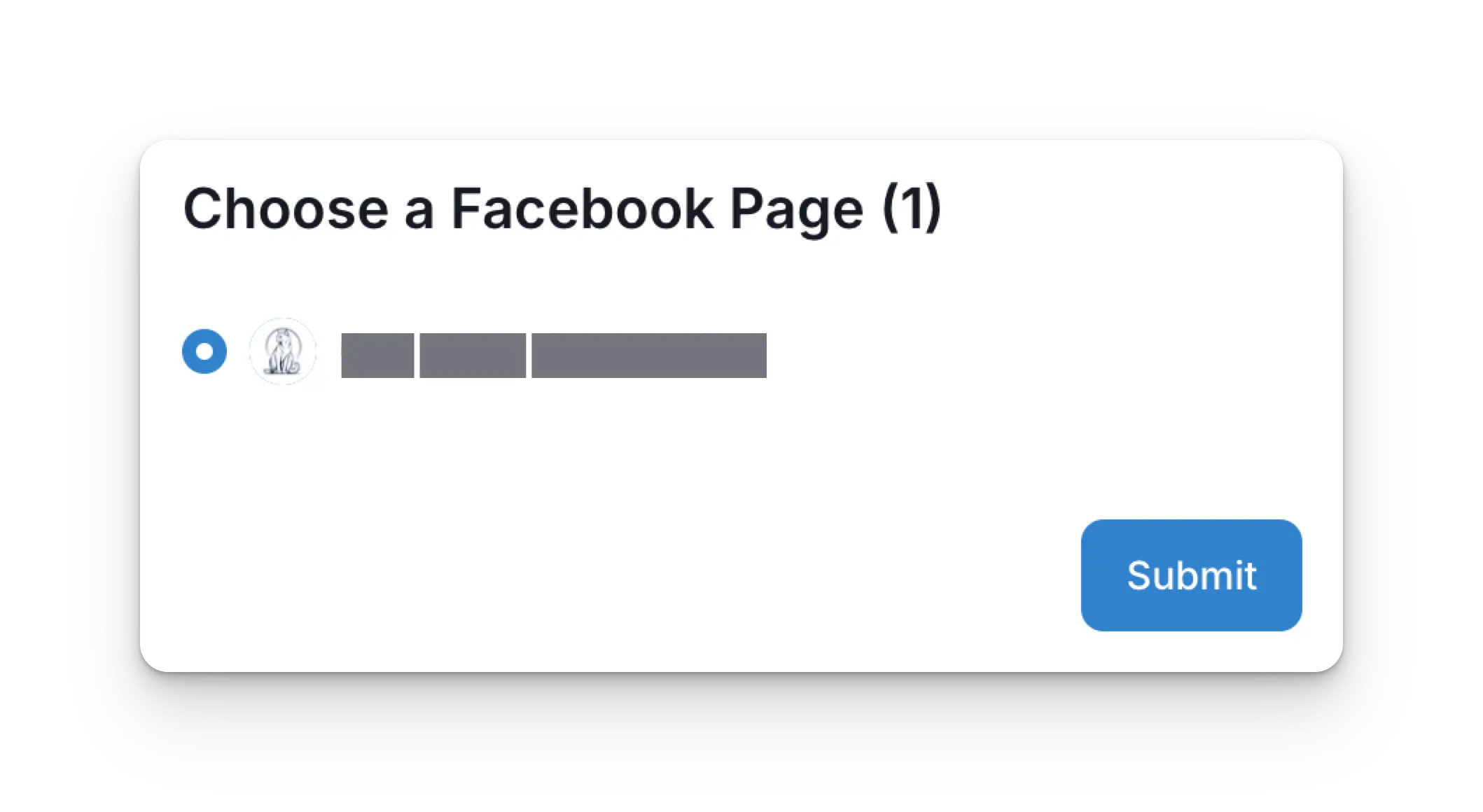
 回到 Ayrshare 控制台后,选择要关联的 Facebook Page,然后点击 **Submit**。
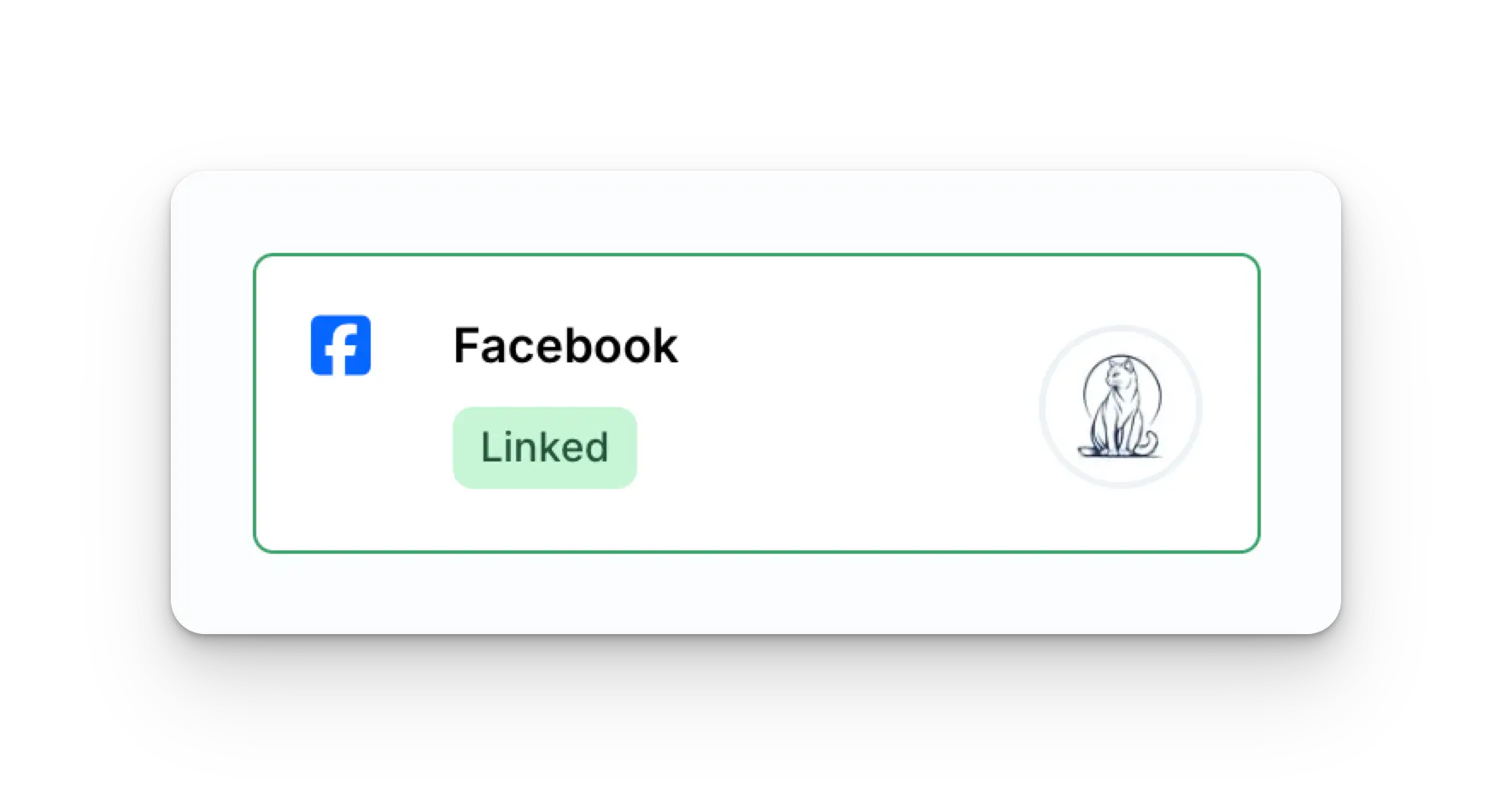
 你的 Social Accounts 页面现在将显示你的 Facebook 账号。
 ## Facebook 故障排查
如果你在使用 Facebook 时遇到问题,请参见[故障排查指南](/help-center/technical-support/facebook_or_instagram_linking_issues)。
## 更多 Facebook 信息
* 请参见以下文档,了解
[发布到 Facebook](/apis/post/social-networks/facebook)、
[获取分析数据](/apis/analytics/overview)、
[管理评论](/apis/comments/overview) 或
[获取历史记录](/apis/history/overview) 的详情。
* 关于推荐图片尺寸的更多信息,请参见:
## Facebook 故障排查
如果你在使用 Facebook 时遇到问题,请参见[故障排查指南](/help-center/technical-support/facebook_or_instagram_linking_issues)。
## 更多 Facebook 信息
* 请参见以下文档,了解
[发布到 Facebook](/apis/post/social-networks/facebook)、
[获取分析数据](/apis/analytics/overview)、
[管理评论](/apis/comments/overview) 或
[获取历史记录](/apis/history/overview) 的详情。
* 关于推荐图片尺寸的更多信息,请参见: