> ## Documentation Index
> Fetch the complete documentation index at: https://www.ayrshare.com/docs/llms.txt
> Use this file to discover all available pages before exploring further.
# Instagram 关联
> 授权 Instagram 与 Ayrshare 建立连接
## 如何关联 Instagram
以下是关联 Instagram 的指南。有两种关联方式:
1. [直接将 Instagram 账号关联到 Ayrshare。](#linking-instagram-directly)
2. [通过 Facebook Page 将 Instagram 账号关联到 Ayrshare。](#linking-instagram-through-facebook-facebook-page-required)
方式 1 为默认方式。如果你更倾向使用方式 2,请在控制台设置中关闭 [Instagram Login](/multiple-users/manage-user-profiles#instagram-login),以启用需要 Instagram 账号绑定 Facebook Page 的认证流程。
Instagram 不支持个人 Facebook 账号、Creator Studio 账号,也不支持发布到 IGTV。
详情[请见下文](/dashboard/connect-social-accounts/instagram#enabling-an-instagram-business-or-creator-account)。
### 直接关联 Instagram
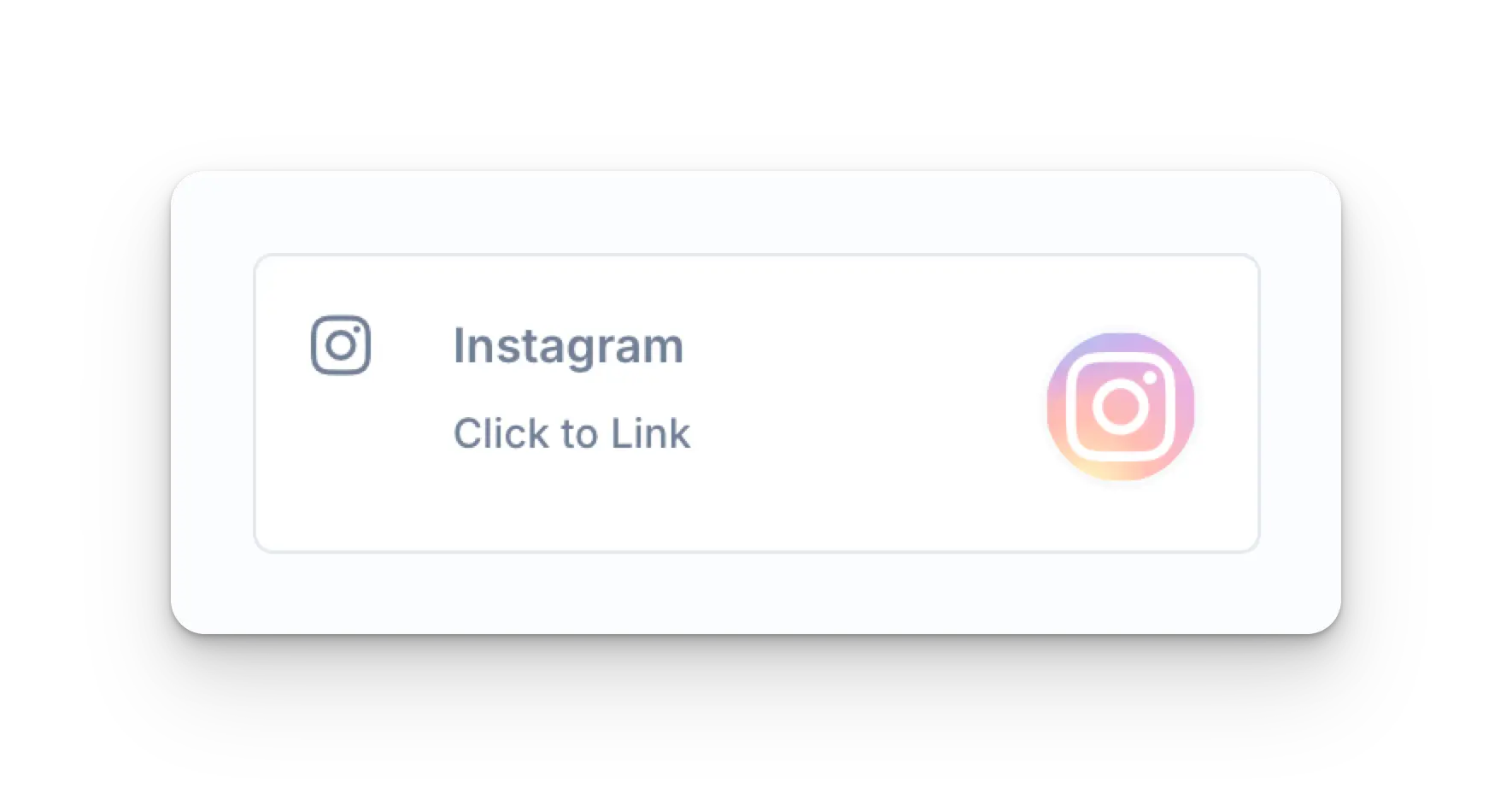
在 Social Accounts 页面点击 Instagram 图标。
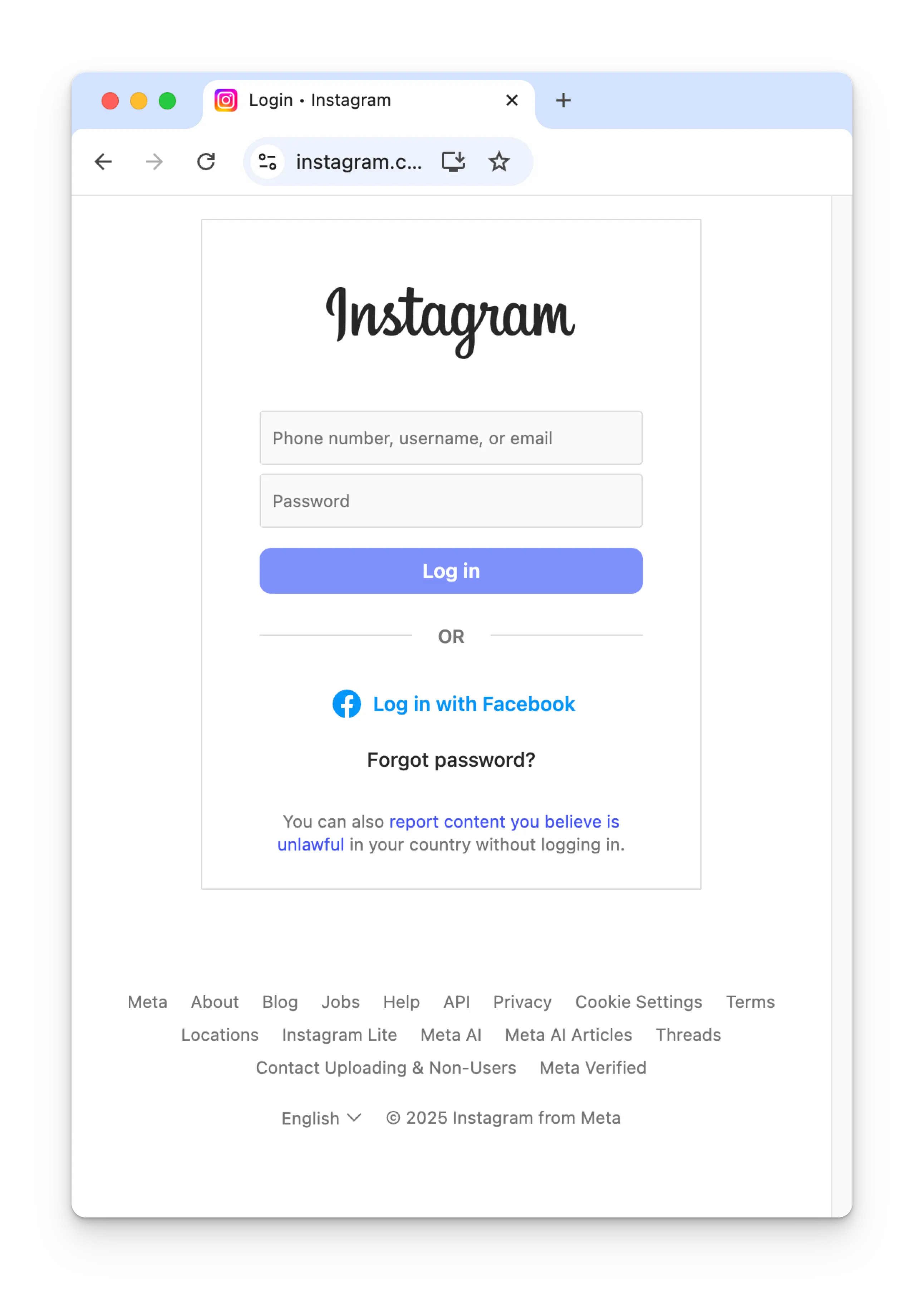
 输入你的账号凭据并点击 **Log in**。
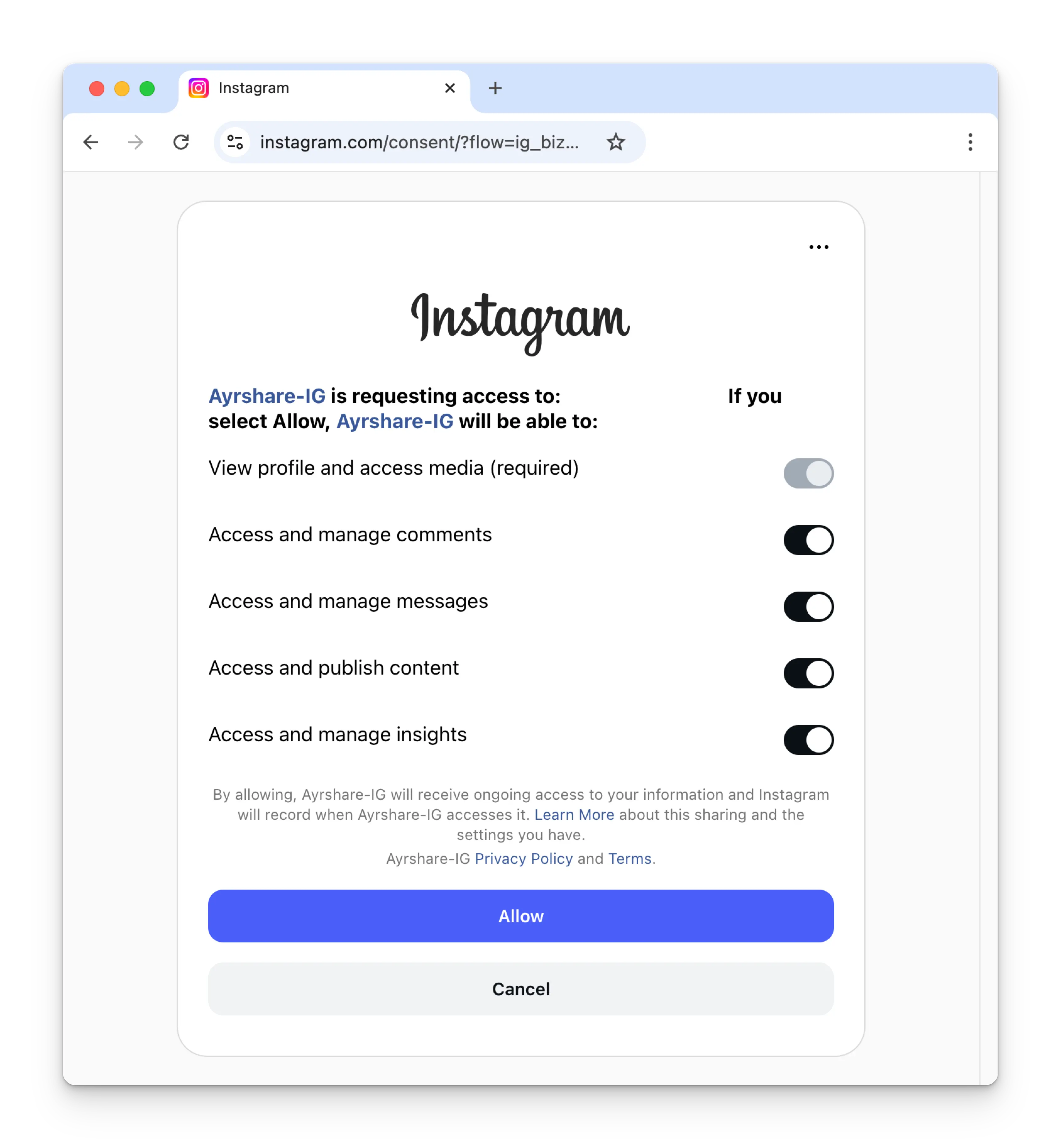
 开启 Instagram 的所有权限并点击 **Allow**。
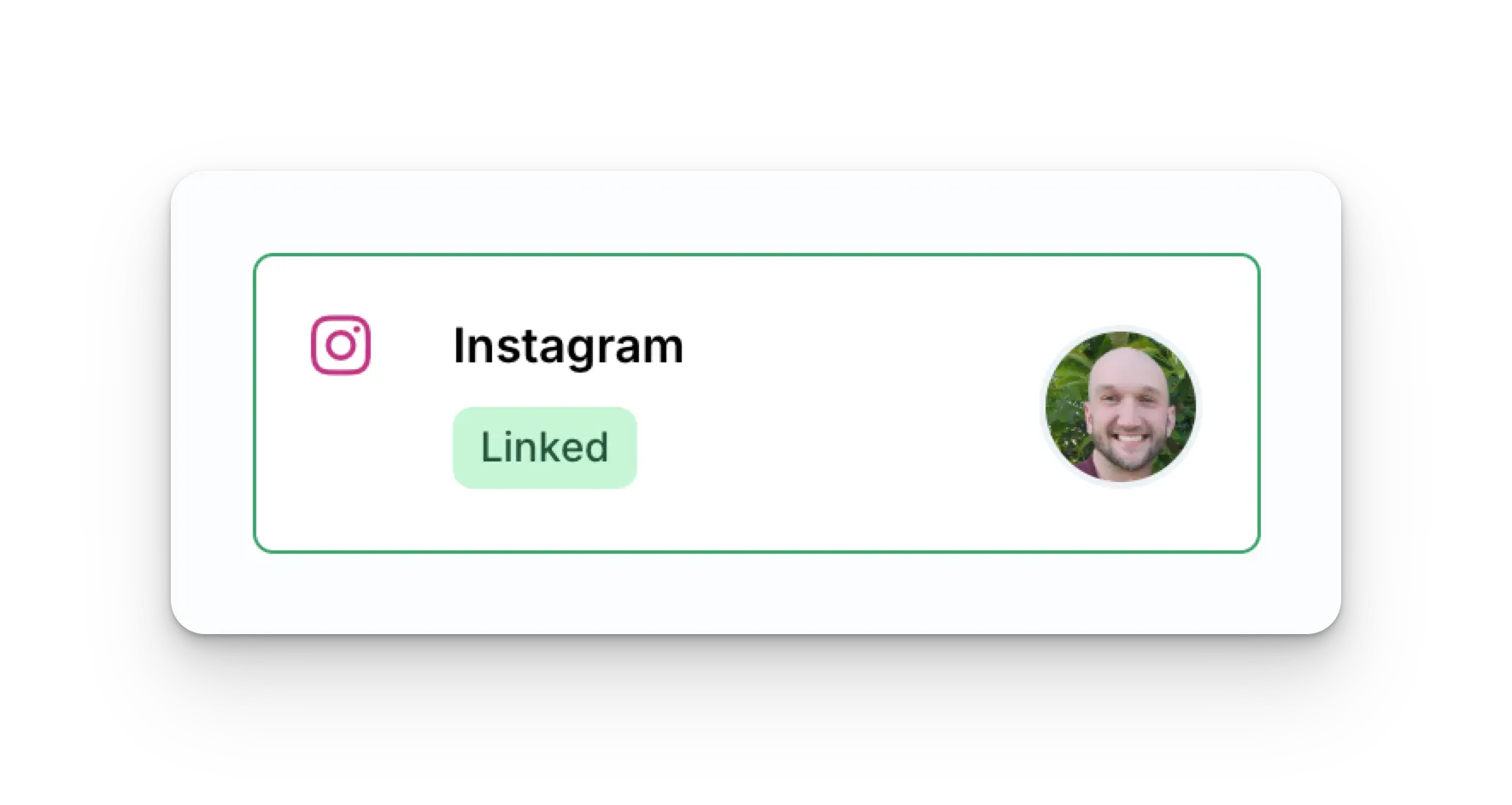
 你的 Social Accounts 页面现在将显示你的 Instagram 账号。
 ### 通过 Facebook 关联 Instagram(需要 Facebook Page)
请确保你是 Facebook Page 的管理员,并对 Pages、Instagram 账号及相关选项
**授予所有权限**。否则可能导致发布失败。
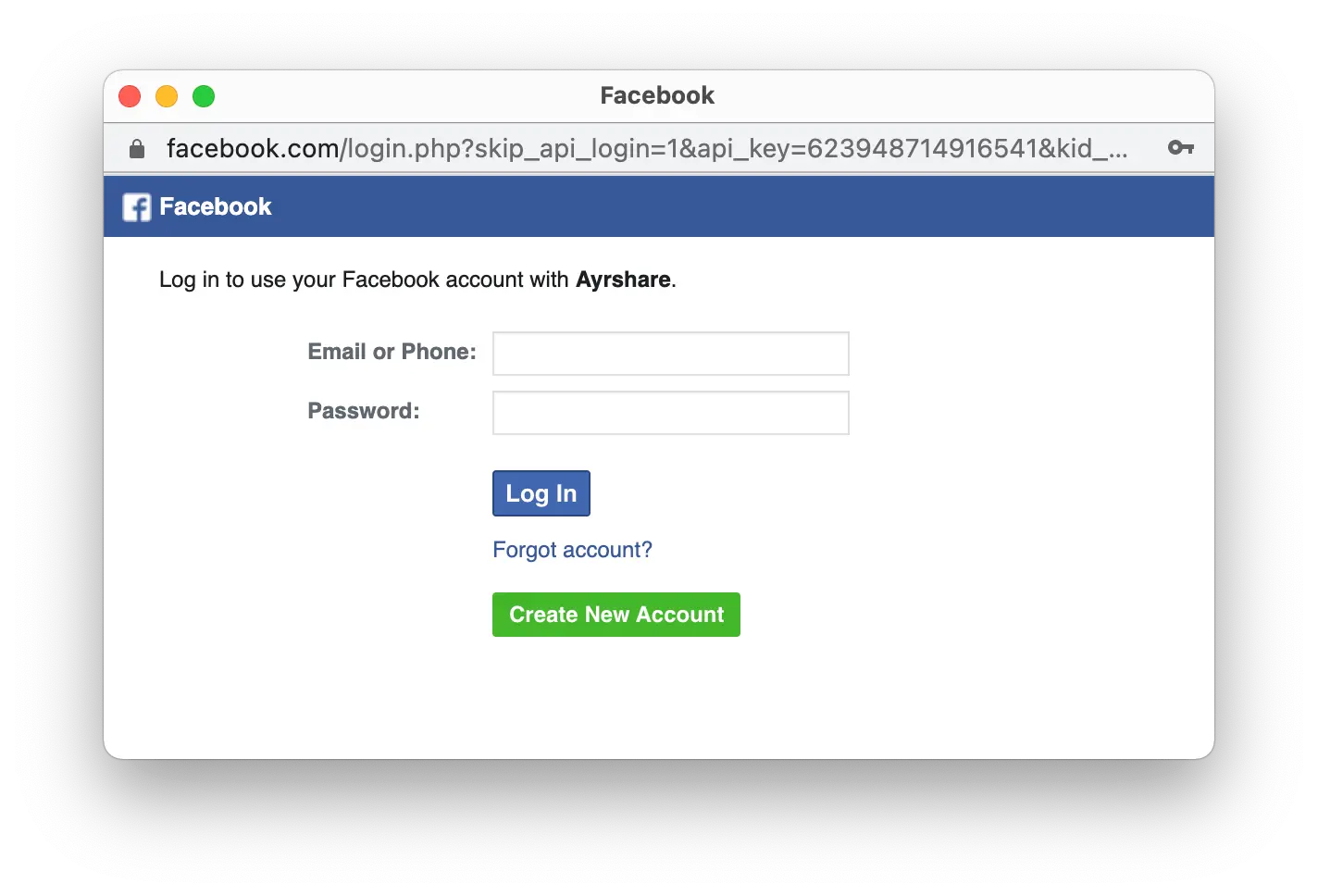
此 Instagram 关联流程通过 Facebook 进行认证,因此当你在 Social Accounts 页面点击 Instagram 图标时,会弹出 Facebook 登录窗口——*请确保允许弹窗*。
在 Social Accounts 页面点击 Instagram 图标。
首次关联 Instagram 时,你会被要求通过 Facebook 进行认证。
如果你之前已经将 Ayrshare 与 Facebook 关联过且未看到该界面,请跳到第 3 步。
### 通过 Facebook 关联 Instagram(需要 Facebook Page)
请确保你是 Facebook Page 的管理员,并对 Pages、Instagram 账号及相关选项
**授予所有权限**。否则可能导致发布失败。
此 Instagram 关联流程通过 Facebook 进行认证,因此当你在 Social Accounts 页面点击 Instagram 图标时,会弹出 Facebook 登录窗口——*请确保允许弹窗*。
在 Social Accounts 页面点击 Instagram 图标。
首次关联 Instagram 时,你会被要求通过 Facebook 进行认证。
如果你之前已经将 Ayrshare 与 Facebook 关联过且未看到该界面,请跳到第 3 步。
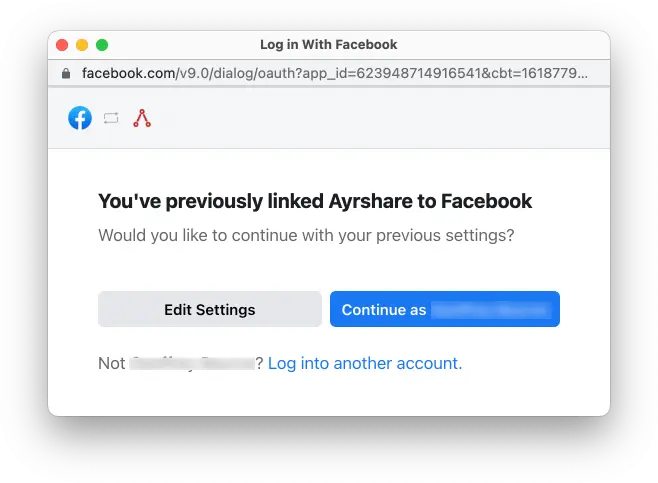
 在首次设置过程中点击 **Edit Settings**。
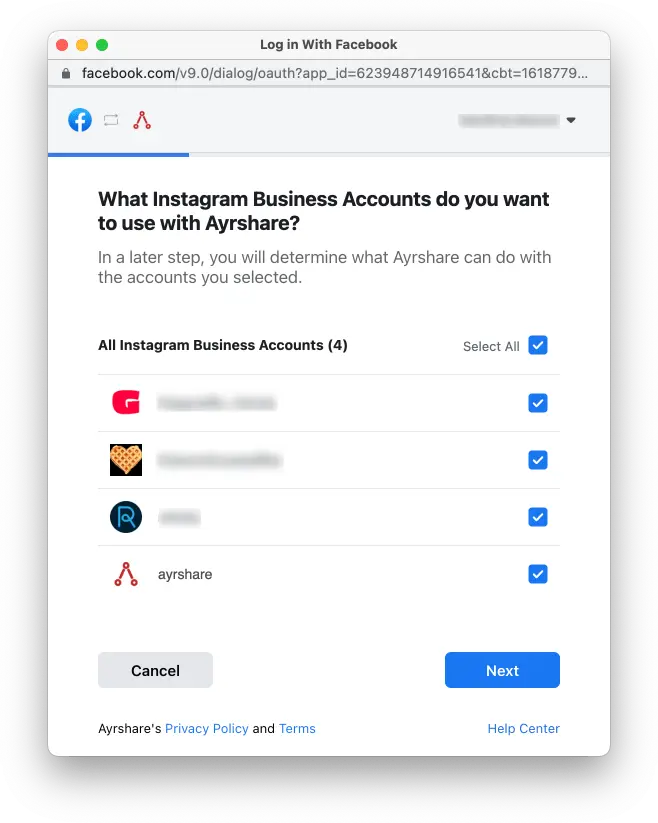
 勾选所有的 **Instagram Business Accounts** 或 **Instagram Creator Accounts**。点击 **Next**。
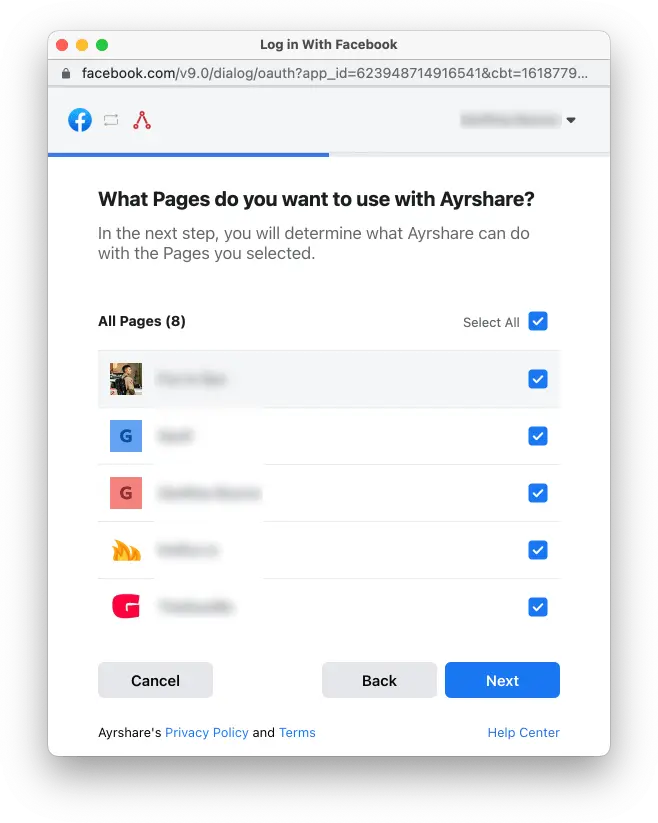
 勾选所有 **Facebook Pages**。点击 **Next**。
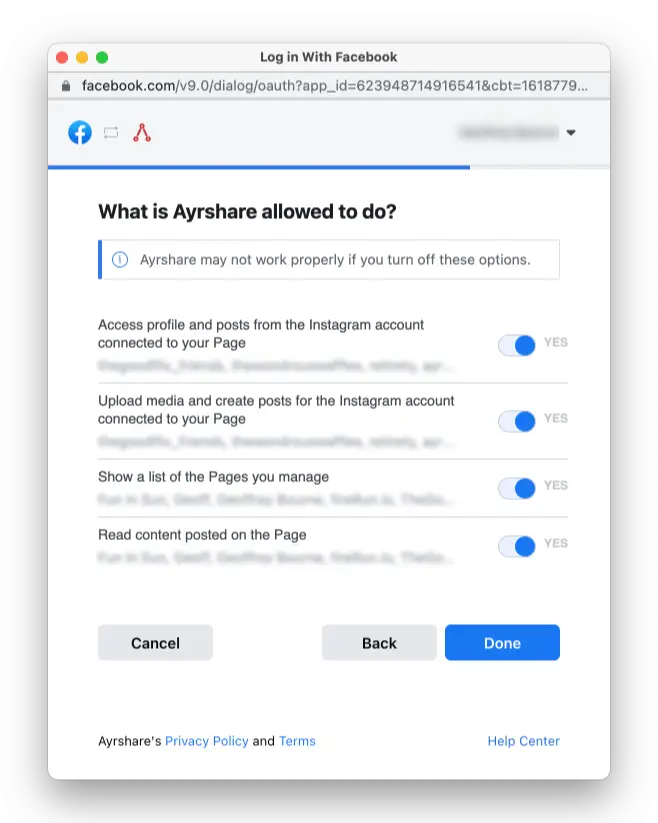
 将所有权限设为 **Yes**。点击 **Done**。接着你会被要求
选择要与 Ayrshare 关联的特定 Instagram 账号。选择完成后,
关联即完成,你就可以开始向 Instagram 发布内容了。
将所有权限设为 **Yes**。点击 **Done**。接着你会被要求
选择要与 Ayrshare 关联的特定 Instagram 账号。选择完成后,
关联即完成,你就可以开始向 Instagram 发布内容了。
 你的 Social Accounts 页面现在将显示你的 Instagram 账号。
## 启用 Instagram 商家或创作者账号
Instagram 要求你的账号必须为 **Instagram Business** 或 **Instagram Creator** 账号。
进一步了解 [Instagram 商家账号与创作者账号](https://www.ayrshare.com/blog/understanding-the-difference-between-the-instagram-business-creator-and-personal-profiles/)。
### 从个人账号切换到商家或创作者账号
如果你使用的是个人 Instagram 账号,请打开 Instagram 移动 App:
你的 Social Accounts 页面现在将显示你的 Instagram 账号。
## 启用 Instagram 商家或创作者账号
Instagram 要求你的账号必须为 **Instagram Business** 或 **Instagram Creator** 账号。
进一步了解 [Instagram 商家账号与创作者账号](https://www.ayrshare.com/blog/understanding-the-difference-between-the-instagram-business-creator-and-personal-profiles/)。
### 从个人账号切换到商家或创作者账号
如果你使用的是个人 Instagram 账号,请打开 Instagram 移动 App:
-
进入你的个人资料页面,点击右上角的菜单图标 ≡,进入
**Settings and activity** 页面。
- 向下滚动到 **For professionals** 部分。
- 点击 **Account type and tools**。
- 点击 **Switch to professional account**。
-
按步骤完成账号设置,并选择 **Creator** 或
**Business**。
### 在商家账号与创作者账号之间切换
如果你想在商家账号与创作者账号之间切换:
-
进入你的个人资料页面,点击右上角的菜单图标 ≡,进入
**Settings and activity** 页面。
- 向下滚动到 **For professionals** 部分。
- 点击 **Creator (or Business) tools and controls**。
- 向下滚动并点击 **Switch account type**。
- 选择切换到 **Creator** 或 **Business**。
如果你确实已经是商家或创作者账号,但在关联 Ayrshare 时
收到提示说你的账号不是创作者或商家账号,可以尝试将 Instagram
切换回 **Personal**,然后再切回 **Creator** 或
**Business**。这通常会重置账号类型,让你能够顺利关联
Ayrshare。
## 将 Facebook Page 与 Instagram 关联
如果你已经拥有 Instagram 商家或创作者账号,并希望关联 Facebook Page,请参见[详细说明](https://www.facebook.com/business/help/898752960195806)。
或者你也可以[创建一个新的 Facebook Page](https://www.facebook.com/pages/create/?ref_type=site_footer)。
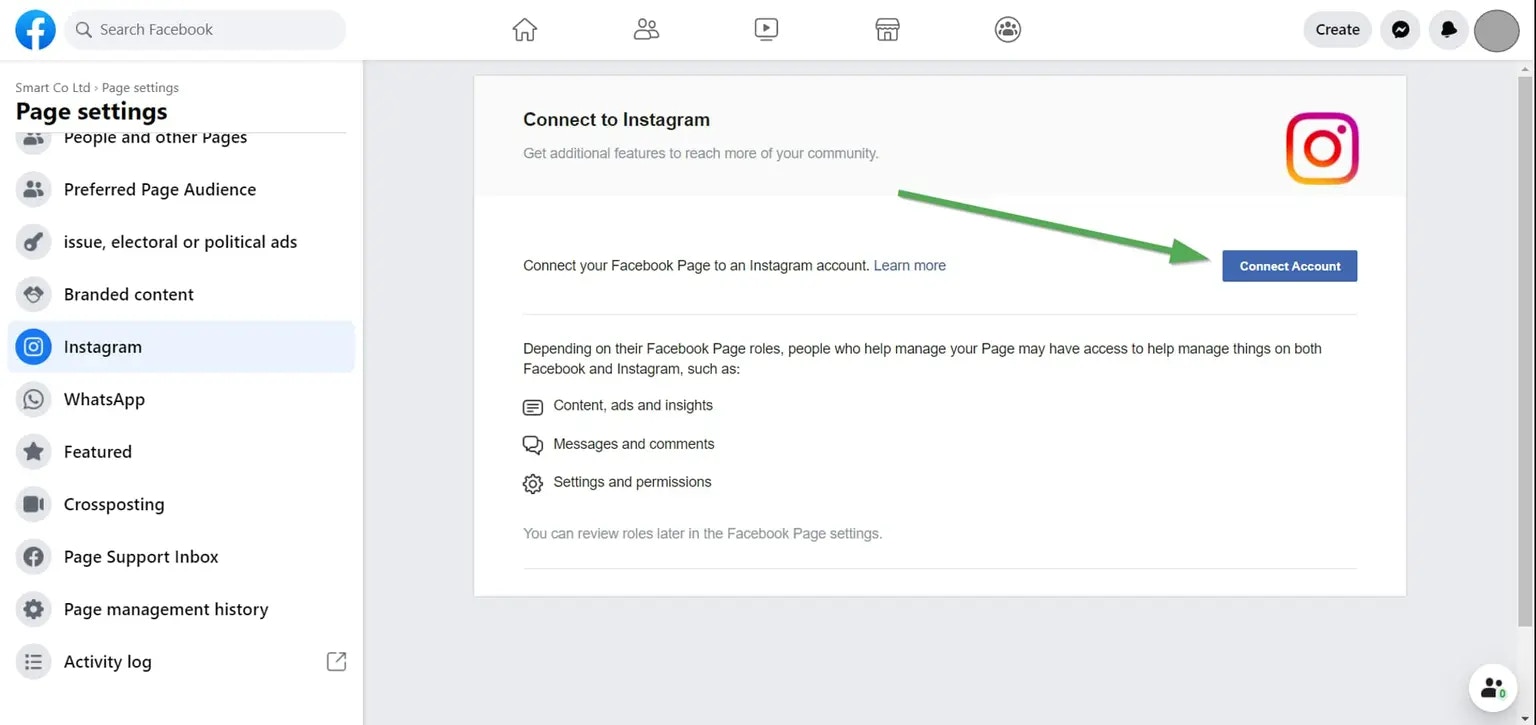
你可以检查你的 Facebook Page 是否已关联 Instagram 账号:
* 在电脑上访问 [www.facebook.com](http://www.facebook.com) 并登录 Facebook。
* 打开你作为管理员的其中一个 Facebook Page,即你想要与 Instagram 账号关联的那个。
* 在左侧面板的 "Manage Page" 下点击 "Settings",通常位于底部。
* 在 Page Settings 中点击 "Instagram"。
如果已连接,顶部标题会显示 "Connected Instagram Account"。否则你就可以在此进行连接。
 ## Instagram 故障排查
如果你在使用 Instagram 时遇到问题,请参见[故障排查指南](/help-center/technical-support/facebook_or_instagram_linking_issues)。
## 更多 Instagram 信息
Instagram 对图片尺寸有非常严格的要求。图片宽度至少为 1080 像素,宽高比在 1.91:1 到 4:5 之间。
如果你的图片尺寸不符合要求,Ayrshare 会检测到并返回错误。
* 请参见以下文档,了解[发布到 Instagram](/apis/post/social-networks/instagram)、[获取分析数据](/apis/analytics/overview)、[管理评论](/apis/comments/overview) 或 [获取历史记录](/apis/history/overview) 的详情。
* 关于推荐图片尺寸的更多信息,请参见:
## Instagram 故障排查
如果你在使用 Instagram 时遇到问题,请参见[故障排查指南](/help-center/technical-support/facebook_or_instagram_linking_issues)。
## 更多 Instagram 信息
Instagram 对图片尺寸有非常严格的要求。图片宽度至少为 1080 像素,宽高比在 1.91:1 到 4:5 之间。
如果你的图片尺寸不符合要求,Ayrshare 会检测到并返回错误。
* 请参见以下文档,了解[发布到 Instagram](/apis/post/social-networks/instagram)、[获取分析数据](/apis/analytics/overview)、[管理评论](/apis/comments/overview) 或 [获取历史记录](/apis/history/overview) 的详情。
* 关于推荐图片尺寸的更多信息,请参见: