> ## Documentation Index
> Fetch the complete documentation index at: https://www.ayrshare.com/docs/llms.txt
> Use this file to discover all available pages before exploring further.
# Bluesky Linking
> Authorizing Bluesky with Ayrshare
## How to Link Bluesky with Ayrshare
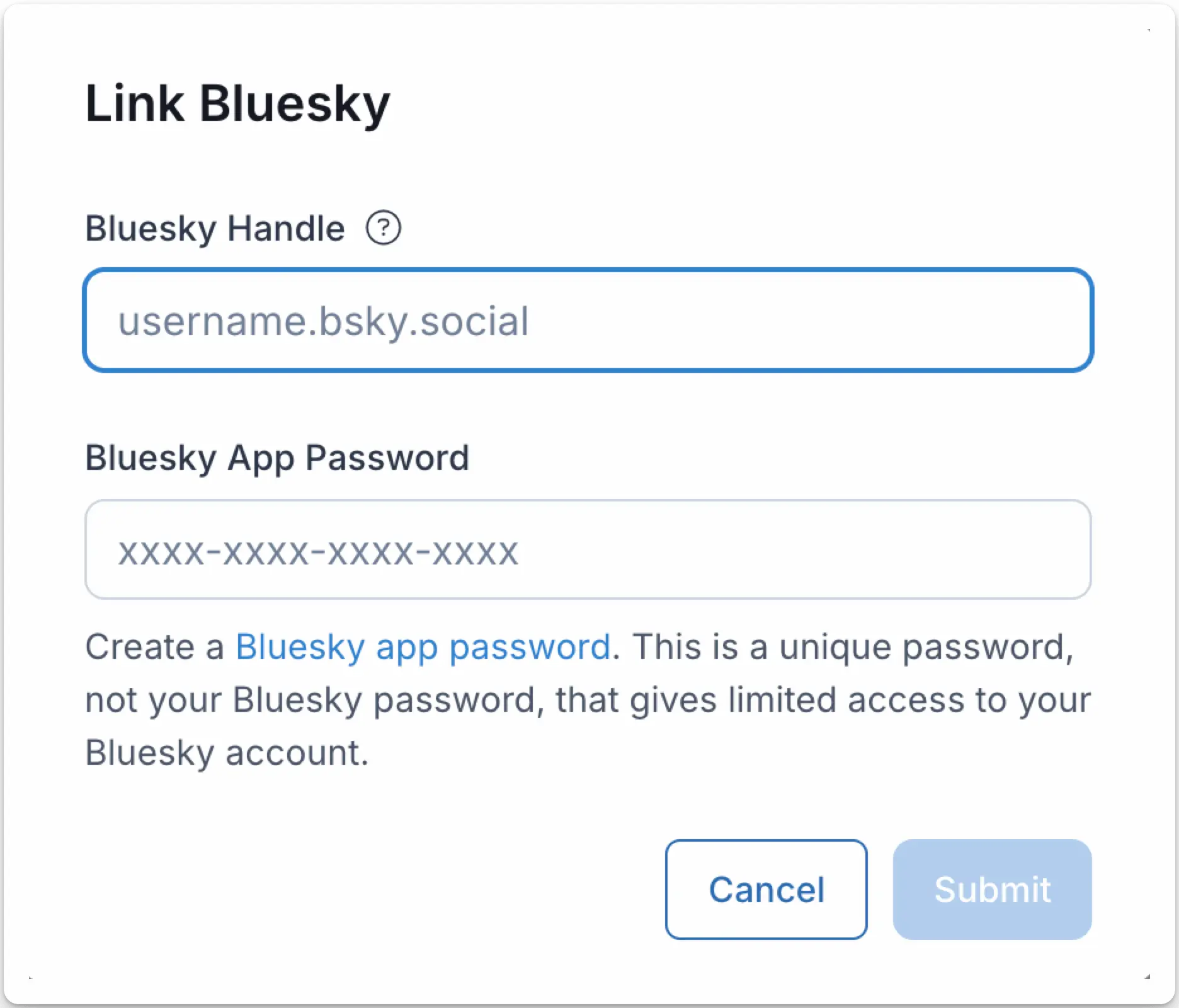
Authorizing Bluesky with Ayrshare is simple. You will need to enter your Bluesky handle and a one-time app password.
The Bluesky app password is used to sign in to other Bluesky clients without giving full access to your account or password.
You will create this one-time app password in settings section of Bluesky and in the format of XXXX-XXXX-XXXX-XXXX.
**The app password is not your Bluesky password you use to sign in to Bluesky.**
Please see below for more information.
## Authenticating Bluesky
On the Social Accounts page, click the Bluesky icon.
 The Bluesky authentication page will open in a modal.
1. Enter your Bluesky handle, which can be found in your [Bluesky profile](https://bsky.app/). For example, `@ayrshare` or `ayrshare.bsky.social`.
2. Create a one-time [Bluesky app password](https://bsky.app/settings/app-passwords). Copy the password to your clipboard. The password should be in the format of XXXX-XXXX-XXXX-XXXX.
3. Enter the app password in the Ayrshare Bluesky App Password field and click **Submit**.
The Bluesky authentication page will open in a modal.
1. Enter your Bluesky handle, which can be found in your [Bluesky profile](https://bsky.app/). For example, `@ayrshare` or `ayrshare.bsky.social`.
2. Create a one-time [Bluesky app password](https://bsky.app/settings/app-passwords). Copy the password to your clipboard. The password should be in the format of XXXX-XXXX-XXXX-XXXX.
3. Enter the app password in the Ayrshare Bluesky App Password field and click **Submit**.
 Your Social Accounts page will now be updated with your Bluesky account.
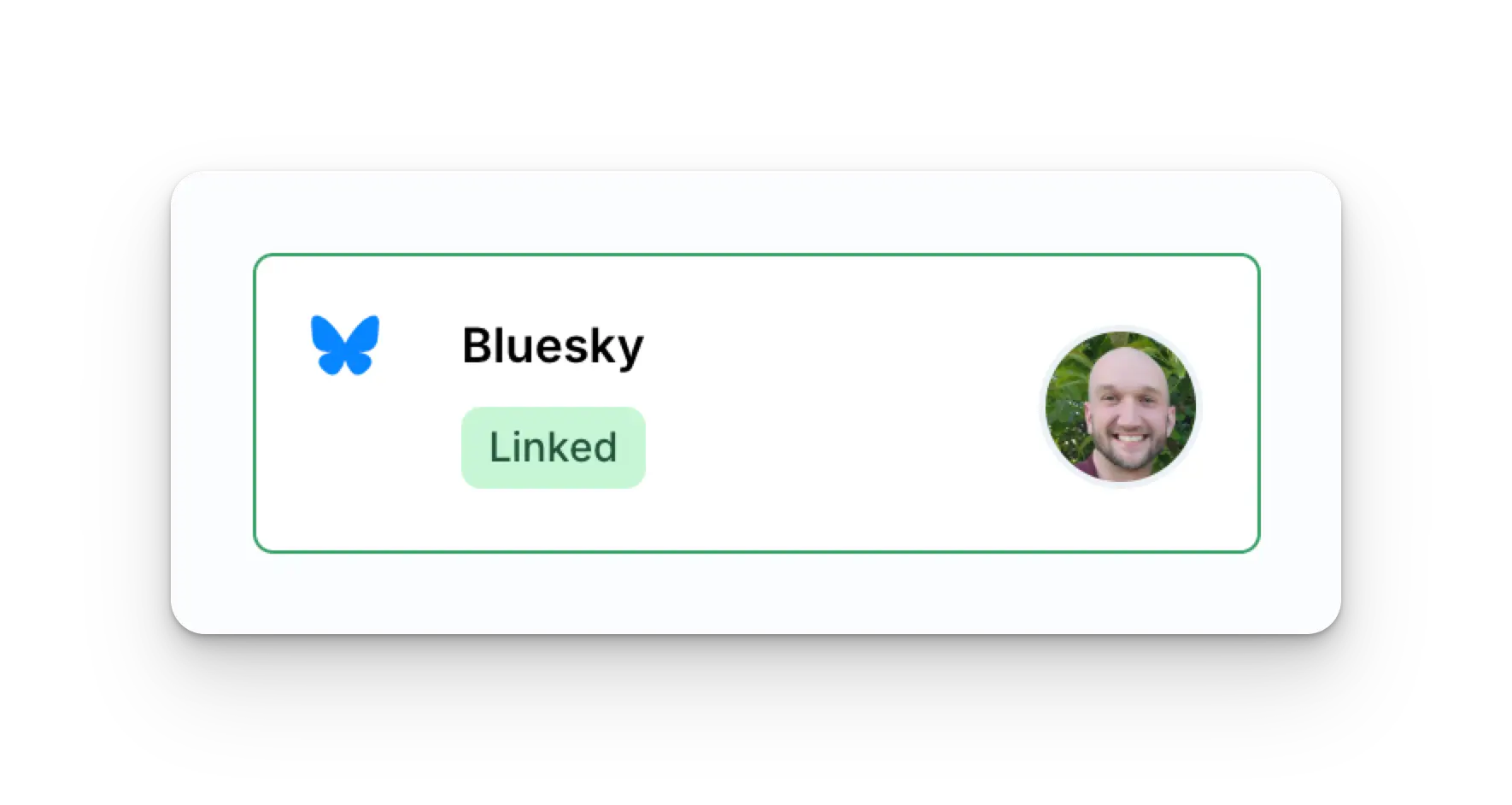 You can publish Bluesky posts, get Bluesky analytics, and manage Bluesky
comments.
## Additional Bluesky Information
* Please see here for details on
[posting to Bluesky](/apis/post/social-networks/bluesky),
[getting analytics](/apis/analytics/overview),
[managing comments](/apis/comments/overview), or
[retrieving history.](/apis/history/overview)
* For more information on recommended image sizes, please see:
You can publish Bluesky posts, get Bluesky analytics, and manage Bluesky
comments.
## Additional Bluesky Information
* Please see here for details on
[posting to Bluesky](/apis/post/social-networks/bluesky),
[getting analytics](/apis/analytics/overview),
[managing comments](/apis/comments/overview), or
[retrieving history.](/apis/history/overview)
* For more information on recommended image sizes, please see: