> ## Documentation Index
> Fetch the complete documentation index at: https://www.ayrshare.com/docs/llms.txt
> Use this file to discover all available pages before exploring further.
# Facebook Linking
> Authorizing Facebook with Ayrshare
## How to Link Facebook with Ayrshare
Only **Facebook Pages** are supported. Facebook does not support Personal Facebook accounts.
Please be sure you are the admin of Facebook Page and **grant all permissions** to Pages and
selections. Failure to do so might prevent successful posting.
### Linking Facebook
Click the Facebook icon on the Social Accounts page.
 A Facebook sign-in will pop-up - *please be sure you allow pop-ups*.
If you have already linked Facebook with Ayrshare, skip ahead to step 4.
A Facebook sign-in will pop-up - *please be sure you allow pop-ups*.
If you have already linked Facebook with Ayrshare, skip ahead to step 4.
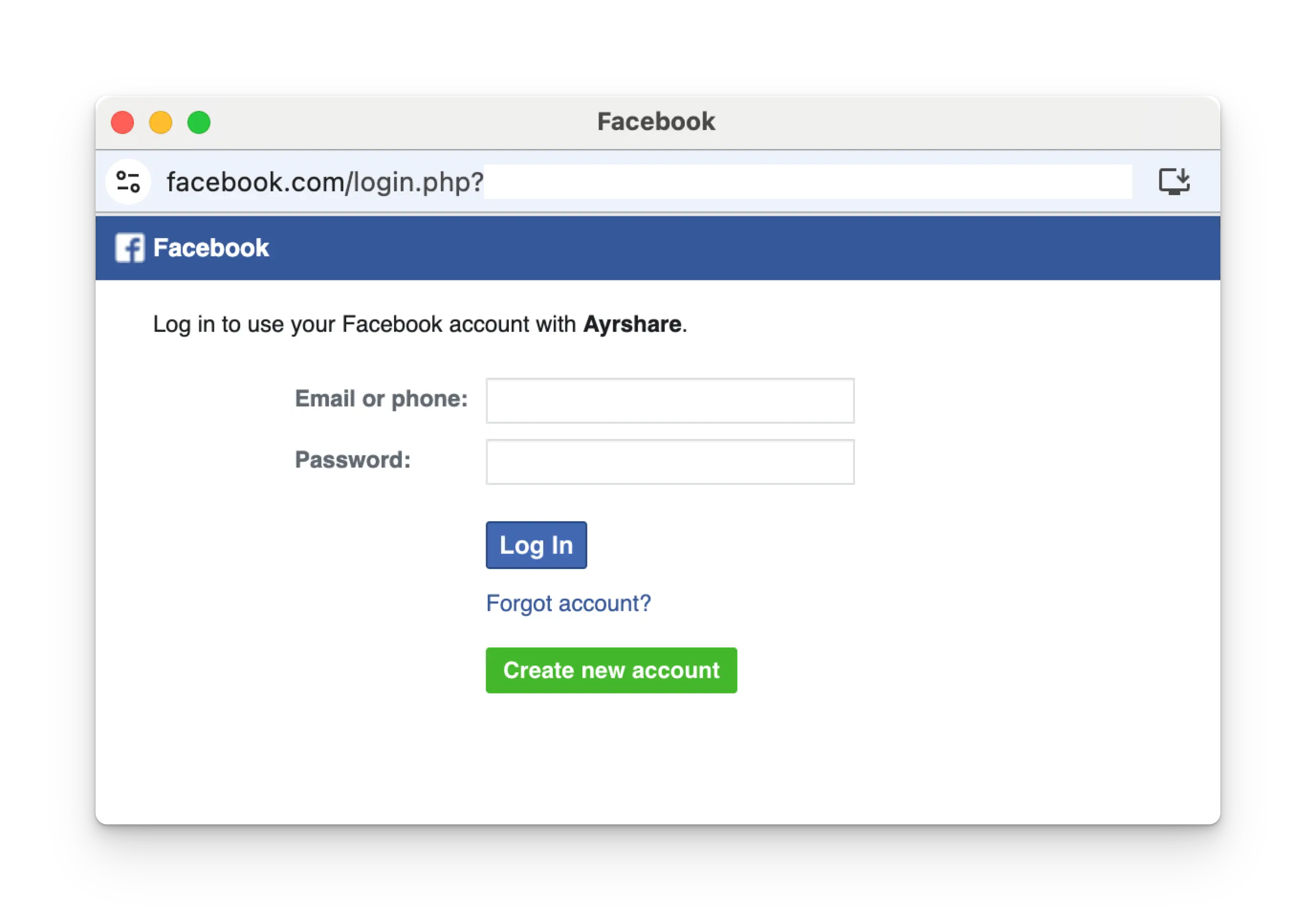 Follow the instructions and select a Facebook Page to link.
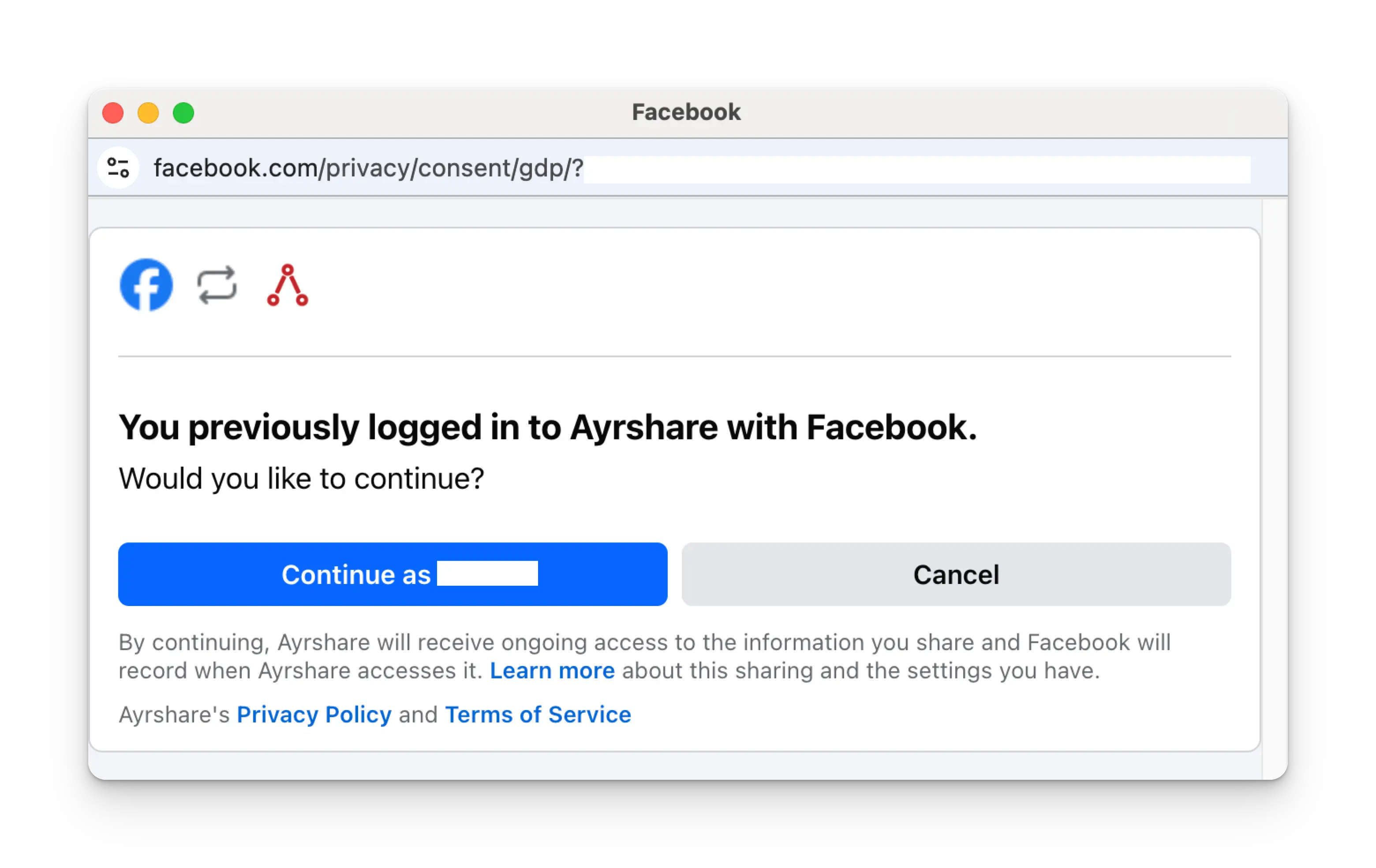
Click **Continue as NAME** on the login page.
Follow the instructions and select a Facebook Page to link.
Click **Continue as NAME** on the login page.
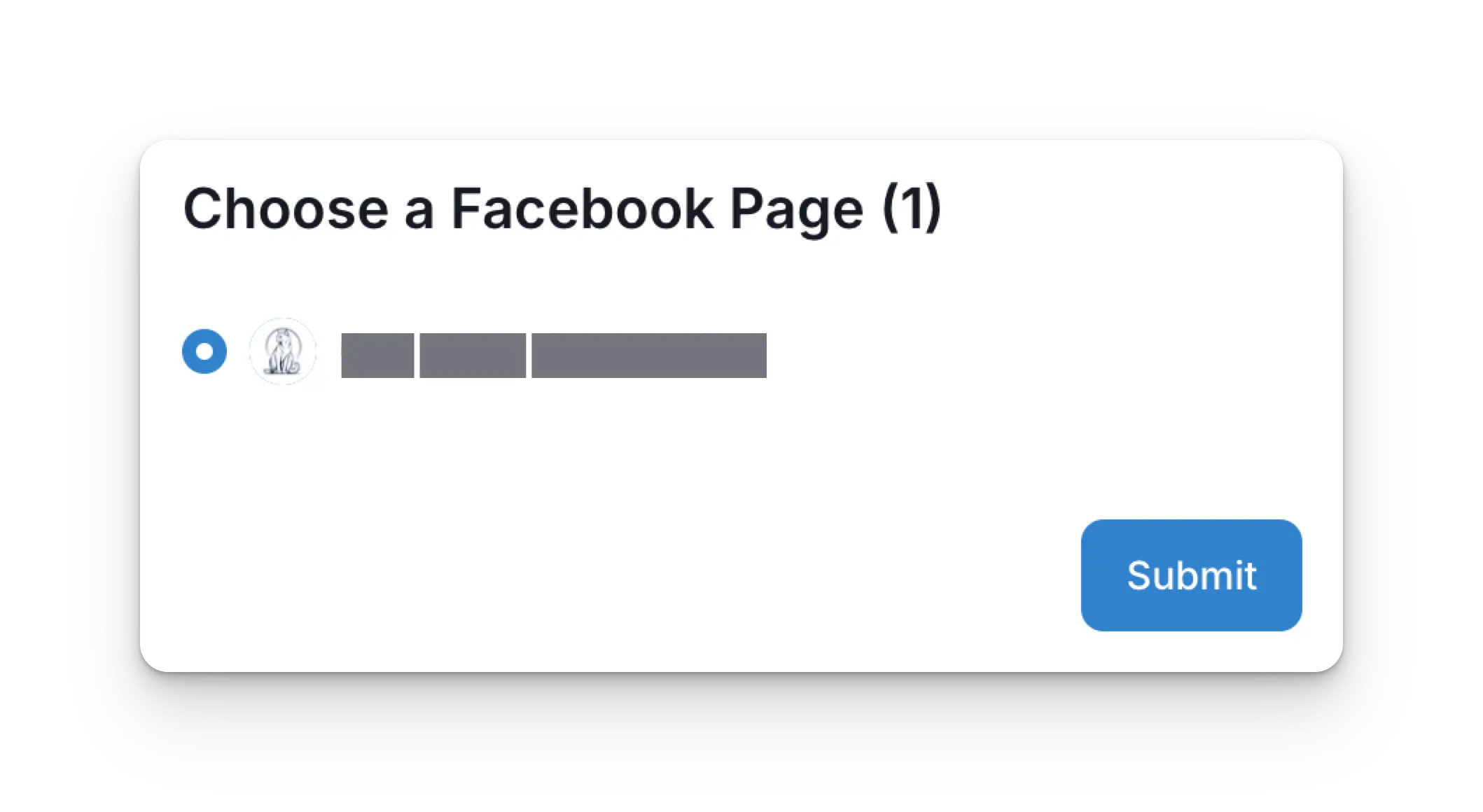
 Once back at the Ayrshare dashboard, choose a Facebook page to link and click **Submit**.
 Your Social Accounts page will now be updated with your Facebook account.
 ## Troubleshooting Facebook
If you're having issues with Facebook please see the [troubleshooting guide](/help-center/technical-support/facebook_or_instagram_linking_issues).
## Additional Facebook Information
* Please see here for details on
[posting to Facebook](/apis/post/social-networks/facebook),
[getting analytics](/apis/analytics/overview),
[managing comments](/apis/comments/overview), or
[retrieving history.](/apis/history/overview)
* For more information on recommended image sizes, please see:
## Troubleshooting Facebook
If you're having issues with Facebook please see the [troubleshooting guide](/help-center/technical-support/facebook_or_instagram_linking_issues).
## Additional Facebook Information
* Please see here for details on
[posting to Facebook](/apis/post/social-networks/facebook),
[getting analytics](/apis/analytics/overview),
[managing comments](/apis/comments/overview), or
[retrieving history.](/apis/history/overview)
* For more information on recommended image sizes, please see: