> ## Documentation Index
> Fetch the complete documentation index at: https://www.ayrshare.com/docs/llms.txt
> Use this file to discover all available pages before exploring further.

# Overview

> How to connect your social media accounts in Ayrshare

## Linking and Posting via the Web Dashboard

How to link and post to your social media accounts via the Ayrshare Dashboard.

<div class="video-container">
  <iframe width="560" height="315" src="https://www.youtube.com/embed/Aav2Njv-AkY" title="Linking and Posting via the Ayrshare Dashboard" frameborder="0" allow="accelerometer; autoplay; clipboard-write; encrypted-media; gyroscope; picture-in-picture" />
</div>

### How to Link a Social Media Network

Connecting your social media accounts is easy with a few clicks.

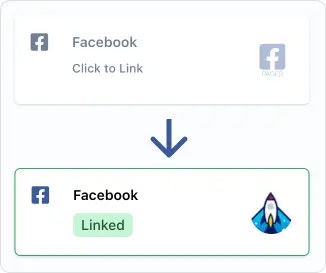
On the Social Account linkage page, or the user profile's [social account linking page](/multiple-users/user-integration#user-experience) used for managing multiple users, just click or tap the social network you want to connect. You will then be prompted to authorize access to Ayrshare via a pop-up or page redirect.

<img src="https://mintcdn.com/ayrshare-docs/BkNwRAXLA9nG0LQA/images/dashboard/link.webp?fit=max&auto=format&n=BkNwRAXLA9nG0LQA&q=85&s=dfb1f4a9936c8a7a174cc5749963ab08" alt="Click to link" width="245" class="center" data-path="images/dashboard/link.webp" />

<Info>
  Please grant all permissions Ayrshare requests during authorization. Removing permissions may
  cause unintended issues at the social networks or Ayrshare's APIs. Also allow pop-ups in your
  browser.
</Info>

Once the social networks has been authorized, you'll see your account logo and the green "Linked" pill will appear, indicating your link is active.

### How to Un-Link a Social Network

Just tap on the green "Linked" pill and you will be prompted to unlink the account.

Posts that have already been sent to the network will be unaffected. However, future scheduled post and new posts will not be sent until the link to the network has been re-established.

### Additional Help

#### Choose a Page or Brand

<ul class="custom-bullets">
  <li>
    A few of the social networks will ask you to choose an account or brand. For example, if you
    have multiple Facebook Pages, you will be given a choice of which Page to link.
  </li>
</ul>

### Additional Linking Guides

<CardGroup cols={2}>
  <Card title="Bluesky Linking" href="/dashboard/connect-social-accounts/bluesky" icon="bluesky" />

  <Card title="Facebook Linking" href="/dashboard/connect-social-accounts/facebook" icon="facebook" />

  <Card title="Instagram Linking" href="/dashboard/connect-social-accounts/instagram" icon="instagram" />

  <Card title="Google Business Linking" href="/dashboard/connect-social-accounts/google-business" icon="google" />

  <Card title="Linkedin Linking" href="/dashboard/connect-social-accounts/linkedin" icon="linkedin" />

  <Card title="Pinterest Linking" href="/dashboard/connect-social-accounts/pinterest" icon="pinterest" />

  <Card title="Reddit Linking" href="/dashboard/connect-social-accounts/reddit" icon="reddit" />

  <Card title="Telegram Linking" href="/dashboard/connect-social-accounts/telegram" icon="telegram" />

  <Card title="Threads Linking" href="/dashboard/connect-social-accounts/threads" icon="threads" />

  <Card title="Snapchat Linking" href="/dashboard/connect-social-accounts/snapchat" icon="snapchat" />

  <Card title="TikTok Linking" href="/dashboard/connect-social-accounts/tiktok" icon="tiktok" />

  <Card title="YouTube Linking" href="/dashboard/connect-social-accounts/youtube" icon="youtube" />

  <Card title="X/Twitter Linking (retiring March 31, 2026)" href="/dashboard/connect-social-accounts/x-twitter" icon="x" />

  <Card title="Set Up Your Own X API Key" href="/dashboard/connect-social-accounts/x-twitter-byo-keys" icon="x" />
</CardGroup>
