> ## Documentation Index
> Fetch the complete documentation index at: https://www.ayrshare.com/docs/llms.txt
> Use this file to discover all available pages before exploring further.
# Snapchat Linking
> Authorizing Snapchat with Ayrshare
## How to Link Snapchat with Ayrshare
### Snapchat Public Profile Setup
Before linking your Snapchat account, you must have a Snapchat Public Profile set up.
Non-public profiles can not be linked to Ayrshare.
Additionally, the public profile must be switched to a Professional Profile.
Without a professional profile, certain features such as posting stories is not
permitted.
If you don't have public profile yet, please follow the steps below.
If you have a public profile already, please proceed to step 3.
If your public profile is already a professional profile, please proceed to [Linking Snapchat](/dashboard/connect-social-accounts/snapchat#linking-snapchat).
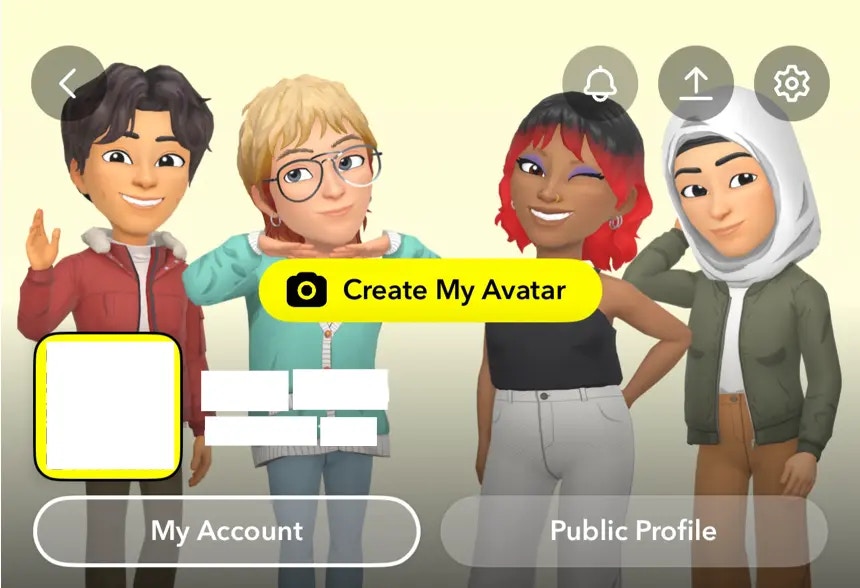
Open Snapchat and tap on your icon in the top left corner.
 Click on the **Public Profile** button and follow the instructions to set up your public profile.
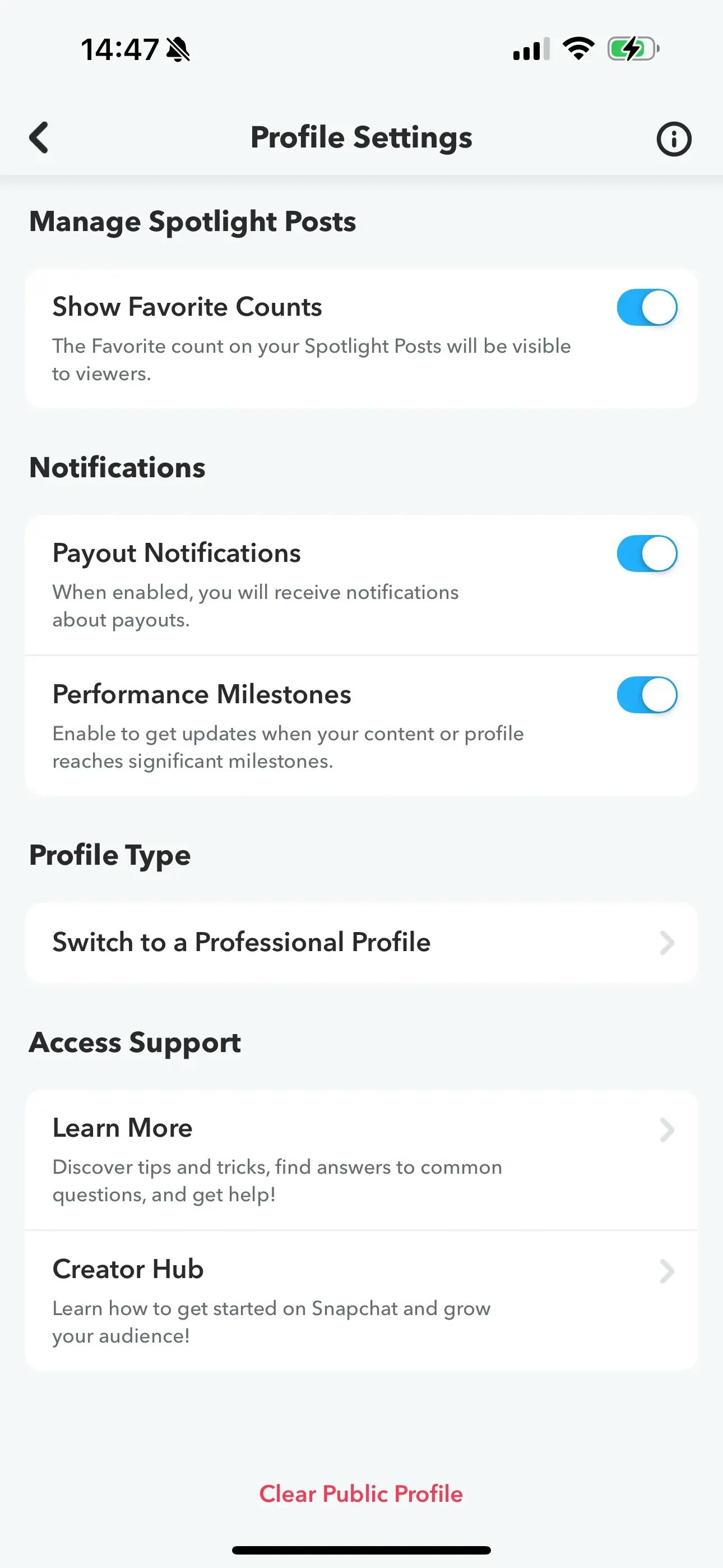
 Navigate to **Switch to a Professional Profile** option in the Profile Settings.
Follow the instructions, select a category, and click **Confirm** to switch
to a professional profile.
Navigate to **Switch to a Professional Profile** option in the Profile Settings.
Follow the instructions, select a category, and click **Confirm** to switch
to a professional profile.
 ### Linking Snapchat
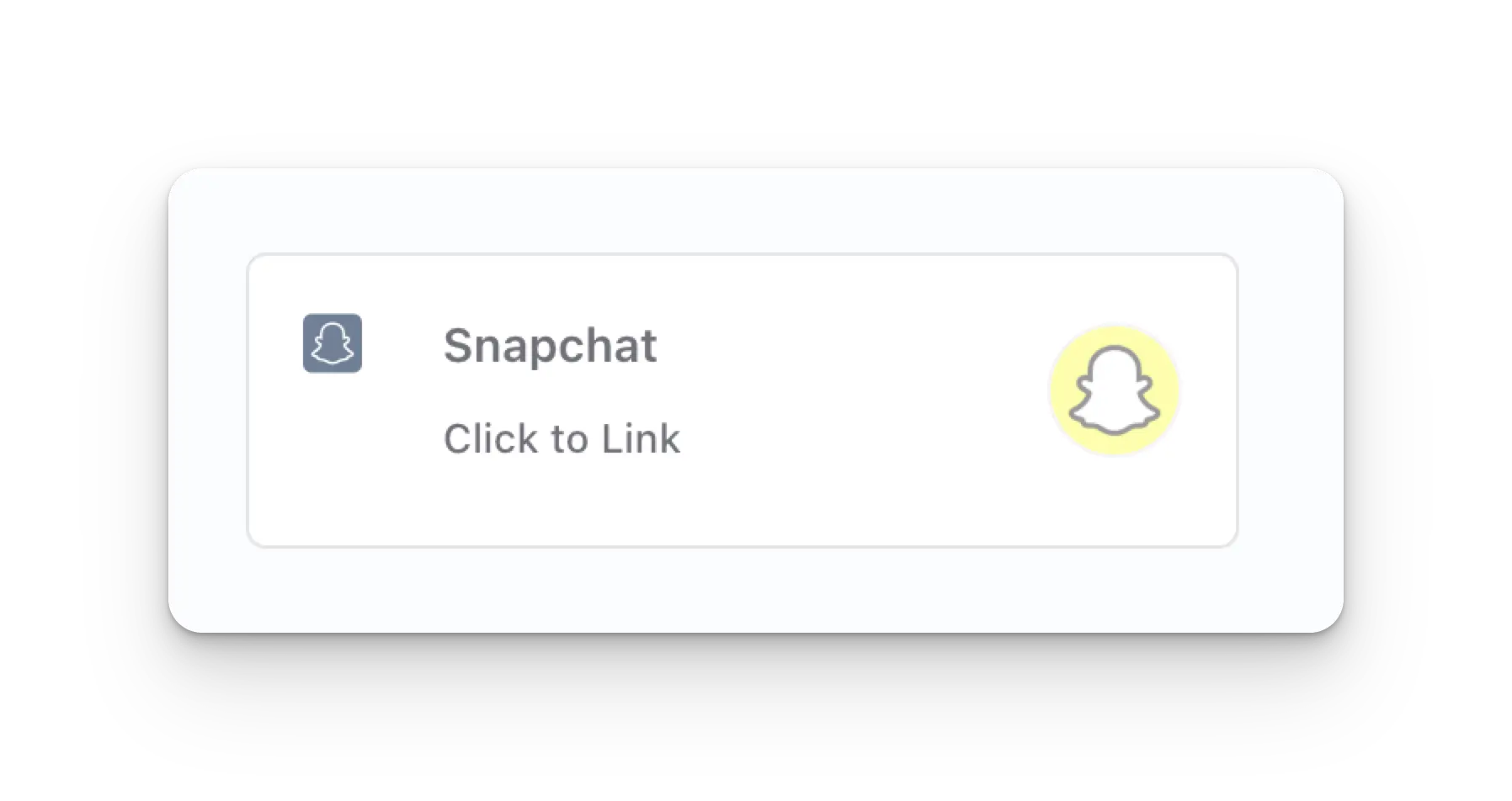
Click the Snapchat icon on the Social Accounts page.
### Linking Snapchat
Click the Snapchat icon on the Social Accounts page.
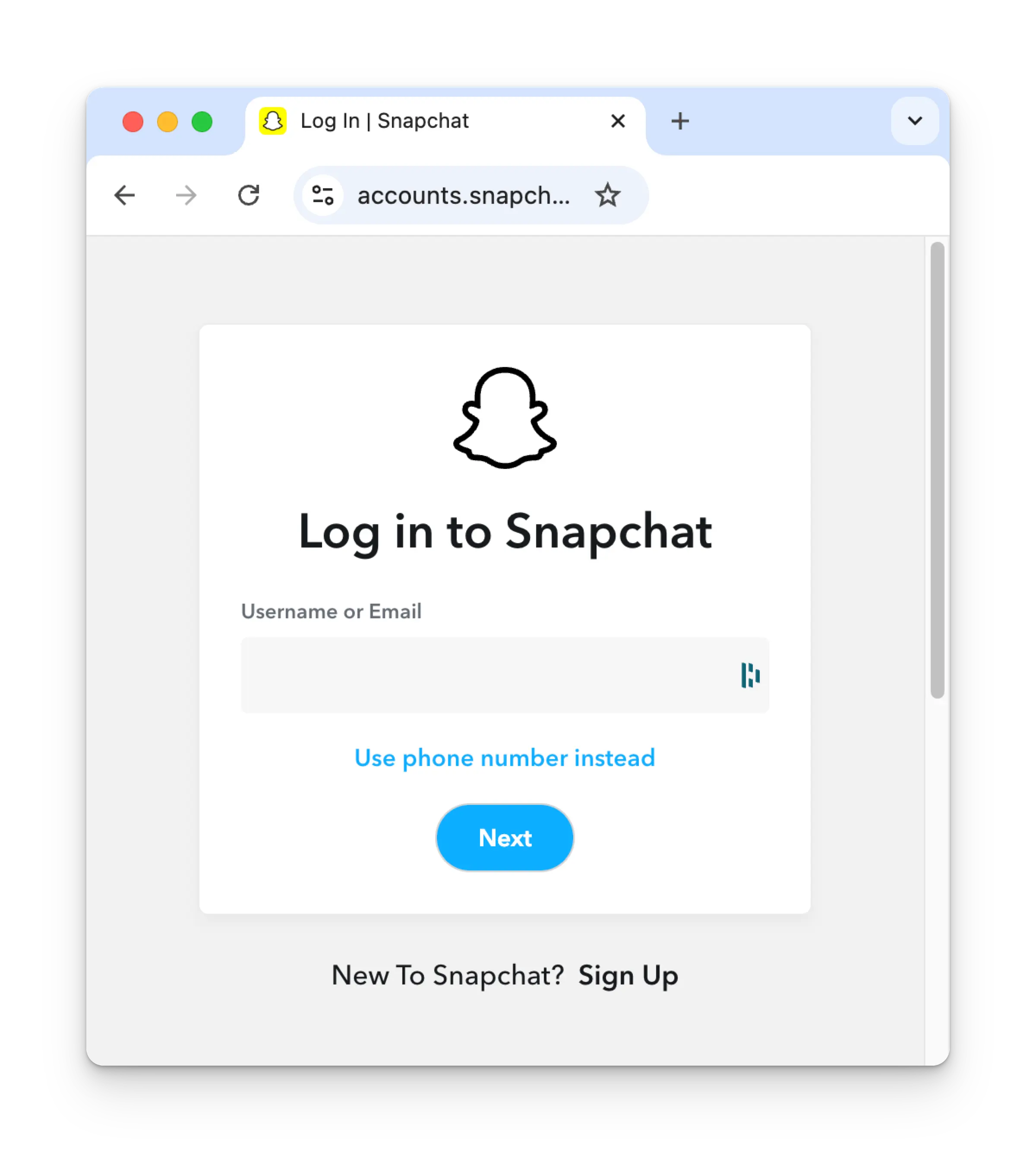
 If you are not logged in yet, you'll navigate to the Snapchat login page. Enter your credentials
accordingly. If you are already logged in, please proceed to the next step.
If you are not logged in yet, you'll navigate to the Snapchat login page. Enter your credentials
accordingly. If you are already logged in, please proceed to the next step.
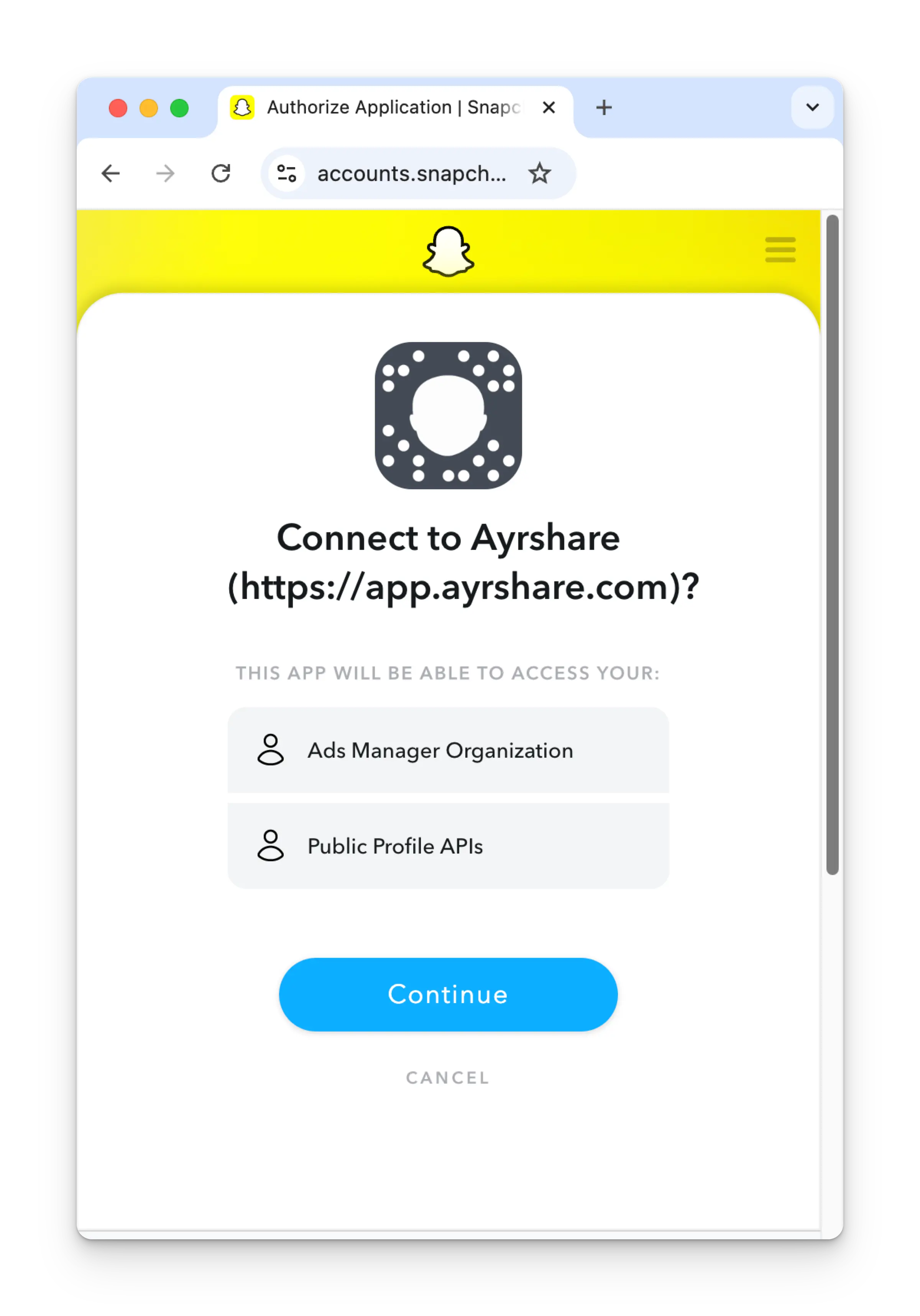
 Review the permissions and click **Continue** on the authorization page.
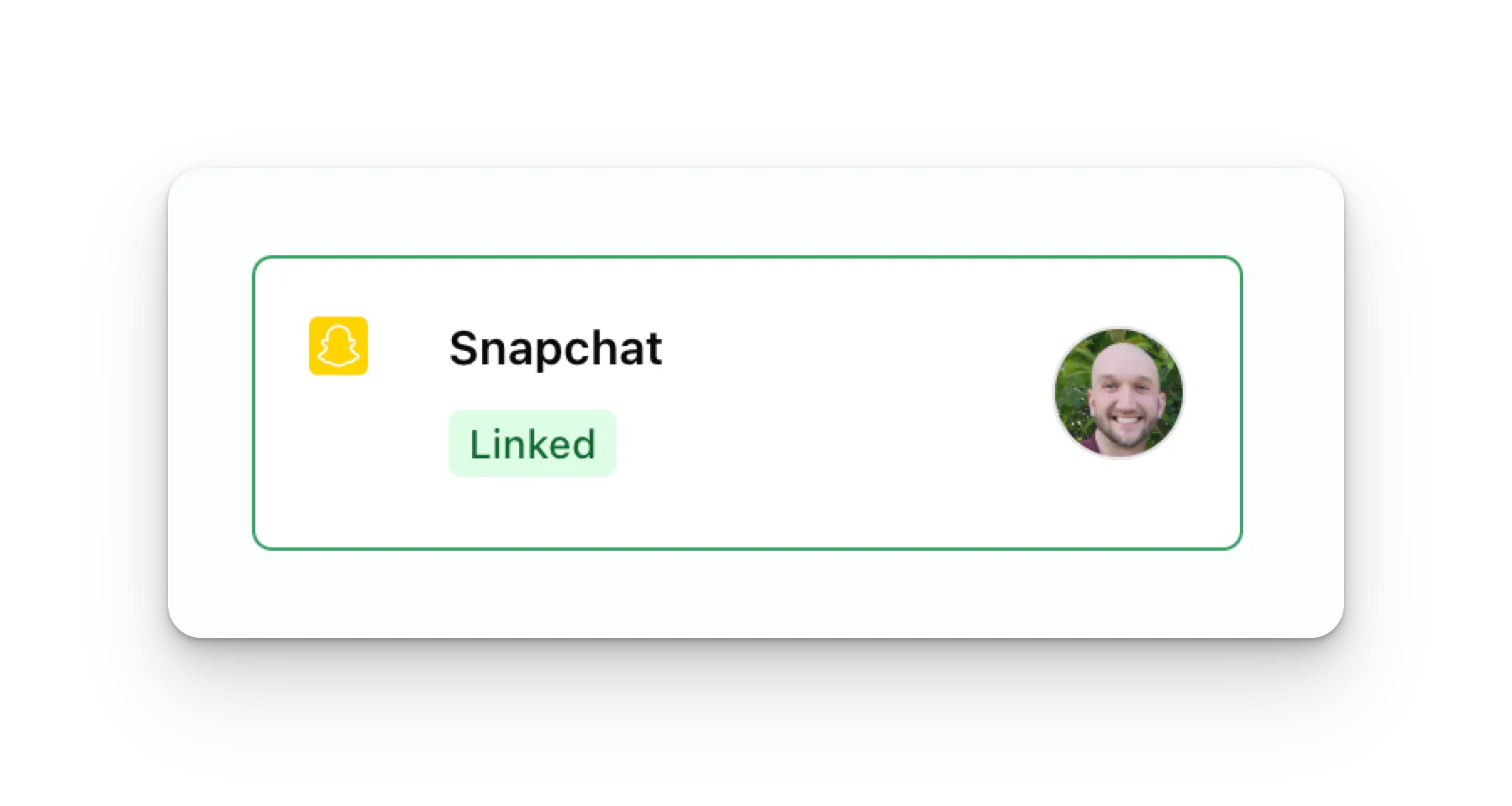
 Your Social Accounts page will now be updated with your Snapchat account.
 ## Additional Snapchat Information
* Please see here for details on
[posting to Snapchat](/apis/post/social-networks/snapchat),
[getting analytics](/apis/analytics/overview),
[managing comments](/apis/comments/overview), or
[retrieving history](/apis/history/overview).
* For more information on recommended image and video sizes, please see:
## Additional Snapchat Information
* Please see here for details on
[posting to Snapchat](/apis/post/social-networks/snapchat),
[getting analytics](/apis/analytics/overview),
[managing comments](/apis/comments/overview), or
[retrieving history](/apis/history/overview).
* For more information on recommended image and video sizes, please see: