> ## Documentation Index
> Fetch the complete documentation index at: https://www.ayrshare.com/docs/llms.txt
> Use this file to discover all available pages before exploring further.
# Link a Telegram group or channel to Ayrshare
> Connect Telegram to Ayrshare by adding @AyrshareBot as an administrator so you can publish and delete posts in your group or channel.
Telegram uses bots to allow posting to your group or channel.
You will need to give admin access to the Ayrshare Telegram Bot via the Telegram mobile app to enable publishing and deleting.
**Add the correct bot: `@AyrshareBot`** (its display name shows as "Ayrshare", with a red logo like the one below).
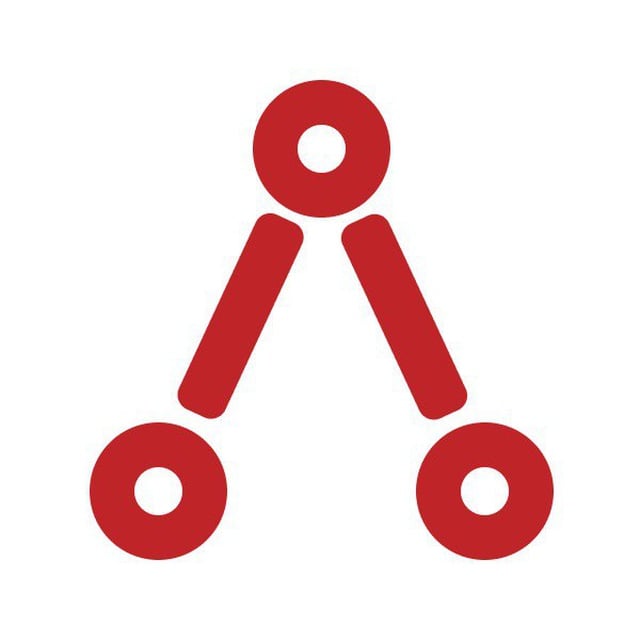 Searching Telegram for "Ayrshare" returns several bots with similar names or logos that are
**not** ours — for example the usernames `@AyrShareSocialMediaBot`, `@ayrshare_bot`,
`@kylo_post_bot`, and `@AyrshareTestbot`. Only **`@AyrshareBot`** works with Ayrshare. If you
add any other bot, your linking code will never be received and nothing will happen. Before
adding it, open the bot and confirm its username is exactly **`@AyrshareBot`**.
You must have administrative access to the channel or group to add a bot. Telegram channel posts
show the channel name and logo as the author. Telegram group posts show the Ayrshare name and logo
as the author.
**The bot must be an Administrator — not just a member.** `@AyrshareBot` has Telegram Privacy
Mode enabled, so if it is added only as a member it never receives your `Code:` message and
linking silently fails with no error. Promote it to Administrator in the same channel or group
where you paste the code.
## How to Link Telegram with Ayrshare
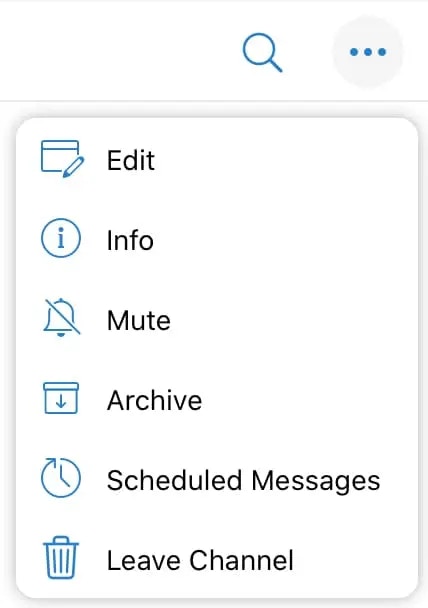
1. In the Telegram mobile app, go to the channel or group where you want to publish. Tap the three horizontal dots in the upper right corner and go to **Info**.
Searching Telegram for "Ayrshare" returns several bots with similar names or logos that are
**not** ours — for example the usernames `@AyrShareSocialMediaBot`, `@ayrshare_bot`,
`@kylo_post_bot`, and `@AyrshareTestbot`. Only **`@AyrshareBot`** works with Ayrshare. If you
add any other bot, your linking code will never be received and nothing will happen. Before
adding it, open the bot and confirm its username is exactly **`@AyrshareBot`**.
You must have administrative access to the channel or group to add a bot. Telegram channel posts
show the channel name and logo as the author. Telegram group posts show the Ayrshare name and logo
as the author.
**The bot must be an Administrator — not just a member.** `@AyrshareBot` has Telegram Privacy
Mode enabled, so if it is added only as a member it never receives your `Code:` message and
linking silently fails with no error. Promote it to Administrator in the same channel or group
where you paste the code.
## How to Link Telegram with Ayrshare
1. In the Telegram mobile app, go to the channel or group where you want to publish. Tap the three horizontal dots in the upper right corner and go to **Info**.
 2. Add Ayrshare as an Admin:
- If a *Channel*, select **Administrators** and **Add Admin**.
-
If a *Group*, add Ayrshare as a member by clicking "+ Add", and search for **Ayrshare** to
add as a member. Next, select **Edit** in the upper right corner, click **Administrators,**
and **Add Admin**.
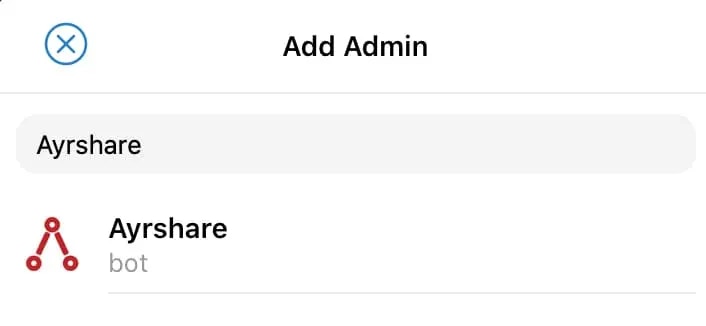
3. Search for **Ayrshare** and select the official bot **`@AyrshareBot`** (display name "Ayrshare"). Do not select any of the similarly named look-alike bots — see the warning above.
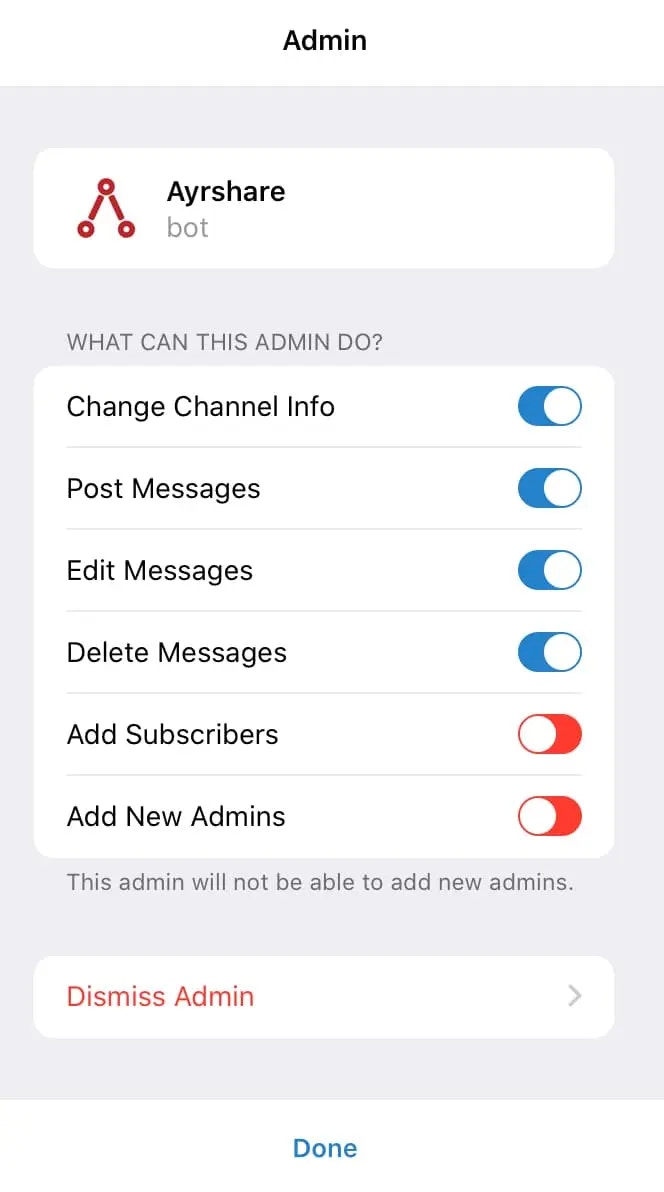
 4. You will be asked to select permissions for the bot. Select all the permissions except the last two so the bot can post and delete on your behalf.
 5. Tap **Done** when complete.
6. In your Ayrshare Dashboard under Social Accounts you will be given a Telegram access code when you click on the Telegram icon.
7. Copy the code including the "Code:" part.
5. Tap **Done** when complete.
6. In your Ayrshare Dashboard under Social Accounts you will be given a Telegram access code when you click on the Telegram icon.
7. Copy the code including the "Code:" part.
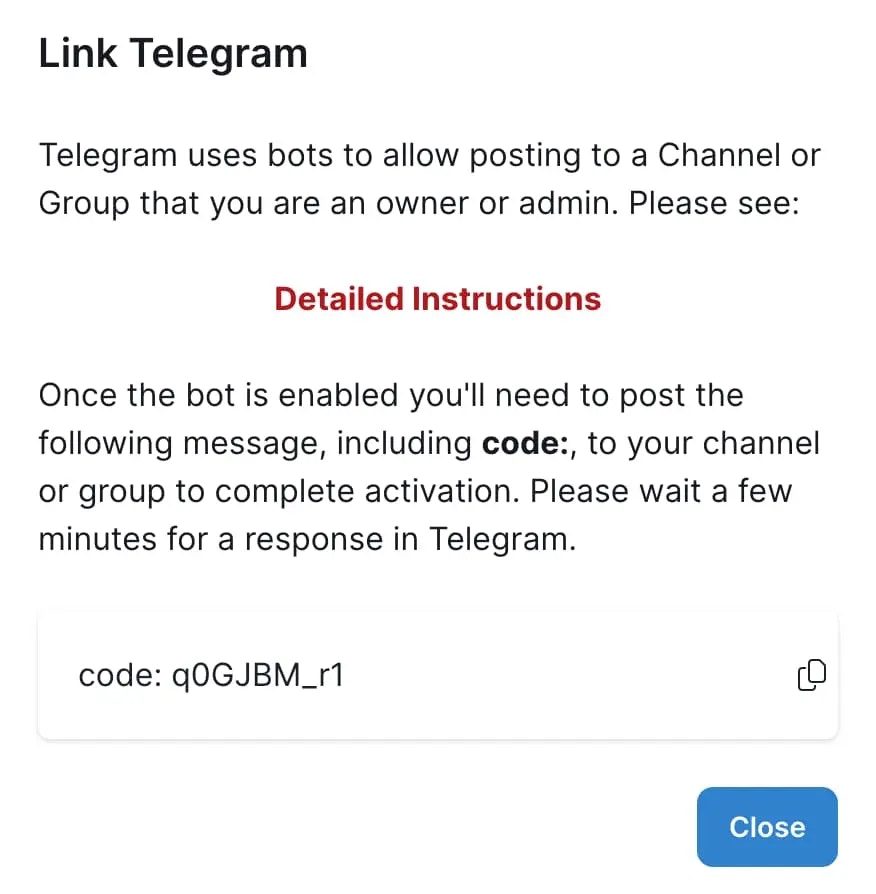 8. In your Telegram group or channel at the chat prompt, paste this code and press enter/tap the send button. If successful, you will get a success message back in the channel or group.
It could take up to **5 minutes** for Telegram to send you the success message after you enter the
code message, so please be patient.
8. In your Telegram group or channel at the chat prompt, paste this code and press enter/tap the send button. If successful, you will get a success message back in the channel or group.
It could take up to **5 minutes** for Telegram to send you the success message after you enter the
code message, so please be patient.
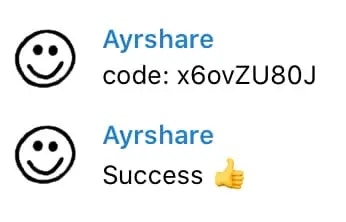 The Telegram integration is complete. You can now publish via the API or Web App.
If you need help or have questions, please window.Intercom && window.Intercom('show')}>chat with us or [contact us](mailto:support@ayrshare.com).
## Additional Telegram Information
Please see here for details on [posting to Telegram](/apis/post/social-networks/telegram), [getting analytics](/apis/analytics/overview), [managing comments](/apis/comments/overview), or [retrieving history.](/apis/history/overview)
The Telegram integration is complete. You can now publish via the API or Web App.
If you need help or have questions, please window.Intercom && window.Intercom('show')}>chat with us or [contact us](mailto:support@ayrshare.com).
## Additional Telegram Information
Please see here for details on [posting to Telegram](/apis/post/social-networks/telegram), [getting analytics](/apis/analytics/overview), [managing comments](/apis/comments/overview), or [retrieving history.](/apis/history/overview)