> ## Documentation Index
> Fetch the complete documentation index at: https://www.ayrshare.com/docs/llms.txt
> Use this file to discover all available pages before exploring further.
# X Linking
> Authorizing X with Ayrshare
**Starting March 31, 2026**, X requires your own API credentials for all operations through Ayrshare. If you are an API user, you can start using your own credentials immediately. See the [X BYO Key Setup Guide](/dashboard/connect-social-accounts/x-twitter-byo-keys) for step-by-step instructions.
## How to Link X (Twitter) with Ayrshare
You can link X, formerly known as Twitter, account with Ayrshare.
When authorizing X with Ayrshare, you will be redirected to X to login and authorize Ayrshare to access your X account.
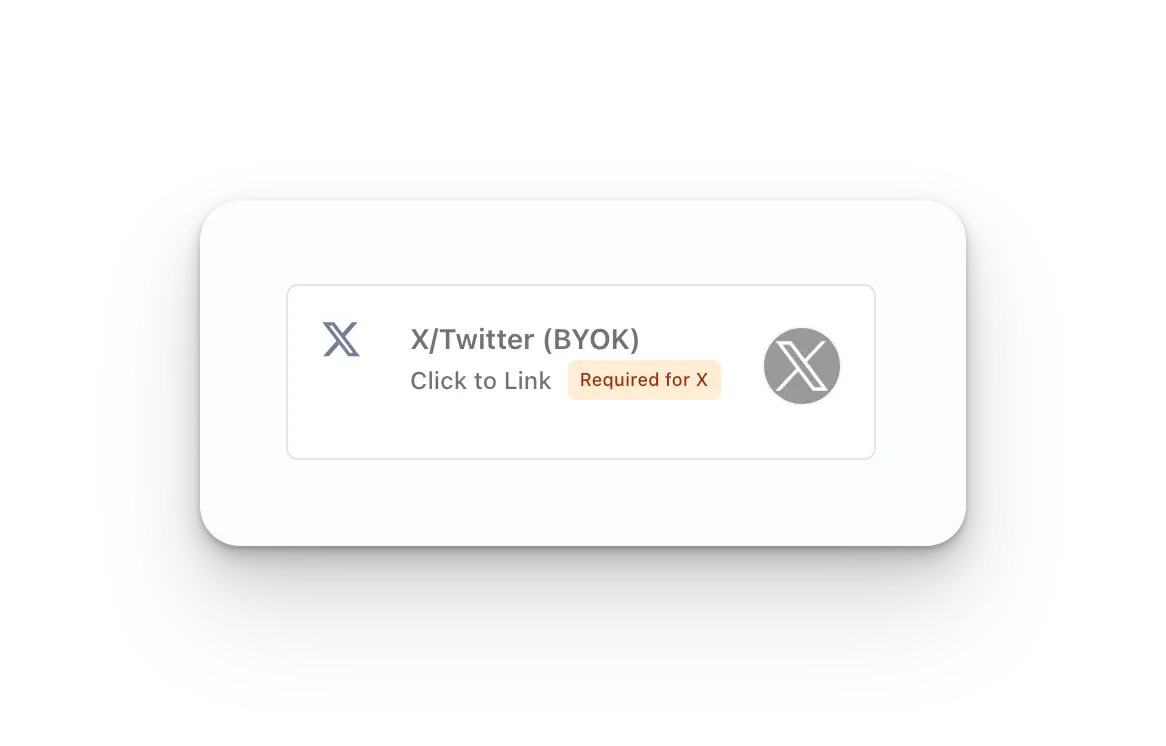
Click **X/Twitter - Click to Link** button on the Social Accounts page.
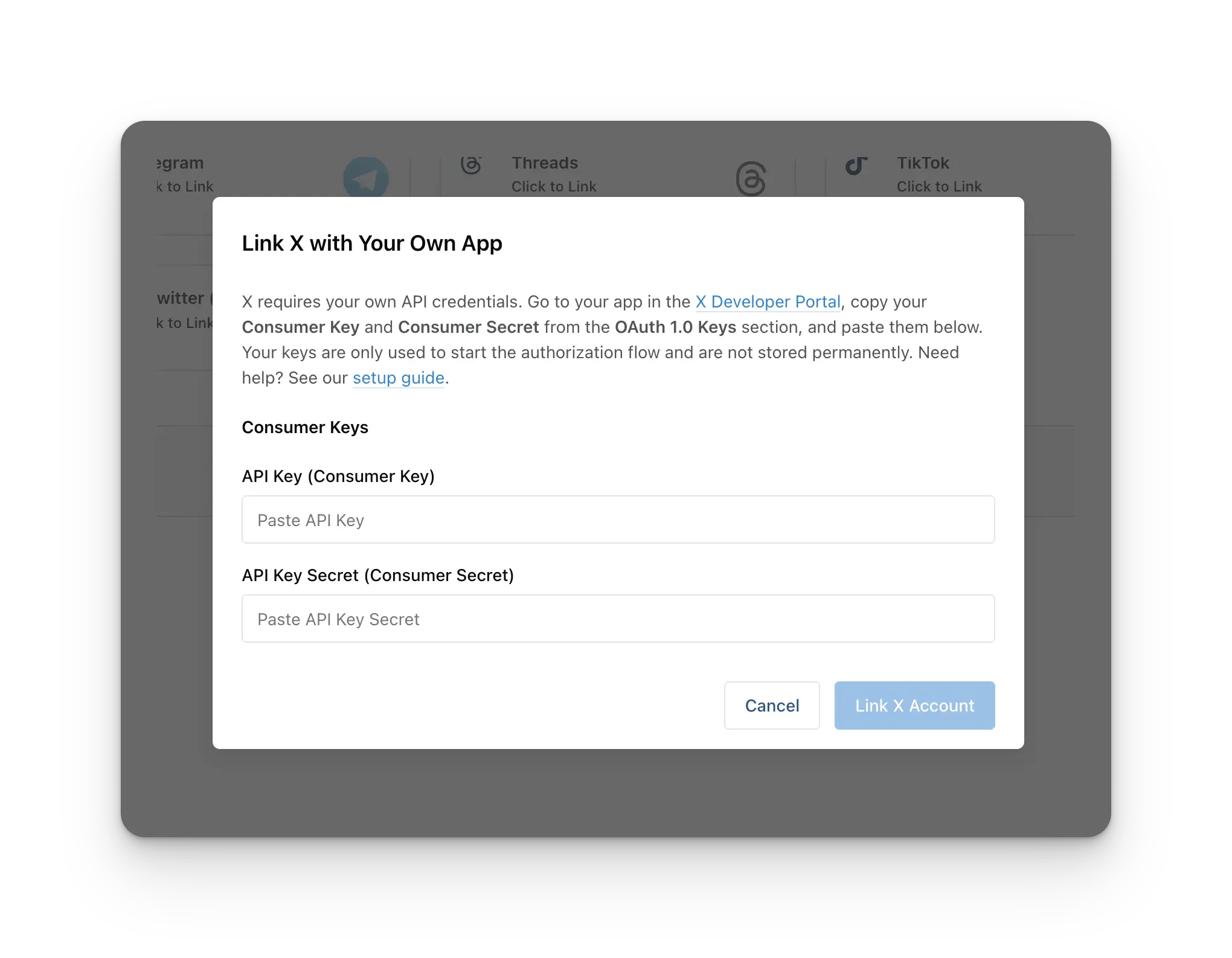
 Before linking, you'll be prompted to enter your **X Consumer Key** (API Key) and **X Consumer Secret** (API Secret). X now requires every Ayrshare account to register one X Developer App and provide its API Key and API Secret in order to link an X account.
**One-time setup per Ayrshare account.** You create your X Developer App **once**, and the same API Key + API Secret are used for every X account you link going forward, including any sub-profiles or end-users. You do **not** create a separate developer app per customer.
If you don't yet have these credentials, follow the [X BYO Key Setup Guide](/dashboard/connect-social-accounts/x-twitter-byo-keys) to create an X Developer App and retrieve your API Key and API Secret. Paste both values into the modal, then continue to link your account.
Before linking, you'll be prompted to enter your **X Consumer Key** (API Key) and **X Consumer Secret** (API Secret). X now requires every Ayrshare account to register one X Developer App and provide its API Key and API Secret in order to link an X account.
**One-time setup per Ayrshare account.** You create your X Developer App **once**, and the same API Key + API Secret are used for every X account you link going forward, including any sub-profiles or end-users. You do **not** create a separate developer app per customer.
If you don't yet have these credentials, follow the [X BYO Key Setup Guide](/dashboard/connect-social-accounts/x-twitter-byo-keys) to create an X Developer App and retrieve your API Key and API Secret. Paste both values into the modal, then continue to link your account.
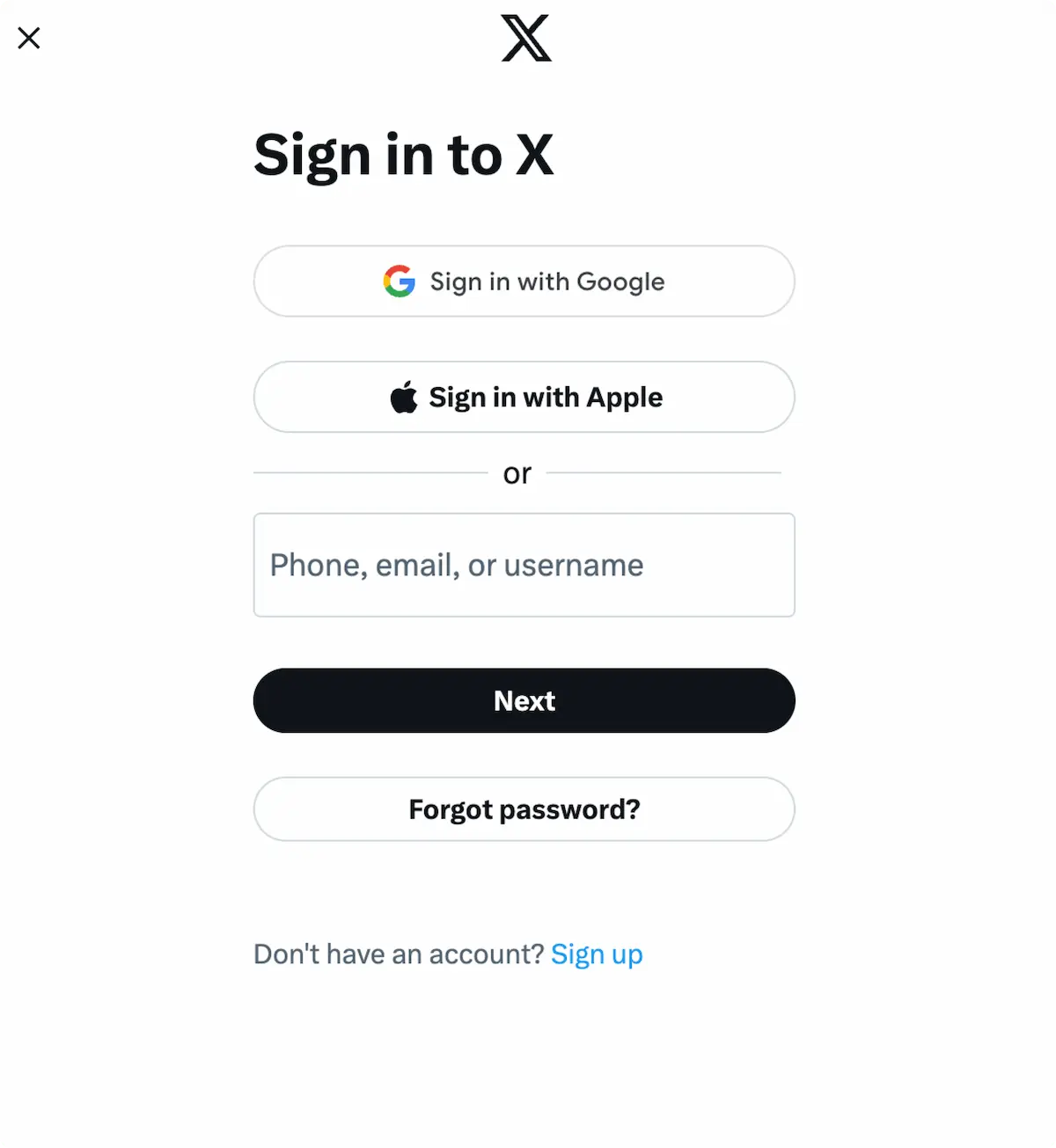
 When you click the X icon on the Social Accounts page, an X
sign-in will pop-up - *please be sure you allow pop-ups*. If you are already
logged in, please proceed to the following step.
Click *Sign In*, follow the instructions, and input relevant login credentials.
When you click the X icon on the Social Accounts page, an X
sign-in will pop-up - *please be sure you allow pop-ups*. If you are already
logged in, please proceed to the following step.
Click *Sign In*, follow the instructions, and input relevant login credentials.
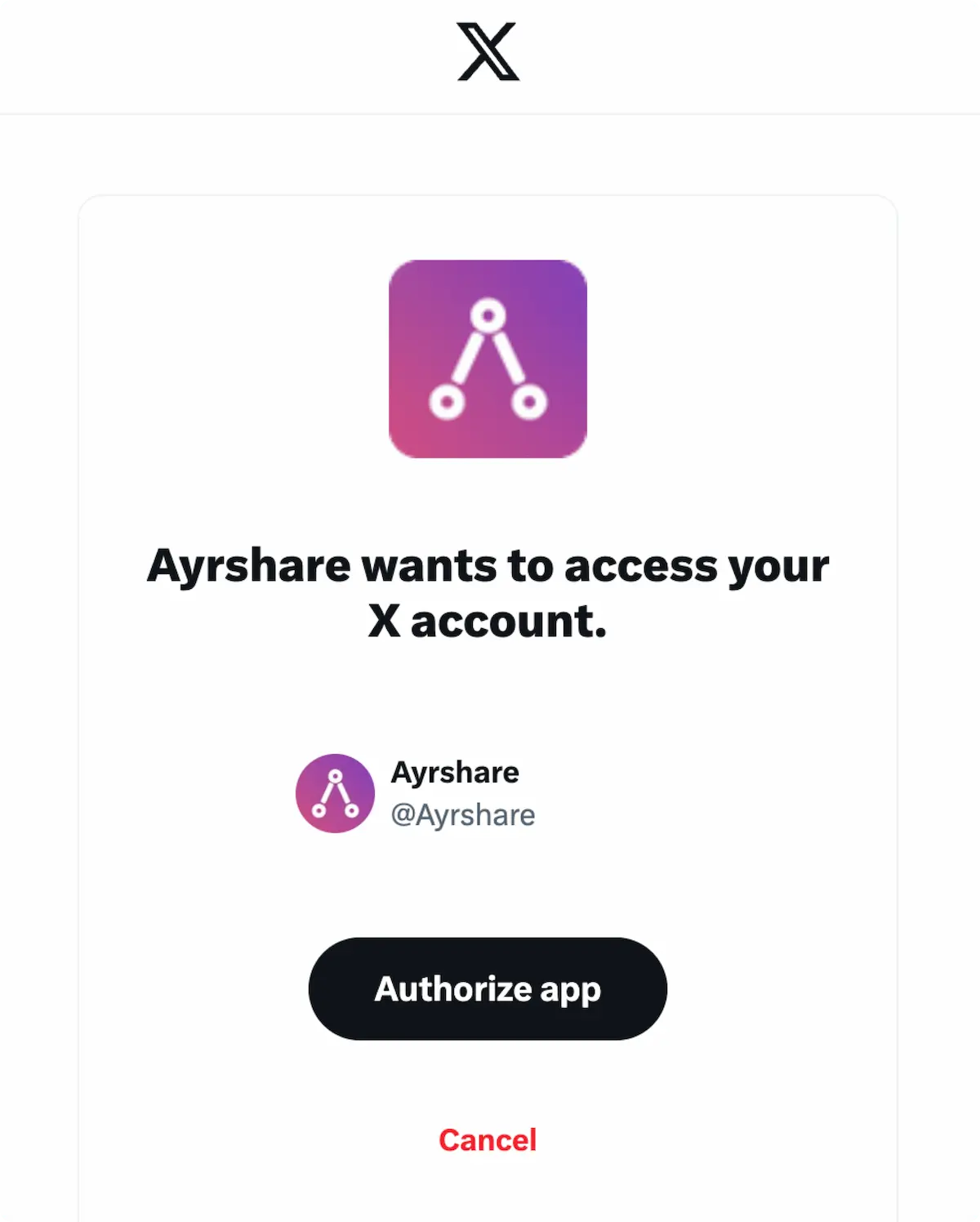
 If you have already signed in, click **Authorize app** on the pop-up.
This will authorize Ayrshare to access your X account.
If you have already signed in, click **Authorize app** on the pop-up.
This will authorize Ayrshare to access your X account.
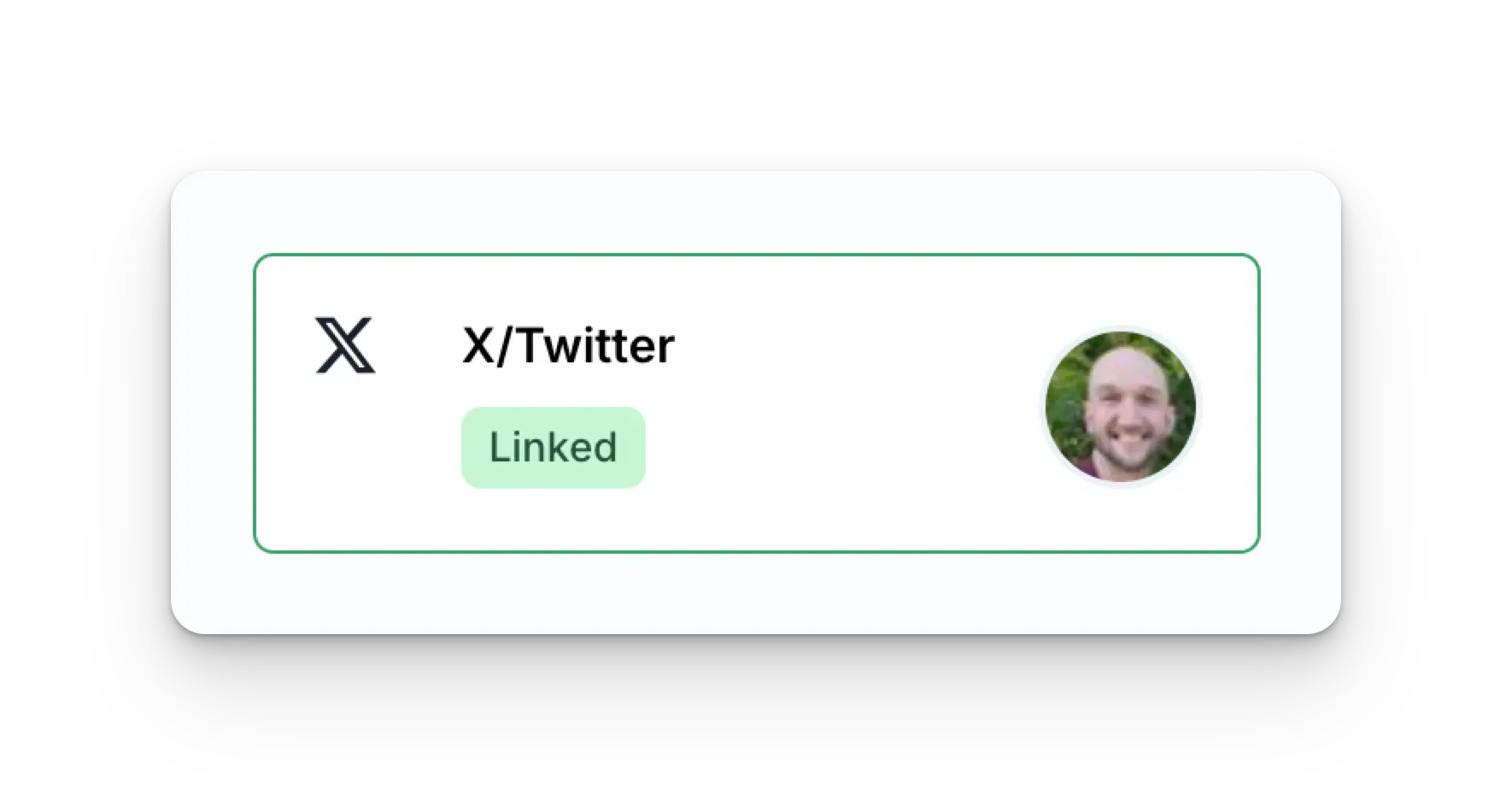
 Your Social Accounts page will now be updated with your X account.
 ## Additional X Information
* Please see here for details on
[posting to X](/apis/post/social-networks/x-twitter),
[getting analytics](/apis/analytics/overview),
[managing comments](/apis/comments/overview), or
[retrieving history.](/apis/history/overview)
* For more information on recommended image sizes, please see:
## Additional X Information
* Please see here for details on
[posting to X](/apis/post/social-networks/x-twitter),
[getting analytics](/apis/analytics/overview),
[managing comments](/apis/comments/overview), or
[retrieving history.](/apis/history/overview)
* For more information on recommended image sizes, please see: