> ## Documentation Index
> Fetch the complete documentation index at: https://www.ayrshare.com/docs/llms.txt
> Use this file to discover all available pages before exploring further.
# JSON validieren
> Senden Sie JSON, um zu validieren, ob es korrekt formatiert ist
export const HeaderAPI = ({noProfileKey, profileKeyRequired}) => <>
API Key of the Primary Profile.
Format: Authorization: Bearer API_KEY
{!noProfileKey && (profileKeyRequired ?
Profile Key of a User Profile.
Format: Profile-Key: PROFILE_KEY
:
Profile Key of a User Profile.
Format: Profile-Key: PROFILE_KEY
)}
;
export const PlansAvailable = ({plans = [], maxPackRequired}) => {
let displayPlans = plans;
if (plans && plans.length === 1) {
const lowerCasePlan = plans[0].toLowerCase();
if (lowerCasePlan === "business") {
displayPlans = ["Launch", "Business", "Enterprise"];
} else if (lowerCasePlan === "premium") {
displayPlans = ["Premium", "Launch", "Business", "Enterprise"];
}
}
return
Available on {displayPlans.length === 1 ? "the " : ""}
{displayPlans.join(", ").replace(/\b\w/g, l => l.toUpperCase())}{" "}
{displayPlans.length > 1 ? "plans" : "plan"}.
{maxPackRequired && window.open('https://www.ayrshare.com/docs/additional/maxpack', '_self')} className="flex items-center mt-2 cursor-pointer">
Max Pack required
}
;
};
Senden Sie JSON, um zu validieren, ob es korrekt formatiert ist.
Sie können Ihr JSON auch mit einem Online-Linter wie [https://jsonlint.com/](https://jsonlint.com/) oder mit [Postman](/testing/postman) validieren.
Wenn Sie ein No-Code-Tool wie Bubble oder Make verwenden oder eine 500 „Bad Request“-Antwort erhalten, ist dieser Endpunkt nützlich, um die JSON-Anfrage zu debuggen.
## Header-Parameter
- Senden Sie die Daten als Text. Wenn Sie Postman verwenden, achten Sie darauf, „Text“ als Typ auszuwählen.
- Setzen Sie `"Content-Type": "text/plain"`.
## Anfragebeispiele
Senden Sie beliebiges JSON an diesen Endpunkt, um es zu validieren.
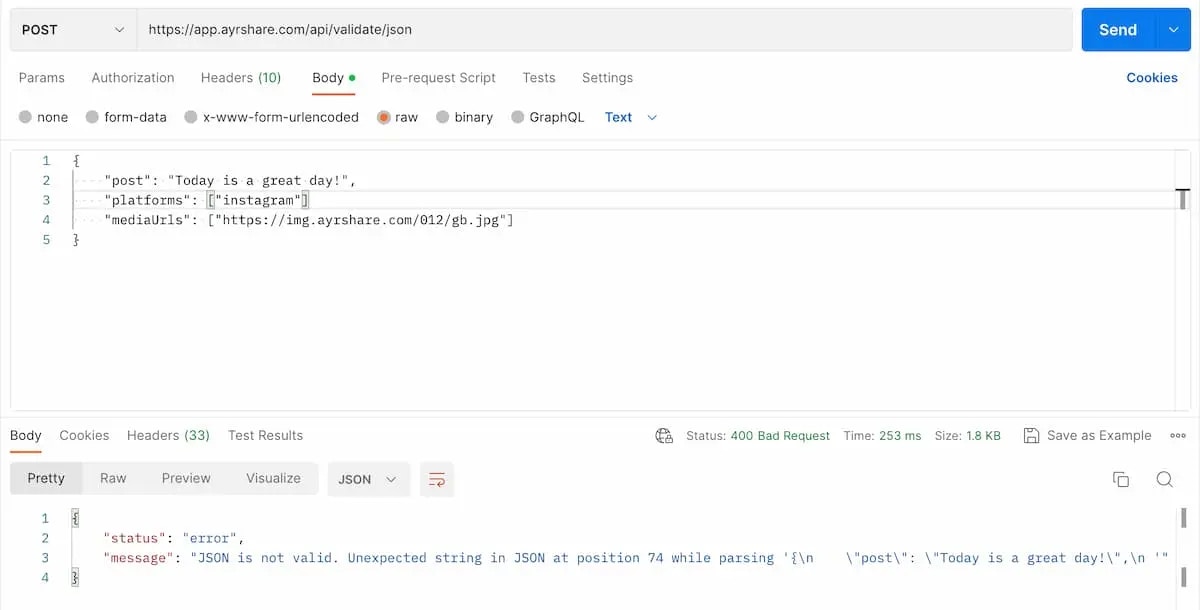
Nachfolgend ein Beispiel für ungültiges JSON in Postman. Können Sie den Fehler erkennen? Ein fehlendes Komma am Ende des zweiten Parameters `platforms`.
Achten Sie darauf, den `Content-Type` im Header als `text/plain` zu setzen und beim Senden „Text“ auszuwählen.
 ```json 200: OK Valid JSON theme={"system"}
{
"status": "success",
"message": "Valid JSON. Nice Job!"
}
```
```json 400: Bad Request Invalid JSON theme={"system"}
{
"status": "error",
"message": "JSON is not valid. Unexpected end of JSON input while parsing near '{\"test\": \"happy}'"
}
```
```json 200: OK Valid JSON theme={"system"}
{
"status": "success",
"message": "Valid JSON. Nice Job!"
}
```
```json 400: Bad Request Invalid JSON theme={"system"}
{
"status": "error",
"message": "JSON is not valid. Unexpected end of JSON input while parsing near '{\"test\": \"happy}'"
}
```