> ## Documentation Index
> Fetch the complete documentation index at: https://www.ayrshare.com/docs/llms.txt
> Use this file to discover all available pages before exploring further.
# Snapchat verknüpfen
> Snapchat für Ayrshare autorisieren
## So verknüpfen Sie Snapchat mit Ayrshare
### Snapchat Public Profile einrichten
Bevor Sie Ihr Snapchat-Konto verknüpfen, müssen Sie ein Snapchat Public Profile eingerichtet haben.
Nicht öffentliche Profile können nicht mit Ayrshare verknüpft werden.
Zudem muss das Public Profile in ein Professional Profile umgewandelt werden.
Ohne Professional Profile sind bestimmte Funktionen wie das Posten von Stories nicht
erlaubt.
Wenn Sie noch kein Public Profile haben, folgen Sie bitte den unten stehenden Schritten.
Wenn Sie bereits ein Public Profile haben, fahren Sie mit Schritt 3 fort.
Wenn Ihr Public Profile bereits ein Professional Profile ist, fahren Sie mit [Snapchat verknüpfen](/dashboard/connect-social-accounts/snapchat#linking-snapchat) fort.
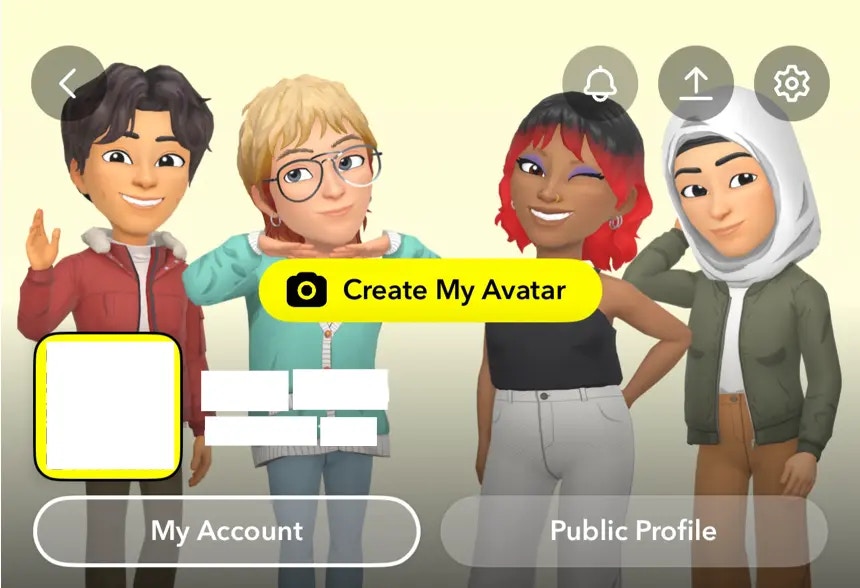
Öffnen Sie Snapchat und tippen Sie oben links auf Ihr Symbol.
 Klicken Sie auf die Schaltfläche **Public Profile** und folgen Sie den Anweisungen, um Ihr Public Profile einzurichten.
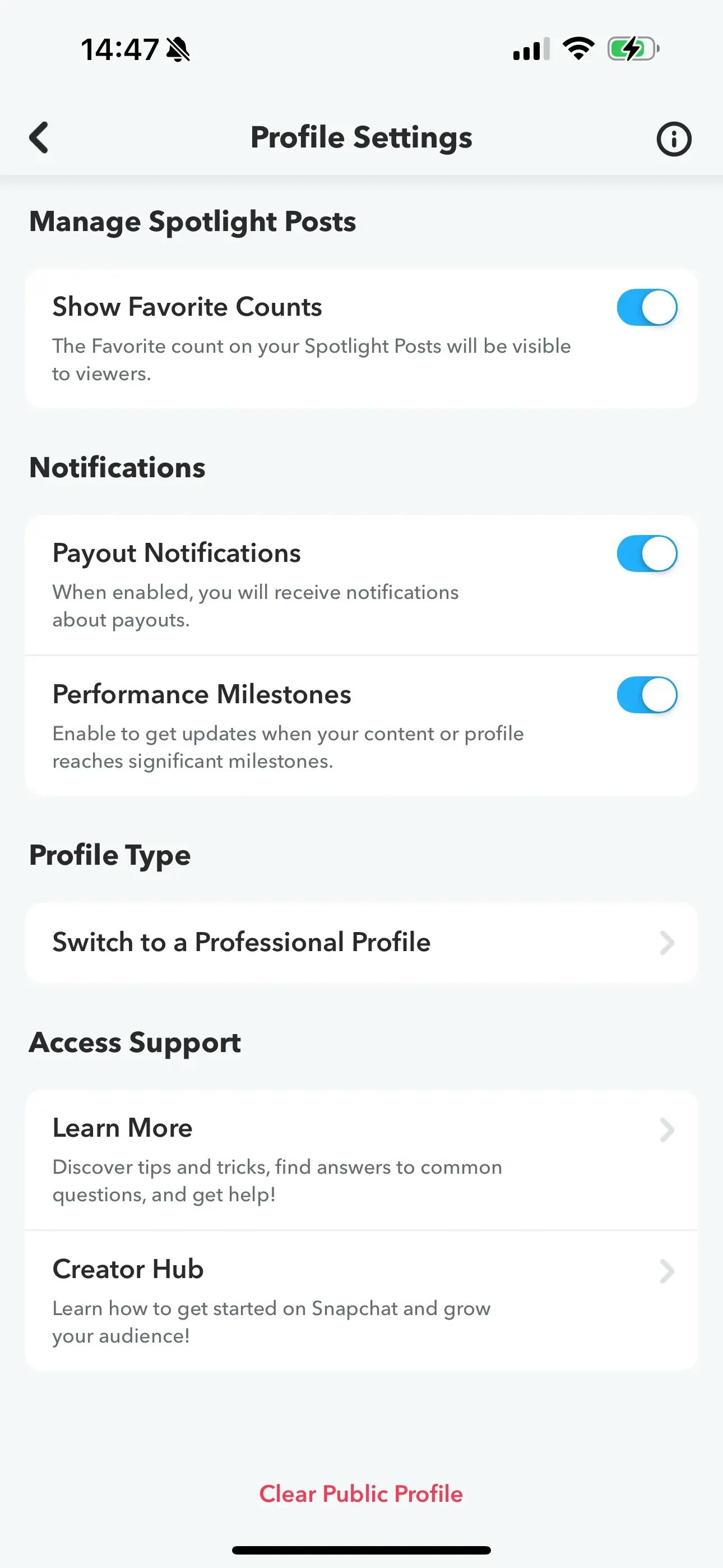
 Navigieren Sie in den Profileinstellungen zur Option **Switch to a Professional Profile**.
Folgen Sie den Anweisungen, wählen Sie eine Kategorie aus und klicken Sie auf **Confirm**, um zu einem
Professional Profile zu wechseln.
Navigieren Sie in den Profileinstellungen zur Option **Switch to a Professional Profile**.
Folgen Sie den Anweisungen, wählen Sie eine Kategorie aus und klicken Sie auf **Confirm**, um zu einem
Professional Profile zu wechseln.
 ### Snapchat verknüpfen
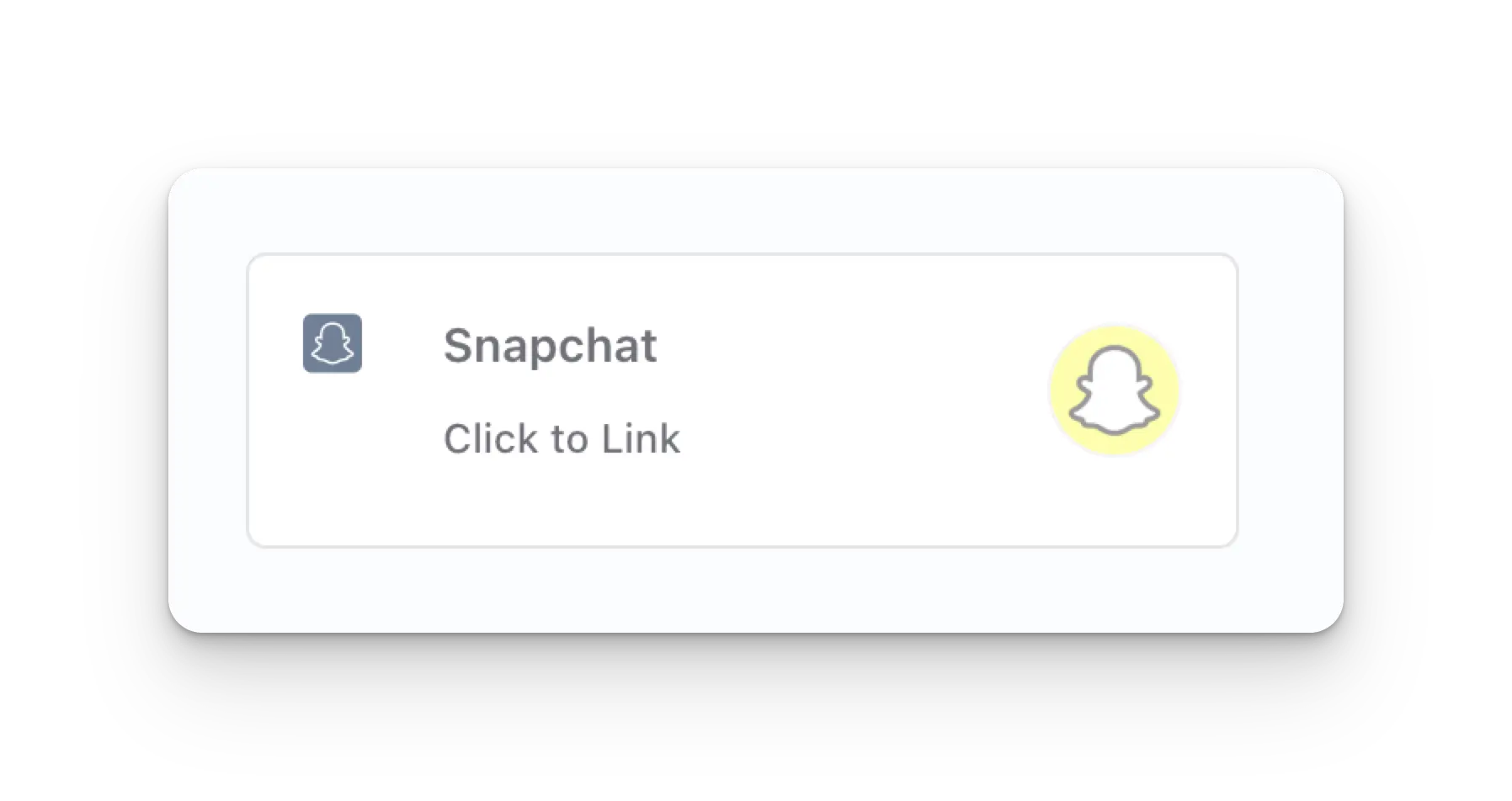
Klicken Sie auf der Social-Accounts-Seite auf das Snapchat-Symbol.
### Snapchat verknüpfen
Klicken Sie auf der Social-Accounts-Seite auf das Snapchat-Symbol.
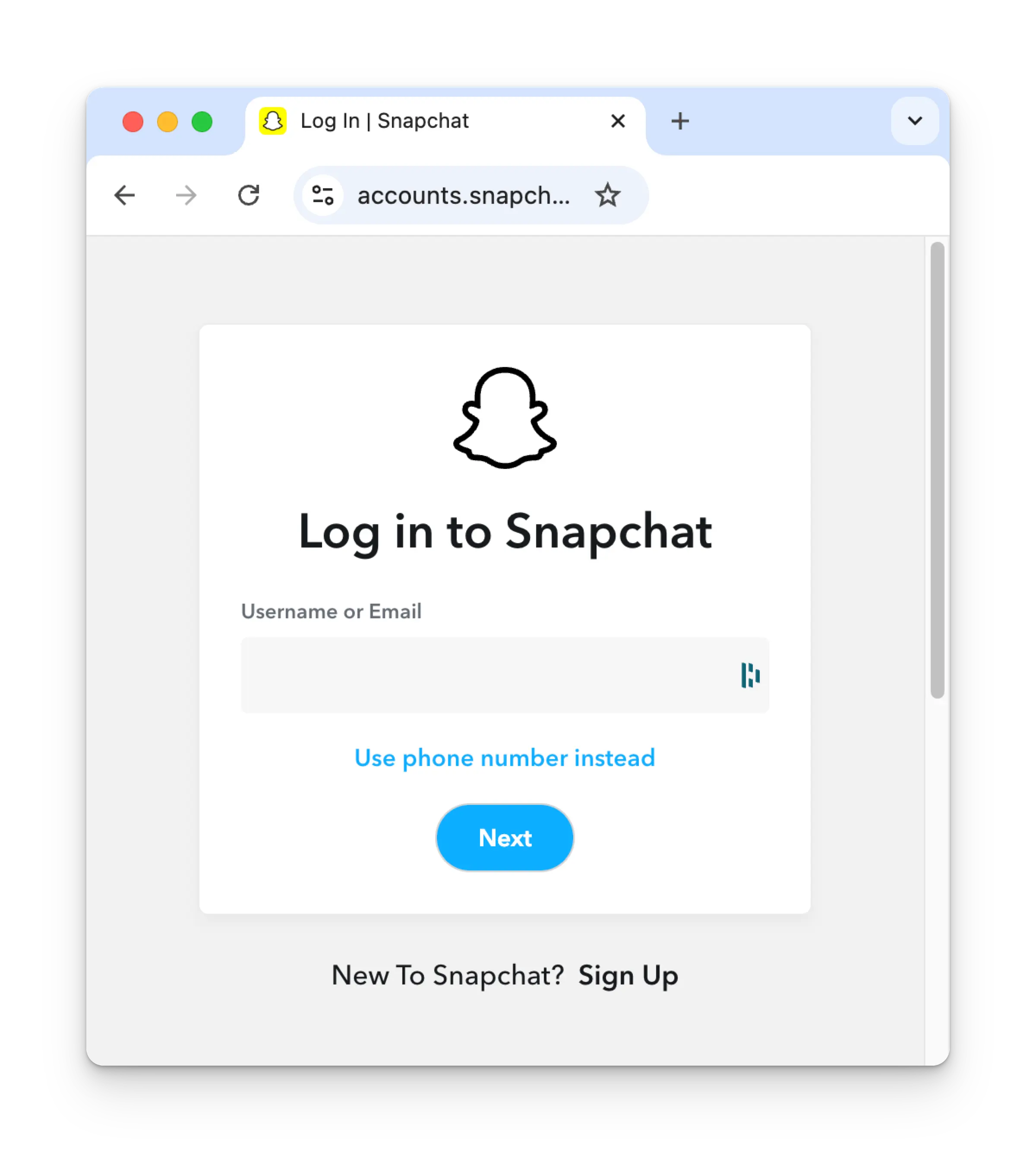
 Wenn Sie noch nicht angemeldet sind, gelangen Sie zur Snapchat-Anmeldeseite. Geben Sie Ihre Zugangsdaten
entsprechend ein. Wenn Sie bereits angemeldet sind, fahren Sie mit dem nächsten Schritt fort.
Wenn Sie noch nicht angemeldet sind, gelangen Sie zur Snapchat-Anmeldeseite. Geben Sie Ihre Zugangsdaten
entsprechend ein. Wenn Sie bereits angemeldet sind, fahren Sie mit dem nächsten Schritt fort.
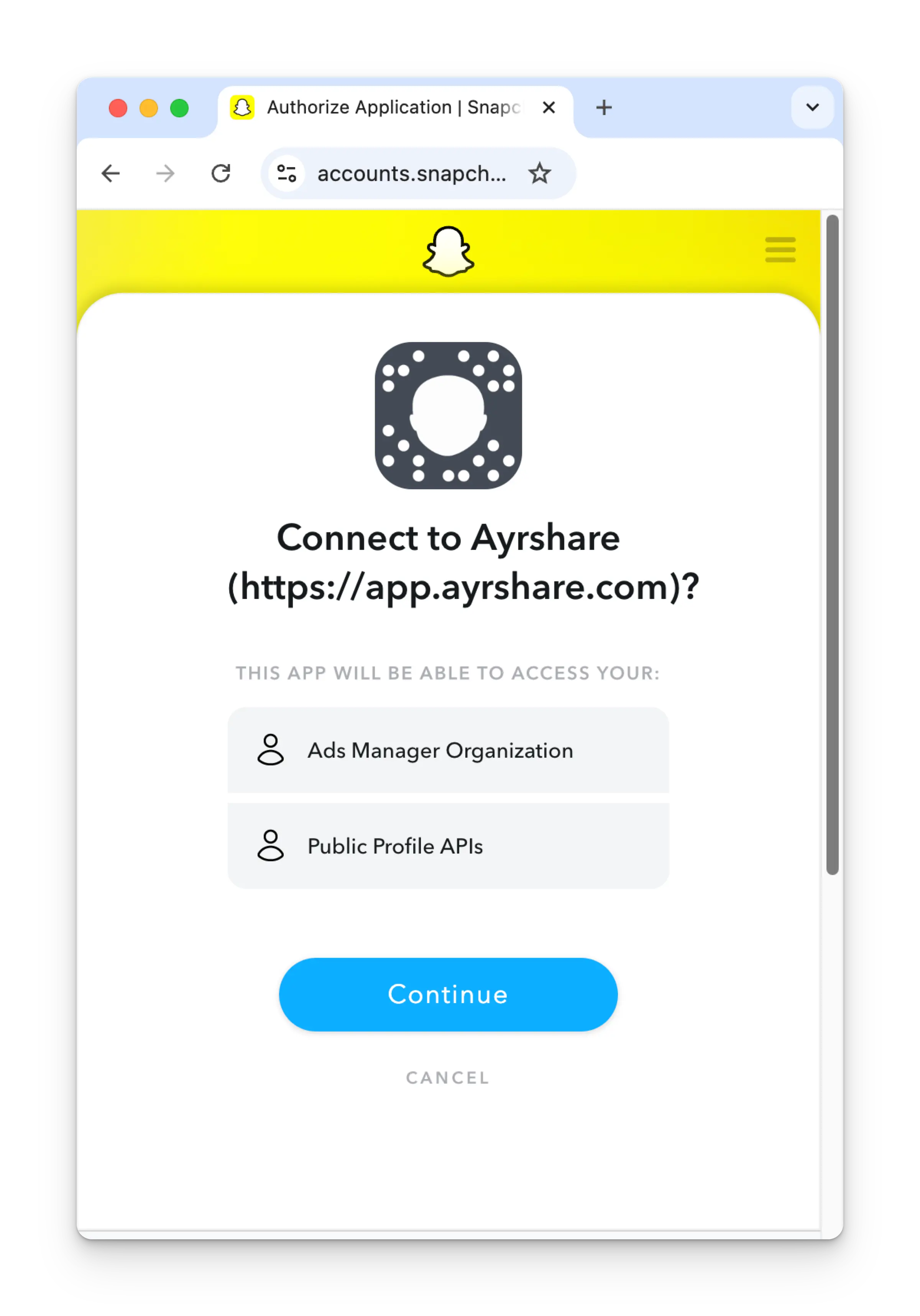
 Überprüfen Sie die Berechtigungen und klicken Sie auf der Autorisierungsseite auf **Continue**.
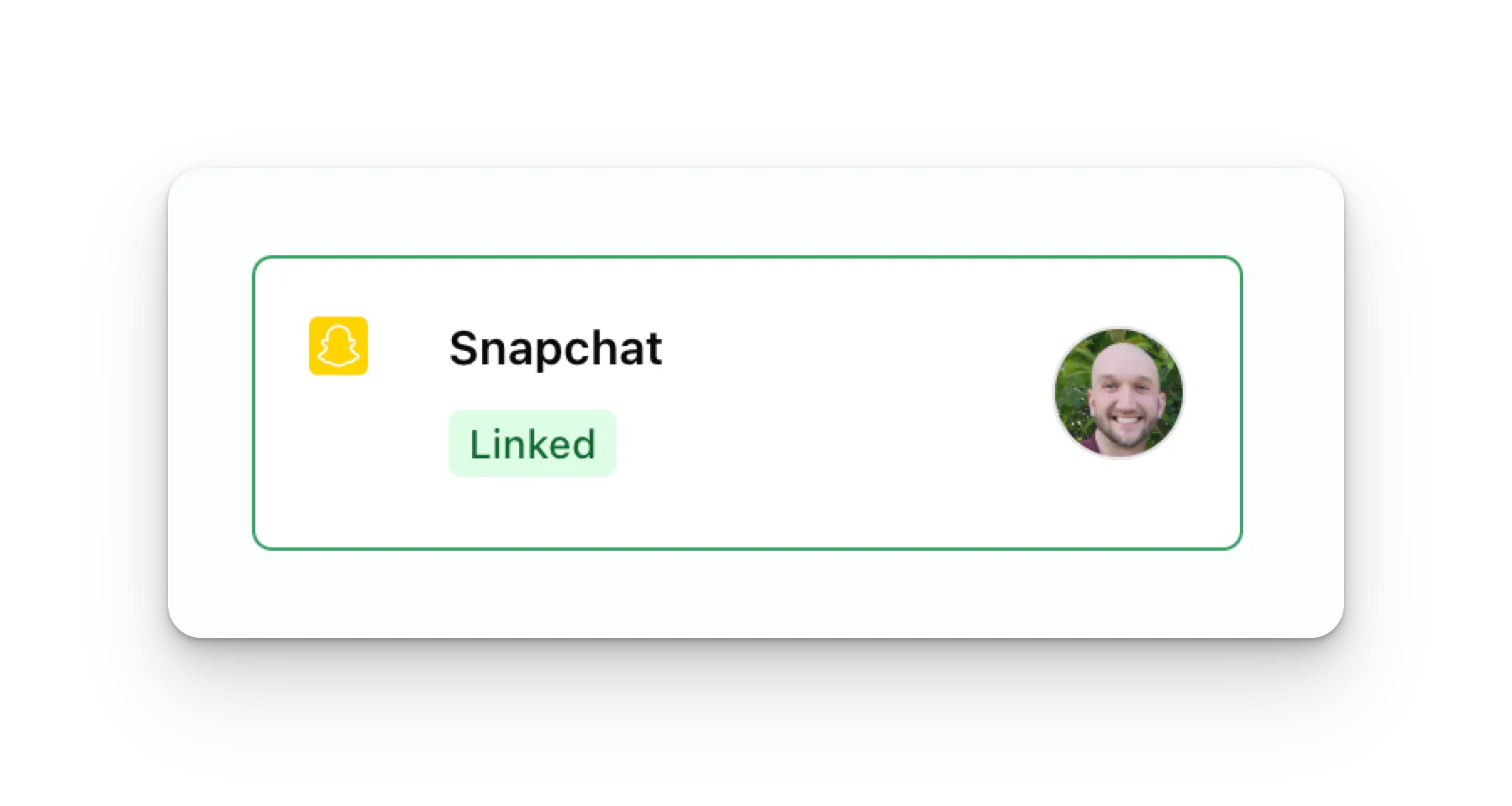
 Ihre Social-Accounts-Seite wird nun mit Ihrem Snapchat-Konto aktualisiert.
 ## Weitere Informationen zu Snapchat
* Details finden Sie hier zum
[Posten auf Snapchat](/apis/post/social-networks/snapchat),
[Abrufen von Analytics](/apis/analytics/overview),
[Verwalten von Kommentaren](/apis/comments/overview) oder
[Abrufen der Historie](/apis/history/overview).
* Weitere Informationen zu empfohlenen Bild- und Videogrößen finden Sie unter:
## Weitere Informationen zu Snapchat
* Details finden Sie hier zum
[Posten auf Snapchat](/apis/post/social-networks/snapchat),
[Abrufen von Analytics](/apis/analytics/overview),
[Verwalten von Kommentaren](/apis/comments/overview) oder
[Abrufen der Historie](/apis/history/overview).
* Weitere Informationen zu empfohlenen Bild- und Videogrößen finden Sie unter: