> ## Documentation Index
> Fetch the complete documentation index at: https://www.ayrshare.com/docs/llms.txt
> Use this file to discover all available pages before exploring further.
# Connexion Pinterest
> Autoriser Pinterest avec Ayrshare
## Comment connecter Pinterest à Ayrshare
### Configuration d'un tableau Pinterest
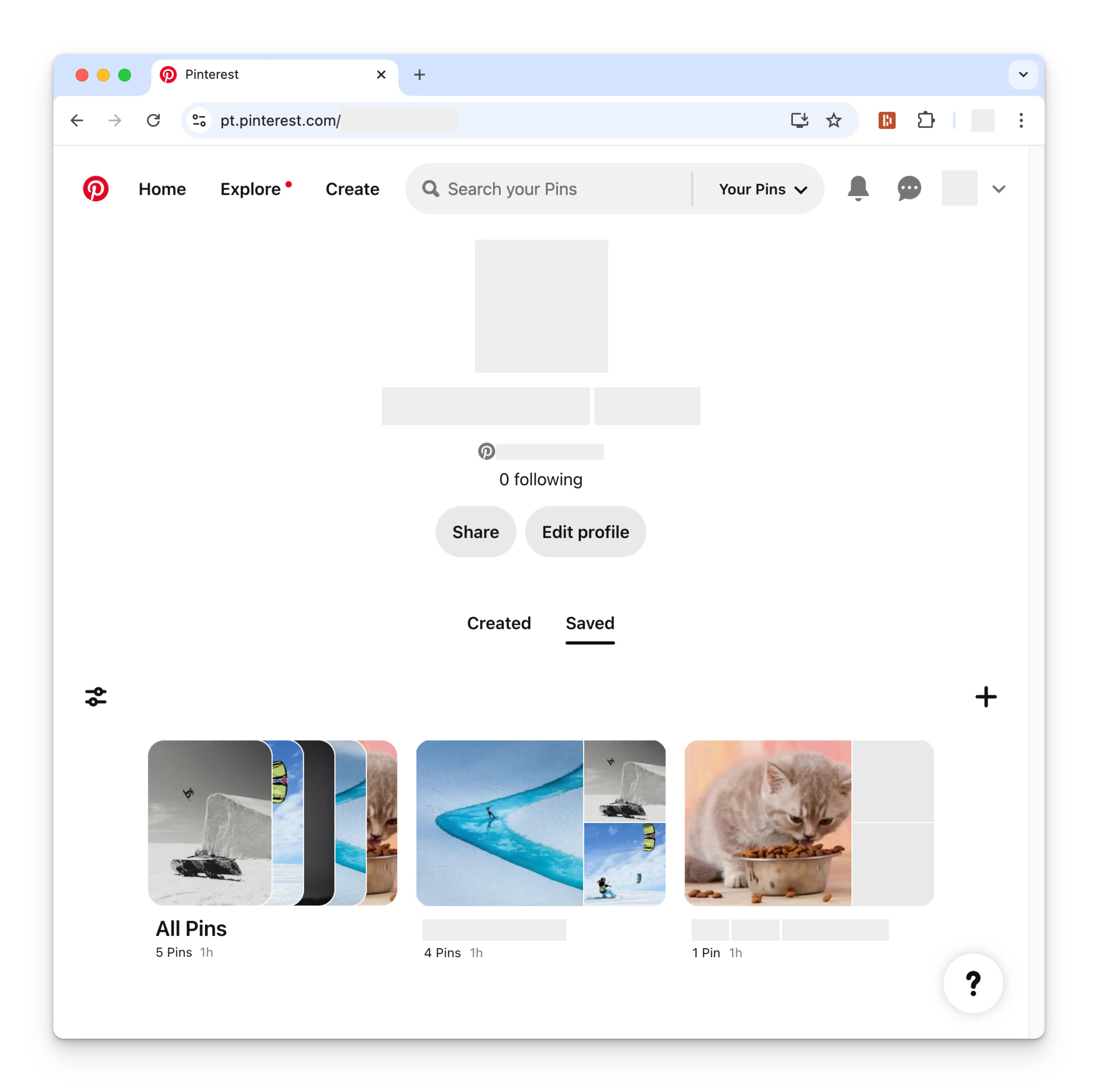
Avant de connecter votre compte Pinterest, vous devez avoir configuré au moins un tableau
Pinterest. Pour ce faire, accédez à votre page de profil Pinterest et cliquez sur le
symbole **+** (plus). Suivez les instructions pour créer un nouveau tableau.
 ### Connexion de Pinterest
Cliquez sur l'icône Pinterest sur la page Social Accounts.
### Connexion de Pinterest
Cliquez sur l'icône Pinterest sur la page Social Accounts.
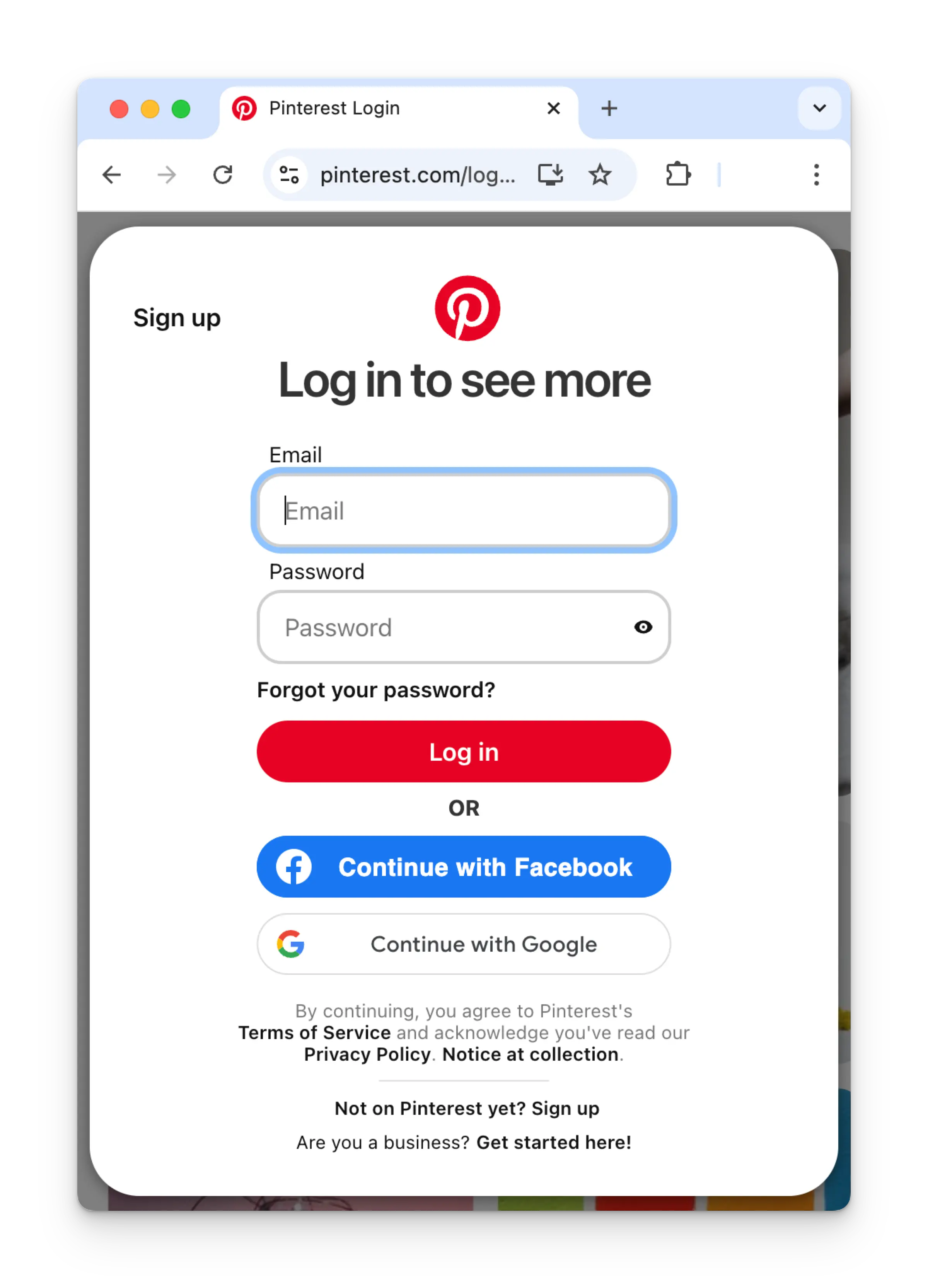
 Si vous n'êtes pas encore connecté, vous serez redirigé vers la page de connexion Pinterest.
Saisissez vos identifiants en conséquence.
Si vous êtes déjà connecté, veuillez passer à l'étape suivante.
Si vous n'êtes pas encore connecté, vous serez redirigé vers la page de connexion Pinterest.
Saisissez vos identifiants en conséquence.
Si vous êtes déjà connecté, veuillez passer à l'étape suivante.
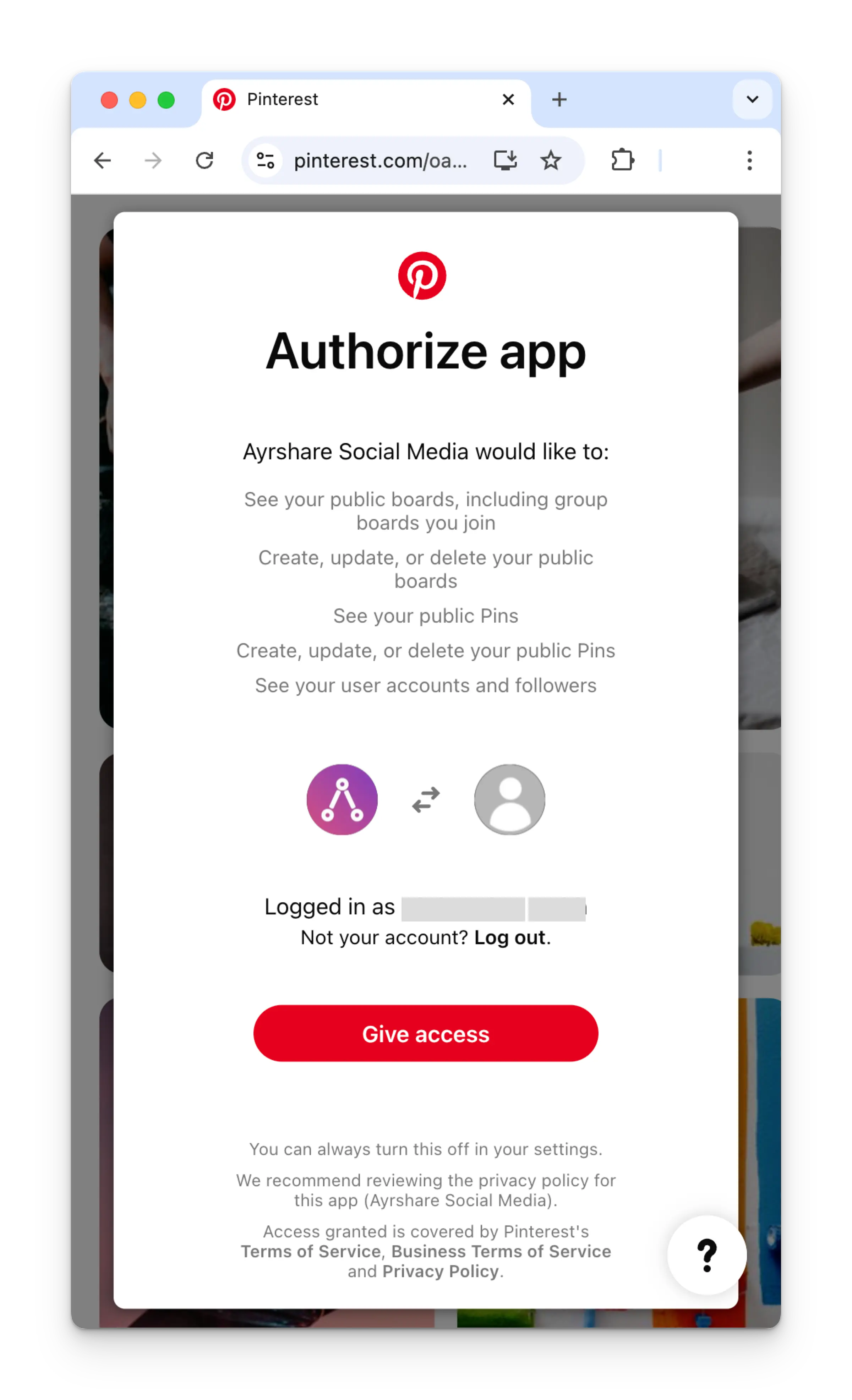
 Si vous êtes déjà connecté, cliquez sur **Give access** sur la page Authorize app.
 Une fois de retour sur le tableau de bord Ayrshare, choisissez le tableau Pinterest à connecter.
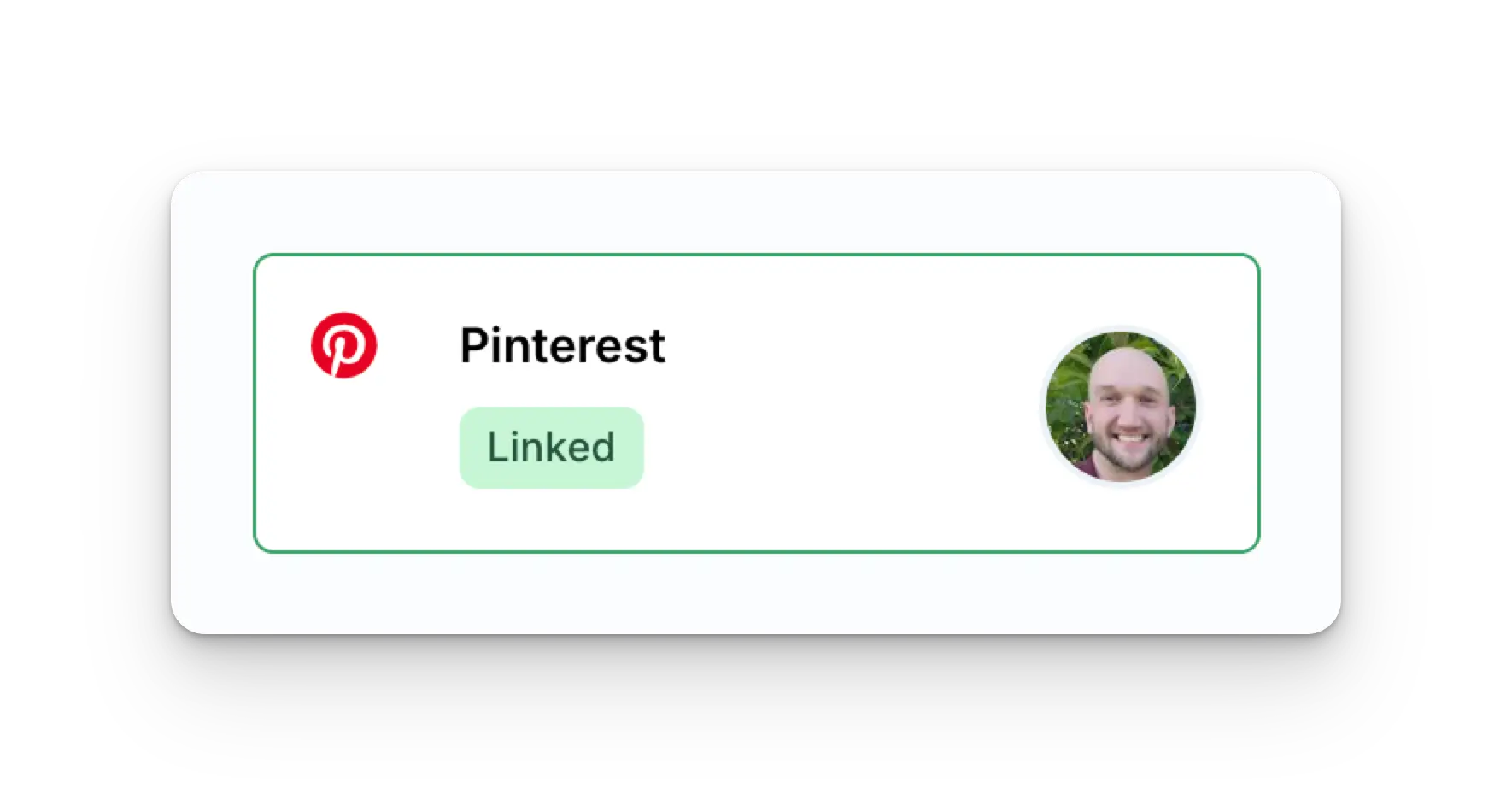
 Votre page Social Accounts sera désormais mise à jour avec votre compte Pinterest.
 ## Informations supplémentaires sur Pinterest
* Veuillez consulter ici pour plus de détails sur
[la publication sur Pinterest](/apis/post/social-networks/pinterest),
[l'obtention des statistiques](/apis/analytics/overview),
[la gestion des commentaires](/apis/comments/overview) ou
[la récupération de l'historique.](/apis/history/overview)
* Pour plus d'informations sur les tailles d'images recommandées, veuillez consulter :
## Informations supplémentaires sur Pinterest
* Veuillez consulter ici pour plus de détails sur
[la publication sur Pinterest](/apis/post/social-networks/pinterest),
[l'obtention des statistiques](/apis/analytics/overview),
[la gestion des commentaires](/apis/comments/overview) ou
[la récupération de l'historique.](/apis/history/overview)
* Pour plus d'informations sur les tailles d'images recommandées, veuillez consulter :