> ## Documentation Index
> Fetch the complete documentation index at: https://www.ayrshare.com/docs/llms.txt
> Use this file to discover all available pages before exploring further.
# Connexion Snapchat
> Autoriser Snapchat avec Ayrshare
## Comment connecter Snapchat à Ayrshare
### Configuration du profil public Snapchat
Avant de connecter votre compte Snapchat, vous devez avoir configuré un profil public Snapchat.
Les profils non publics ne peuvent pas être connectés à Ayrshare.
De plus, le profil public doit être basculé en profil professionnel.
Sans profil professionnel, certaines fonctionnalités telles que la publication de Stories ne sont pas
autorisées.
Si vous n'avez pas encore de profil public, veuillez suivre les étapes ci-dessous.
Si vous avez déjà un profil public, veuillez passer à l'étape 3.
Si votre profil public est déjà un profil professionnel, veuillez passer à [Connexion de Snapchat](/dashboard/connect-social-accounts/snapchat#linking-snapchat).
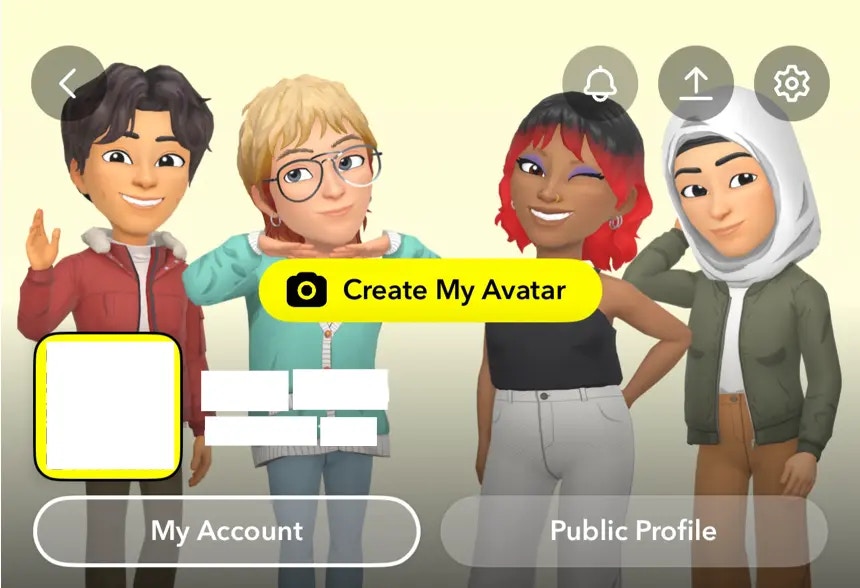
Ouvrez Snapchat et appuyez sur votre icône dans le coin supérieur gauche.
 Cliquez sur le bouton **Public Profile** et suivez les instructions pour configurer votre profil public.
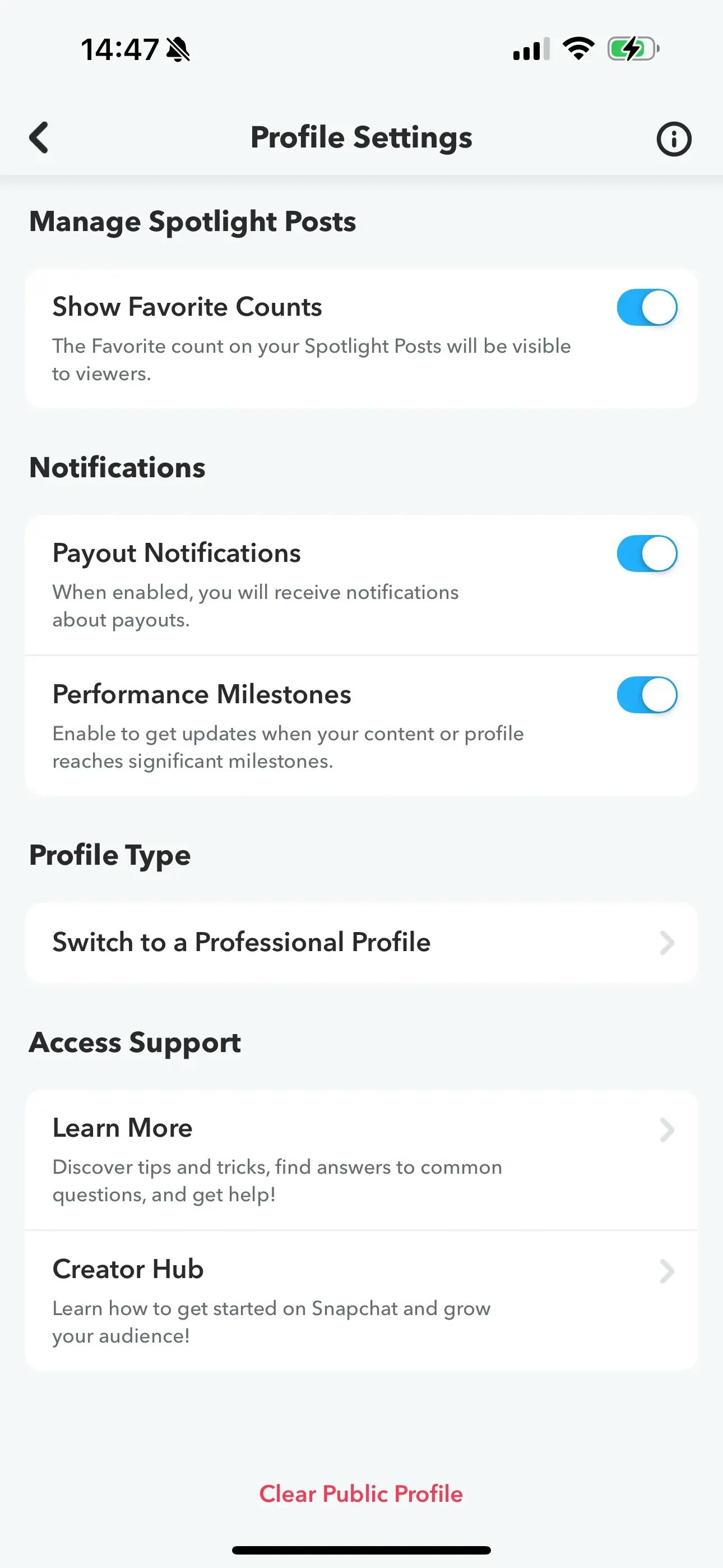
 Accédez à l'option **Switch to a Professional Profile** dans les Profile Settings.
Suivez les instructions, sélectionnez une catégorie et cliquez sur **Confirm** pour passer
à un profil professionnel.
Accédez à l'option **Switch to a Professional Profile** dans les Profile Settings.
Suivez les instructions, sélectionnez une catégorie et cliquez sur **Confirm** pour passer
à un profil professionnel.
 ### Connexion de Snapchat
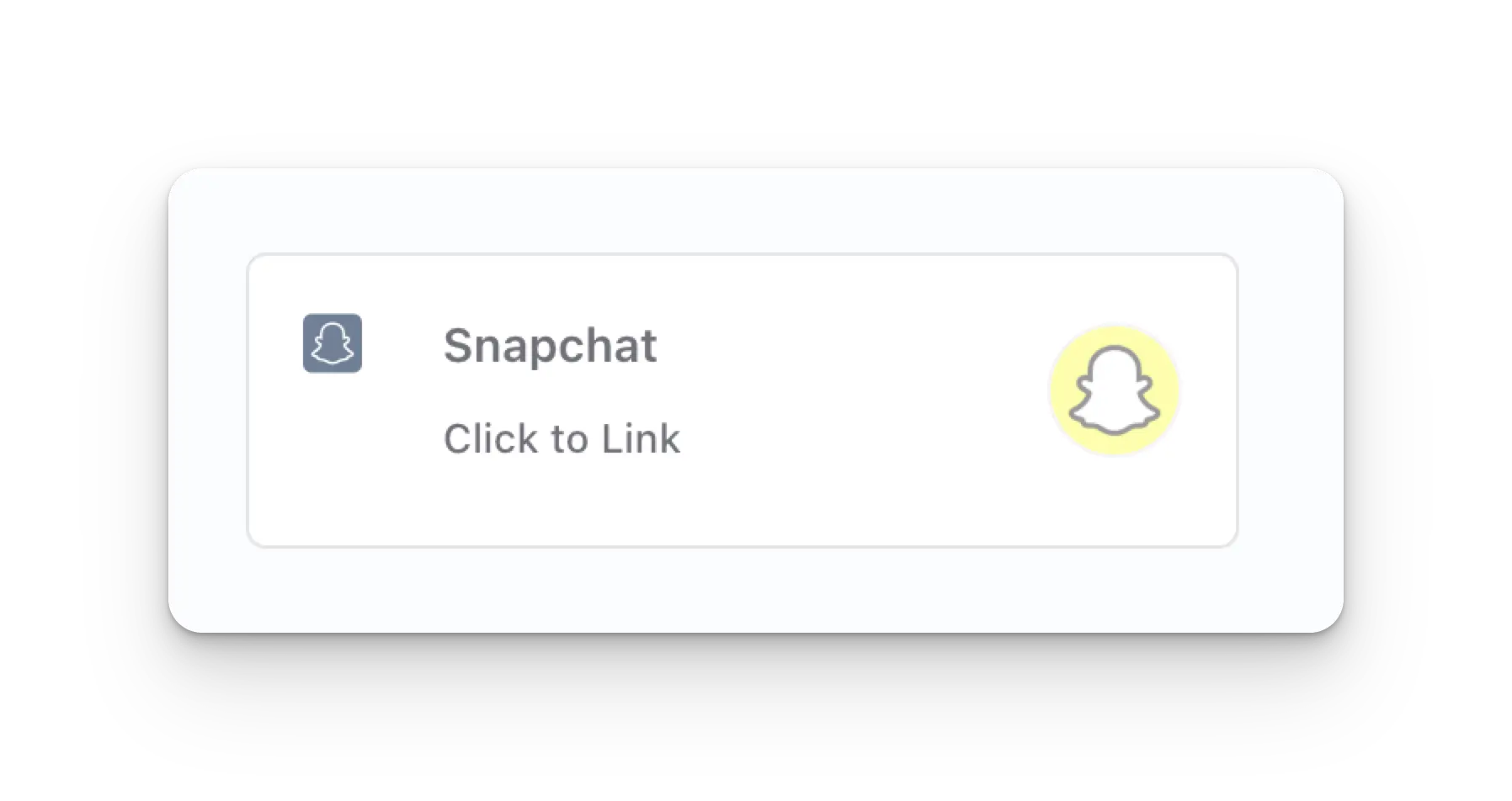
Cliquez sur l'icône Snapchat sur la page Social Accounts.
### Connexion de Snapchat
Cliquez sur l'icône Snapchat sur la page Social Accounts.
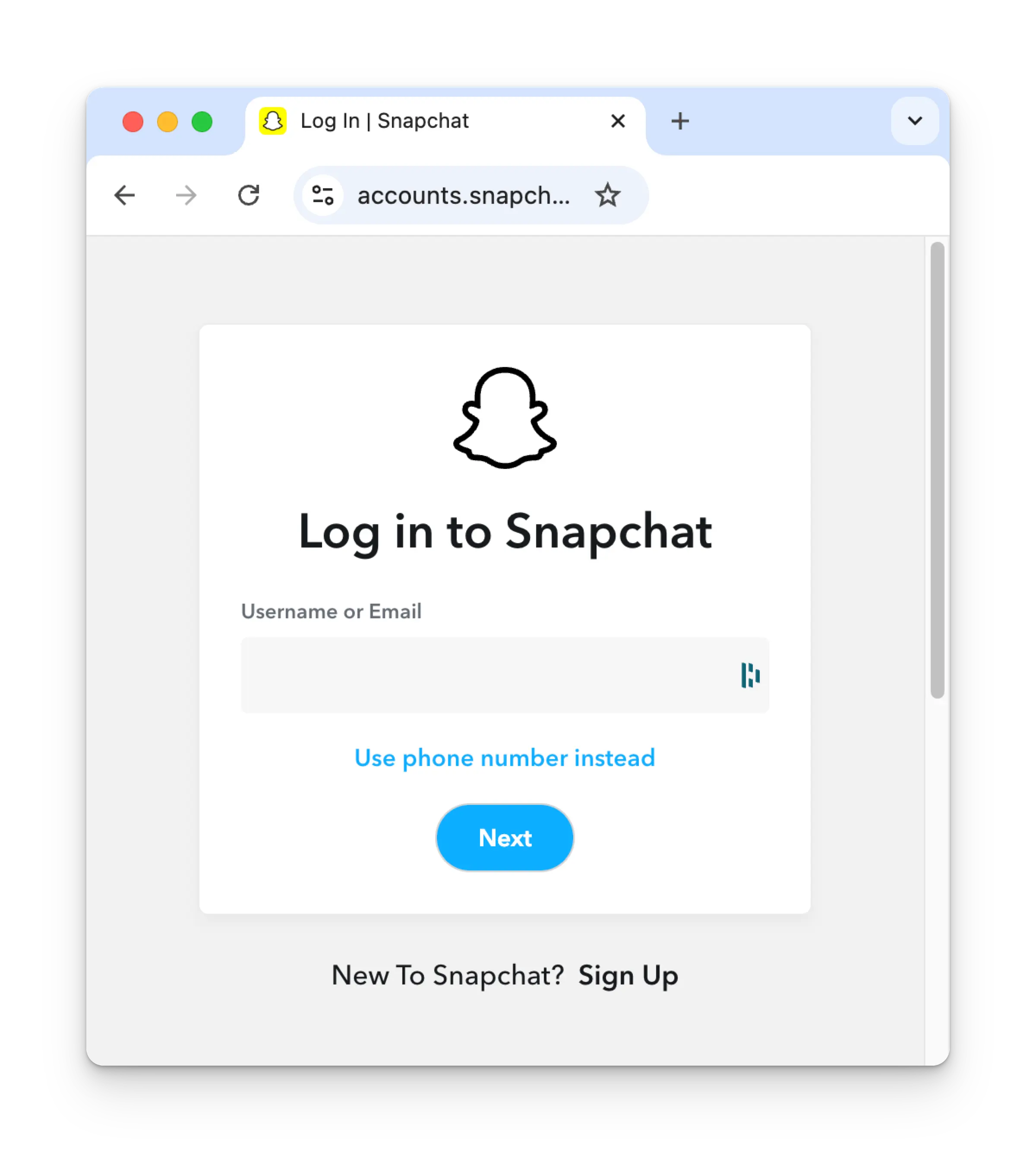
 Si vous n'êtes pas encore connecté, vous serez redirigé vers la page de connexion Snapchat. Saisissez vos identifiants
en conséquence. Si vous êtes déjà connecté, veuillez passer à l'étape suivante.
Si vous n'êtes pas encore connecté, vous serez redirigé vers la page de connexion Snapchat. Saisissez vos identifiants
en conséquence. Si vous êtes déjà connecté, veuillez passer à l'étape suivante.
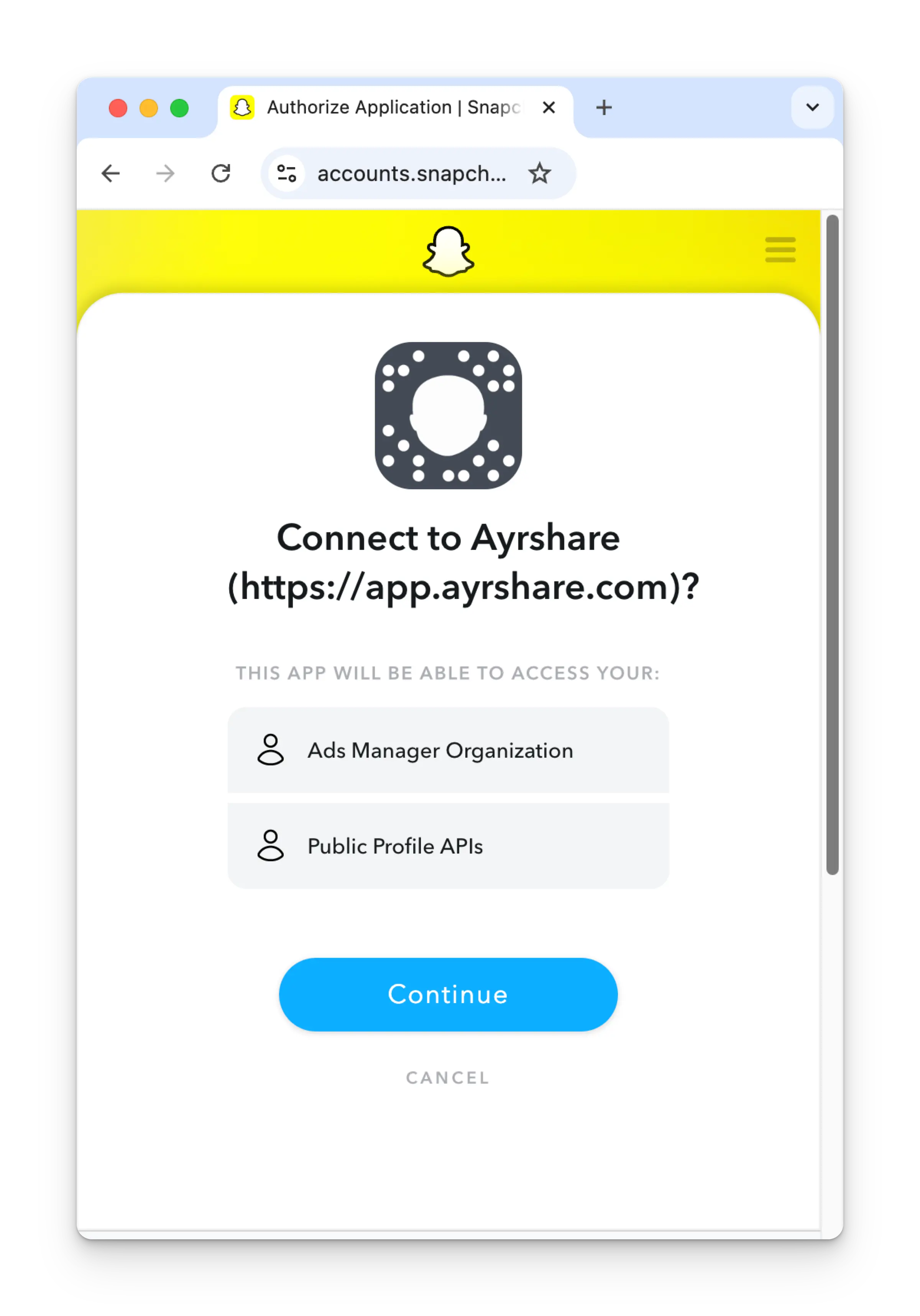
 Vérifiez les autorisations et cliquez sur **Continue** sur la page d'autorisation.
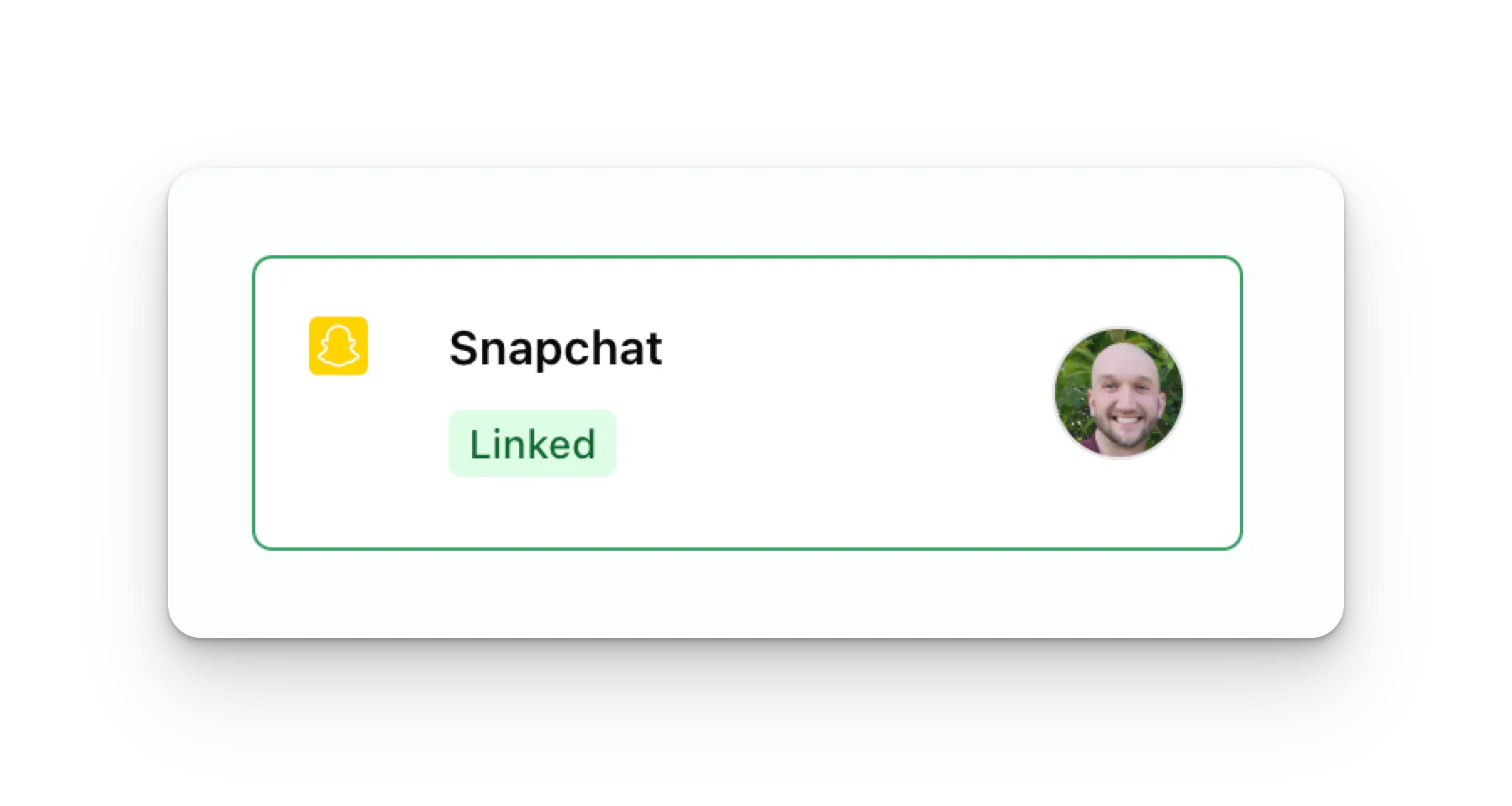
 Votre page Social Accounts sera désormais mise à jour avec votre compte Snapchat.
 ## Informations supplémentaires sur Snapchat
* Veuillez consulter ici pour plus de détails sur
[la publication sur Snapchat](/apis/post/social-networks/snapchat),
[l'obtention des statistiques](/apis/analytics/overview),
[la gestion des commentaires](/apis/comments/overview) ou
[la récupération de l'historique](/apis/history/overview).
* Pour plus d'informations sur les tailles d'images et de vidéos recommandées, veuillez consulter :
## Informations supplémentaires sur Snapchat
* Veuillez consulter ici pour plus de détails sur
[la publication sur Snapchat](/apis/post/social-networks/snapchat),
[l'obtention des statistiques](/apis/analytics/overview),
[la gestion des commentaires](/apis/comments/overview) ou
[la récupération de l'historique](/apis/history/overview).
* Pour plus d'informations sur les tailles d'images et de vidéos recommandées, veuillez consulter :