> ## Documentation Index
> Fetch the complete documentation index at: https://www.ayrshare.com/docs/llms.txt
> Use this file to discover all available pages before exploring further.
# Troubleshooting Instagram Posting Issues | Ayrshare Docs
> Fix common Instagram posting problems in Ayrshare, including failed publishes, media format errors, and account permissions, with step-by-step solutions.
If you receive an error when posting about Instagram permission issues or that your account isn't linked, even though you linked your Facebook account, it could be some access permissions were not granted.
For example, if you receive the errors:
-
*Unsupported post request. Object with ID \[id number] does not exist,
cannot be loaded due to missing permissions, or does not support this
operation. Please read the Graph API documentation*
or
- *There is an issue with your Instagram account type or permissions.*
Take the following steps:
### 1. Verify Your Instagram Business Account is Still Connected to a Facebook Page
If you used the Facebook Page connections, make sure your Instagram is a Business account and it is connected to a Facebook Page.
1. Login to Facebook and navigate to your Facebook Page. Click 'Settings' from the left-hand menu on your screen.
2. Select "Instagram" and verify your Instagram account is linked or click "Connect Account".
3. Unlink and re-link your Instagram account in the Ayrshare Dashboard under "Social Accounts".
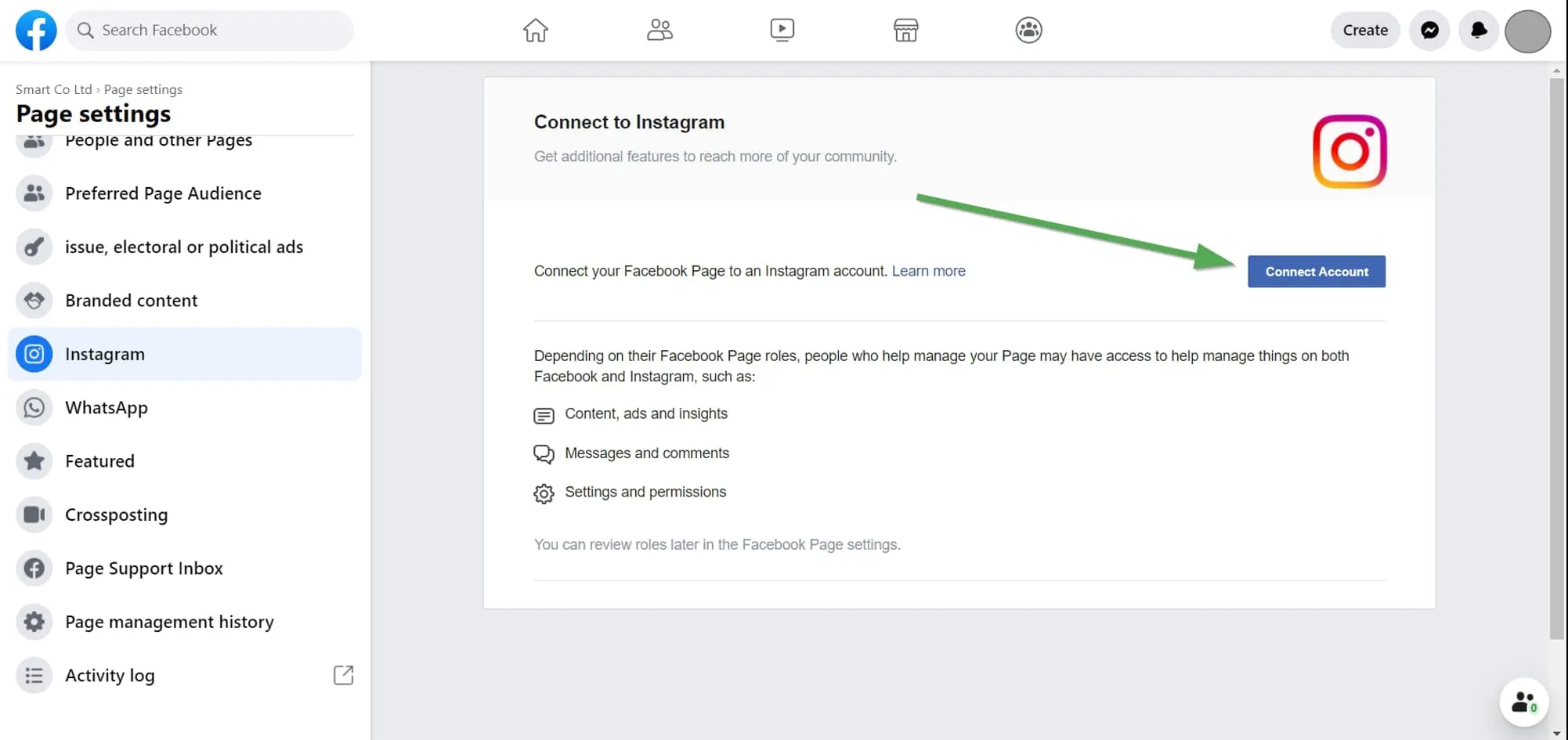 See here for more details:
### 2. Check your Instagram Permissions
If the issue still persists, check your permissions granted to Ayrshare.
Login to Facebook and go to the "Setting" -> "Settings & Privacy" -> "Security & Login" -> "Business Integration".
Click here for a direct link
On the [Business Integration page](https://www.facebook.com/help/405094243235242/), click the Ayrshare App.
See here for more details:
### 2. Check your Instagram Permissions
If the issue still persists, check your permissions granted to Ayrshare.
Login to Facebook and go to the "Setting" -> "Settings & Privacy" -> "Security & Login" -> "Business Integration".
Click here for a direct link
On the [Business Integration page](https://www.facebook.com/help/405094243235242/), click the Ayrshare App.
 A pop-up will show. Scroll down to "Upload media and create post for Instagram" and "Access profile and posts for Instagram". Check both the boxes "Instagram Accounts":
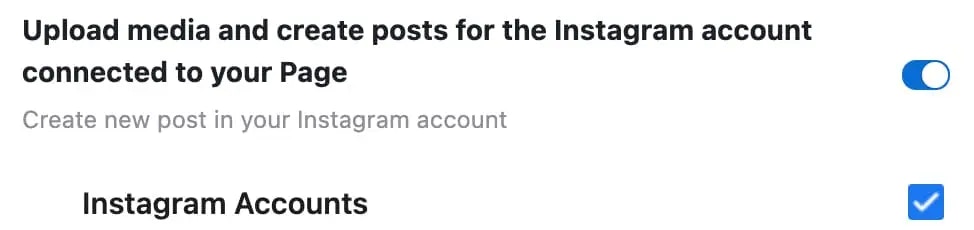
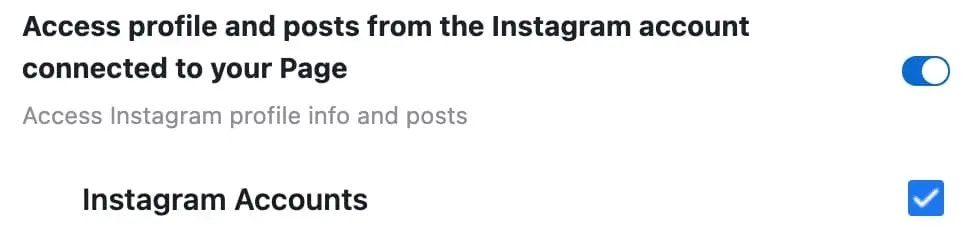 Click "Save".
Head back to the Ayrshare Dashboard and unlink and relink Instagram. You should now have the correct permissions.
Click "Save".
Head back to the Ayrshare Dashboard and unlink and relink Instagram. You should now have the correct permissions.