> ## Documentation Index
> Fetch the complete documentation index at: https://www.ayrshare.com/docs/llms.txt
> Use this file to discover all available pages before exploring further.
# YouTube API
> YouTube API का उपयोग करके पोस्ट करने के विकल्प
YouTube पोस्टिंग के लिए आपके YouTube account में कम से कम एक Channel होना और Channel पर owner होना आवश्यक है।
एक YouTube Channel बनाने के लिए, YouTube Dashboard में अपनी profile पर क्लिक करें और "Create a Channel" चुनें।
आप YouTube Channel बनाने के लिए इस सीधे लिंक का उपयोग भी कर सकते हैं: [http://m.youtube.com/create\_channel](http://m.youtube.com/create_channel)
यदि आपको YouTube channels देखने में समस्याएँ हो रही हैं तो कृपया [YouTube channel troubleshooting guide](/help-center/technical-support/youtube_channels_not_showing) देखें।
YouTube upload विफलताएँ `retryAvailable: true` के साथ error codes **453** (timeout) या **454**
(service unavailable) लौटा सकती हैं। आपका इंटीग्रेशन इस flag पर branch कर सकता है ताकि transient विफलताओं को
backoff के साथ स्वचालित रूप से पुनः प्रयास किया जा सके। पूरी सूची के लिए
[error codes reference](/errors/errors-ayrshare) देखें।
अधिक जानकारी के लिए कृपया [YouTube Media Guidelines](/media-guidelines/youtube) और [YouTube Authorization](/dashboard/connect-social-accounts/youtube) देखें।
## YouTube पर पोस्ट करना
### पोस्टिंग अवलोकन
YouTube API का उपयोग करके पोस्ट करने के लिए `title` parameter के साथ `youTubeOptions` object आवश्यक है - अधिकतम 100 characters।
`title` एकमात्र आवश्यक field है और [transcribe endpoint](/apis/generate/transcribe-video) के साथ स्वचालित रूप से उत्पन्न किया जा सकता है।
उदाहरण के लिए, डिफ़ॉल्ट settings के साथ एक YouTube video पोस्ट करने के लिए:
```json YouTube Post theme={"system"}
{
// Required: Video description
"post": "My Best YouTube Description", // empty string is allowed
// Required: Platform to post to
"platforms": ["youtube"],
// Required: URL of video (only 1 allowed)
"mediaUrls": ["https://img.ayrshare.com/012/vid.mp4"],
"youTubeOptions": {
// Required: Video title (max 100 characters)
"title": "Your Best Title"
}
}
```
YouTube videos डिफ़ॉल्ट रूप से `private` होते हैं, लेकिन visibility को `public` या `unlisted` पर सेट किया जा सकता है।
अधिक विवरण के लिए कृपया नीचे वैकल्पिक fields देखें।
### YouTube पोस्ट वैकल्पिक Fields
नीचे कई अन्य वैकल्पिक fields सूचीबद्ध हैं, जिसमें video `visibility`, `tags`, और `publishAt` तिथि शामिल हैं। आवश्यकताओं और विवरणों के लिए कृपया comments देखें।
```json YouTube Post Optional Fields theme={"system"}
{
// Required fields
"post": "My Best YouTube Description", // Video description, up to 5,000 characters
"platforms": ["youtube"], // Platform to post to
"mediaUrls": ["https://img.ayrshare.com/012/vid.mp4"], // URL of video (1 allowed)
"youTubeOptions": {
// Required fields
"title": "Your Best Title", // Video Title (max 100 characters)
/** Optional Fields **/
// Visibility: "public", "unlisted", or "private" (default: "private")
"visibility": "private",
// Thumbnail settings - JPEG/PNG URL under 2MB, must end in png/jpg/jpeg
"thumbNail": "https://img.ayrshare.com/012/gb.jpg",
// Video organization
"playListId": "PLrav6EfwgDX5", // Playlist ID to add the video
"tags": ["dancing", "dogs"], // Tag array (400 chars total, 2+ chars each)
// Video settings
"madeForKids": false, // Self-declared kids content (default: false)
"license": "youtube", // "youtube" (default) or "creativeCommon"
"embeddable": true, // default: true
"publicStatsViewable": true, // default: true
"shorts": true, // Post as YouTube Short (max 3 minutes, adds #shorts)
"notifySubscribers": true, // Send notification to subscribers (default: true)
"categoryId": 24, // Video category (24 = Entertainment)
"containsSyntheticMedia": true, // Disclose that a video contains realistic Altered or Synthetic (A/S) content
// YouTube controlled publishing - UTC publish time. See below for details.
"publishAt": "2022-10-08T21:18:36Z",
}
}
```
`title` 100 characters या उससे कम होना चाहिए। `post` 5,000 characters या उससे कम होना चाहिए। `post` और `title` में \< और > को छोड़कर कोई भी characters हो सकते हैं।
Playlist Id को browser में playlist खोलकर और `list=` के बाद के मान की प्रतिलिपि बनाकर पाया जा सकता है। videos जोड़ने के लिए प्रमाणित उपयोगकर्ता और channel playlist के owner होने चाहिए।
यदि आपका वीडियो mp4 जैसे ज्ञात video extension में समाप्त नहीं होता है, तो कृपया `isVideo` parameter का उपयोग करें। विवरण के लिए [/post endpoint](/apis/post/post) देखें।
`publishAt` field YouTube को publishing time को नियंत्रित करने की अनुमति देगा।
Video publish time तक private रहेगा जब इसे सार्वजनिक कर दिया जाएगा।
यदि publish time अतीत में है, तो video तुरंत सार्वजनिक हो जाएगा।
`publishAt` field का उपयोग करते समय post `scheduleDate` field का उपयोग न करें।
`containsSyntheticMedia` field का उपयोग यह प्रकट करने के लिए किया जाता है कि किसी video में यथार्थवादी Altered या Synthetic (A/S) सामग्री शामिल है: किसी वास्तविक व्यक्ति को कुछ कहते या करते हुए दिखाना जो उन्होंने वास्तव में नहीं कहा या नहीं किया, किसी वास्तविक घटना या स्थान के footage को बदलना, ऐसा यथार्थवादी दिखने वाला दृश्य उत्पन्न करना जो वास्तव में नहीं हुआ था।
`license` - video license प्रकार सेट करता है। स्वीकृत मान: `"youtube"` (Standard YouTube License, default) या `"creativeCommon"` (Creative Commons - Attribution)।
`embeddable` - Boolean (या strings `"true"` / `"false"`)। यह नियंत्रित करता है कि क्या video को तीसरे पक्ष की वेबसाइटों पर embed किया जा सकता है। डिफ़ॉल्ट: `true`।
`publicStatsViewable` - Boolean (या strings `"true"` / `"false"`)। यह नियंत्रित करता है कि क्या video के watch page पर **extended statistics panel** सार्वजनिक रूप से देखने योग्य है। इस सेटिंग की परवाह किए बिना basic view count और like count सार्वजनिक रूप से दिखाई देते हैं। डिफ़ॉल्ट: `true`। विवरण के लिए [YouTube Data API reference में `status.publicStatsViewable`](https://developers.google.com/youtube/v3/docs/videos#status.publicStatsViewable) देखें।
अधिक जानकारी के लिए [YouTube Media Guidelines](/media-guidelines/youtube) देखें।
**Monetization और सामग्री नियंत्रण**
`madeForKids`, `license`, `embeddable`, और `publicStatsViewable` fields Ayrshare API के माध्यम से upload समय पर settable हैं। हालाँकि, प्रत्यक्ष monetization toggles (ads सक्षम/अक्षम करना), ad प्रकार चयन (pre-roll, mid-roll, post-roll), revenue sharing, और Content ID के लिए YouTube CMS credentials आवश्यक हैं — जो केवल MCNs और enterprise content owners के लिए उपलब्ध हैं — और मानक YouTube OAuth या Ayrshare API के माध्यम से **उपलब्ध नहीं** हैं।
## YouTube Shorts
YouTube Short एक short-form vertical video है जो तीन मिनट तक लंबा हो सकता है।
ये TikTok videos और Instagram या Facebook Reels के समान हैं।
### YouTube Shorts पोस्ट करना
आप `youTubeOptions` object में `shorts` parameter जोड़कर 3 मिनट तक का YouTube Shorts video पोस्ट कर सकते हैं।
```json YouTube Shorts Post theme={"system"}
{
"youTubeOptions": {
"shorts": true
}
}
```
YouTube description में #shorts hashtag जोड़ा जाएगा।
### YouTube Shorts पर महत्वपूर्ण जानकारी
Video को Short के रूप में भेजना YouTube के लिए एक संकेत है कि आप चाहते हैं कि video
Short के रूप में दिखाई दे, लेकिन गारंटी नहीं देता कि यह Short के रूप में दिखाई देगा। YouTube द्वारा Short माने जाने के लिए
video को [Short
video](/media-guidelines/youtube#shorts) आवश्यकताओं को पूरा करना होगा, जैसे कि 3 मिनट या उससे कम होना और
9:16 का vertical aspect ratio।
YouTube Shorts thumbnails का समर्थन नहीं करता।
[YouTube Shorts पोस्ट करने के लिए API](https://www.ayrshare.com/blog/post-youtube-shorts-with-an-api/) का उपयोग करने पर अतिरिक्त जानकारी।
## YouTube Thumbnails
Custom thumbnails के लिए **verified YouTube channel** आवश्यक है। thumbnail लागू न होने का सबसे सामान्य कारण (जबकि video अभी भी पोस्ट होता है) एक unverified channel है — [https://www.youtube.com/verify](https://www.youtube.com/verify) पर verify करें (phone verification)। आपका `thumbNail` भी **PNG या JPG/JPEG** होना चाहिए, **2MB या उससे कम**, और एक **पहुँच योग्य URL** से सर्व किया गया; Ayrshare जहाँ संभव हो, प्रकाशित करने से पहले इनकी पुष्टि करता है। जब video पोस्ट होता है लेकिन thumbnail विफल हो जाता है, तो YouTube परिणाम `status: "success"` रखता है और `warnings` array (`feature: "thumbnail"`, `code: 307`) जोड़ता है जो विफलता का वर्णन करता है। पूर्ण समाधान के लिए [YouTube Thumbnail Not Applied (Unverified Channel)](/help-center/technical-support/youtube_thumbnail_unverified_channel) देखें।
### YouTube Thumbnails जोड़ना
YouTube Thumbnails और अन्य फ़ीचर्स, जैसे 15 मिनट के videos अपलोड करना, आपके phone number के verification की आवश्यकता है।
एक `thumbNail` एक JPEG या PNG का URL है और आकार में 2MB से कम है। फ़ाइल extension को png, jpg, या jpeg में समाप्त होना चाहिए।
```json YouTube Thumbnail theme={"system"}
{
"youTubeOptions": {
"thumbNail": "https://img.ayrshare.com/012/gb.jpg"
}
}
```
YouTube Shorts वर्तमान में thumbnails का समर्थन नहीं करता।
### YouTube Studio में Thumbnails सक्षम करें
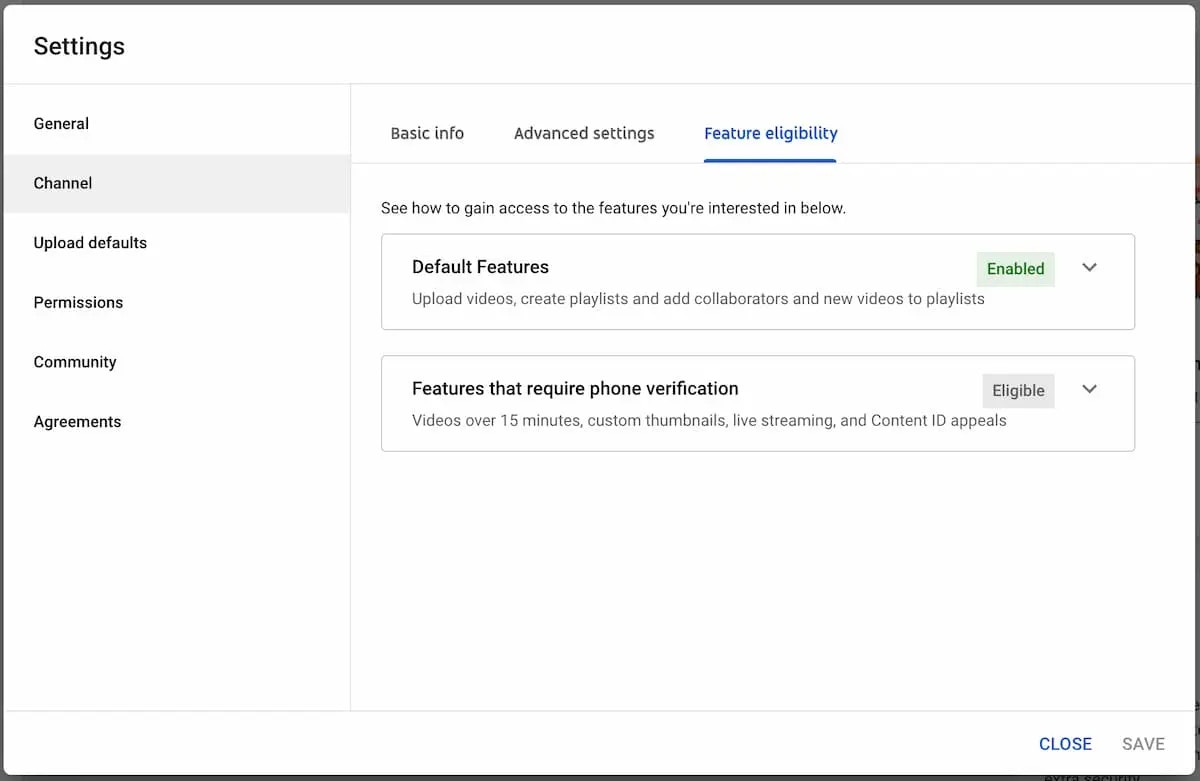
Thumbnails पोस्ट करने के लिए आपको YouTube अनुमतियाँ प्रदान की जानी चाहिए। [YouTube Studio](https://studio.youtube.com/) में *Settings->Channel* पर जाएँ। "*Feature Eligibility*" चुनें और "*Features that require phone verification*" पर क्लिक करें। सक्षम करने के लिए अपना phone number दर्ज करें।
आपके phone number को verify करने के बाद YouTube को thumbnails सक्षम करने में 24 घंटे तक लग सकते हैं। कृपया ध्यान दें, YouTube thumbnails जोड़ने की पात्रता निर्धारित करता है। "Enabled" phone verification गारंटी नहीं देता कि YouTube thumbnail uploads की अनुमति देगा।
यदि आप 24 घंटे तक verify हो गए हैं और अभी भी समस्याएँ हैं तो जाँच करें कि:
1. आप YouTube Studio में मैन्युअल रूप से thumbnails upload कर सकते हैं।
2. यदि आप Brand Content Owner Account (अक्सर business या organization channels के लिए उपयोग किया जाता है) के साथ काम कर रहे हैं, तो सुनिश्चित करें कि आपके पास आवश्यक अनुमतियाँ हैं। हम "Owner" अधिकारों की अनुशंसा करते हैं।
3. यदि आपको अभी भी समस्याएँ हैं, तो कृपया [Thumbnail समस्या को हल करने](https://www.youtube.com/watch?v=1bFmX2uQk0Y) पर यह video देखें।
## वीडियो: API के माध्यम से YouTube पर पोस्ट करना
## Upload सीमाएँ
YouTube 24 घंटे की अवधि में YouTube API के माध्यम से एक channel कितने videos अपलोड कर सकता है, इसे सीमित करता है।
Creator के स्थान के आधार पर, एक channel उन्नत सुविधाओं तक पहुँच प्राप्त करके अपनी दैनिक सीमा बढ़ा सकता है।
अधिक जानने के लिए इस
[article](https://notifications.google.com/g/p/ACnX6LbjUElgT-OfRLVjenkpdldv6pIJ5JYGZyPGTdJwRYmo3fXFkfXJsPGnswgns0BjJ6Bjxn2bqpqfBt6gBdkLoqESKA7mqLNllzcR2qnYUJn5KlJN5jPqCWl6DGr58cZEt94mMvxXATN6_PaBR1RYEpNMTYWN) पर जाएँ।
सीमाएँ देश/क्षेत्र या channel history के अनुसार भिन्न हो सकती हैं। Copyright strikes channel
history पात्रता को प्रभावित कर सकते हैं और [Community Guidelines
strikes](https://support.google.com/youtube/answer/2802032) प्रभावित करेगा कि एक channel कितना
upload कर सकता है।
यदि आपको upload limit error मिलती है तो कृपया 24 घंटे में प्रतीक्षा करें और पुनः प्रयास करें।
## विवरण Links
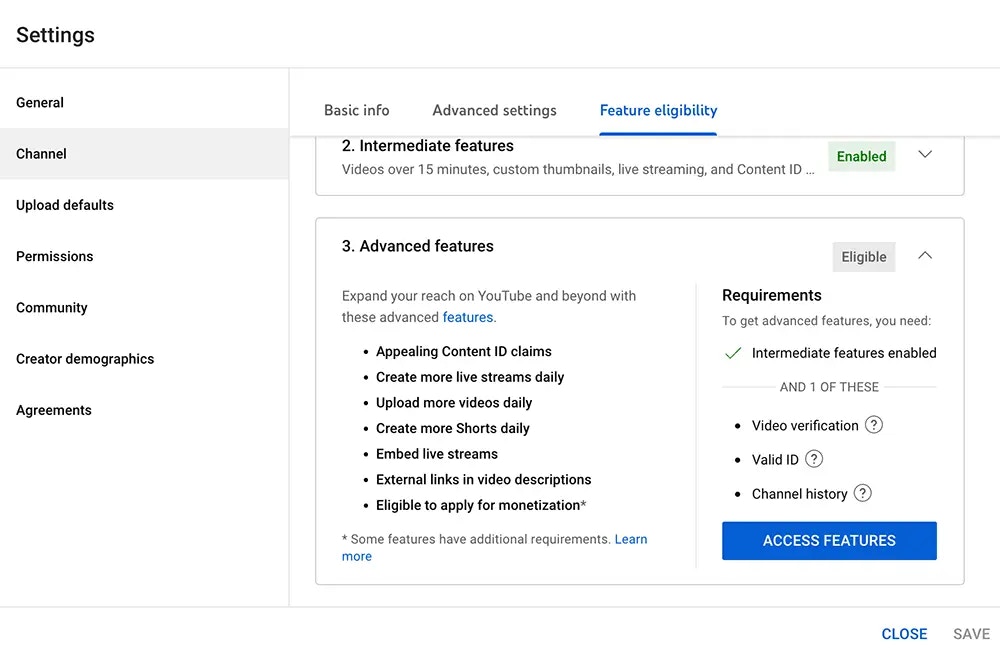
YouTube video description में clickable links रखने के लिए आपको YouTube Studio में **Advanced Features** को सक्रिय करना होगा।
उन्नत सुविधाओं को सक्रिय करने के लिए **YouTube Studio -> Settings -> Channel -> Feature Eligibility -> Advanced Features -> Access Features** पर जाएँ।
## Playlists
आप `youTubeOptions` object में `playListId` शामिल करके YouTube playlist में videos जोड़ सकते हैं।
सुनिश्चित करें कि प्रमाणित उपयोगकर्ता और channel playlist के owner हैं।
```json YouTube Playlist theme={"system"}
{
"youTubeOptions": {
"playListId": "PLrav6EfwgDX5"
}
}
```
## Videos के लिए Subtitles / Captions
आप एक [SRT फ़ाइल](https://en.wikipedia.org/wiki/SubRip) या YouTube [SBV फ़ाइल](https://support.google.com/youtube/answer/2734698) शामिल करके videos में YouTube subtitles, जिन्हें YouTube captions भी कहा जाता है, जोड़ सकते हैं। अपनी SRT या SBV फ़ाइल के URL को निर्दिष्ट करने के लिए `youTubeOptions` object में `subTitleUrl` field का उपयोग करें।
```json YouTube Subtitles theme={"system"}
{
"youTubeOptions": {
"title": "My new post from Ayrshare to Youtube",
"subTitleUrl": "https://img.ayrshare.com/012/captions.srt",
"subTitleLanguage": "en",
"subTitleName": "English"
}
}
```
`subTitleUrl`: एक मान्य SRT या SBV फ़ाइल। URL `https://` से शुरू होना चाहिए और `.srt` या
`.sbv` में समाप्त होना चाहिए और एक मान्य SRT या SBV फ़ाइल होनी चाहिए। फ़ाइल 100 MB से कम होनी चाहिए।
`subTitleLanguage`: वैकल्पिक: subtitles की भाषा। एक मान्य [language
code](/iso-codes/language) होनी चाहिए। डिफ़ॉल्ट: "en"।
`subTitleName`: वैकल्पिक: caption track का नाम। नाम का उद्देश्य playback के दौरान उपयोगकर्ता को एक विकल्प के रूप में
दिखाई देना है। समर्थित अधिकतम नाम लंबाई 150 characters है।
डिफ़ॉल्ट: "English"।
**SRT और SBV फ़ाइलें क्या हैं?**
SRT (SubRip Subtitle) और SBV (YouTube SubViewer) videos में समयबद्ध text प्रदर्शित करने के लिए उपयोग की जाने वाली subtitle फ़ाइल formats हैं। मुख्य अंतर यह है कि SRT arrow separators के साथ HH:MM:SS,MS format में timestamps का उपयोग करता है, जबकि SBV commas के साथ HH:MM:SS.MS format का उपयोग करता है।
```text theme={"system"}
## SRT Format Example
1
00:00:01,000 --> 00:00:04,000
Welcome to our tutorial on subtitle formats.
2
00:00:04,500 --> 00:00:08,000
Today we'll learn about SRT and SBV files.
## SBV Format Example
0:00:01.000,0:00:04.000
Welcome to our tutorial on subtitle formats.
0:00:04.500,0:00:08.000
Today we'll learn about SRT and SBV files.
```
## Tags
आप `youTubeOptions` object में `tags` array शामिल करके अपने videos में YouTube tags जोड़ सकते हैं।
Tags प्रत्येक कम से कम 2 characters लंबे होने चाहिए और सभी tags की कुल लंबाई 500 characters या उससे कम होनी चाहिए।
```json YouTube Tags theme={"system"}
{
"youTubeOptions": {
"tags": ["dancing", "dogs"]
}
}
```
## YouTube Mentions
जबकि आप YouTube पोस्ट में `@handle` जोड़ सकते हैं, YouTube पोस्ट text में mentions को resolve करने का समर्थन नहीं करता।
`@handle` plain text के रूप में रहेगा।
## Character Limits
अधिक जानकारी के लिए कृपया [YouTube Character Limits](/help-center/technical-support/character_limits#youtube-character-limits) देखें।
## अतिरिक्त Endpoints
 ## Playlists
आप `youTubeOptions` object में `playListId` शामिल करके YouTube playlist में videos जोड़ सकते हैं।
सुनिश्चित करें कि प्रमाणित उपयोगकर्ता और channel playlist के owner हैं।
```json YouTube Playlist theme={"system"}
{
"youTubeOptions": {
"playListId": "PLrav6EfwgDX5"
}
}
```
## Videos के लिए Subtitles / Captions
आप एक [SRT फ़ाइल](https://en.wikipedia.org/wiki/SubRip) या YouTube [SBV फ़ाइल](https://support.google.com/youtube/answer/2734698) शामिल करके videos में YouTube subtitles, जिन्हें YouTube captions भी कहा जाता है, जोड़ सकते हैं। अपनी SRT या SBV फ़ाइल के URL को निर्दिष्ट करने के लिए `youTubeOptions` object में `subTitleUrl` field का उपयोग करें।
```json YouTube Subtitles theme={"system"}
{
"youTubeOptions": {
"title": "My new post from Ayrshare to Youtube",
"subTitleUrl": "https://img.ayrshare.com/012/captions.srt",
"subTitleLanguage": "en",
"subTitleName": "English"
}
}
```
## Playlists
आप `youTubeOptions` object में `playListId` शामिल करके YouTube playlist में videos जोड़ सकते हैं।
सुनिश्चित करें कि प्रमाणित उपयोगकर्ता और channel playlist के owner हैं।
```json YouTube Playlist theme={"system"}
{
"youTubeOptions": {
"playListId": "PLrav6EfwgDX5"
}
}
```
## Videos के लिए Subtitles / Captions
आप एक [SRT फ़ाइल](https://en.wikipedia.org/wiki/SubRip) या YouTube [SBV फ़ाइल](https://support.google.com/youtube/answer/2734698) शामिल करके videos में YouTube subtitles, जिन्हें YouTube captions भी कहा जाता है, जोड़ सकते हैं। अपनी SRT या SBV फ़ाइल के URL को निर्दिष्ट करने के लिए `youTubeOptions` object में `subTitleUrl` field का उपयोग करें।
```json YouTube Subtitles theme={"system"}
{
"youTubeOptions": {
"title": "My new post from Ayrshare to Youtube",
"subTitleUrl": "https://img.ayrshare.com/012/captions.srt",
"subTitleLanguage": "en",
"subTitleName": "English"
}
}
```