> ## Documentation Index
> Fetch the complete documentation index at: https://www.ayrshare.com/docs/llms.txt
> Use this file to discover all available pages before exploring further.
# Validate JSON
> यह सत्यापित करने के लिए JSON भेजें कि क्या सही ढंग से format किया गया है
export const HeaderAPI = ({noProfileKey, profileKeyRequired}) => <>
API Key of the Primary Profile.
Format: Authorization: Bearer API_KEY
{!noProfileKey && (profileKeyRequired ?
Profile Key of a User Profile.
Format: Profile-Key: PROFILE_KEY
:
Profile Key of a User Profile.
Format: Profile-Key: PROFILE_KEY
)}
;
export const PlansAvailable = ({plans = [], maxPackRequired}) => {
let displayPlans = plans;
if (plans && plans.length === 1) {
const lowerCasePlan = plans[0].toLowerCase();
if (lowerCasePlan === "business") {
displayPlans = ["Launch", "Business", "Enterprise"];
} else if (lowerCasePlan === "premium") {
displayPlans = ["Premium", "Launch", "Business", "Enterprise"];
}
}
return
Available on {displayPlans.length === 1 ? "the " : ""}
{displayPlans.join(", ").replace(/\b\w/g, l => l.toUpperCase())}{" "}
{displayPlans.length > 1 ? "plans" : "plan"}.
{maxPackRequired && window.open('https://www.ayrshare.com/docs/additional/maxpack', '_self')} className="flex items-center mt-2 cursor-pointer">
Max Pack required
}
;
};
यह सत्यापित करने के लिए JSON भेजें कि क्या सही ढंग से format किया गया है।
आप या तो online linter, जैसे [https://jsonlint.com/](https://jsonlint.com/) या [Postman](/testing/postman) का उपयोग करके अपने JSON को सत्यापित कर सकते हैं।
यदि आप कोई no-code tool जैसे Bubble या Make का उपयोग करते हैं या 500 "Bad Request" response प्राप्त करते हैं, तो यह endpoint JSON request को debug करने के लिए उपयोगी है।
## Header Parameters
- डेटा को text के रूप में भेजें। यदि Postman का उपयोग कर रहे हैं, तो कृपया सुनिश्चित करें कि आप प्रकार के रूप में "Text" चुनें।
- `"Content-Type": "text/plain"` सेट करें।
## Request उदाहरण
इसे सत्यापित करने के लिए इस endpoint को कोई भी json भेजें।
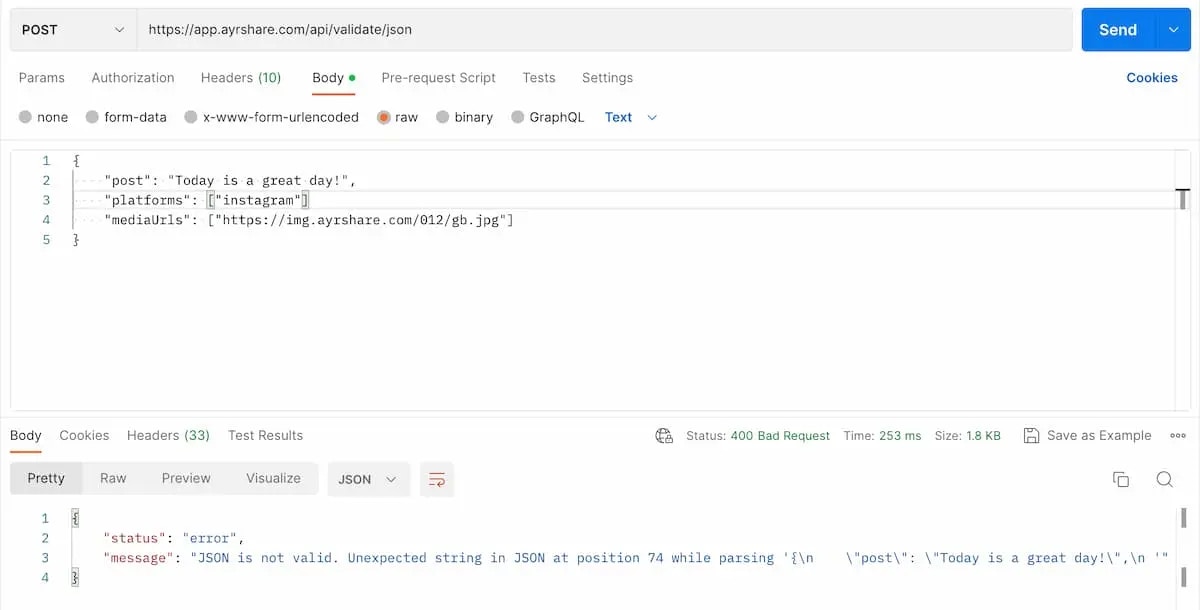
नीचे Postman का उपयोग करके अमान्य JSON का एक उदाहरण है। क्या आप इसे पहचान सकते हैं? दूसरे parameter `platforms` के अंत में एक comma गुम है।
सुनिश्चित करें कि header में `Content-Type` को `text/plain` के रूप में सेट करें और भेजते समय "Text" चुनें।
 ```json 200: OK Valid JSON theme={"system"}
{
"status": "success",
"message": "Valid JSON. Nice Job!"
}
```
```json 400: Bad Request Invalid JSON theme={"system"}
{
"status": "error",
"message": "JSON is not valid. Unexpected end of JSON input while parsing near '{\"test\": \"happy}'"
}
```
```json 200: OK Valid JSON theme={"system"}
{
"status": "success",
"message": "Valid JSON. Nice Job!"
}
```
```json 400: Bad Request Invalid JSON theme={"system"}
{
"status": "error",
"message": "JSON is not valid. Unexpected end of JSON input while parsing near '{\"test\": \"happy}'"
}
```