> ## Documentation Index
> Fetch the complete documentation index at: https://www.ayrshare.com/docs/llms.txt
> Use this file to discover all available pages before exploring further.
# Pinterest लिंकिंग
> Ayrshare के साथ Pinterest को अधिकृत करना
## Pinterest को Ayrshare से कैसे लिंक करें
### Pinterest Board सेटअप
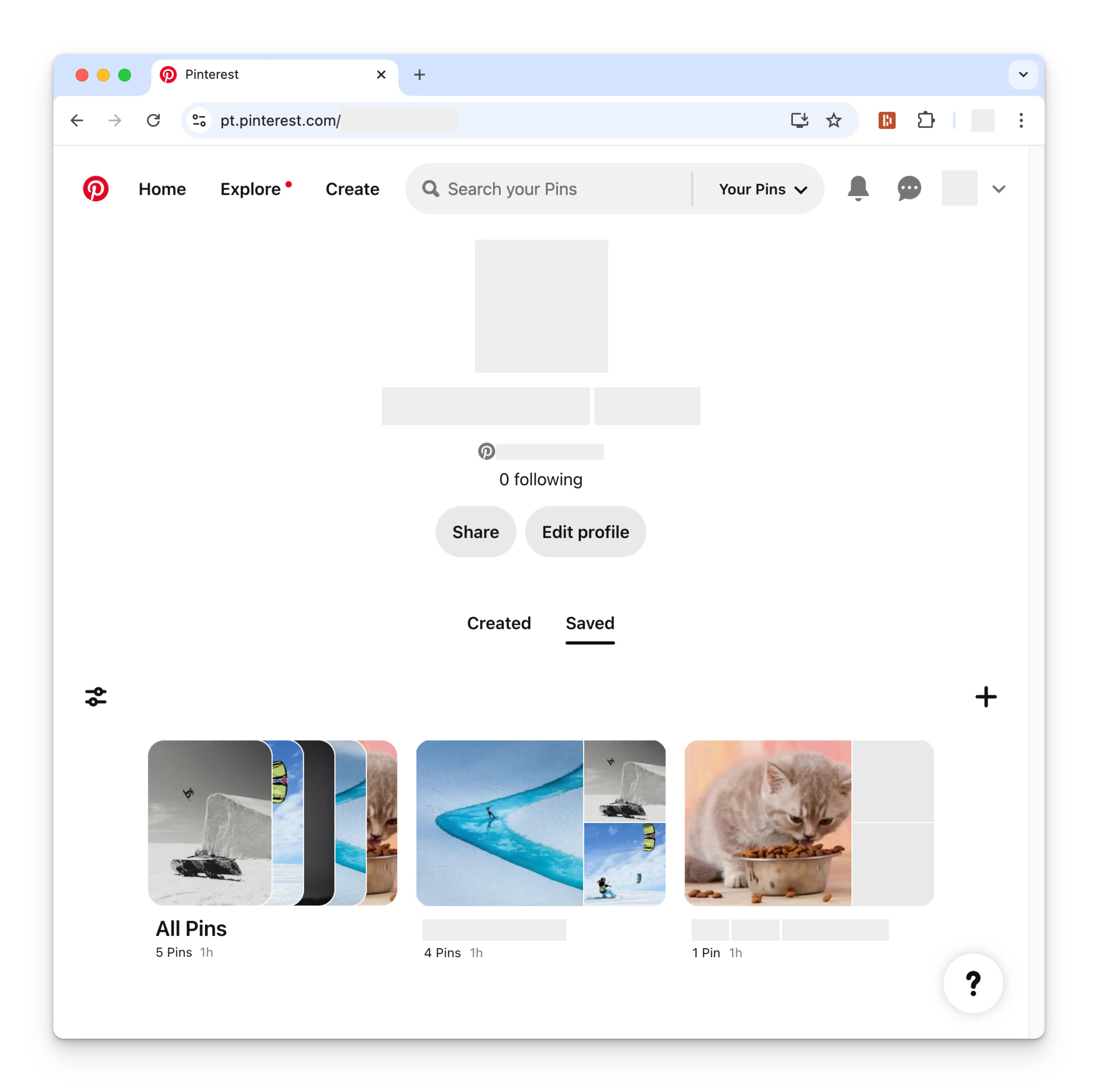
अपने Pinterest खाते को लिंक करने से पहले, आपके पास कम से कम एक Pinterest
board सेट अप होना चाहिए। ऐसा करने के लिए, अपने Pinterest profile पेज पर जाएँ और
**+** (plus) प्रतीक पर क्लिक करें। एक नया board बनाने के लिए निर्देशों का पालन करें।
 ### Pinterest लिंक करना
Social Accounts पेज पर Pinterest आइकन पर क्लिक करें।
### Pinterest लिंक करना
Social Accounts पेज पर Pinterest आइकन पर क्लिक करें।
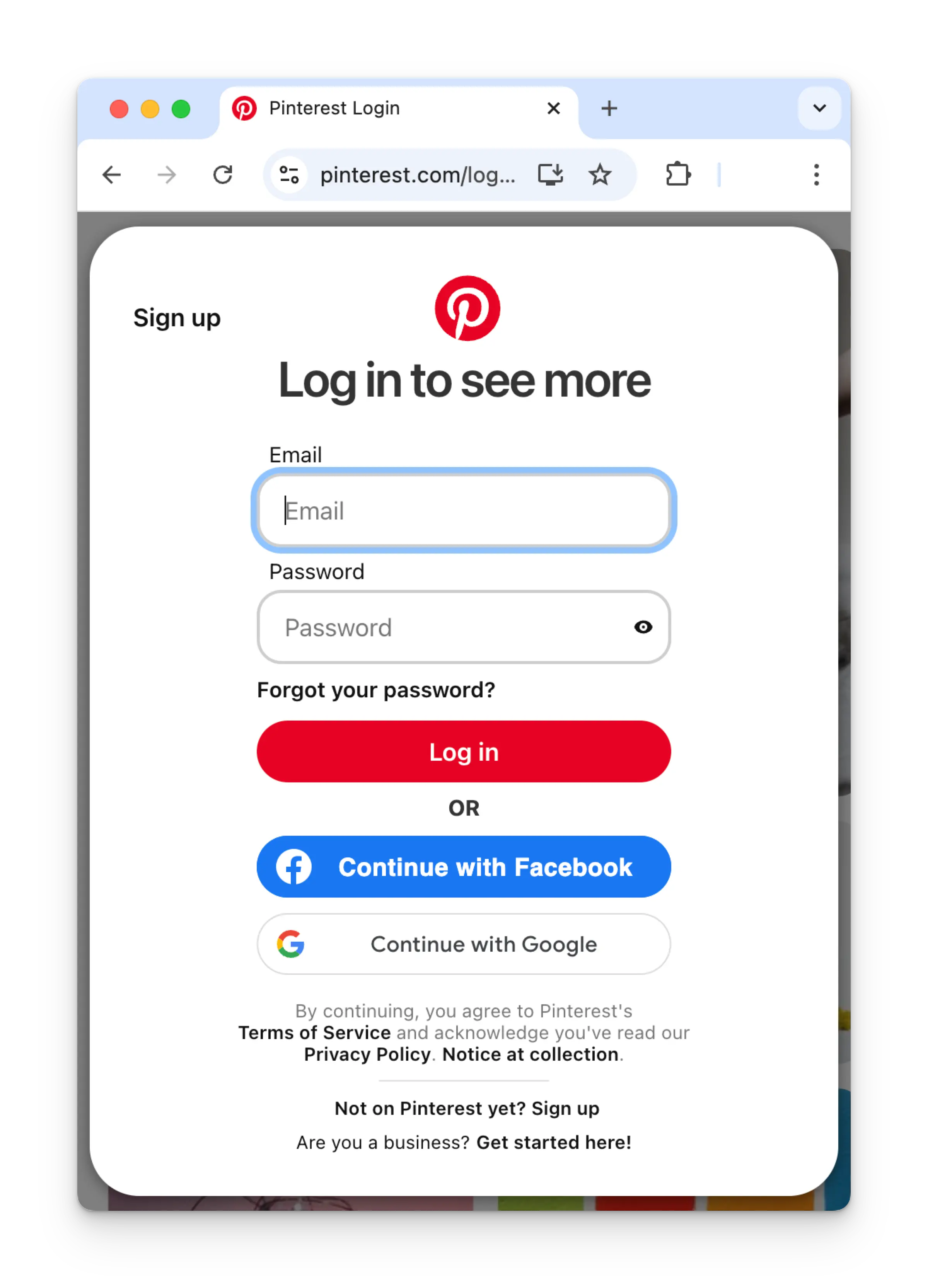
 यदि आप अभी तक लॉग इन नहीं हैं, तो आप Pinterest लॉगिन पेज पर जाएँगे।
तदनुसार अपनी credentials दर्ज करें।
यदि आप पहले से लॉग इन हैं, तो कृपया अगले चरण पर जाएँ।
यदि आप अभी तक लॉग इन नहीं हैं, तो आप Pinterest लॉगिन पेज पर जाएँगे।
तदनुसार अपनी credentials दर्ज करें।
यदि आप पहले से लॉग इन हैं, तो कृपया अगले चरण पर जाएँ।
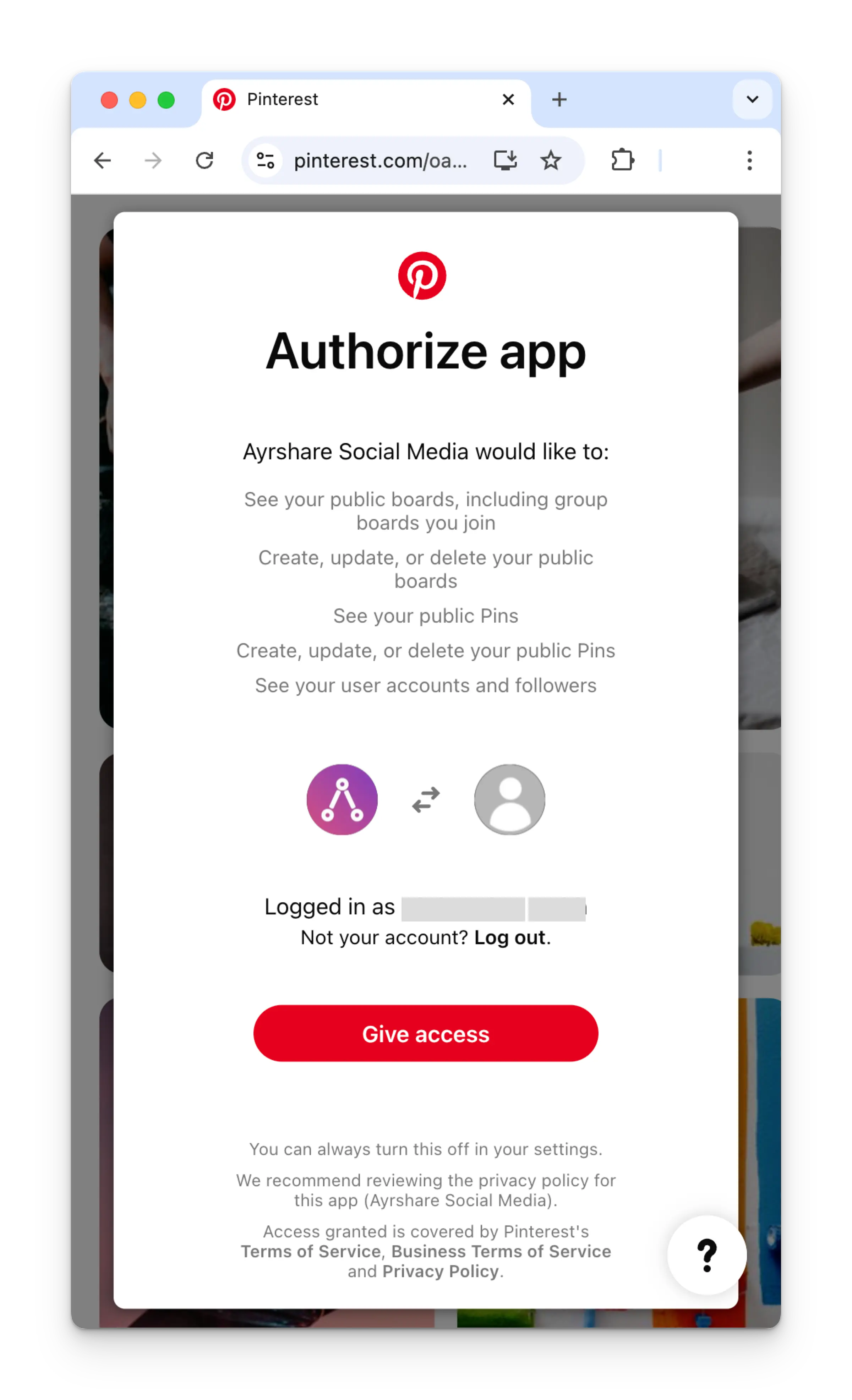
 यदि पहले से लॉग इन हैं, तो Authorize app पेज पर **Give access** पर क्लिक करें।
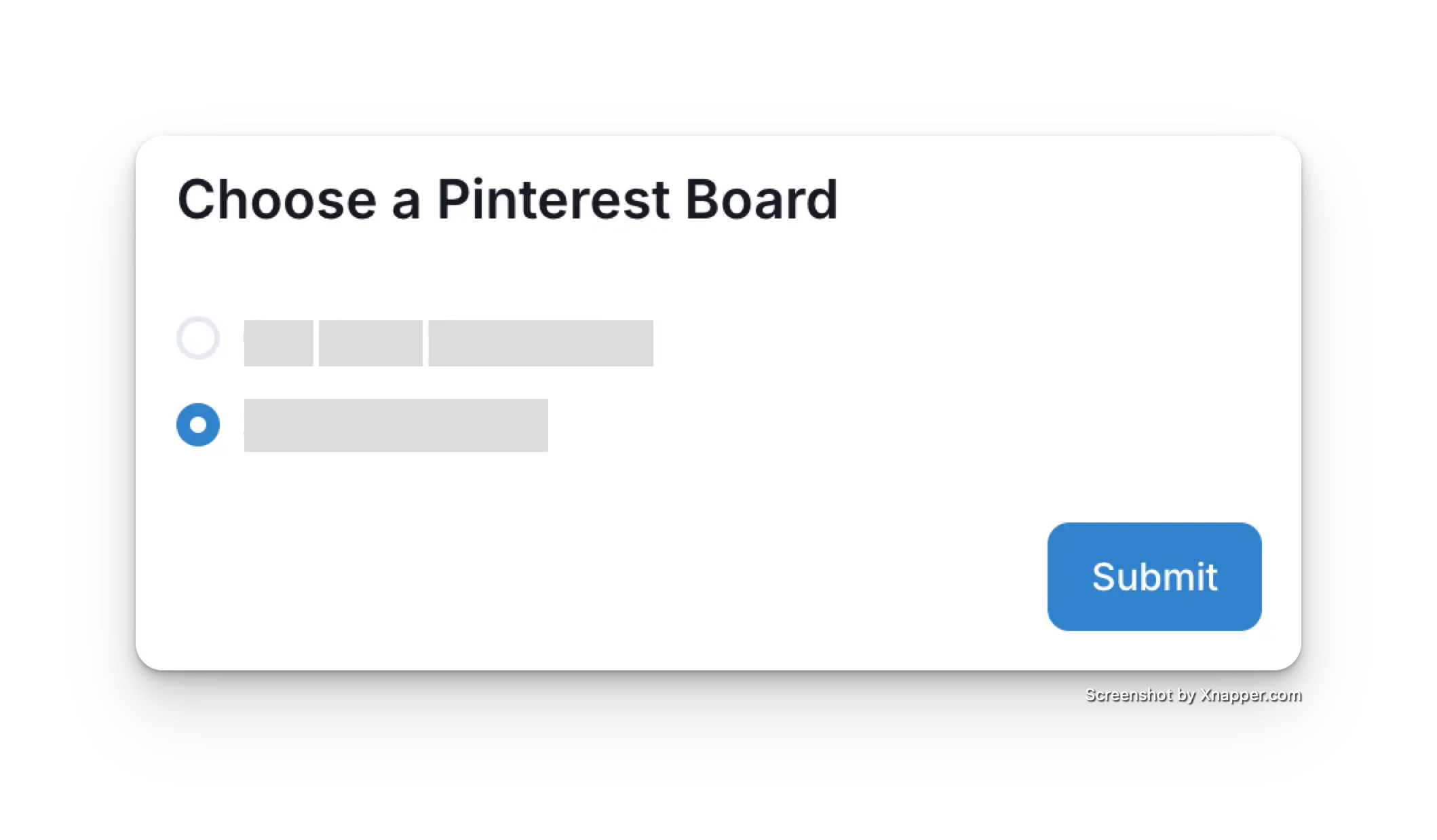
 Ayrshare dashboard पर वापस आने के बाद, लिंक करने के लिए Pinterest board चुनें।
 आपका Social Accounts पेज अब आपके Pinterest खाते के साथ अपडेट हो जाएगा।
 ## अतिरिक्त Pinterest जानकारी
* [Pinterest पर पोस्ट करने](/apis/post/social-networks/pinterest),
[analytics प्राप्त करने](/apis/analytics/overview),
[comments प्रबंधित करने](/apis/comments/overview), या
[history पुनर्प्राप्त करने](/apis/history/overview) के विवरण के लिए यहाँ देखें।
* अनुशंसित छवि आकारों के बारे में अधिक जानकारी के लिए, कृपया देखें:
## अतिरिक्त Pinterest जानकारी
* [Pinterest पर पोस्ट करने](/apis/post/social-networks/pinterest),
[analytics प्राप्त करने](/apis/analytics/overview),
[comments प्रबंधित करने](/apis/comments/overview), या
[history पुनर्प्राप्त करने](/apis/history/overview) के विवरण के लिए यहाँ देखें।
* अनुशंसित छवि आकारों के बारे में अधिक जानकारी के लिए, कृपया देखें: