> ## Documentation Index
> Fetch the complete documentation index at: https://www.ayrshare.com/docs/llms.txt
> Use this file to discover all available pages before exploring further.
# Threads Linking
> Ayrshare के साथ Threads को Authorize करना
## Ayrshare के साथ Threads को कैसे लिंक करें
Ayrshare के साथ Threads को authorize करना सरल है। authentication प्रक्रिया के दौरान,
Threads की पूर्ण क्षमताओं का लाभ उठाने के लिए आपको Instagram खाते से sign in करने की आवश्यकता होगी। कृपया अधिक जानकारी के लिए नीचे दिए गए चरण देखें।
## Threads का प्रमाणीकरण
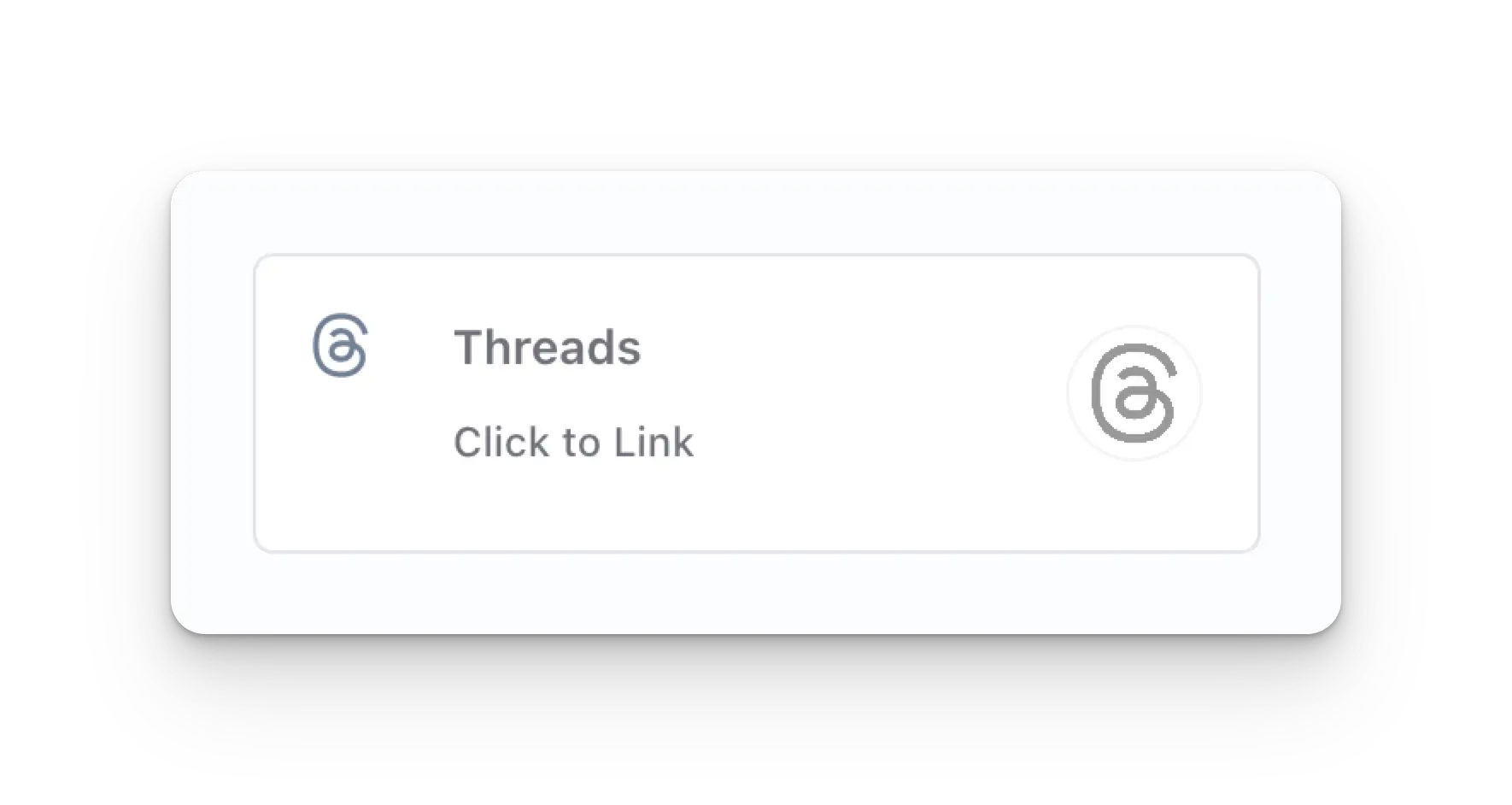
Social Accounts पेज पर, Threads आइकन पर क्लिक करें।
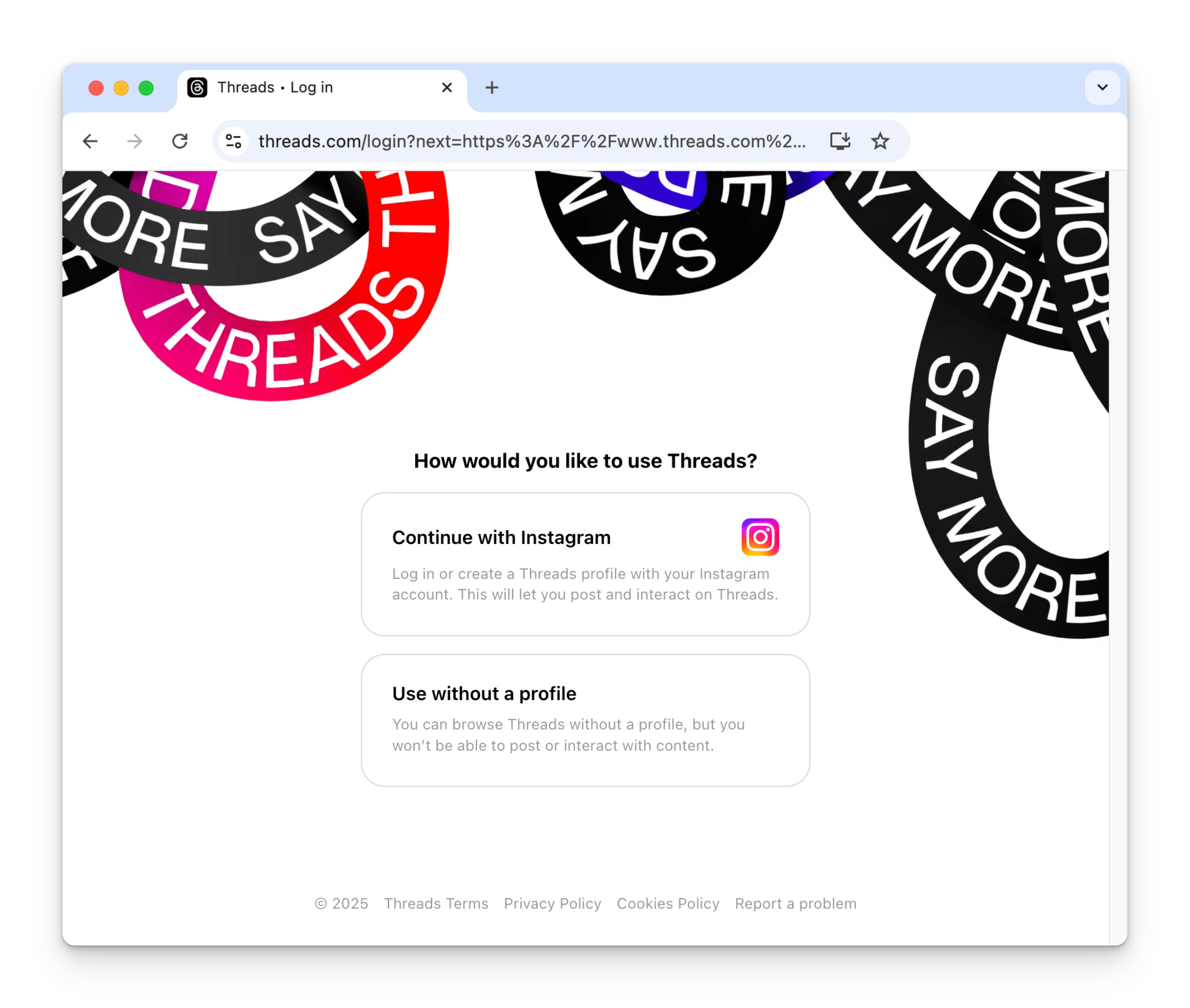
 जब आप पहली बार Threads लिंक करते हैं, तो आपको अपने Instagram खाते से authenticate करने के लिए कहा जाएगा। Threads पर पोस्ट करने के लिए एक Instagram खाता आवश्यक है।
यदि आपने पहले Ayrshare को Threads से कनेक्ट किया है और यह छवि नहीं दिखती, तो चरण 4 पर जाएँ।
जब आप पहली बार Threads लिंक करते हैं, तो आपको अपने Instagram खाते से authenticate करने के लिए कहा जाएगा। Threads पर पोस्ट करने के लिए एक Instagram खाता आवश्यक है।
यदि आपने पहले Ayrshare को Threads से कनेक्ट किया है और यह छवि नहीं दिखती, तो चरण 4 पर जाएँ।
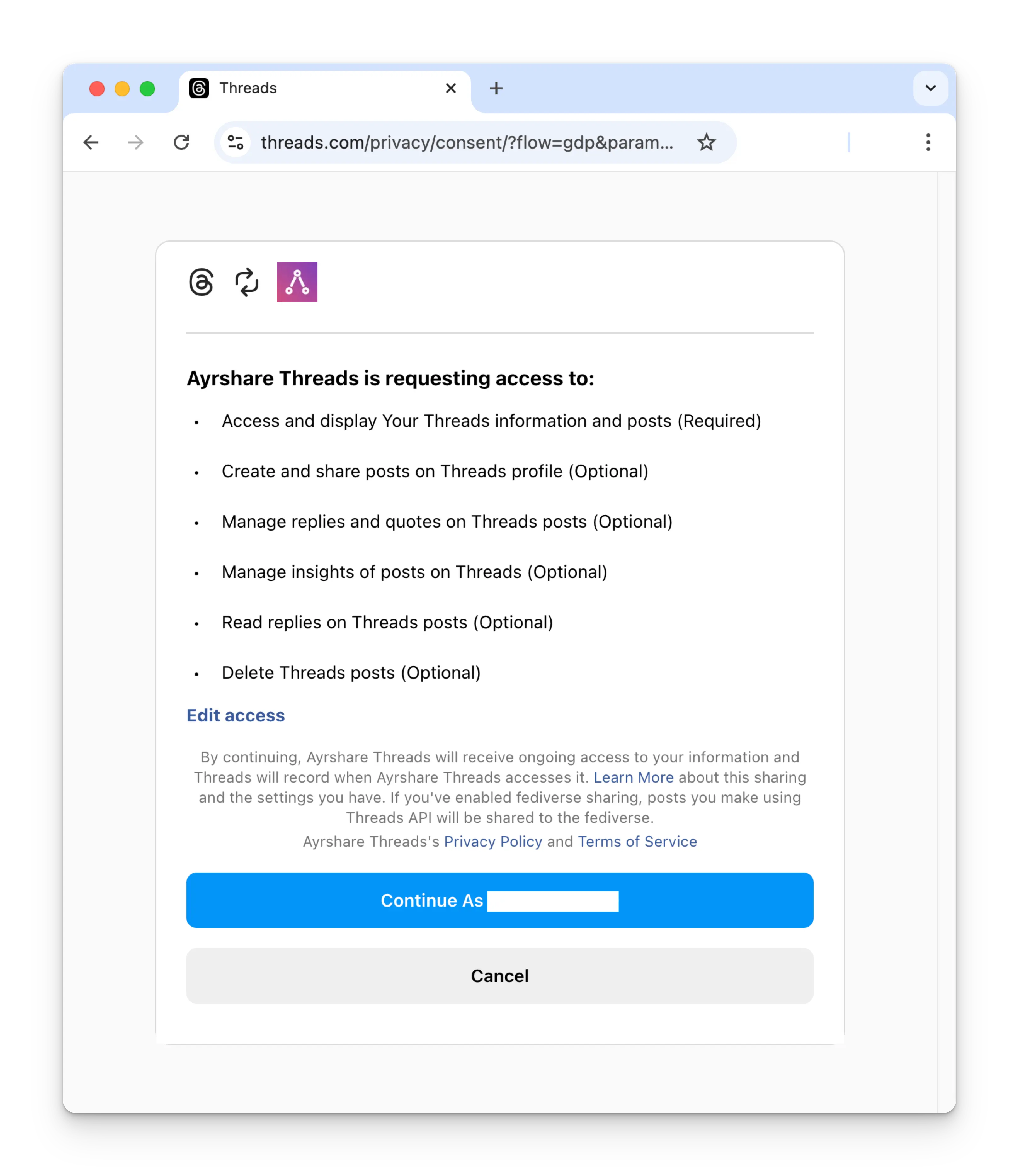
 login के बाद, आपको Ayrshare को अपने Threads खाते तक पहुँच देनी होगी। जारी रखने के लिए कृपया सभी अनुरोधित permissions दें। (यदि
आवश्यक permissions नहीं दी गई हैं, तो आप उन्हें अपनी Threads सेटिंग्स में [Website Permissions Page](https://www.threads.com/settings/website_permissions) पर पुनः सक्षम कर सकते हैं)
login के बाद, आपको Ayrshare को अपने Threads खाते तक पहुँच देनी होगी। जारी रखने के लिए कृपया सभी अनुरोधित permissions दें। (यदि
आवश्यक permissions नहीं दी गई हैं, तो आप उन्हें अपनी Threads सेटिंग्स में [Website Permissions Page](https://www.threads.com/settings/website_permissions) पर पुनः सक्षम कर सकते हैं)
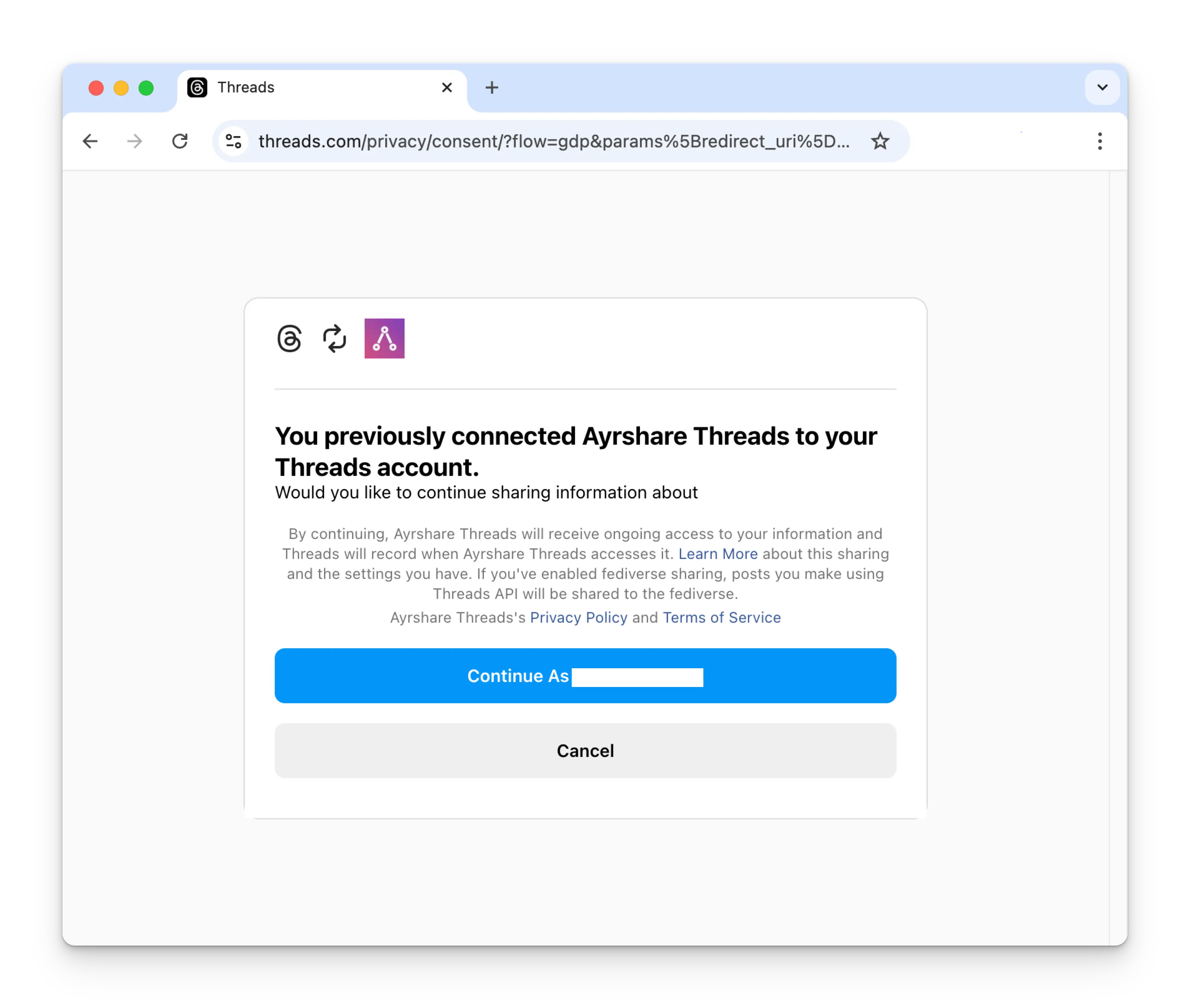
 यदि आपने पहले Ayrshare को Threads से कनेक्ट किया है, तो कृपया अपने Threads खाते को पुनः लिंक करने के लिए Continue बटन पर क्लिक करें।
 आपका Social Accounts पेज अब आपके Threads खाते के साथ अपडेट हो जाएगा।
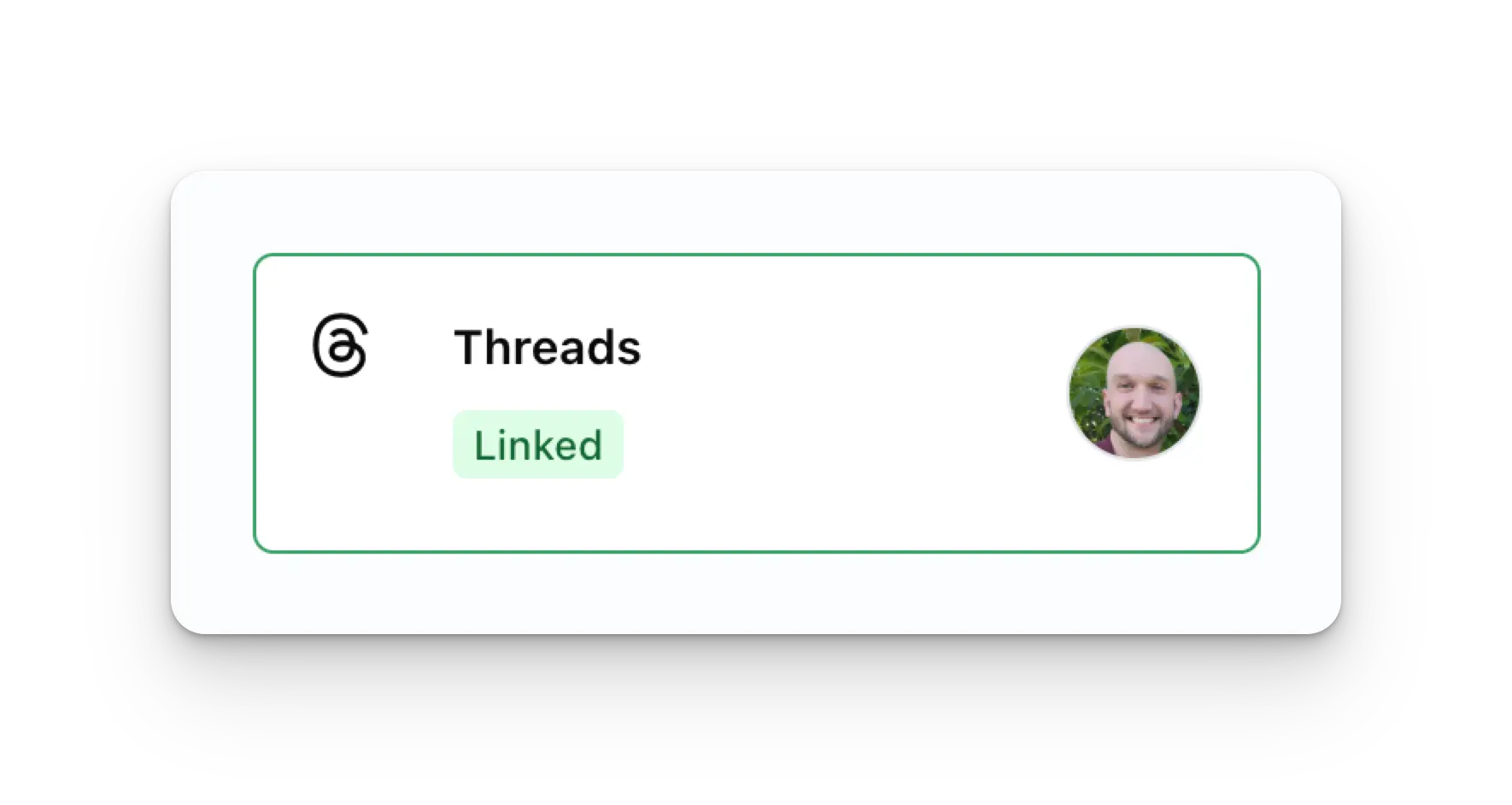 आप Threads posts प्रकाशित कर सकते हैं, Threads analytics प्राप्त कर सकते हैं, और Threads comments का प्रबंधन कर सकते हैं।
## अतिरिक्त Threads जानकारी
* [Threads पर पोस्ट करने](/apis/post/social-networks/threads),
[analytics प्राप्त करने](/apis/analytics/overview),
[comments का प्रबंधन करने](/apis/comments/overview), या
[history पुनर्प्राप्त करने](/apis/history/overview) पर विवरण के लिए यहाँ देखें।
* अनुशंसित छवि आकारों पर अधिक जानकारी के लिए, कृपया देखें:
आप Threads posts प्रकाशित कर सकते हैं, Threads analytics प्राप्त कर सकते हैं, और Threads comments का प्रबंधन कर सकते हैं।
## अतिरिक्त Threads जानकारी
* [Threads पर पोस्ट करने](/apis/post/social-networks/threads),
[analytics प्राप्त करने](/apis/analytics/overview),
[comments का प्रबंधन करने](/apis/comments/overview), या
[history पुनर्प्राप्त करने](/apis/history/overview) पर विवरण के लिए यहाँ देखें।
* अनुशंसित छवि आकारों पर अधिक जानकारी के लिए, कृपया देखें: