> ## Documentation Index
> Fetch the complete documentation index at: https://www.ayrshare.com/docs/llms.txt
> Use this file to discover all available pages before exploring further.
# Resize an Image
> 画像をソーシャルメディアのサイズにリサイズ、透かしの追加、切り抜きを行います
export const HeaderAPI = ({noProfileKey, profileKeyRequired}) => <>
API Key of the Primary Profile.
Format: Authorization: Bearer API_KEY
{!noProfileKey && (profileKeyRequired ?
Profile Key of a User Profile.
Format: Profile-Key: PROFILE_KEY
:
Profile Key of a User Profile.
Format: Profile-Key: PROFILE_KEY
)}
;
export const PlansAvailable = ({plans = [], maxPackRequired}) => {
let displayPlans = plans;
if (plans && plans.length === 1) {
const lowerCasePlan = plans[0].toLowerCase();
if (lowerCasePlan === "business") {
displayPlans = ["Launch", "Business", "Enterprise"];
} else if (lowerCasePlan === "premium") {
displayPlans = ["Premium", "Launch", "Business", "Enterprise"];
}
}
return
Available on {displayPlans.length === 1 ? "the " : ""}
{displayPlans.join(", ").replace(/\b\w/g, l => l.toUpperCase())}{" "}
{displayPlans.length > 1 ? "plans" : "plan"}.
{maxPackRequired && window.open('https://www.ayrshare.com/docs/additional/maxpack', '_self')} className="flex items-center mt-2 cursor-pointer">
Max Pack required
}
;
};
各ソーシャルネットワークにはソーシャルメディア画像の[個別要件](/media-guidelines)があります。resize エンドポイントを使用すると、ソーシャルネットワークに準拠した画像サイズを選択したり、透かしを追加したり、背景を変更したり、エフェクトを適用したり、切り抜きを行ったりできます。
既定では、リサイズは画像の寸法を変更しますが、画像の切り抜きは行いません。代わりに切り抜きも可能です。詳細は下記をご覧ください。
## ヘッダーパラメータ
## ボディパラメータ
リサイズする画像の URL。`https://` で始まる必要があります。
URL をリサイズするソーシャルメディアプラットフォーム。詳細は [platform
options](/apis/media/resize#platform-options) をご覧ください。
メディアファイルを multipart form-data オブジェクトとして送信します。`imageUrl` がない場合は必須です。
リサイズ後の画像に適用する透かしの URL と任意の位置。既定では透かしは画像の右下隅に表示されます。詳細は [watermark](/apis/media/resize#watermark)
をご覧ください。
不透明度や色などを変更します。詳細は [effects options](/apis/media/resize#effects-options)
をご覧ください。
リサイズ用の `width` と `height` を指定するオブジェクト。切り抜きを行う場合は、任意で中心の `x` と `y` 座標を指定できます。
既定は画像の中心です。
```json Dimensions theme={"system"}
{
"width": 500,
"height": 500,
"xCoordinate": 35, // optional for crop mode
"yCoordinate": 50 // optional for crop mode
}
```
プラットフォームが指定されていない場合、width と height は必須です。
値: `resize`、`blur`、または `crop`。詳細は [mode](/apis/media/resize#mode) をご覧ください。
PNG から JPG のように、JPG ファイルに自動変換します。品質は 75% が使用されます。
詳細は [convert to a JPG](/apis/media/resize#convert-to-a-jpg-or-webp) をご覧ください。
PNG から WebP のように、WebP ファイルに自動変換します。品質は 75% が使用されます。
詳細は [convert to a WebP](/apis/media/resize#convert-to-a-jpg-or-webp) をご覧ください。
### プラットフォームオプション
プラットフォームを文字列で指定すると、画像の事前定義された寸法が使用されます。または `dimensions` フィールドで独自の寸法を指定できます。
例えば `"platform": "facebook"` を指定すると、画像の寸法は width 1200px、height 630px に設定されます。
- `facebook`: 幅 1200px、高さ 630px。
- `instagram`: 幅 1080px、高さ 1080px。
- `instagram_landscape`: 幅 1080px、高さ 680px。
- `instagram_portrait`: 幅 1080px、高さ 1920px。
- `instagram_special`: 幅 1080px、高さ 800px。
- `linkedin`: 幅 1200px、高さ 627px。
- `pinterest`: 幅 1080px、高さ 1920px。
- `tiktok`: 幅 1080px、高さ 1920px。
- `twitter`: 幅 1600px、高さ 900px。
これらの寸法へのリサイズでは、画像は切り抜かれない点にご注意ください。
画像を切り抜きたい場合は、`mode` パラメータを `crop` に設定し、`dimensions` および `xCoordinate`、`yCoordinate` フィールドを使用できます。
### Mode
#### Resize
Resize は既定のモードで、アスペクト比を維持しながら画像の寸法を変更します。
コンテンツを切り抜くことなく、指定された寸法に画像をリサイズします。
JSON の例:
```json Resize theme={"system"}
{
"mediaUrl": "https://img.ayrshare.com/012/gb.jpg",
"platform": "instagram",
"mode": "resize"
}
```
`dimensions` フィールドを使用してカスタム寸法を指定することもできます。
```json Resize with Dimensions theme={"system"}
{
"mediaUrl": "https://img.ayrshare.com/012/gb.jpg",
"mode": "resize",
"dimensions": {
"width": 800,
"height": 600
}
}
```
`platform` か、dimensions フィールドの `width` と `height` のいずれかを指定する必要があります。
#### Crop
Crop は指定された寸法に画像を「切り抜き」ます。既定では中心座標は画像の中心になります。独自の x/y 座標を指定することもできます。
JSON の例:
```json Crop theme={"system"}
{
"mediaUrl": "https://img.ayrshare.com/012/gb.jpg",
"platform": "instagram",
"mode": "crop"
}
```
`dimensions` フィールドを使用してカスタム寸法や任意の切り抜き座標を指定することもできます。
```json Crop with Dimensions theme={"system"}
{
"mediaUrl": "https://img.ayrshare.com/012/gb.jpg",
"mode": "crop",
"dimensions": {
"width": 1080,
"height": 1080,
"xCoordinate": 35,
"yCoordinate": 50
}
}
```
`platform` か、dimensions フィールドの `width` と `height` のいずれかを指定する必要があります。
正方形の切り抜きでは、`width` または `height` が提供された画像の寸法より小さい場合、`width` または `height` の小さい方が使用されます。例えば画像が 1200x800 で、要求された切り抜きが 1080x1080 の場合、返される画像は 800x800 となります。
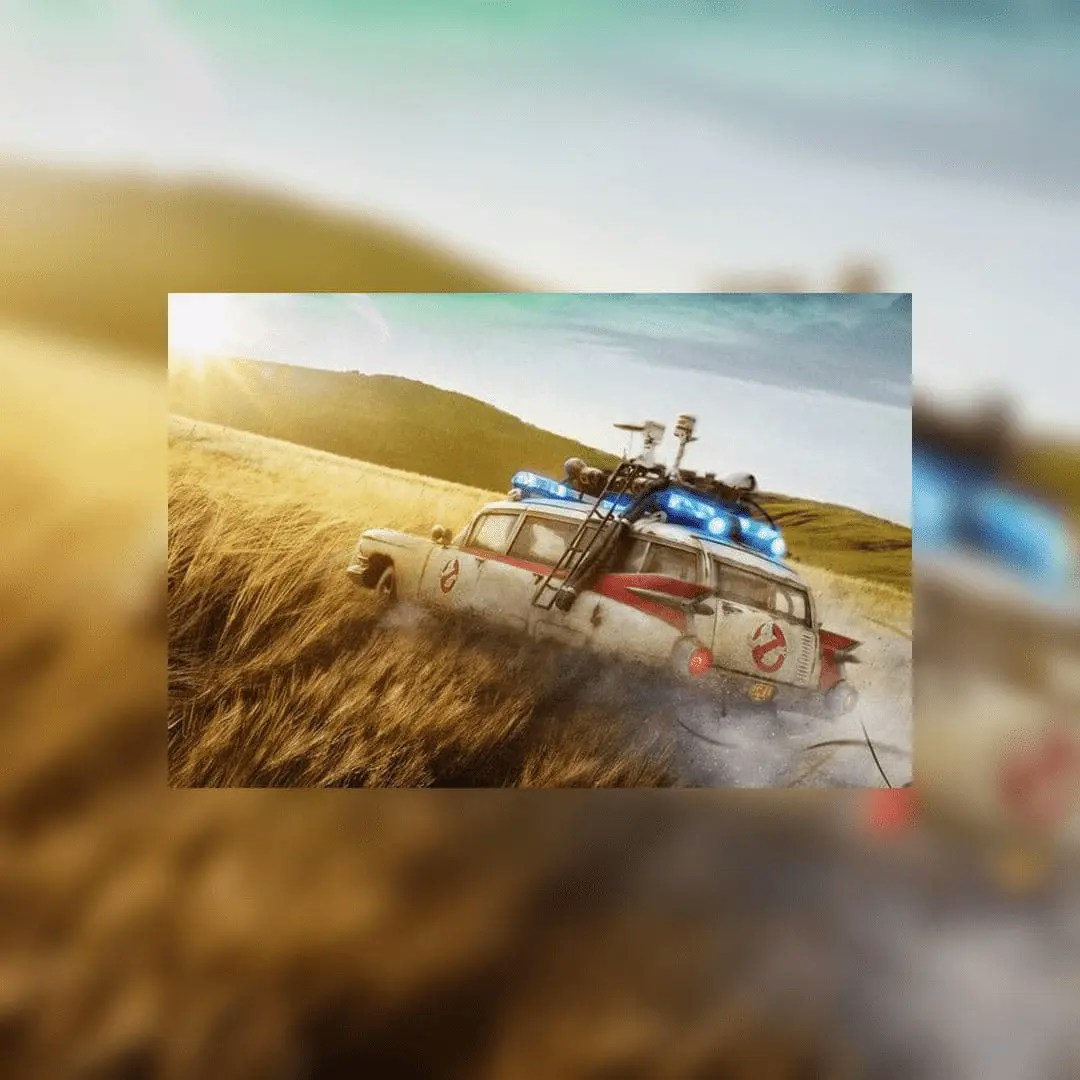
#### Blur
Blur エフェクトは画像を背景として複製し、画像をぼかします。
Blur JSON の例:
```json Blur theme={"system"}
{
"mediaUrl": "https://img.ayrshare.com/012/gb.jpg",
"platform": "instagram",
"mode": "blur"
}
```
Blur 画像の例:
 ### Watermark
#### Watermark 概要
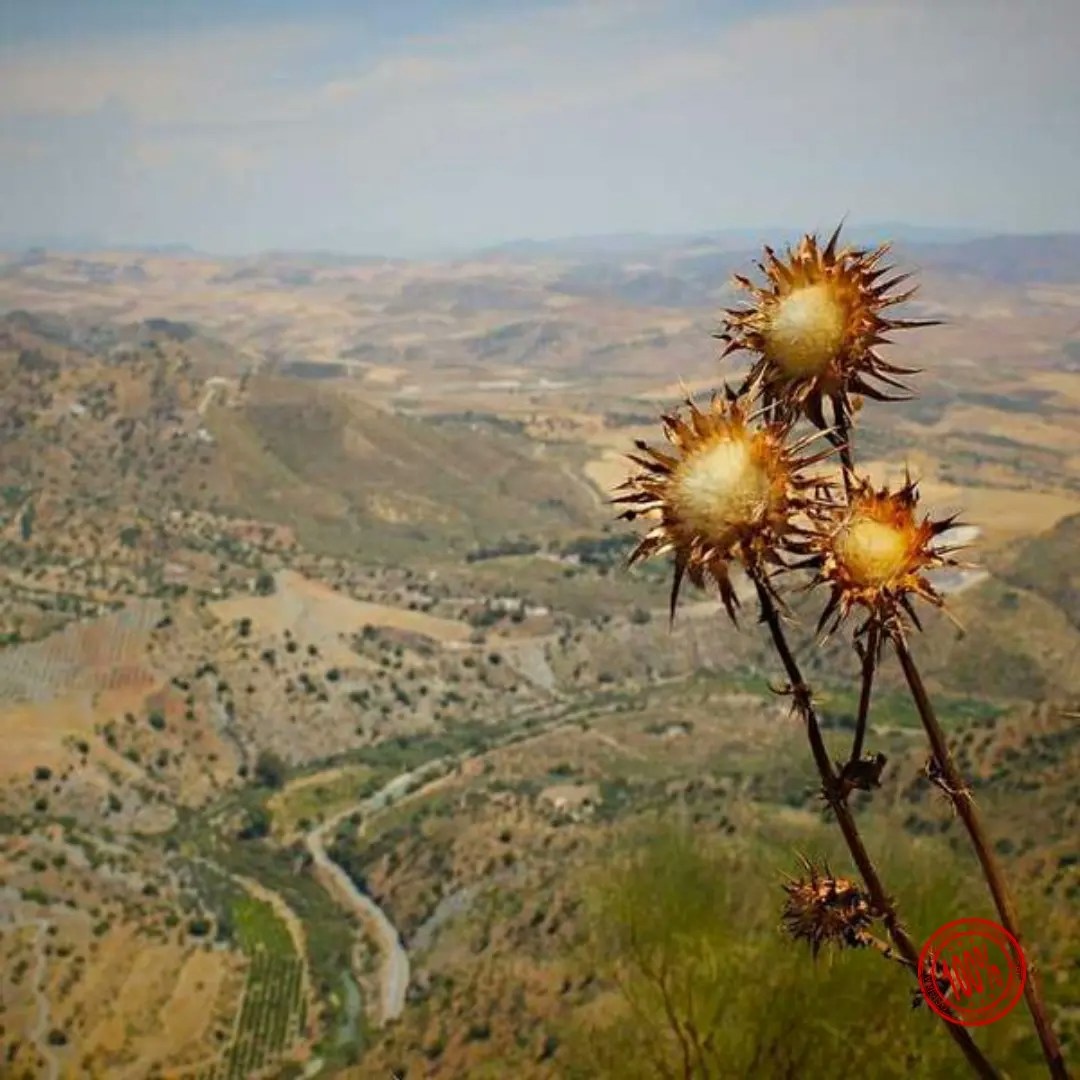
URL(`https://` で始まる必要があります)と任意の位置を指定することで、画像に透かしを追加できます。
既定では透かしは画像の右下隅 — `southeast` — に表示されます。
背景が透明な PNG を推奨します。
Watermark JSON の例:
```json Watermark theme={"system"}
{
"mediaUrl": "https://img.ayrshare.com/random/photo-13.jpg",
"platform": "instagram",
"watermark": {
"url": "https://img.ayrshare.com/012/100-percent.png",
"position": "northeast" // optional
}
}
```
southeast 位置での透かし画像の例:
### Watermark
#### Watermark 概要
URL(`https://` で始まる必要があります)と任意の位置を指定することで、画像に透かしを追加できます。
既定では透かしは画像の右下隅 — `southeast` — に表示されます。
背景が透明な PNG を推奨します。
Watermark JSON の例:
```json Watermark theme={"system"}
{
"mediaUrl": "https://img.ayrshare.com/random/photo-13.jpg",
"platform": "instagram",
"watermark": {
"url": "https://img.ayrshare.com/012/100-percent.png",
"position": "northeast" // optional
}
}
```
southeast 位置での透かし画像の例:
 #### Watermark 位置
透かしの位置は以下のいずれかを指定できます。
#### Watermark 位置
透かしの位置は以下のいずれかを指定できます。
- `north`
- `northeast`
- `east`
- `southeast`
- `south`
- `southwest`
- `west`
- `northwest`
- `center`
### Effects オプション
#### Color Hexadecimal
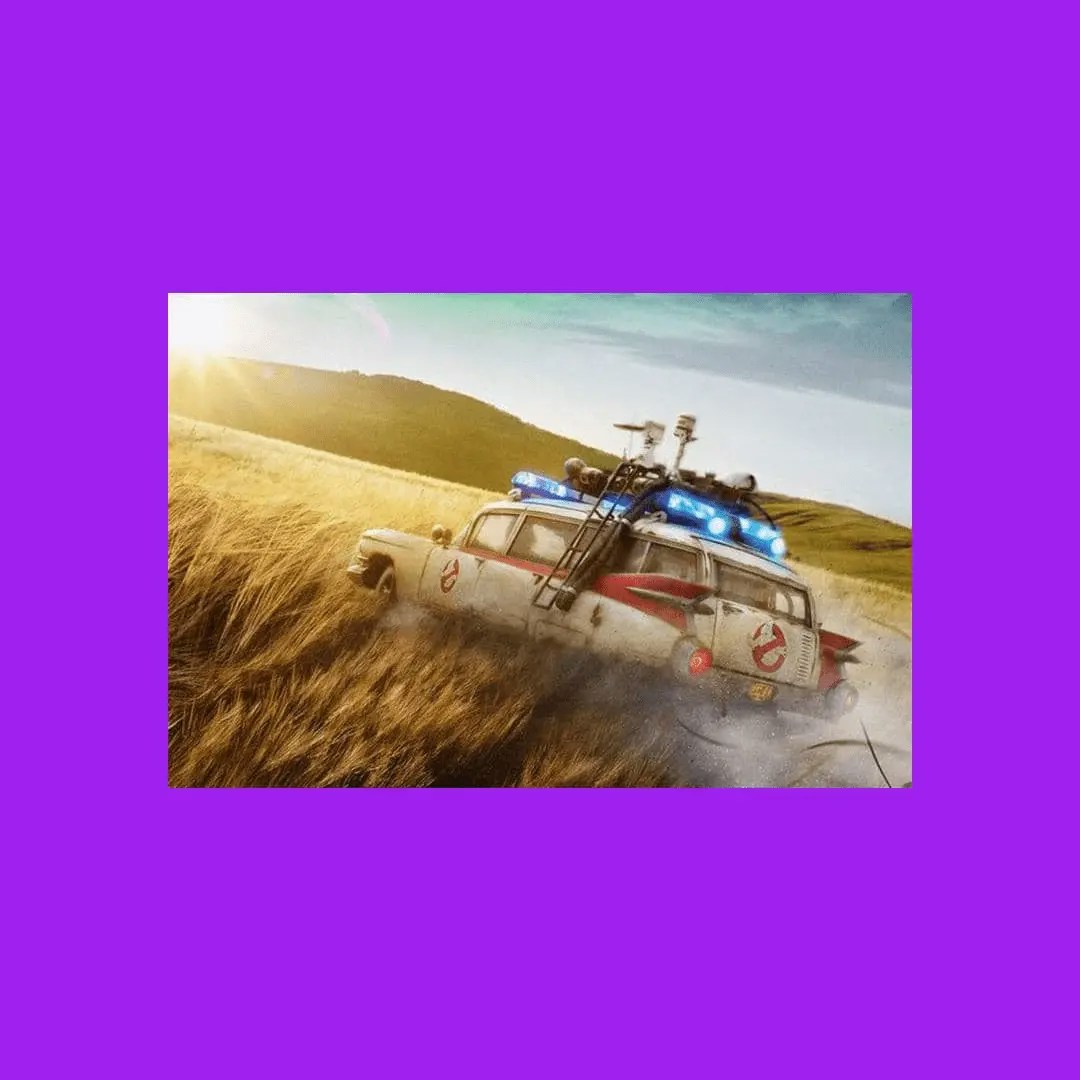
Blur の背景色の 16 進数値。`"mode": "blur"` の場合のみ適用されます。文字列値、例: `"#A020F0"`
Color 背景 JSON の例:
```json Color Background theme={"system"}
{
"mediaUrl": "https://img.ayrshare.com/012/gb.jpg",
"platform": "instagram",
"mode": "blur",
"effects": {
"color": "#A020F0"
}
}
```
Color 背景画像の例:
 #### Color: Grayscale、Sepia、Invert
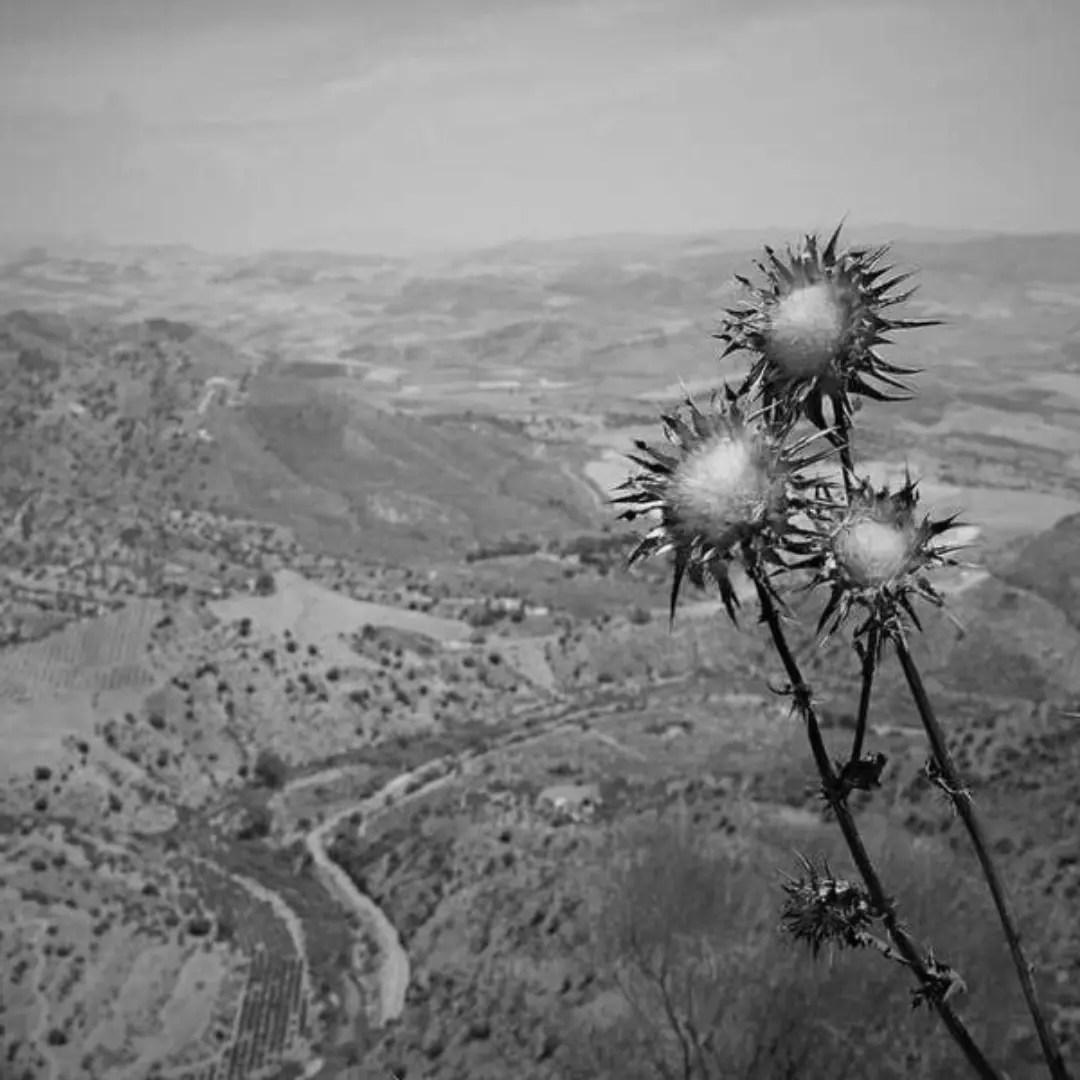
`grayscale`、`sepia`、`invert` を指定することで、主要な画像の色を変更できます。背景が不要な場合、`"blur": true` フィールドは必須ではなく、使用すべきではありません。
Grayscale JSON の例:
```json Grayscale theme={"system"}
{
"mediaUrl": "https://img.ayrshare.com/random/photo-13.jpg",
"platform": "instagram",
"effects": {
"color": "grayscale"
}
}
```
Grayscale 画像の例:
#### Color: Grayscale、Sepia、Invert
`grayscale`、`sepia`、`invert` を指定することで、主要な画像の色を変更できます。背景が不要な場合、`"blur": true` フィールドは必須ではなく、使用すべきではありません。
Grayscale JSON の例:
```json Grayscale theme={"system"}
{
"mediaUrl": "https://img.ayrshare.com/random/photo-13.jpg",
"platform": "instagram",
"effects": {
"color": "grayscale"
}
}
```
Grayscale 画像の例:
 #### Opacity
画像の不透明度を設定します。数値の範囲: 0〜1。
Opacity JSON の例:
```json Opacity theme={"system"}
{
"effects": {
"opacity": 0.2
}
}
```
#### Quality
JPG または JEPG 画像の場合、画像の品質(圧縮量)を指定します。
数値が小さいほど圧縮率が高くなり画質が下がります。
数値が大きいほど圧縮率が低くなり画質が上がります。数値の範囲: 0〜100。
Quality JSON の例:
```json Quality theme={"system"}
{
"effects": {
"quality": 20
}
}
```
### JPG または WebP への変換
`convertToJpg` および `convertToWebP` オプションを使用すると、画像を元のフォーマット(PNG など)からそれぞれ JPG または WebP フォーマットに変換できます。
既定では、変換後の画像の品質設定は 75% となります。
エフェクトオブジェクト内の [quality](/apis/media/resize#quality) パラメータを使用して圧縮レベルをカスタマイズできます。
ソース画像が既に JPG で `convertToJpg` を使用する場合、API はフォーマットを変更せずに指定された寸法にリサイズするだけである点にご注意ください。
JPG への変換例:
```json Convert to JPG theme={"system"}
{
"convertToJpg": true
}
```
WebP への変換例:
```json Convert to WebP theme={"system"}
{
"convertToWebP": true
}
```
```bash cURL theme={"system"}
curl \
-H "Authorization: Bearer API_KEY" \
-H 'Content-Type: application/json' \
-d '{"mediaUrl": "https://img.ayrshare.com/012/gb.jpg", "platform": "instagram"' \
-X POST https://api.ayrshare.com/api/media/resize
```
```javascript JavaScript theme={"system"}
const API_KEY = "API_KEY";
fetch("https://api.ayrshare.com/api/media/resize", {
method: "POST",
headers: {
"Content-Type": "application/json",
Authorization: `Bearer ${API_KEY}`
},
body: JSON.stringify({
mediaUrl: "https://img.ayrshare.com/012/gb.jpg", // required
platform: "instagram"
})
})
.then((res) => res.json())
.then((json) => console.log(json))
.catch(console.error);
```
```python Python theme={"system"}
import requests
payload = {'mediaUrl': 'https://img.ayrshare.com/012/gb.jpg',
'platforms': 'instagram'}
headers = {'Content-Type': 'application/json',
'Authorization': 'Bearer API_KEY'}
r = requests.post('https://api.ayrshare.com/api/media/resize',
json=payload,
headers=headers)
print(r.json())
```
```php PHP theme={"system"}
"https://img.ayrshare.com/012/gb.jpg",
"platforms" => "instagram"
);
curl_setopt_array($curl, array(
CURLOPT_URL => 'https://api.ayrshare.com/api/media/resize',
CURLOPT_RETURNTRANSFER => true,
CURLOPT_ENCODING => '',
CURLOPT_MAXREDIRS => 10,
CURLOPT_TIMEOUT => 0,
CURLOPT_FOLLOWLOCATION => true,
CURLOPT_HTTP_VERSION => CURL_HTTP_VERSION_1_1,
CURLOPT_CUSTOMREQUEST => 'POST',
CURLOPT_POSTFIELDS => http_build_query($data),
CURLOPT_HTTPHEADER => array(
'Authorization: Bearer API_KEY',
'Accept-Encoding: gzip'
),
));
$response = curl_exec($curl);
curl_close($curl);
echo $response;
```
```csharp C# theme={"system"}
using System;
using System.Net.Http;
using System.Text;
using System.Text.Json;
using System.Threading.Tasks;
public class AyrshareApiClient
{
private readonly HttpClient _httpClient;
private readonly string _apiKey;
private const string BaseUrl = "https://api.ayrshare.com/api";
public AyrshareApiClient(string apiKey)
{
_apiKey = apiKey ?? throw new ArgumentNullException(nameof(apiKey));
_httpClient = new HttpClient();
_httpClient.DefaultRequestHeaders.Add("Authorization", $"Bearer {_apiKey}");
}
public async Task ResizeMediaAsync(string mediaUrl, string platform)
{
try
{
var requestData = new
{
mediaUrl = mediaUrl,
platform = platform
};
var content = new StringContent(
JsonSerializer.Serialize(requestData),
Encoding.UTF8,
"application/json"
);
var response = await _httpClient.PostAsync($"{BaseUrl}/media/resize", content);
response.EnsureSuccessStatusCode();
var jsonResponse = await response.Content.ReadAsStringAsync();
return jsonResponse;
}
catch (HttpRequestException ex)
{
throw new Exception($"Failed to resize media: {ex.Message}", ex);
}
}
public void Dispose()
{
_httpClient.Dispose();
}
}
```
```json 200: Success theme={"system"}
{
"status": "success",
"url": "https://media.ayrshare.com/9abf1426d6ce9122ef11c72bd62e59807c5cc083/8UbyBjHTxgHkAC1I37e6O.jpg",
"platform": "instagram",
"mode": "blur",
"effects": {
"color": "#A020F0"
}
}
```
```json 400: Failed Resize theme={"system"}
{
"action": "resize",
"status": "error",
"code": 312,
"message": "Invalid extension type. Extension: null. Please verify the extension is one of the following: png, jpg, jpeg and the file is accessible."
}
```
#### Opacity
画像の不透明度を設定します。数値の範囲: 0〜1。
Opacity JSON の例:
```json Opacity theme={"system"}
{
"effects": {
"opacity": 0.2
}
}
```
#### Quality
JPG または JEPG 画像の場合、画像の品質(圧縮量)を指定します。
数値が小さいほど圧縮率が高くなり画質が下がります。
数値が大きいほど圧縮率が低くなり画質が上がります。数値の範囲: 0〜100。
Quality JSON の例:
```json Quality theme={"system"}
{
"effects": {
"quality": 20
}
}
```
### JPG または WebP への変換
`convertToJpg` および `convertToWebP` オプションを使用すると、画像を元のフォーマット(PNG など)からそれぞれ JPG または WebP フォーマットに変換できます。
既定では、変換後の画像の品質設定は 75% となります。
エフェクトオブジェクト内の [quality](/apis/media/resize#quality) パラメータを使用して圧縮レベルをカスタマイズできます。
ソース画像が既に JPG で `convertToJpg` を使用する場合、API はフォーマットを変更せずに指定された寸法にリサイズするだけである点にご注意ください。
JPG への変換例:
```json Convert to JPG theme={"system"}
{
"convertToJpg": true
}
```
WebP への変換例:
```json Convert to WebP theme={"system"}
{
"convertToWebP": true
}
```
```bash cURL theme={"system"}
curl \
-H "Authorization: Bearer API_KEY" \
-H 'Content-Type: application/json' \
-d '{"mediaUrl": "https://img.ayrshare.com/012/gb.jpg", "platform": "instagram"' \
-X POST https://api.ayrshare.com/api/media/resize
```
```javascript JavaScript theme={"system"}
const API_KEY = "API_KEY";
fetch("https://api.ayrshare.com/api/media/resize", {
method: "POST",
headers: {
"Content-Type": "application/json",
Authorization: `Bearer ${API_KEY}`
},
body: JSON.stringify({
mediaUrl: "https://img.ayrshare.com/012/gb.jpg", // required
platform: "instagram"
})
})
.then((res) => res.json())
.then((json) => console.log(json))
.catch(console.error);
```
```python Python theme={"system"}
import requests
payload = {'mediaUrl': 'https://img.ayrshare.com/012/gb.jpg',
'platforms': 'instagram'}
headers = {'Content-Type': 'application/json',
'Authorization': 'Bearer API_KEY'}
r = requests.post('https://api.ayrshare.com/api/media/resize',
json=payload,
headers=headers)
print(r.json())
```
```php PHP theme={"system"}
"https://img.ayrshare.com/012/gb.jpg",
"platforms" => "instagram"
);
curl_setopt_array($curl, array(
CURLOPT_URL => 'https://api.ayrshare.com/api/media/resize',
CURLOPT_RETURNTRANSFER => true,
CURLOPT_ENCODING => '',
CURLOPT_MAXREDIRS => 10,
CURLOPT_TIMEOUT => 0,
CURLOPT_FOLLOWLOCATION => true,
CURLOPT_HTTP_VERSION => CURL_HTTP_VERSION_1_1,
CURLOPT_CUSTOMREQUEST => 'POST',
CURLOPT_POSTFIELDS => http_build_query($data),
CURLOPT_HTTPHEADER => array(
'Authorization: Bearer API_KEY',
'Accept-Encoding: gzip'
),
));
$response = curl_exec($curl);
curl_close($curl);
echo $response;
```
```csharp C# theme={"system"}
using System;
using System.Net.Http;
using System.Text;
using System.Text.Json;
using System.Threading.Tasks;
public class AyrshareApiClient
{
private readonly HttpClient _httpClient;
private readonly string _apiKey;
private const string BaseUrl = "https://api.ayrshare.com/api";
public AyrshareApiClient(string apiKey)
{
_apiKey = apiKey ?? throw new ArgumentNullException(nameof(apiKey));
_httpClient = new HttpClient();
_httpClient.DefaultRequestHeaders.Add("Authorization", $"Bearer {_apiKey}");
}
public async Task ResizeMediaAsync(string mediaUrl, string platform)
{
try
{
var requestData = new
{
mediaUrl = mediaUrl,
platform = platform
};
var content = new StringContent(
JsonSerializer.Serialize(requestData),
Encoding.UTF8,
"application/json"
);
var response = await _httpClient.PostAsync($"{BaseUrl}/media/resize", content);
response.EnsureSuccessStatusCode();
var jsonResponse = await response.Content.ReadAsStringAsync();
return jsonResponse;
}
catch (HttpRequestException ex)
{
throw new Exception($"Failed to resize media: {ex.Message}", ex);
}
}
public void Dispose()
{
_httpClient.Dispose();
}
}
```
```json 200: Success theme={"system"}
{
"status": "success",
"url": "https://media.ayrshare.com/9abf1426d6ce9122ef11c72bd62e59807c5cc083/8UbyBjHTxgHkAC1I37e6O.jpg",
"platform": "instagram",
"mode": "blur",
"effects": {
"color": "#A020F0"
}
}
```
```json 400: Failed Resize theme={"system"}
{
"action": "resize",
"status": "error",
"code": 312,
"message": "Invalid extension type. Extension: null. Please verify the extension is one of the following: png, jpg, jpeg and the file is accessible."
}
```