> ## Documentation Index
> Fetch the complete documentation index at: https://www.ayrshare.com/docs/llms.txt
> Use this file to discover all available pages before exploring further.
# JSON の検証
> 正しくフォーマットされているか JSON を送信して検証します
export const HeaderAPI = ({noProfileKey, profileKeyRequired}) => <>
API Key of the Primary Profile.
Format: Authorization: Bearer API_KEY
{!noProfileKey && (profileKeyRequired ?
Profile Key of a User Profile.
Format: Profile-Key: PROFILE_KEY
:
Profile Key of a User Profile.
Format: Profile-Key: PROFILE_KEY
)}
;
export const PlansAvailable = ({plans = [], maxPackRequired}) => {
let displayPlans = plans;
if (plans && plans.length === 1) {
const lowerCasePlan = plans[0].toLowerCase();
if (lowerCasePlan === "business") {
displayPlans = ["Launch", "Business", "Enterprise"];
} else if (lowerCasePlan === "premium") {
displayPlans = ["Premium", "Launch", "Business", "Enterprise"];
}
}
return
Available on {displayPlans.length === 1 ? "the " : ""}
{displayPlans.join(", ").replace(/\b\w/g, l => l.toUpperCase())}{" "}
{displayPlans.length > 1 ? "plans" : "plan"}.
{maxPackRequired && window.open('https://www.ayrshare.com/docs/additional/maxpack', '_self')} className="flex items-center mt-2 cursor-pointer">
Max Pack required
}
;
};
正しくフォーマットされているか JSON を送信して検証します。
オンラインリンター(例:[https://jsonlint.com/](https://jsonlint.com/))や [Postman](/testing/postman) を使って JSON を検証することもできます。
Bubble や Make などのノーコードツールを使用している場合や、500 "Bad Request" レスポンスを受け取る場合、このエンドポイントは JSON リクエストのデバッグに役立ちます。
## Header Parameters
- データはテキストとして送信してください。Postman を使用する場合、タイプとして "Text" を選択してください。
- `"Content-Type": "text/plain"` に設定してください。
## リクエスト例
このエンドポイントに任意の JSON を送信して検証します。
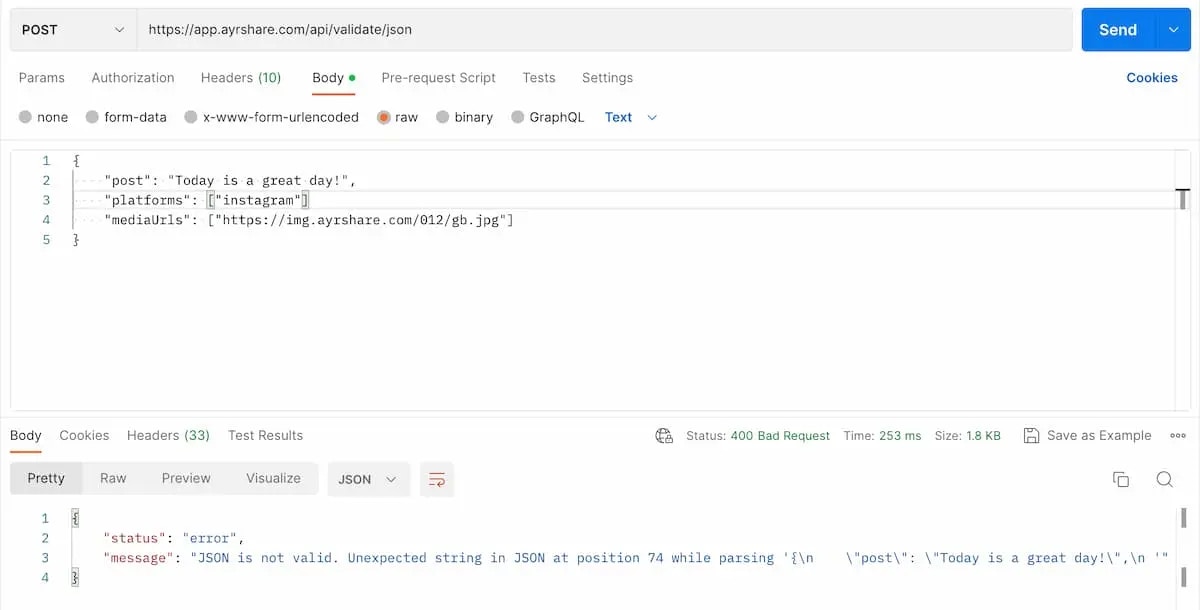
以下は Postman を使用した無効な JSON の例です。何が問題かわかりますか?2 つ目のパラメーター `platforms` の末尾にカンマがありません。
ヘッダーで `Content-Type` を `text/plain` に設定し、送信時に「Text」を選択することを忘れないでください。
 ```json 200: OK Valid JSON theme={"system"}
{
"status": "success",
"message": "Valid JSON. Nice Job!"
}
```
```json 400: Bad Request Invalid JSON theme={"system"}
{
"status": "error",
"message": "JSON is not valid. Unexpected end of JSON input while parsing near '{\"test\": \"happy}'"
}
```
```json 200: OK Valid JSON theme={"system"}
{
"status": "success",
"message": "Valid JSON. Nice Job!"
}
```
```json 400: Bad Request Invalid JSON theme={"system"}
{
"status": "error",
"message": "JSON is not valid. Unexpected end of JSON input while parsing near '{\"test\": \"happy}'"
}
```