> ## Documentation Index
> Fetch the complete documentation index at: https://www.ayrshare.com/docs/llms.txt
> Use this file to discover all available pages before exploring further.
# Instagram の接続
> Ayrshare で Instagram を認証します
## Instagram を接続する方法
以下は Instagram を接続するためのガイドです。Instagram を接続する方法は 2 つあります。
1. [Instagram アカウントを Ayrshare に直接接続する。](#linking-instagram-directly)
2. [Facebook ページを介して Instagram アカウントを Ayrshare に接続する。](#linking-instagram-through-facebook-facebook-page-required)
オプション 1 がデフォルトのオプションです。オプション 2 が望ましい場合は、ダッシュボードの設定で [Instagram Login](/multiple-users/manage-user-profiles#instagram-login) を無効にし、Instagram アカウントに関連付けられた Facebook Page を必要とする認証フローを使用してください。
Instagram は個人 Facebook アカウント、Creator Studio アカウント、および IGTV への公開をサポートしていません。
詳細は [以下](/dashboard/connect-social-accounts/instagram#enabling-an-instagram-business-or-creator-account) を参照してください。
### Instagram を直接接続する
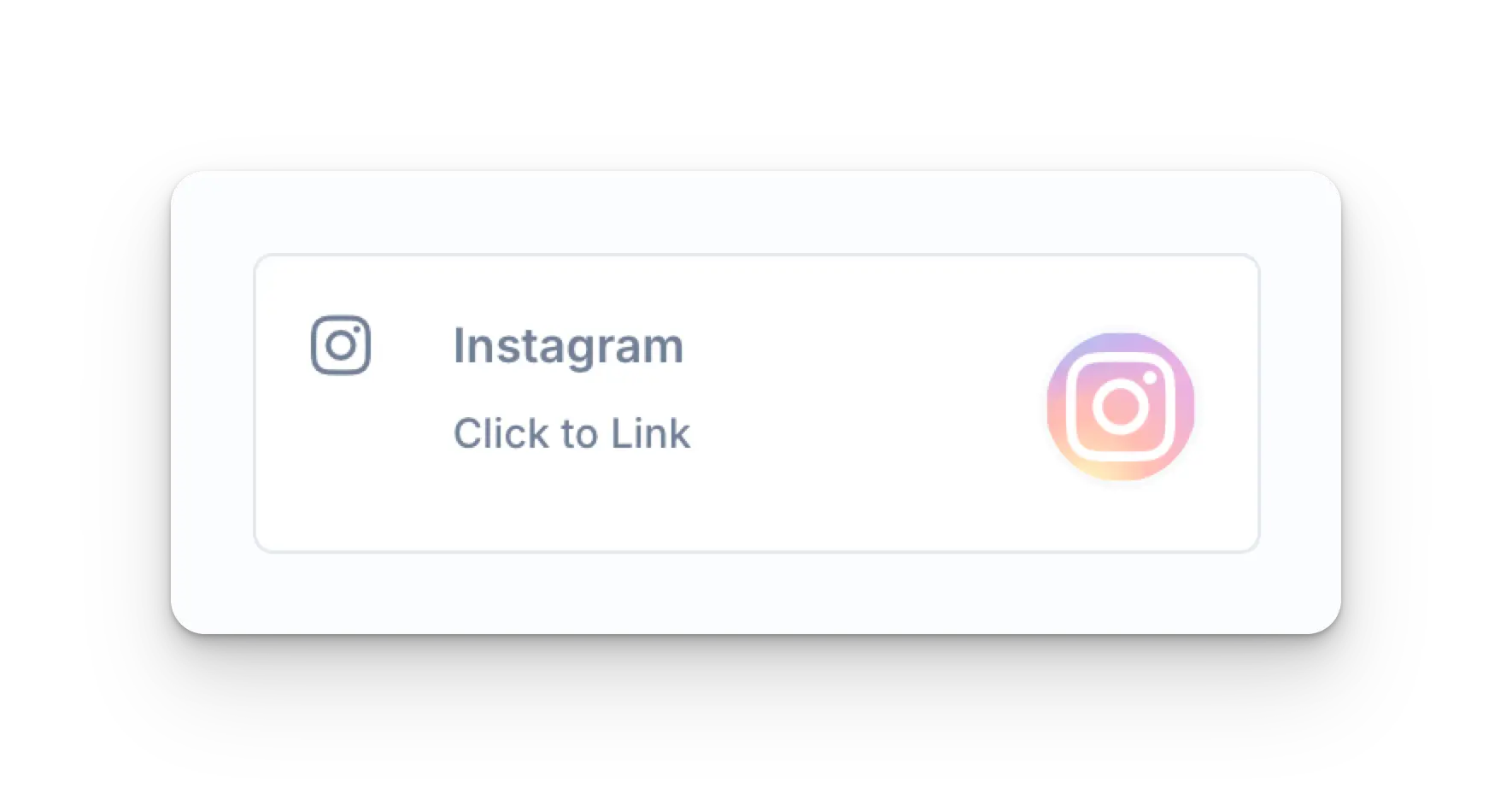
Social Accounts ページの Instagram アイコンをクリックします。
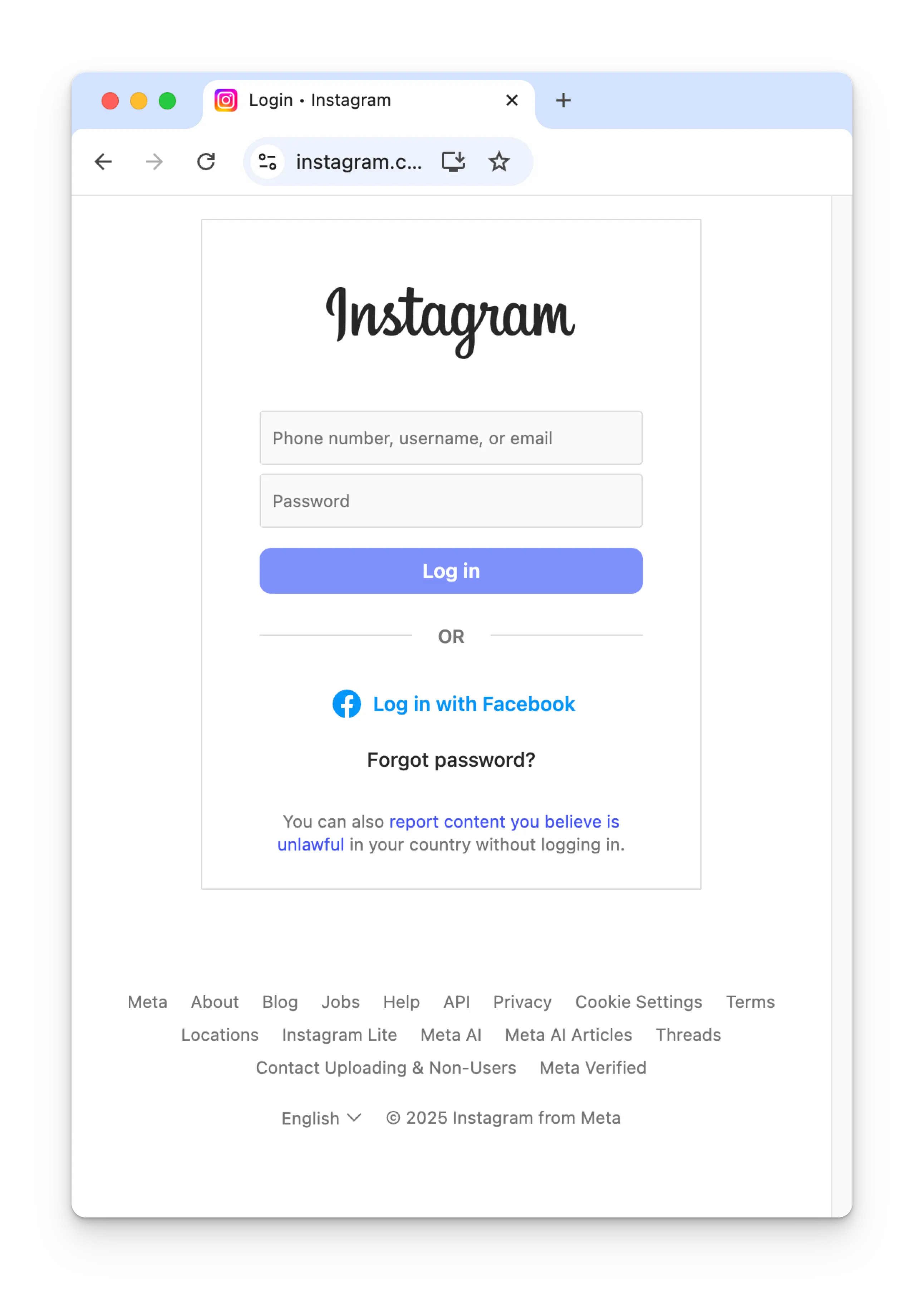
 資格情報を入力し、**Log in** をクリックします。
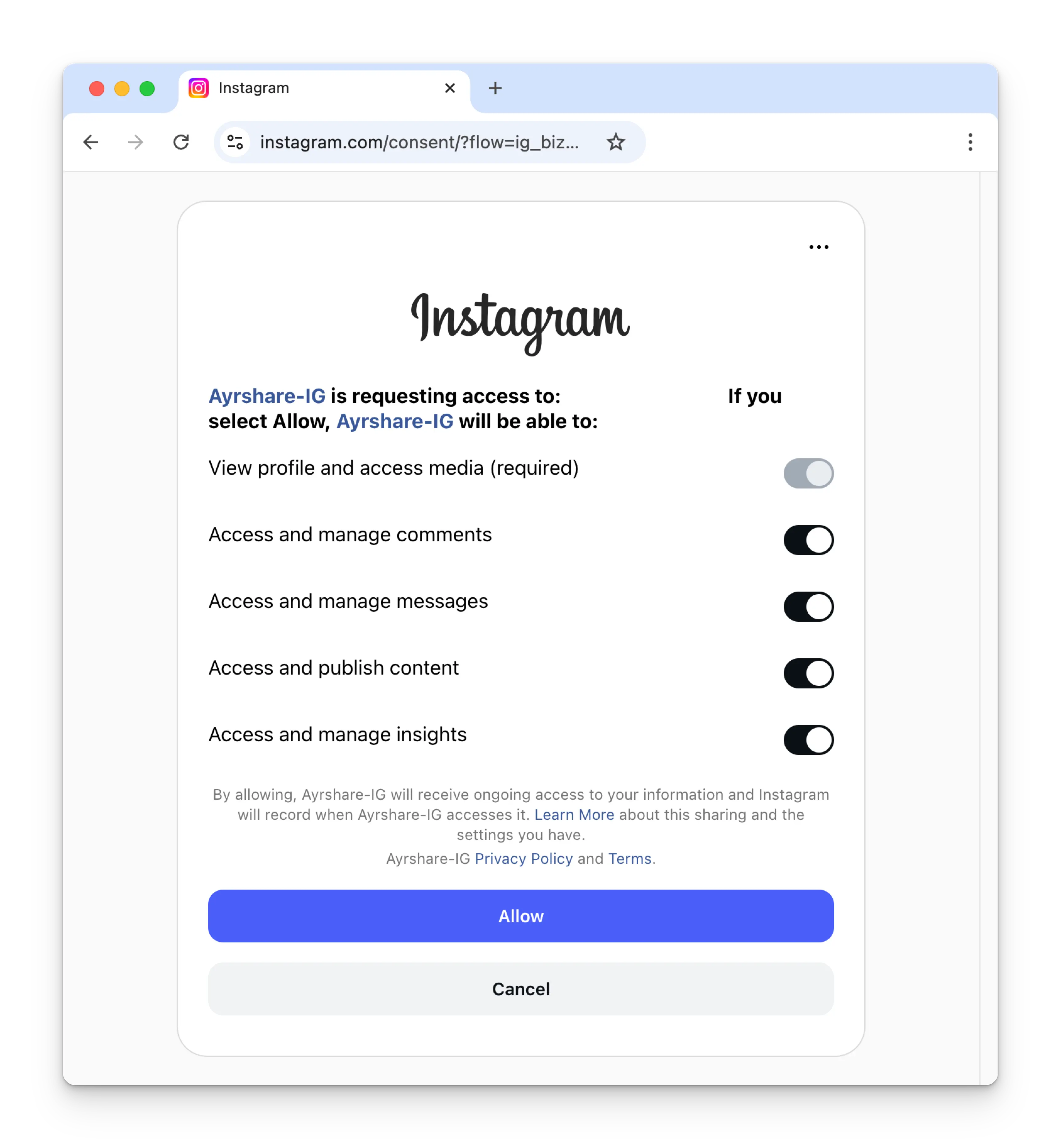
 Instagram のすべての権限を有効にし、**Allow** をクリックします。
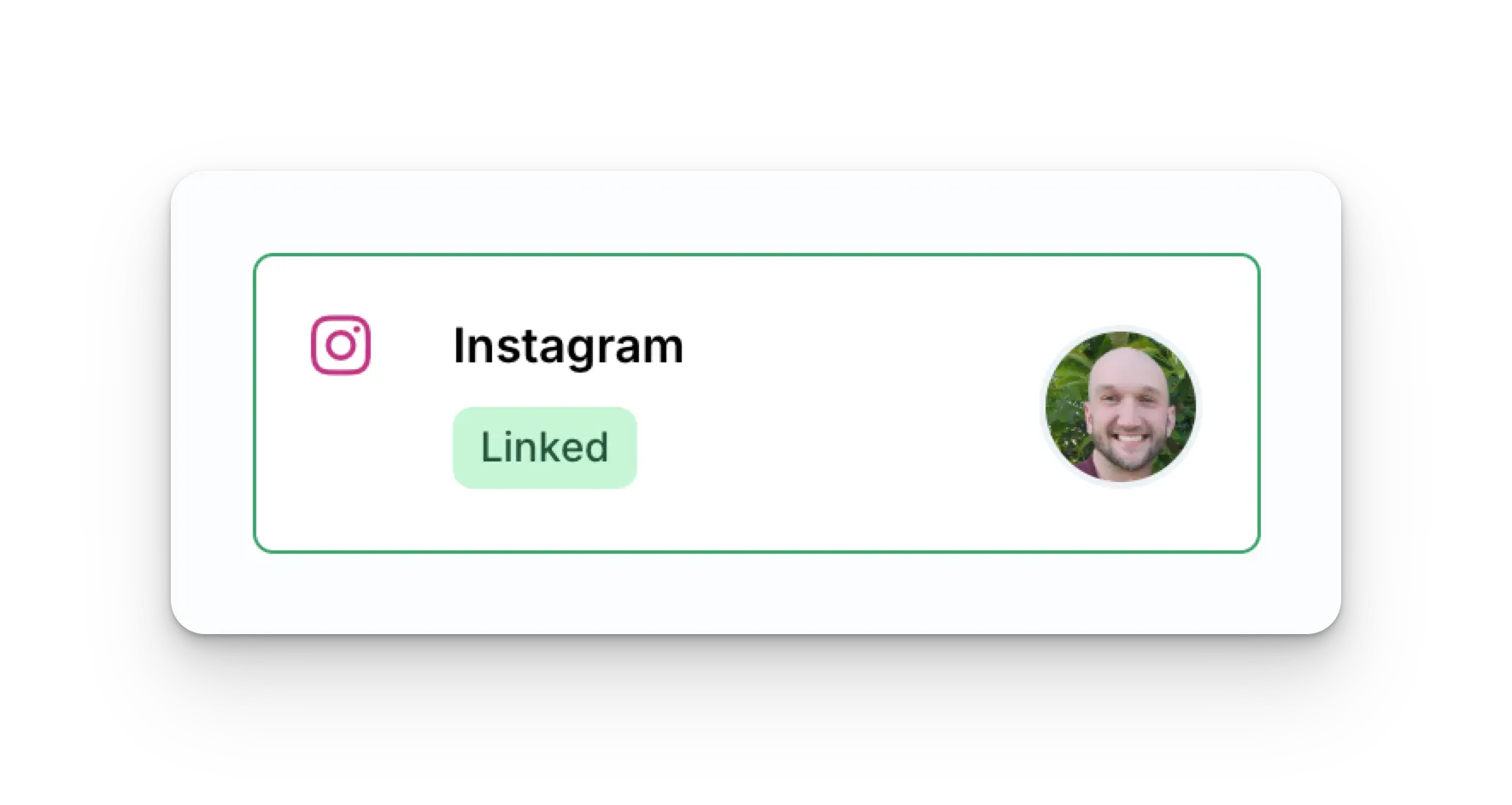
 Social Accounts ページが Instagram アカウントで更新されます。
 ### Facebook を介して Instagram を接続する(Facebook Page が必要)
Facebook Page の管理者であること、および Pages、Instagram アカウント、選択肢に **すべての権限を付与** していることを確認してください。これを行わないと、投稿が正常に行われない場合があります。
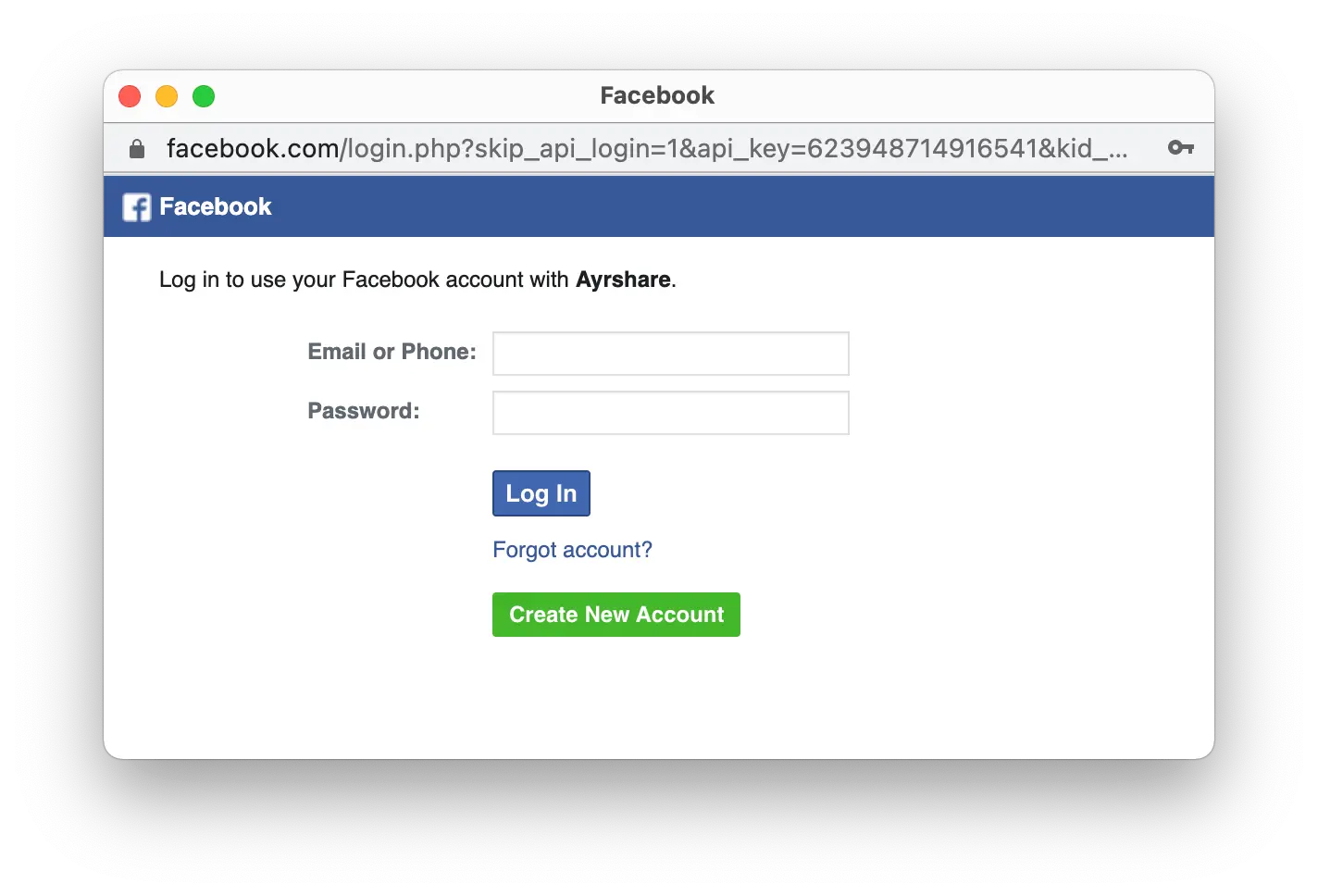
この Instagram 接続プロセスは Facebook を介して認証されるため、Social Accounts ページで Instagram アイコンをクリックすると、Facebook のサインインがポップアップします。*ポップアップを許可してください*。
Social Accounts ページの Instagram アイコンをクリックします。
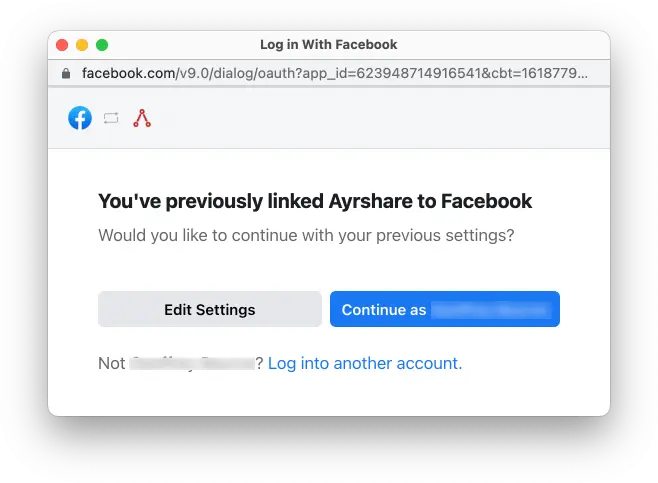
Instagram を初めて接続する際、Facebook 経由での認証を求められます。
以前に Ayrshare を Facebook に接続したことがあり、この画像が表示されない場合は、ステップ 3 に進んでください。
### Facebook を介して Instagram を接続する(Facebook Page が必要)
Facebook Page の管理者であること、および Pages、Instagram アカウント、選択肢に **すべての権限を付与** していることを確認してください。これを行わないと、投稿が正常に行われない場合があります。
この Instagram 接続プロセスは Facebook を介して認証されるため、Social Accounts ページで Instagram アイコンをクリックすると、Facebook のサインインがポップアップします。*ポップアップを許可してください*。
Social Accounts ページの Instagram アイコンをクリックします。
Instagram を初めて接続する際、Facebook 経由での認証を求められます。
以前に Ayrshare を Facebook に接続したことがあり、この画像が表示されない場合は、ステップ 3 に進んでください。
 初期セットアップ中に **Edit Settings** をクリックします。
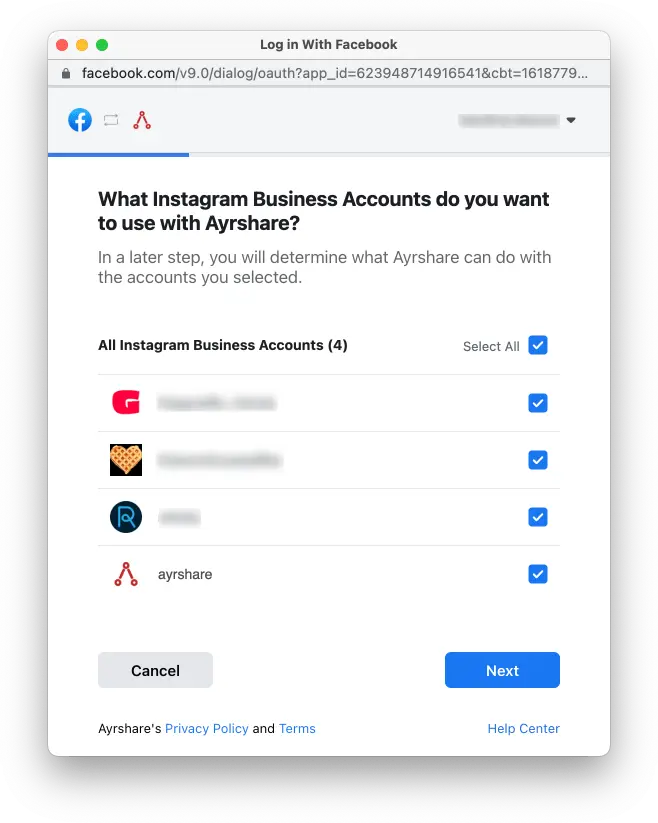
 すべての **Instagram Business Accounts** または **Instagram Creator Accounts** をチェックします。**Next** をクリックします。
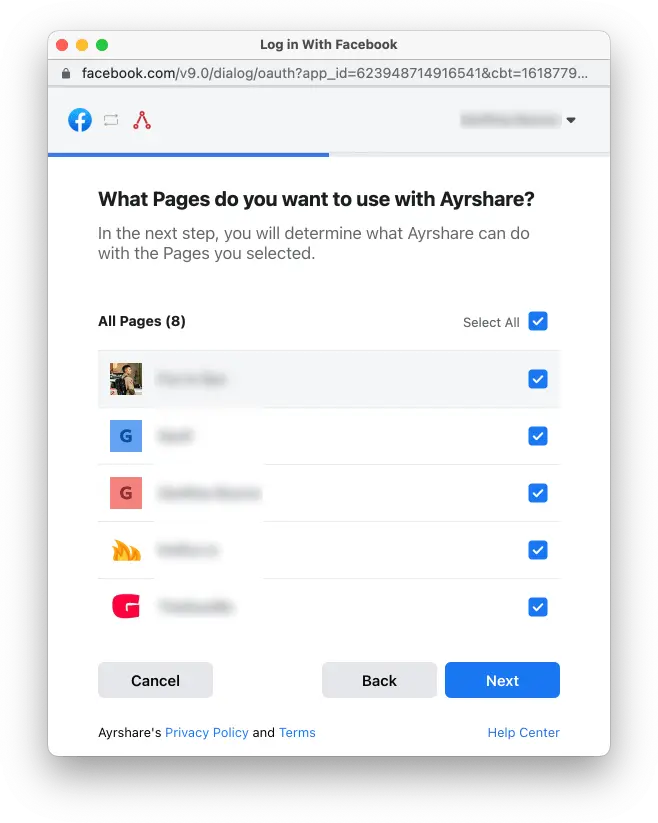
 すべての **Facebook Pages** をチェックします。**Next** をクリックします。
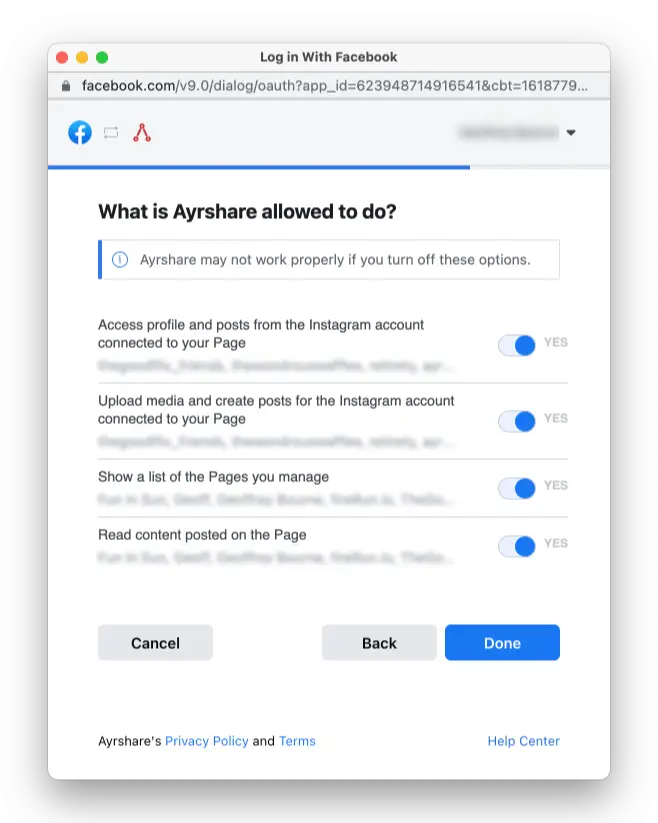
 すべての権限を **Yes** に切り替えます。**Done** をクリックします。次に、Ayrshare にリンクする特定の Instagram アカウントを選択するように求められます。選択が完了すると、リンクが完了し、Instagram への投稿を開始できます。
 Social Accounts ページが Instagram アカウントで更新されます。
## Instagram ビジネスまたはクリエイターアカウントの有効化
Instagram では、アカウントが **Instagram Business** または **Instagram Creator** アカウントであることが求められます。
[Instagram Business および Creator アカウントについての詳細を学ぶ](https://www.ayrshare.com/blog/understanding-the-difference-between-the-instagram-business-creator-and-personal-profiles/)。
### 個人アカウントからビジネスまたはクリエイターアカウントへの切り替え
個人 Instagram アカウントをお持ちの場合、Instagram モバイルアプリを開きます:
Social Accounts ページが Instagram アカウントで更新されます。
## Instagram ビジネスまたはクリエイターアカウントの有効化
Instagram では、アカウントが **Instagram Business** または **Instagram Creator** アカウントであることが求められます。
[Instagram Business および Creator アカウントについての詳細を学ぶ](https://www.ayrshare.com/blog/understanding-the-difference-between-the-instagram-business-creator-and-personal-profiles/)。
### 個人アカウントからビジネスまたはクリエイターアカウントへの切り替え
個人 Instagram アカウントをお持ちの場合、Instagram モバイルアプリを開きます:
-
プロフィールに移動し、右上のメニューアイコン ≡ をタップして **Settings and activity** ページに移動します。
- **For professionals** セクションまでスクロールします。
- **Account type and tools** をクリックします。
- **Switch to professional account** をタップします。
-
手順に従ってアカウントを設定し、**Creator** または **Business** を選択します。
### ビジネスからクリエイターへの切り替え、またはその逆
ビジネスアカウントからクリエイターアカウントに切り替えたい場合、またはその逆を行いたい場合:
-
プロフィールに移動し、右上のメニューアイコン ≡ をタップして **Settings and activity** ページに移動します。
- **For professionals** セクションまでスクロールします。
- **Creator (or Business) tools and controls** をクリックします。
- 下にスクロールして **Switch account type** をタップします。
- **Creator** または **Business** への切り替えを選択します。
ビジネスまたはクリエイターアカウントをお持ちにもかかわらず、Ayrshare を接続する際にアカウントがクリエイターまたはビジネスではないというエラーを受け取る場合は、Instagram を一度 **Personal** に戻し、再度 **Creator** または **Business** に切り替えてみてください。多くの場合、これによりアカウントタイプがリセットされ、Ayrshare を接続できます。
## Facebook Page を Instagram に接続する
既に Instagram ビジネスまたはクリエイターアカウントを持っていて Facebook Page を接続したい場合は、[詳細な手順](https://www.facebook.com/business/help/898752960195806) を参照してください。
または、[新しい Facebook Page を作成する](https://www.facebook.com/pages/create/?ref_type=site_footer) こともできます。
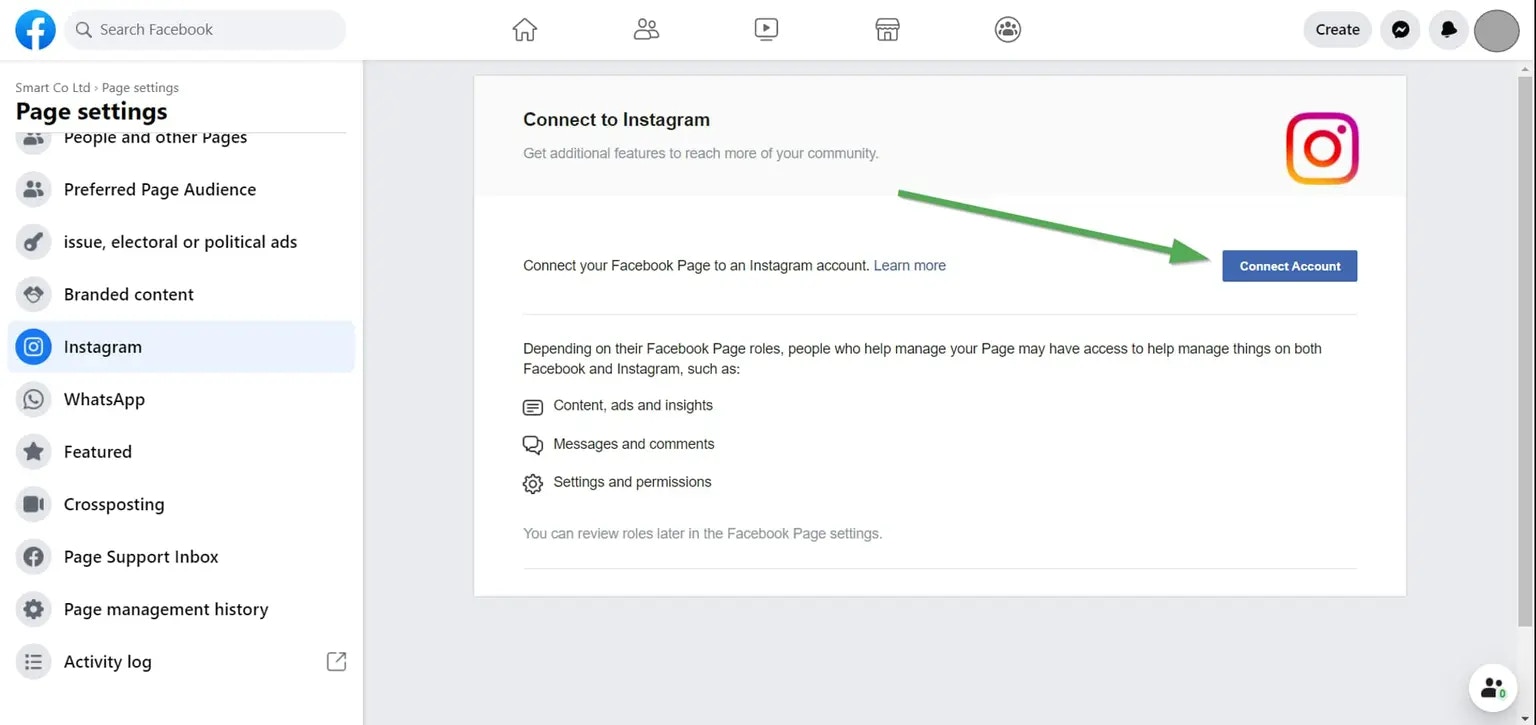
Facebook Page に Instagram アカウントがリンクされているかどうかを確認できます:
* デスクトップで [www.facebook.com](http://www.facebook.com) にログインします。
* 管理者である Facebook ページの 1 つに移動します。これは Instagram アカウントと接続したいページです。
* 左側パネルの「Manage Page」の下にある「Settings」をクリックします。通常は下部にあります。
* Page Settings の下の「Instagram」をクリックします。
接続されている場合、上部のタイトルには「Connected Instagram Account」と表示されます。それ以外の場合は、接続できるようになります。
 ## Instagram のトラブルシューティング
Instagram で問題がある場合は、[トラブルシューティングガイド](/help-center/technical-support/facebook_or_instagram_linking_issues) を参照してください。
## 追加の Instagram 情報
Instagram は画像サイズに非常に厳しい要件があります。画像は少なくとも 1080 ピクセルの幅を持ち、アスペクト比が 1.91:1 から 4:5 の間である必要があります。
Ayrshare は画像サイズが正しくないことを検出し、エラーで応答します。
* 詳細は、[Instagram への投稿](/apis/post/social-networks/instagram)、[アナリティクスの取得](/apis/analytics/overview)、[コメントの管理](/apis/comments/overview)、または [履歴の取得](/apis/history/overview) を参照してください。
* 推奨される画像サイズの詳細については、以下を参照してください:
## Instagram のトラブルシューティング
Instagram で問題がある場合は、[トラブルシューティングガイド](/help-center/technical-support/facebook_or_instagram_linking_issues) を参照してください。
## 追加の Instagram 情報
Instagram は画像サイズに非常に厳しい要件があります。画像は少なくとも 1080 ピクセルの幅を持ち、アスペクト比が 1.91:1 から 4:5 の間である必要があります。
Ayrshare は画像サイズが正しくないことを検出し、エラーで応答します。
* 詳細は、[Instagram への投稿](/apis/post/social-networks/instagram)、[アナリティクスの取得](/apis/analytics/overview)、[コメントの管理](/apis/comments/overview)、または [履歴の取得](/apis/history/overview) を参照してください。
* 推奨される画像サイズの詳細については、以下を参照してください: