> ## Documentation Index
> Fetch the complete documentation index at: https://www.ayrshare.com/docs/llms.txt
> Use this file to discover all available pages before exploring further.

# Pinterestの連携

> PinterestをAyrshareで認可する

## PinterestをAyrshareに連携する方法

### Pinterestボードのセットアップ

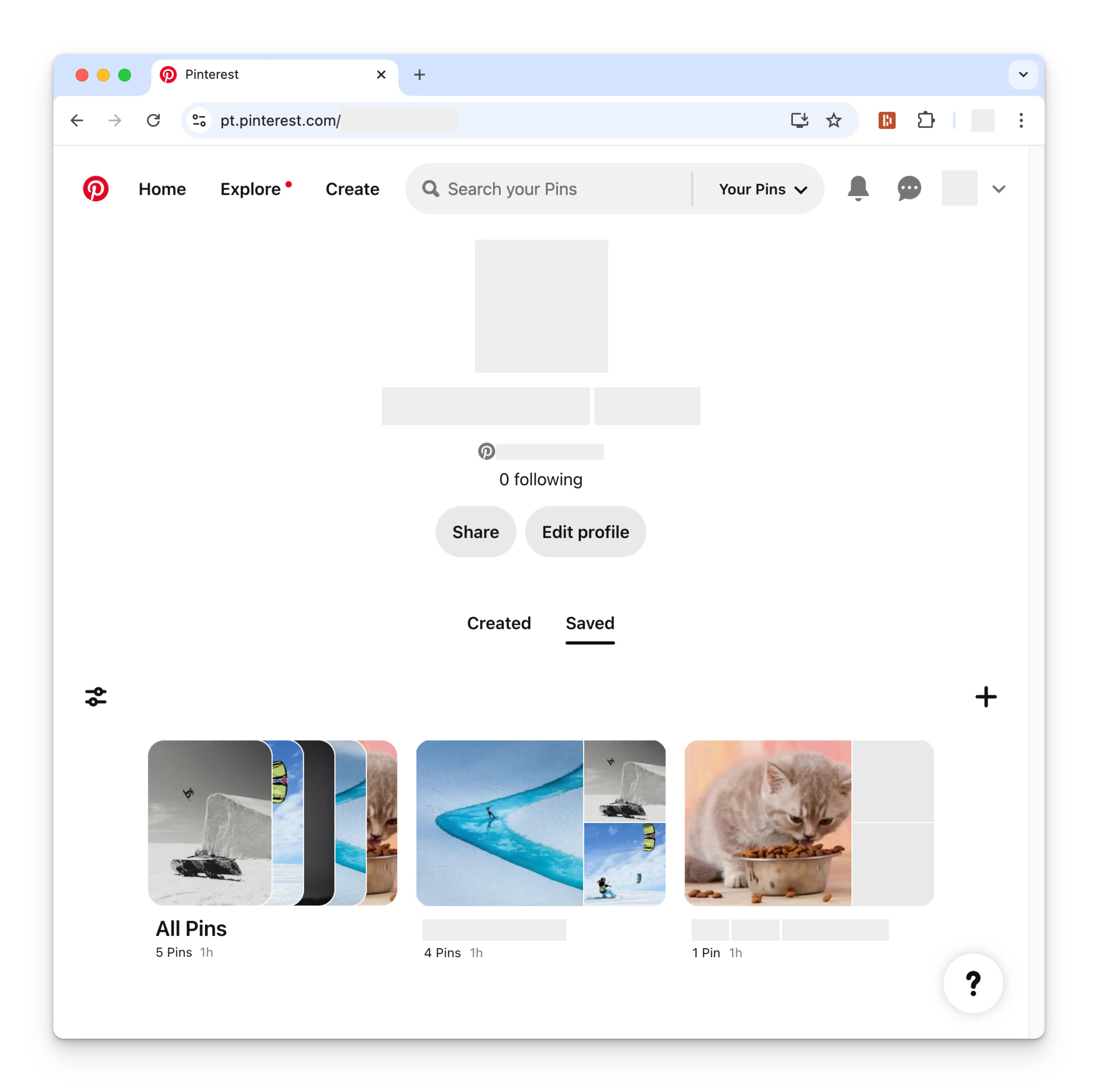
Pinterestアカウントを連携する前に、少なくとも1つのPinterestボードをセットアップしておく必要があります。Pinterestのプロフィールページに移動し、**+**（プラス）記号をクリックしてください。指示に従って新しいボードを作成します。

<img class="center" width="500" src="https://mintcdn.com/ayrshare-docs/BkNwRAXLA9nG0LQA/images/dashboard/pinterest-board.webp?fit=max&auto=format&n=BkNwRAXLA9nG0LQA&q=85&s=eba429e465ae28058bc7a396031af07f" alt="Pinterest Profile" data-path="images/dashboard/pinterest-board.webp" />

### Pinterestの連携

<Steps>
  <Step title="Pinterestの連携をクリック">
    Social AccountsページでPinterestアイコンをクリックします。
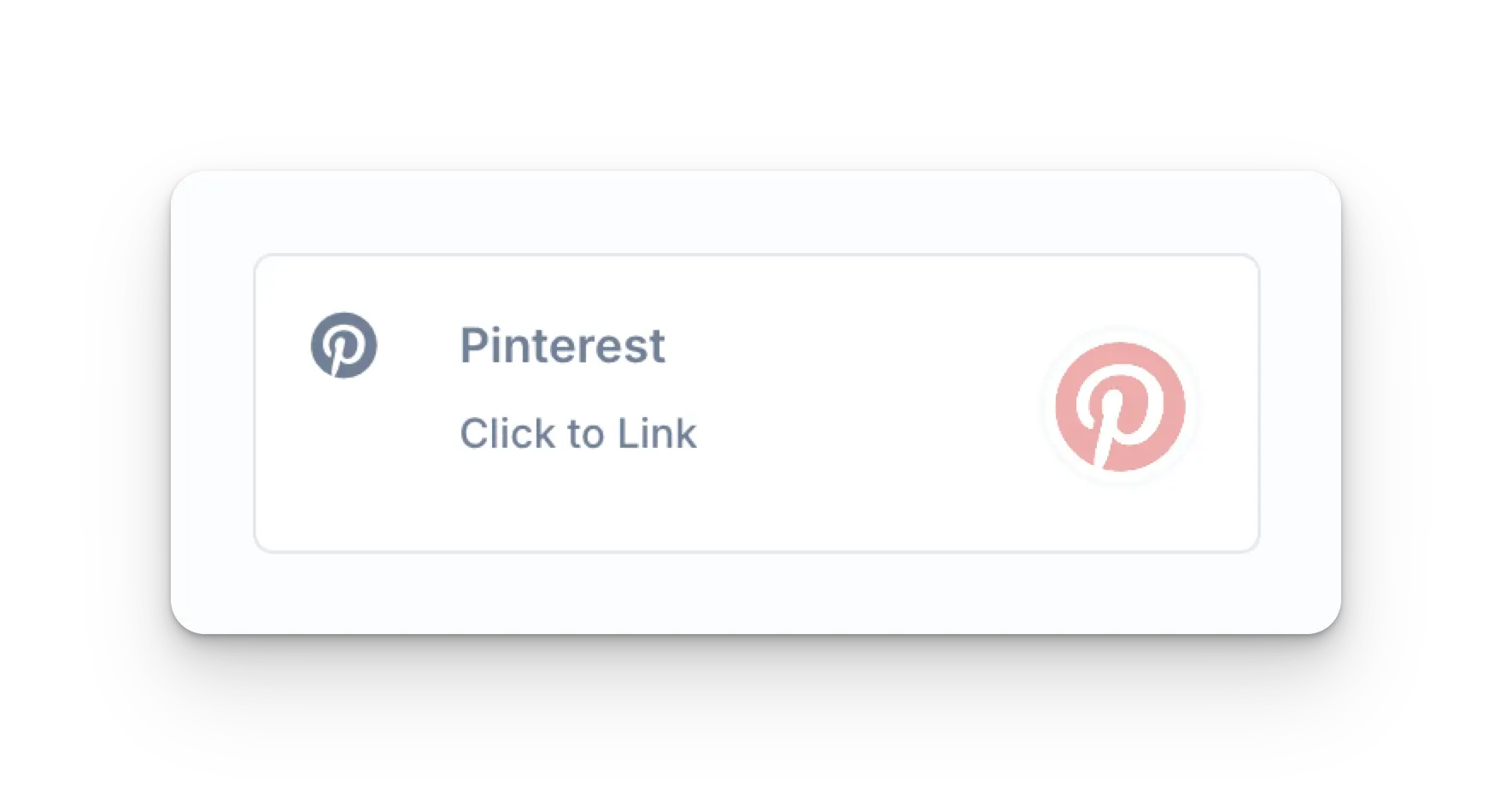
    <img class="center" width="500" src="https://mintcdn.com/ayrshare-docs/BkNwRAXLA9nG0LQA/images/dashboard/pinterest-click-to-link.webp?fit=max&auto=format&n=BkNwRAXLA9nG0LQA&q=85&s=9a6d8164646cd91d19c2ae731869840f" alt="Pinterest Click to Link" data-path="images/dashboard/pinterest-click-to-link.webp" />
  </Step>

  <Step title="初回Pinterestログイン">
    まだログインしていない場合は、Pinterestのログインページに移動します。
    それに従って認証情報を入力してください。

    既にログインしている場合は、次のステップに進んでください。
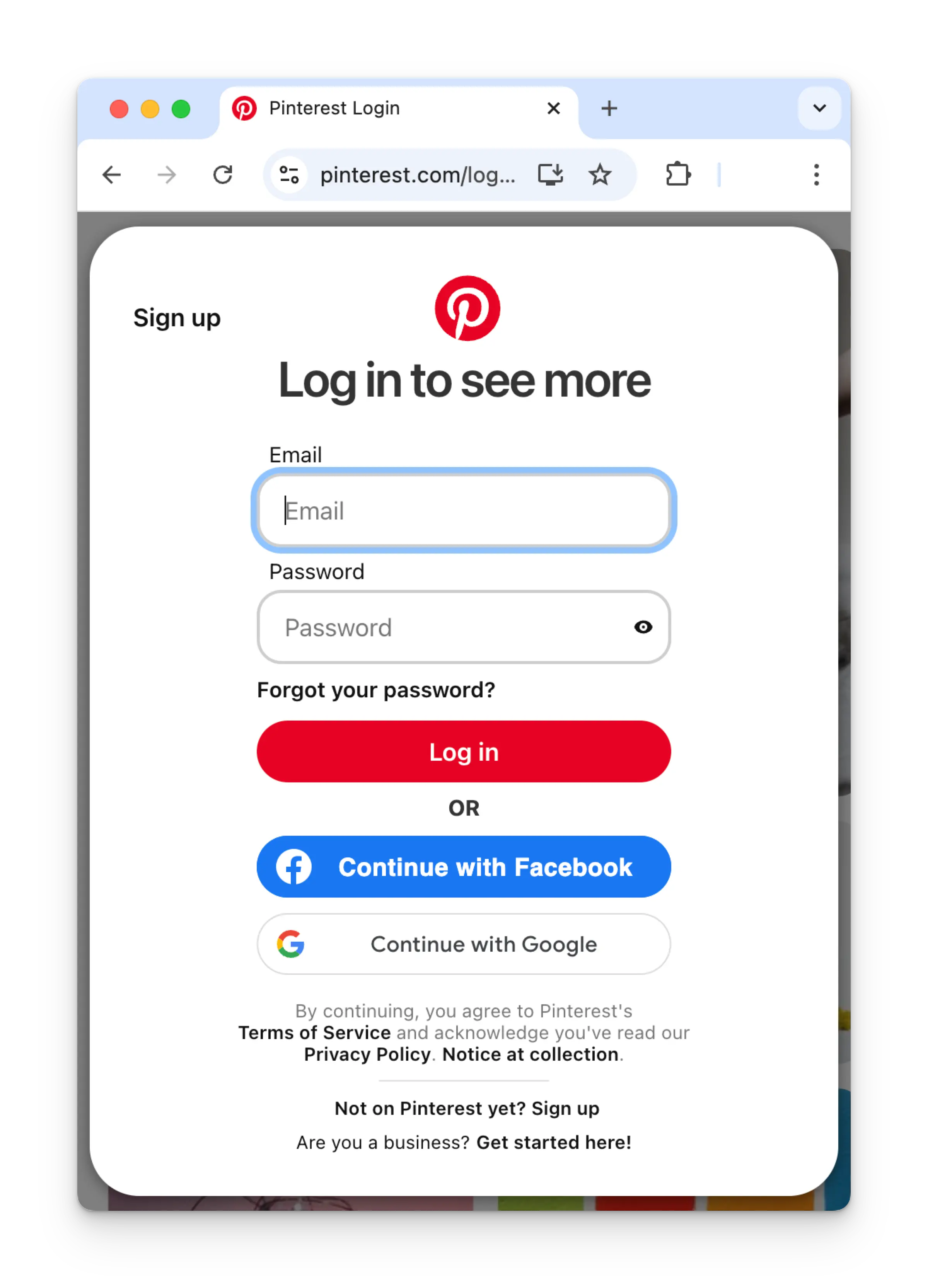
    <img class="center" width="500" src="https://mintcdn.com/ayrshare-docs/BkNwRAXLA9nG0LQA/images/dashboard/pinterest-login.webp?fit=max&auto=format&n=BkNwRAXLA9nG0LQA&q=85&s=f10b9bf82822f656d3ae8971ad4753a0" alt="Login via Pinterest" data-path="images/dashboard/pinterest-login.webp" />
  </Step>

  <Step title="アプリを認可">
    既にログインしている場合、認可ページで**Give access**をクリックします。
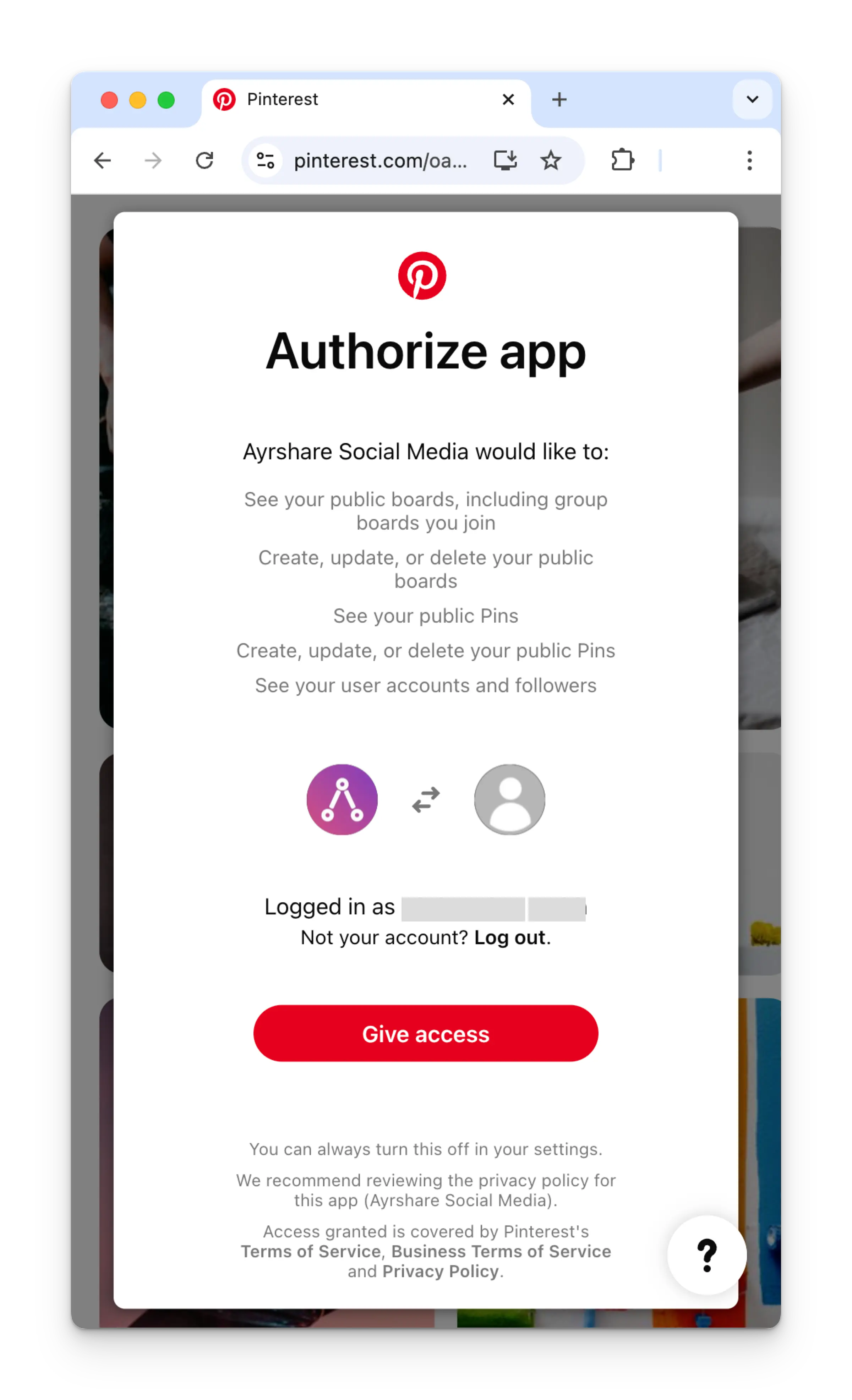
    <img class="center" width="500" src="https://mintcdn.com/ayrshare-docs/BkNwRAXLA9nG0LQA/images/dashboard/pinterest-authorize.webp?fit=max&auto=format&n=BkNwRAXLA9nG0LQA&q=85&s=f2ff042bc9e5a65c281719d7457cde78" alt="Authorize app" data-path="images/dashboard/pinterest-authorize.webp" />
  </Step>

  <Step title="Pinterestボードを選択">
    Ayrshareダッシュボードに戻ったら、連携するPinterestボードを選択します。
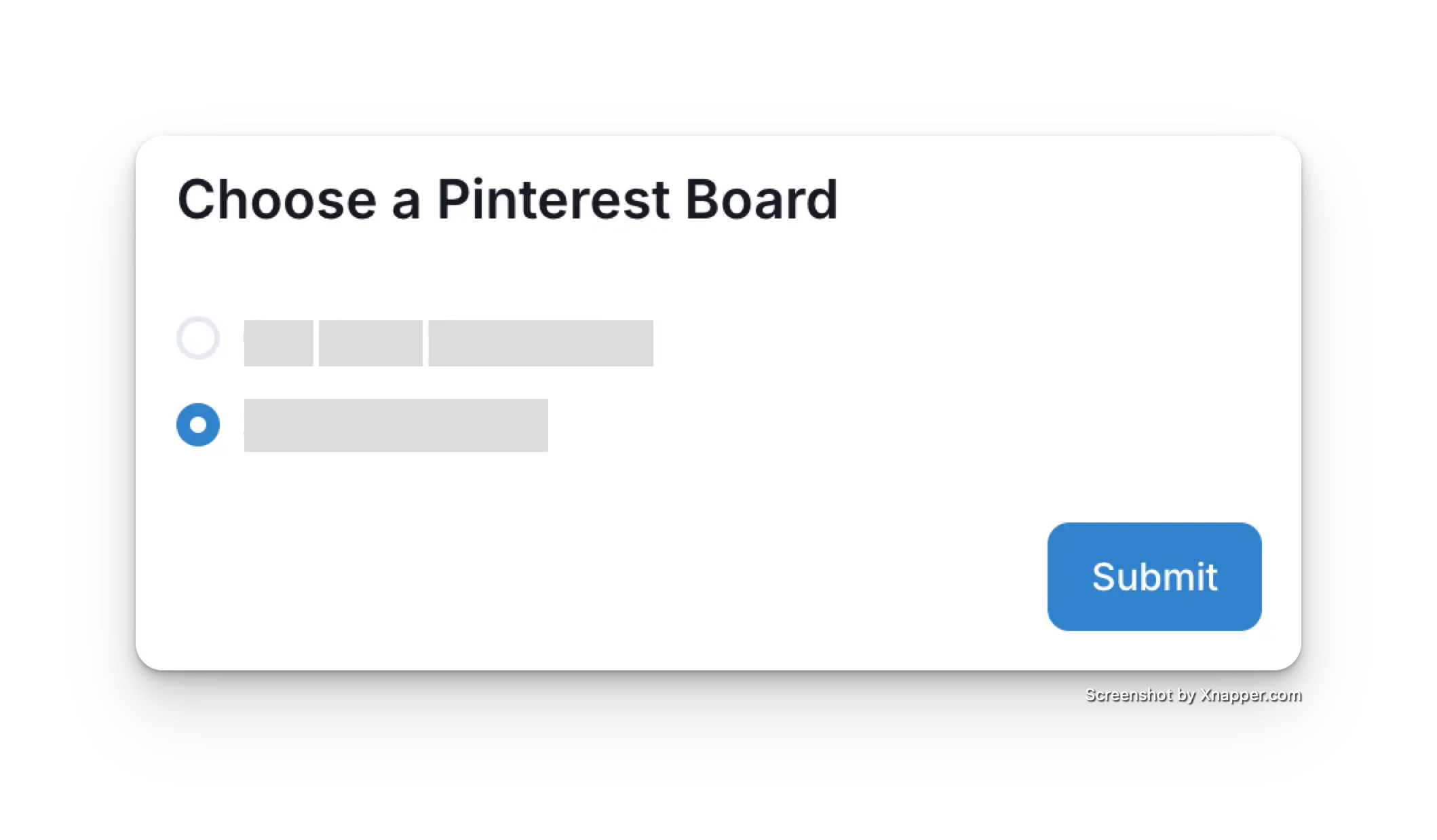
    <img class="center" width="500" src="https://mintcdn.com/ayrshare-docs/BkNwRAXLA9nG0LQA/images/dashboard/pinterest-select-board.webp?fit=max&auto=format&n=BkNwRAXLA9nG0LQA&q=85&s=ae5b89fa3f3f2983568d831642c09d95" alt="Choose a Pinterest board" data-path="images/dashboard/pinterest-select-board.webp" />
  </Step>

  <Step title="確認">
    Social AccountsページがPinterestアカウントで更新されます。
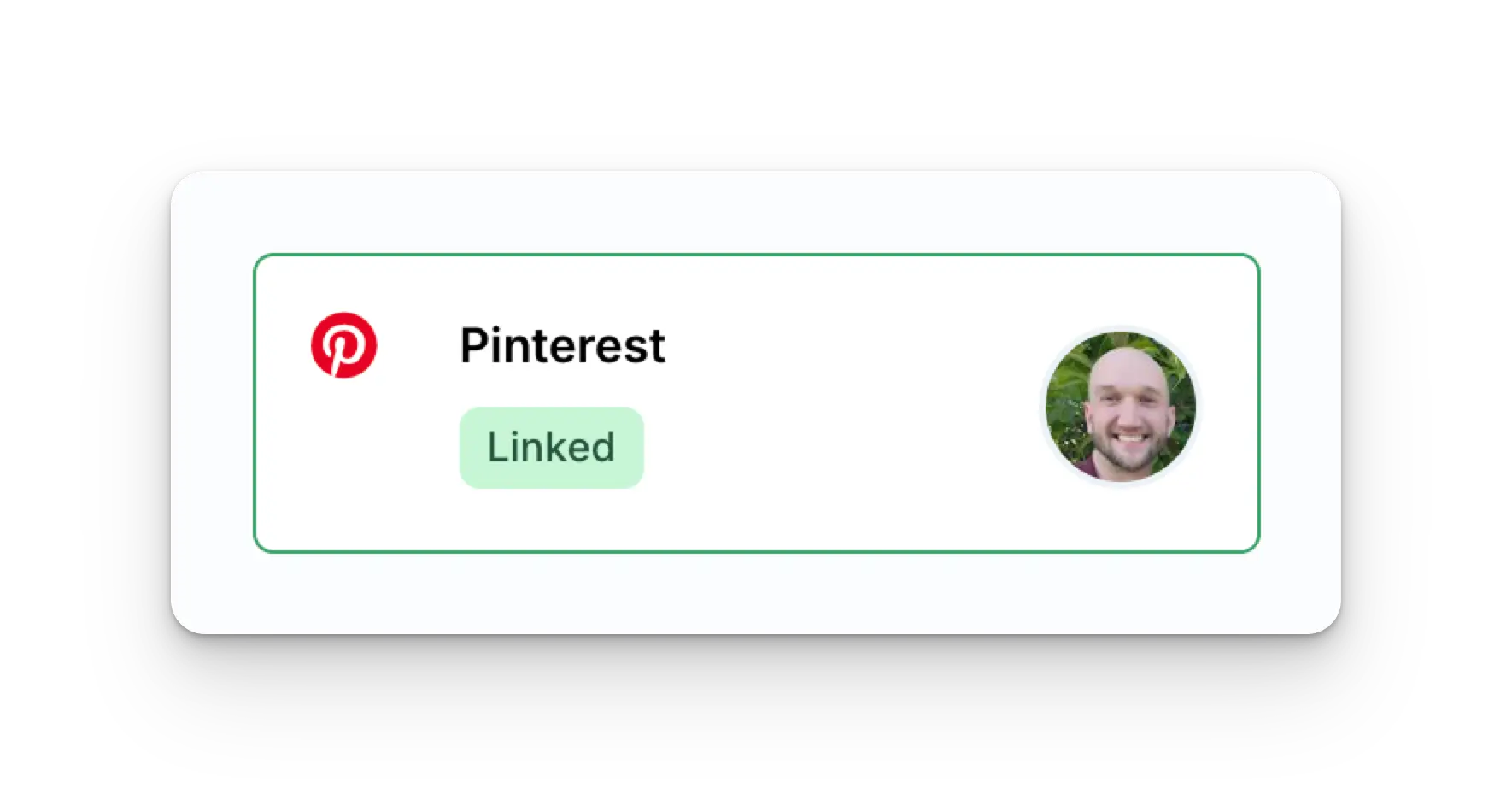
    <img class="center" width="500" src="https://mintcdn.com/ayrshare-docs/BkNwRAXLA9nG0LQA/images/dashboard/pinterest-linked.webp?fit=max&auto=format&n=BkNwRAXLA9nG0LQA&q=85&s=99c8828d3b99eb46302a380affcacb95" alt="Pinterest Confirmation" data-path="images/dashboard/pinterest-linked.webp" />
  </Step>
</Steps>

## Pinterestに関する追加情報

* 詳細については以下をご覧ください:
  [Pinterestへの投稿](/apis/post/social-networks/pinterest)、
  [analyticsの取得](/apis/analytics/overview)、
  [コメントの管理](/apis/comments/overview)、または
  [履歴の取得](/apis/history/overview)。
* 推奨画像サイズの詳細については、以下を参照してください:

<Card title="画像および動画のガイドライン" icon="link" href="/media-guidelines/pinterest" horizontal />