> ## Documentation Index
> Fetch the complete documentation index at: https://www.ayrshare.com/docs/llms.txt
> Use this file to discover all available pages before exploring further.
# Snapchatの連携
> SnapchatをAyrshareで認可する
## SnapchatをAyrshareに連携する方法
### Snapchatパブリックプロフィールのセットアップ
Snapchatアカウントを連携する前に、Snapchatのパブリックプロフィールをセットアップする必要があります。
非公開プロフィールはAyrshareに連携できません。
さらに、パブリックプロフィールはプロフェッショナルプロフィールに切り替える必要があります。
プロフェッショナルプロフィールがない場合、ストーリーの投稿などの特定の機能は許可されません。
まだパブリックプロフィールをお持ちでない場合は、以下の手順に従ってください。
既にパブリックプロフィールをお持ちの場合は、ステップ3に進んでください。
既にパブリックプロフィールがプロフェッショナルプロフィールになっている場合は、[Snapchatの連携](/dashboard/connect-social-accounts/snapchat#linking-snapchat)に進んでください。
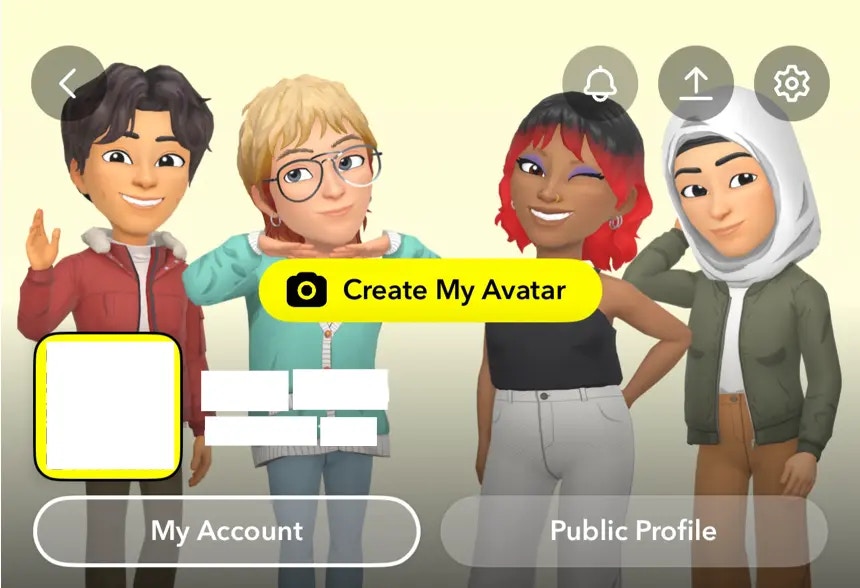
Snapchatを開き、左上のアイコンをタップします。
 **Public Profile**ボタンをクリックし、指示に従ってパブリックプロフィールをセットアップします。
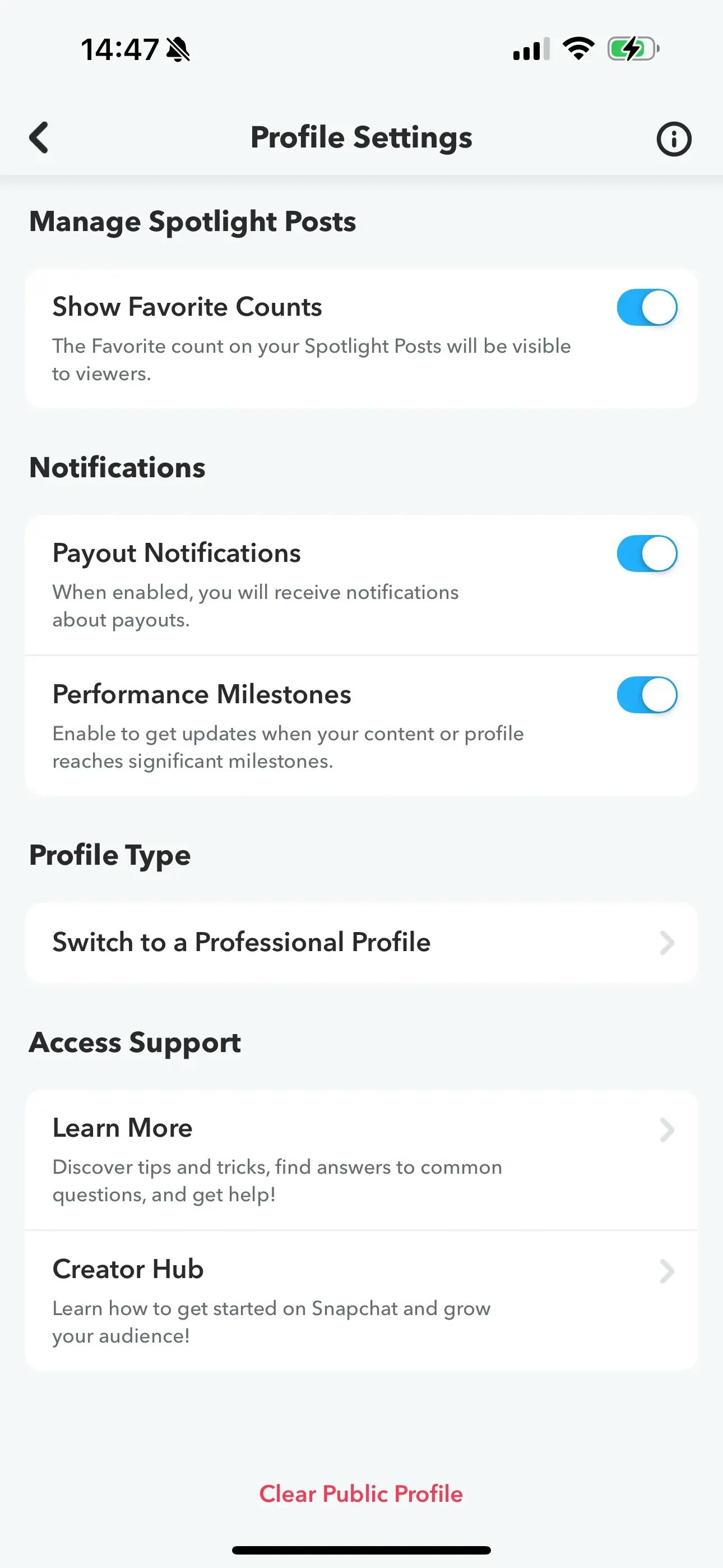
 プロフィール設定の**Switch to a Professional Profile**オプションに移動します。
指示に従い、カテゴリを選択して**Confirm**をクリックし、
プロフェッショナルプロフィールに切り替えます。
プロフィール設定の**Switch to a Professional Profile**オプションに移動します。
指示に従い、カテゴリを選択して**Confirm**をクリックし、
プロフェッショナルプロフィールに切り替えます。
 ### Snapchatの連携
Social AccountsページでSnapchatアイコンをクリックします。
### Snapchatの連携
Social AccountsページでSnapchatアイコンをクリックします。
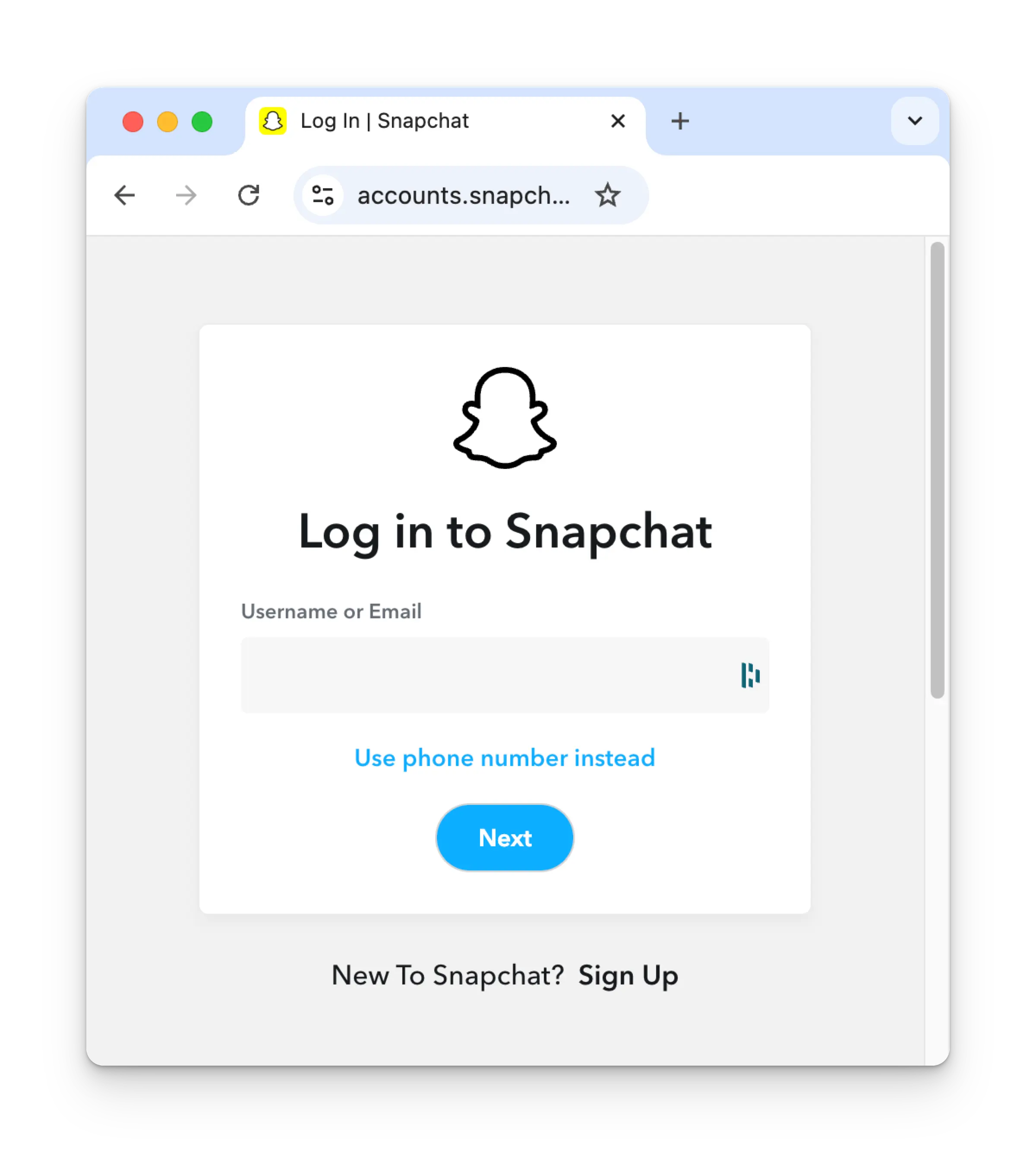
 まだログインしていない場合は、Snapchatのログインページに移動します。それに従って認証情報を入力してください。既にログインしている場合は、次のステップに進んでください。
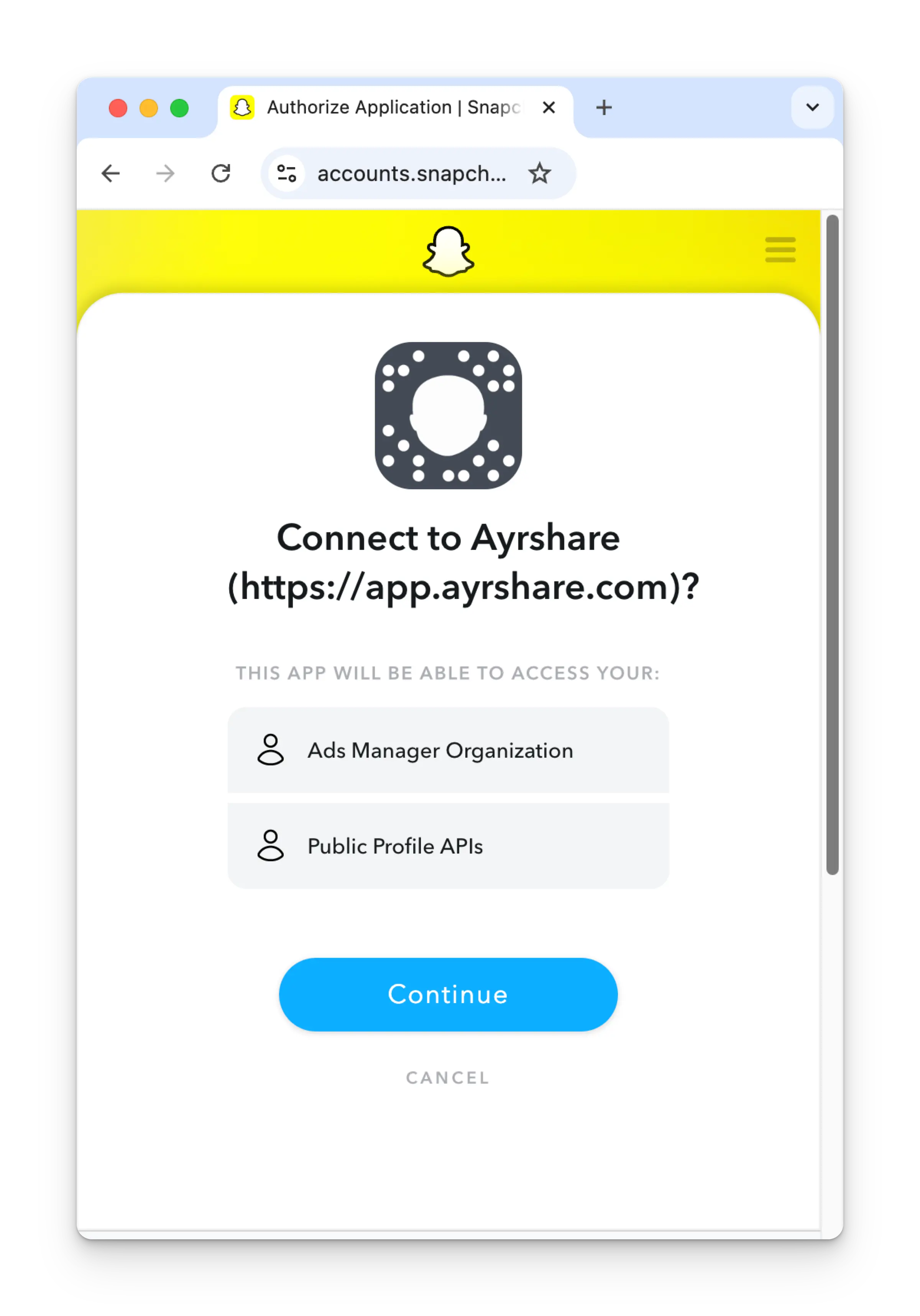
 権限を確認し、認可ページで**Continue**をクリックします。
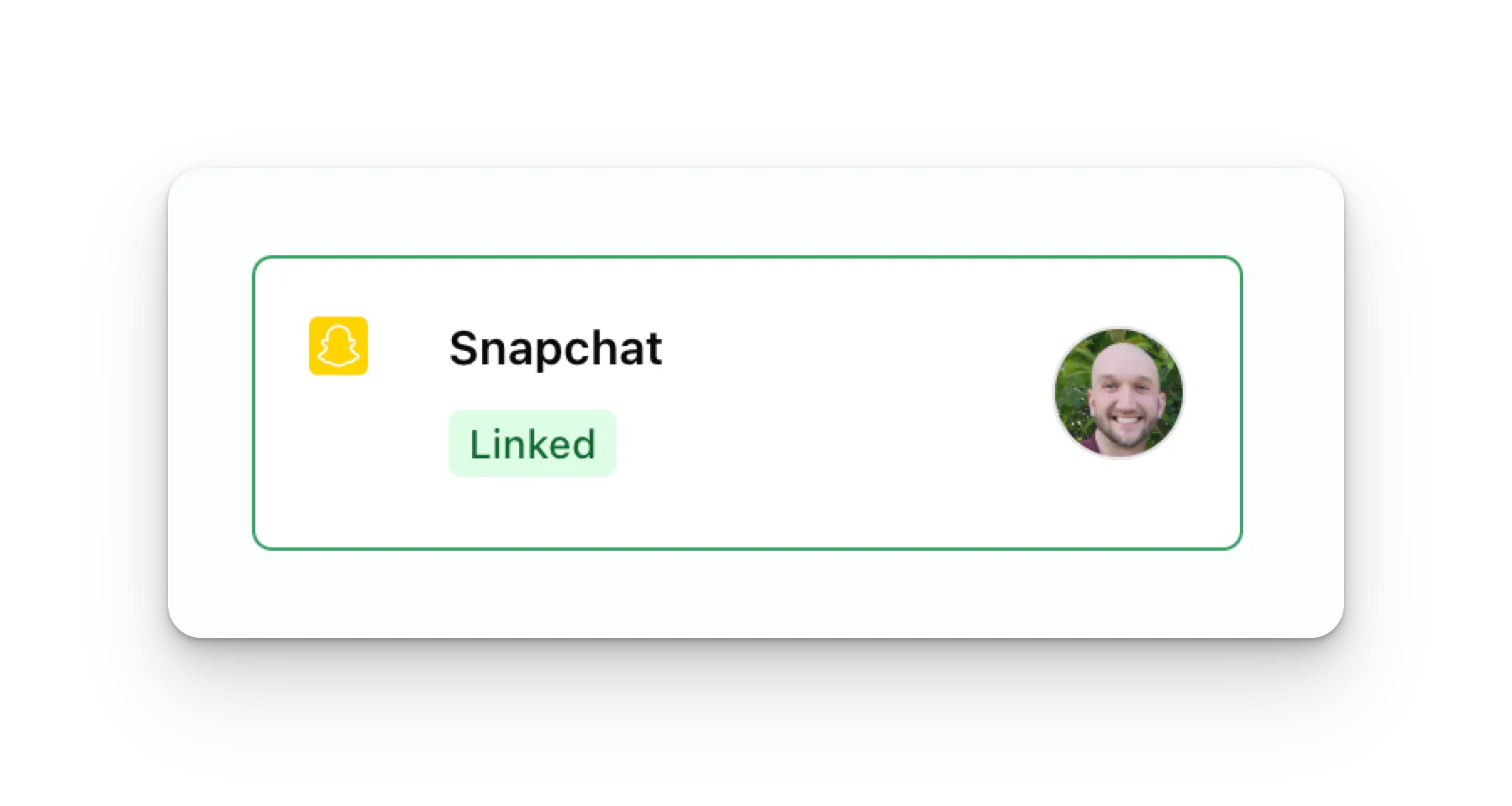
 Social AccountsページがSnapchatアカウントで更新されます。
 ## Snapchatに関する追加情報
* 詳細については以下をご覧ください:
[Snapchatへの投稿](/apis/post/social-networks/snapchat)、
[analyticsの取得](/apis/analytics/overview)、
[コメントの管理](/apis/comments/overview)、または
[履歴の取得](/apis/history/overview)。
* 推奨画像および動画サイズの詳細については、以下を参照してください:
## Snapchatに関する追加情報
* 詳細については以下をご覧ください:
[Snapchatへの投稿](/apis/post/social-networks/snapchat)、
[analyticsの取得](/apis/analytics/overview)、
[コメントの管理](/apis/comments/overview)、または
[履歴の取得](/apis/history/overview)。
* 推奨画像および動画サイズの詳細については、以下を参照してください: