> ## Documentation Index
> Fetch the complete documentation index at: https://www.ayrshare.com/docs/llms.txt
> Use this file to discover all available pages before exploring further.
# Threads の接続
> Ayrshare で Threads を認証します
## Ayrshare で Threads を接続する方法
Ayrshare で Threads を認証するのは簡単です。認証プロセス中に、Threads の全機能を活用するために、Instagram アカウントでサインインする必要があります。詳細は以下の手順を参照してください。
## Threads の認証
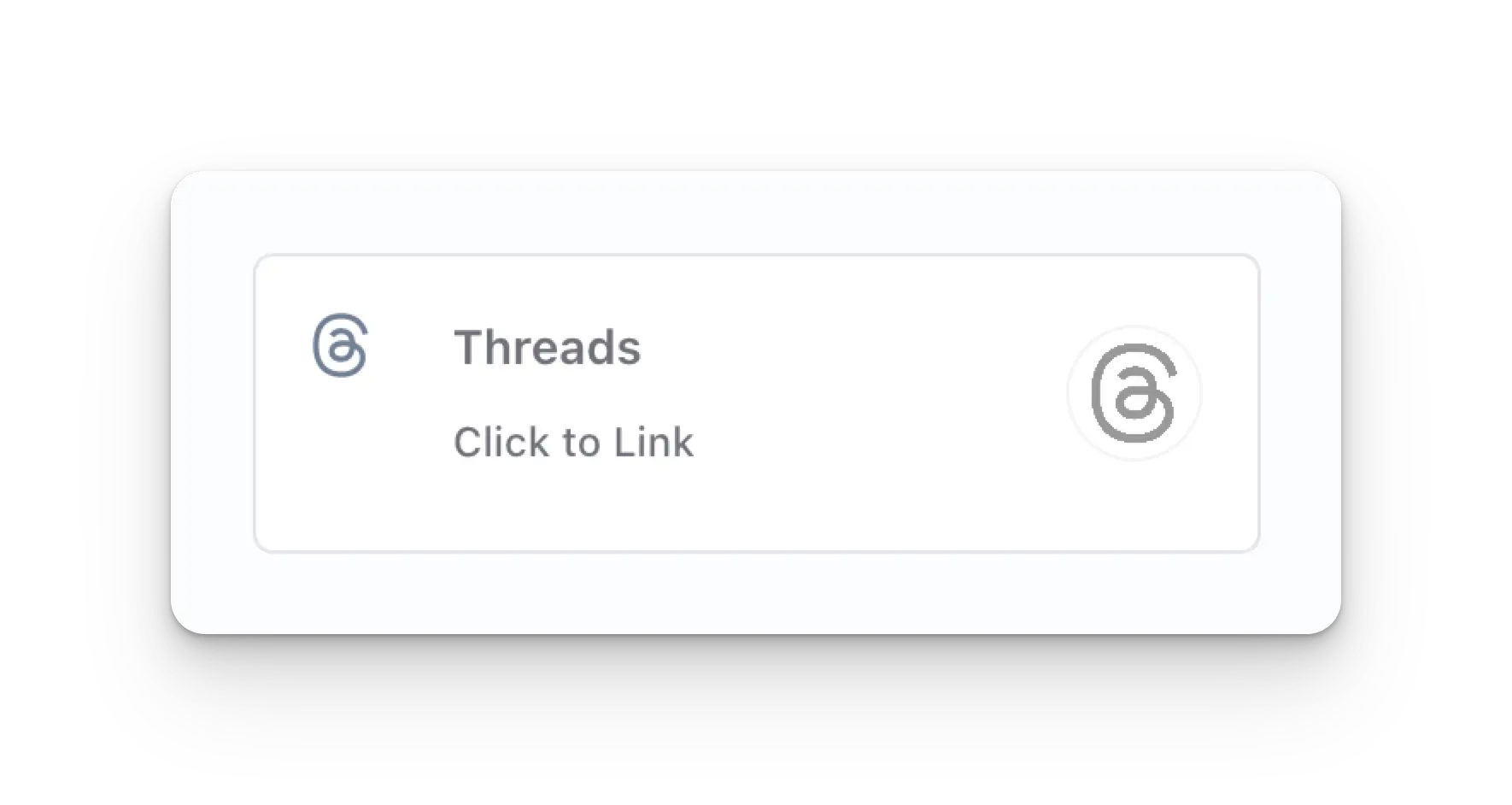
Social Accounts ページで Threads アイコンをクリックします。
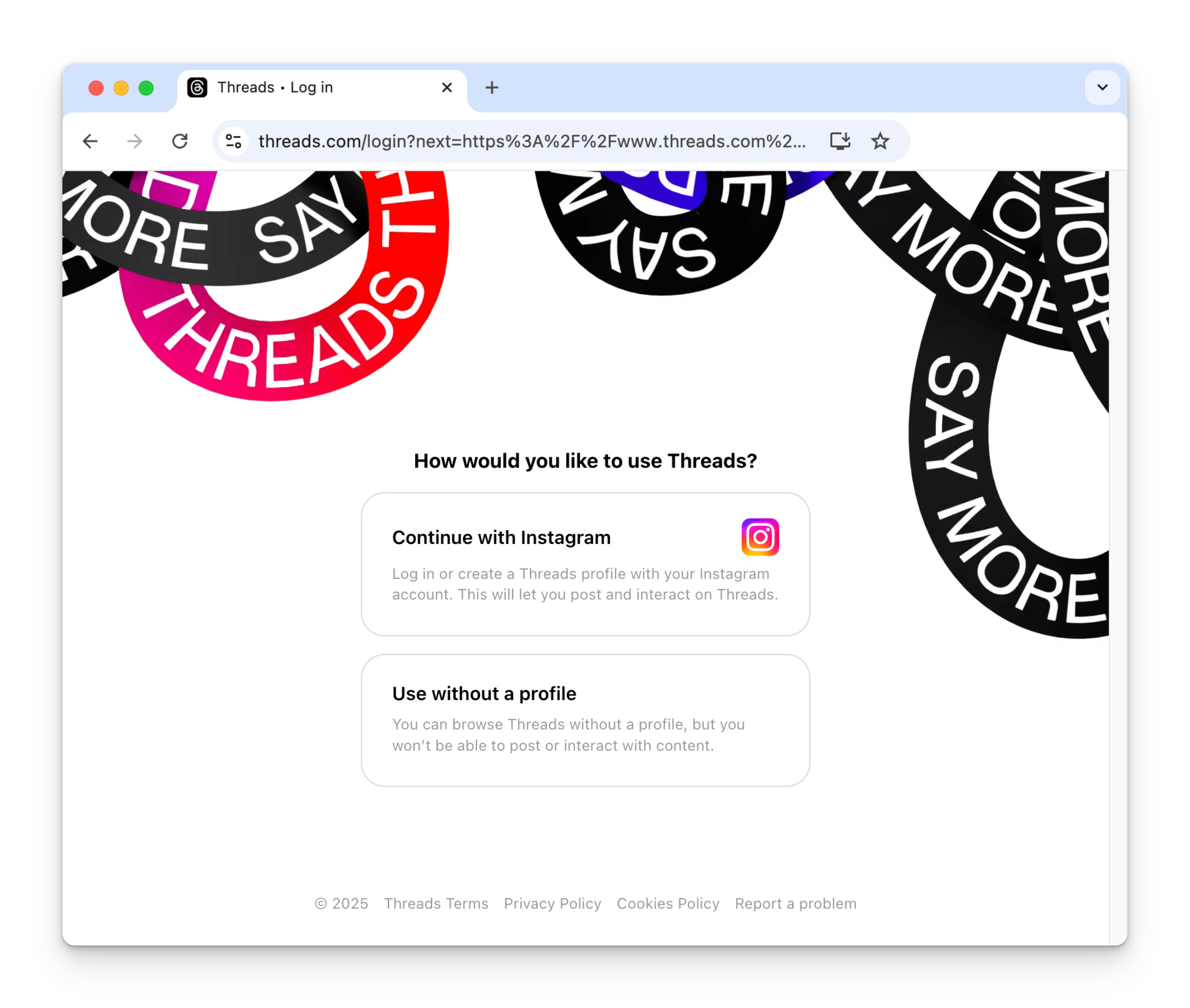
 Threads を初めて接続する際、Instagram アカウントで認証するように求められます。Threads に投稿するには Instagram アカウントが必要です。
以前に Ayrshare を Threads に接続したことがあり、この画像が表示されない場合は、ステップ 4 に進んでください。
Threads を初めて接続する際、Instagram アカウントで認証するように求められます。Threads に投稿するには Instagram アカウントが必要です。
以前に Ayrshare を Threads に接続したことがあり、この画像が表示されない場合は、ステップ 4 に進んでください。
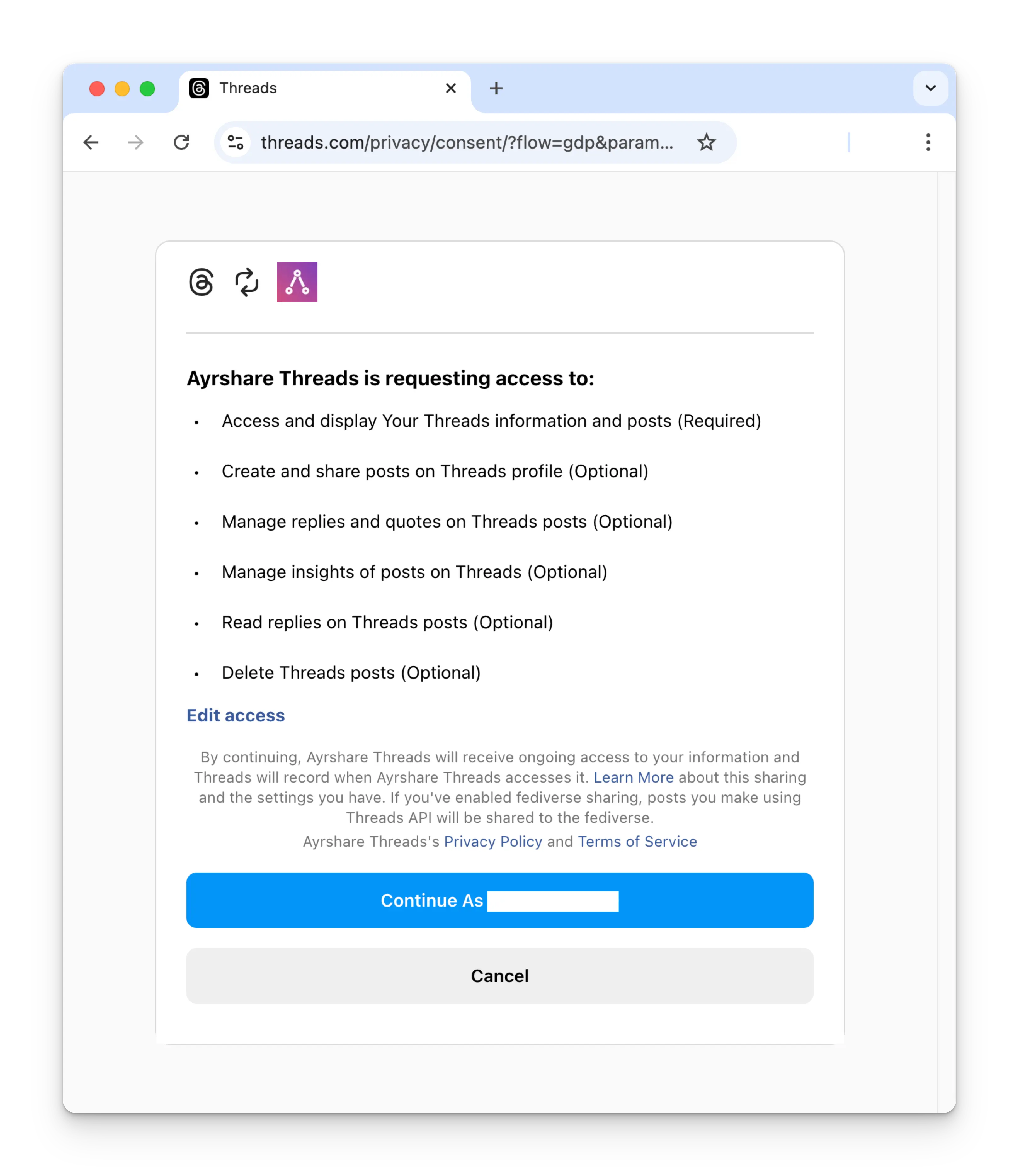
 ログイン後、Ayrshare に Threads アカウントへのアクセスを許可するように求められます。続行するには、要求されたすべての権限を付与してください。(必要な権限が付与されていない場合は、Threads 設定の [Website Permissions Page](https://www.threads.com/settings/website_permissions) で再有効化できます)
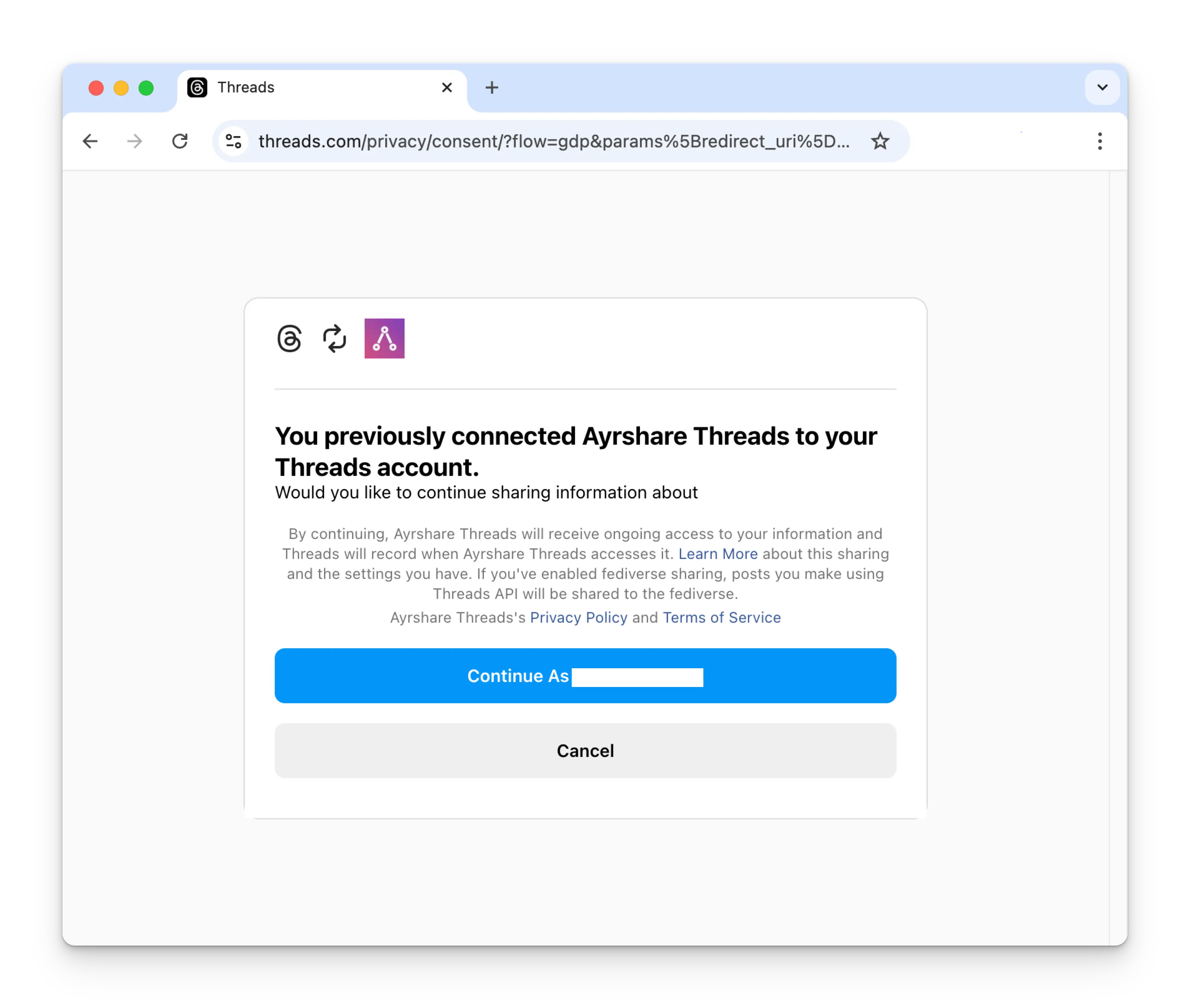
 以前に Ayrshare を Threads に接続したことがある場合は、Continue ボタンをクリックして Threads アカウントを再接続してください。
 Social Accounts ページが Threads アカウントで更新されます。
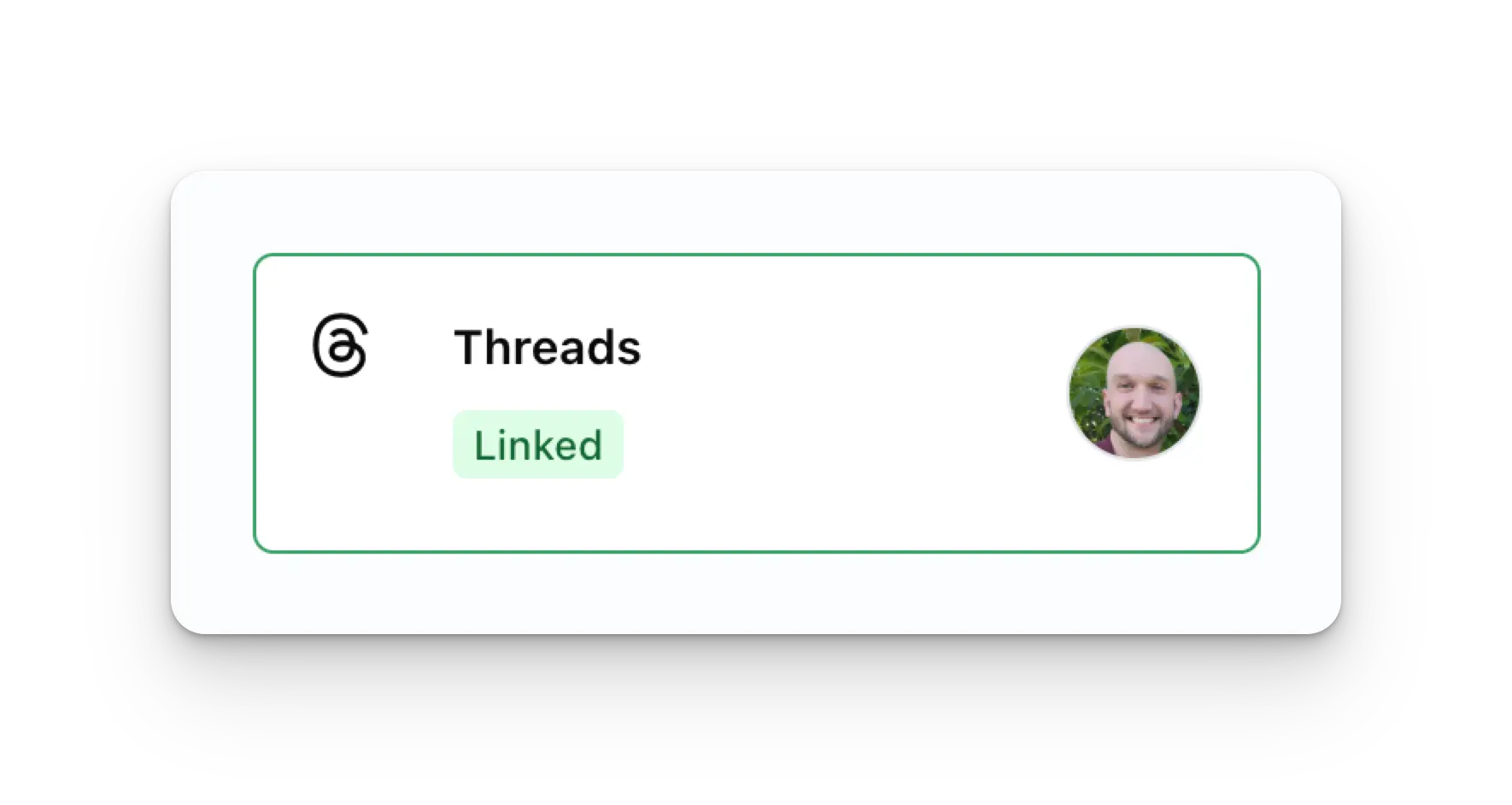 Threads 投稿を公開したり、Threads アナリティクスを取得したり、Threads コメントを管理したりできます。
## 追加の Threads 情報
* 詳細は、[Threads への投稿](/apis/post/social-networks/threads)、[アナリティクスの取得](/apis/analytics/overview)、[コメントの管理](/apis/comments/overview)、または [履歴の取得](/apis/history/overview) を参照してください。
* 推奨される画像サイズの詳細については、以下を参照してください:
Threads 投稿を公開したり、Threads アナリティクスを取得したり、Threads コメントを管理したりできます。
## 追加の Threads 情報
* 詳細は、[Threads への投稿](/apis/post/social-networks/threads)、[アナリティクスの取得](/apis/analytics/overview)、[コメントの管理](/apis/comments/overview)、または [履歴の取得](/apis/history/overview) を参照してください。
* 推奨される画像サイズの詳細については、以下を参照してください: