> ## Documentation Index
> Fetch the complete documentation index at: https://www.ayrshare.com/docs/llms.txt
> Use this file to discover all available pages before exploring further.
# YouTube Linking
> Ayrshare で YouTube を認可します
## YouTube チャンネルを Ayrshare に連携する方法
YouTube チャンネルを Ayrshare に連携できます。
Ayrshare で YouTube を認可する際、Google にリダイレクトされてログインし、Ayrshare を認可し、YouTube チャンネルを選択します。
接続する YouTube チャンネルを管理する権限が Google アカウントに付与されており、チャンネルが公開されていることを必ず確認してください。
YouTube チャンネルの連携に問題がある場合は、[YouTube チャンネル権限ガイド](/help-center/technical-support/youtube_channels_not_showing) をご覧ください。
YouTube はサービスアカウントをサポートしていません。
サービスアカウントには関連付けられた YouTube チャンネルが必要であり、サービスアカウントに新規または既存のチャンネルを関連付けることはできないため、YouTube Data API 呼び出しではサービスアカウントは機能しません。
Ayrshare の Social Account linking ページで YouTube アイコンをクリックします。
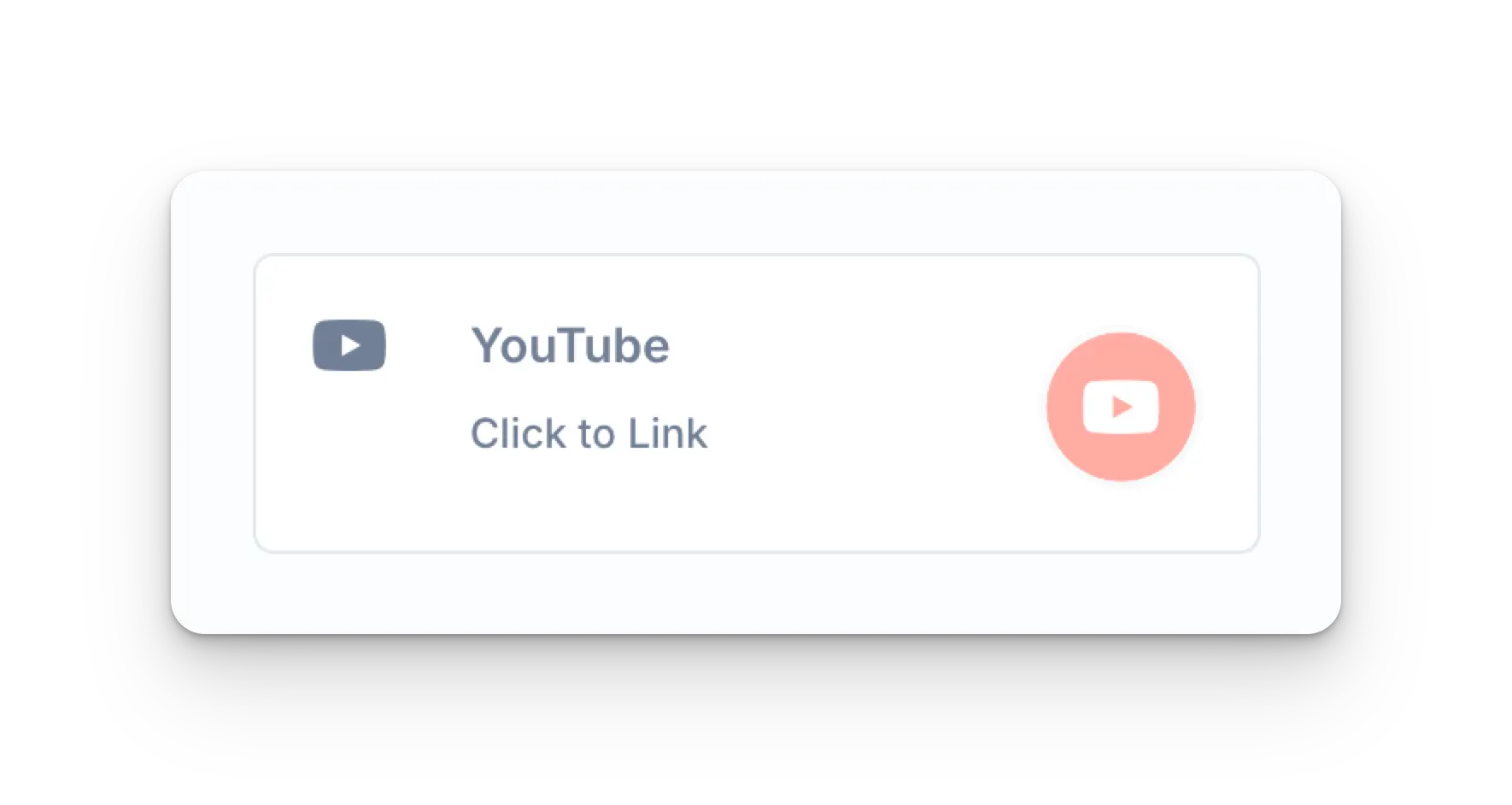 Google のログインページ、または現在ログイン中の Google アカウントの一覧にリダイレクトされます。
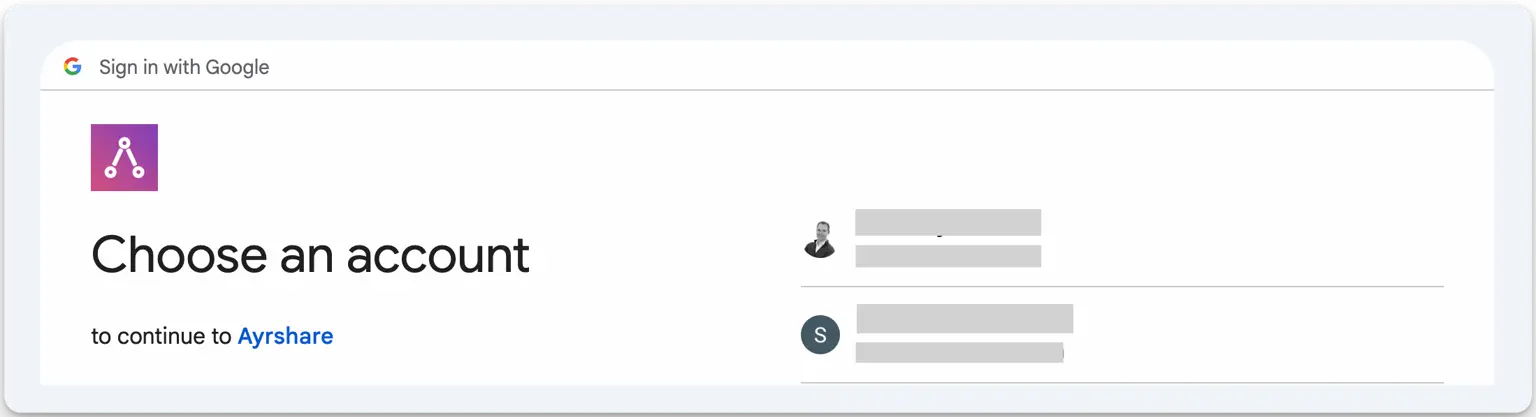 接続する YouTube チャンネルに関連付けられた Google アカウントを選択します。
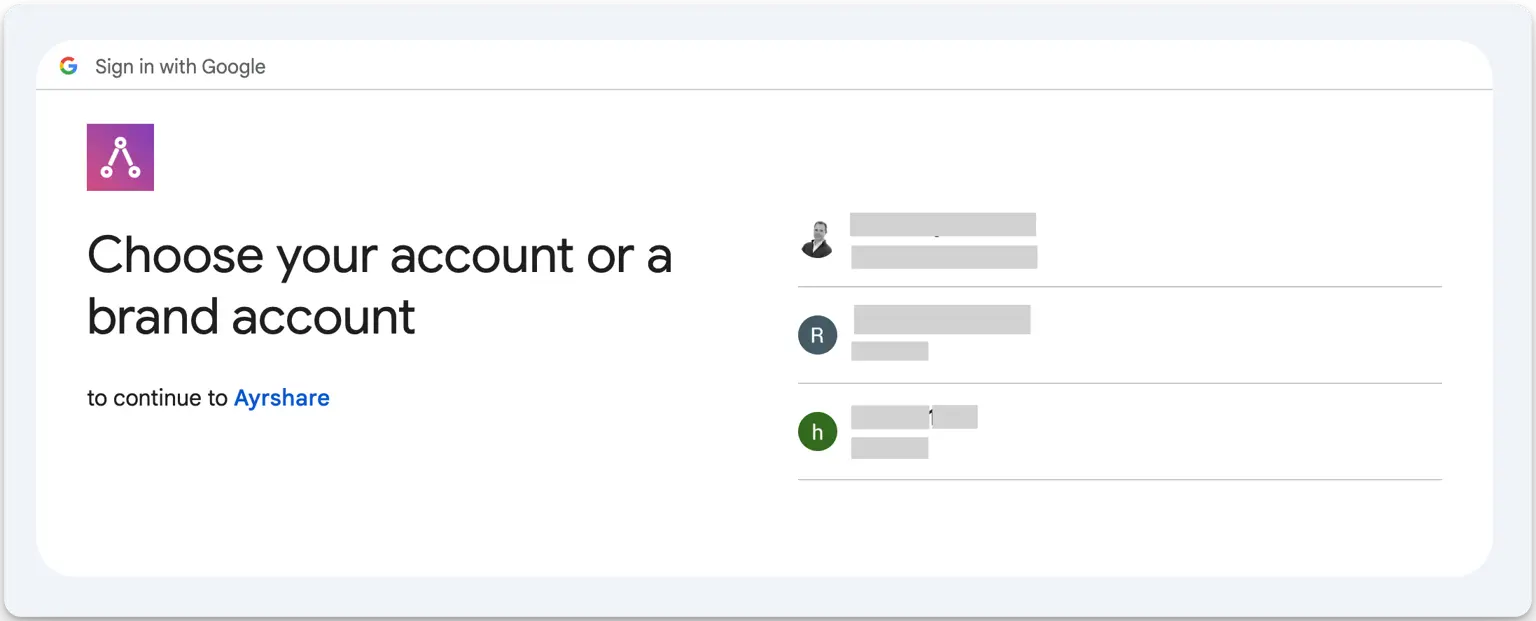 接続する YouTube チャンネルを選択します。
その後、権限を要求する 1〜2 個の画面が表示される場合があります。各画面で *Continue* をクリックしてください。
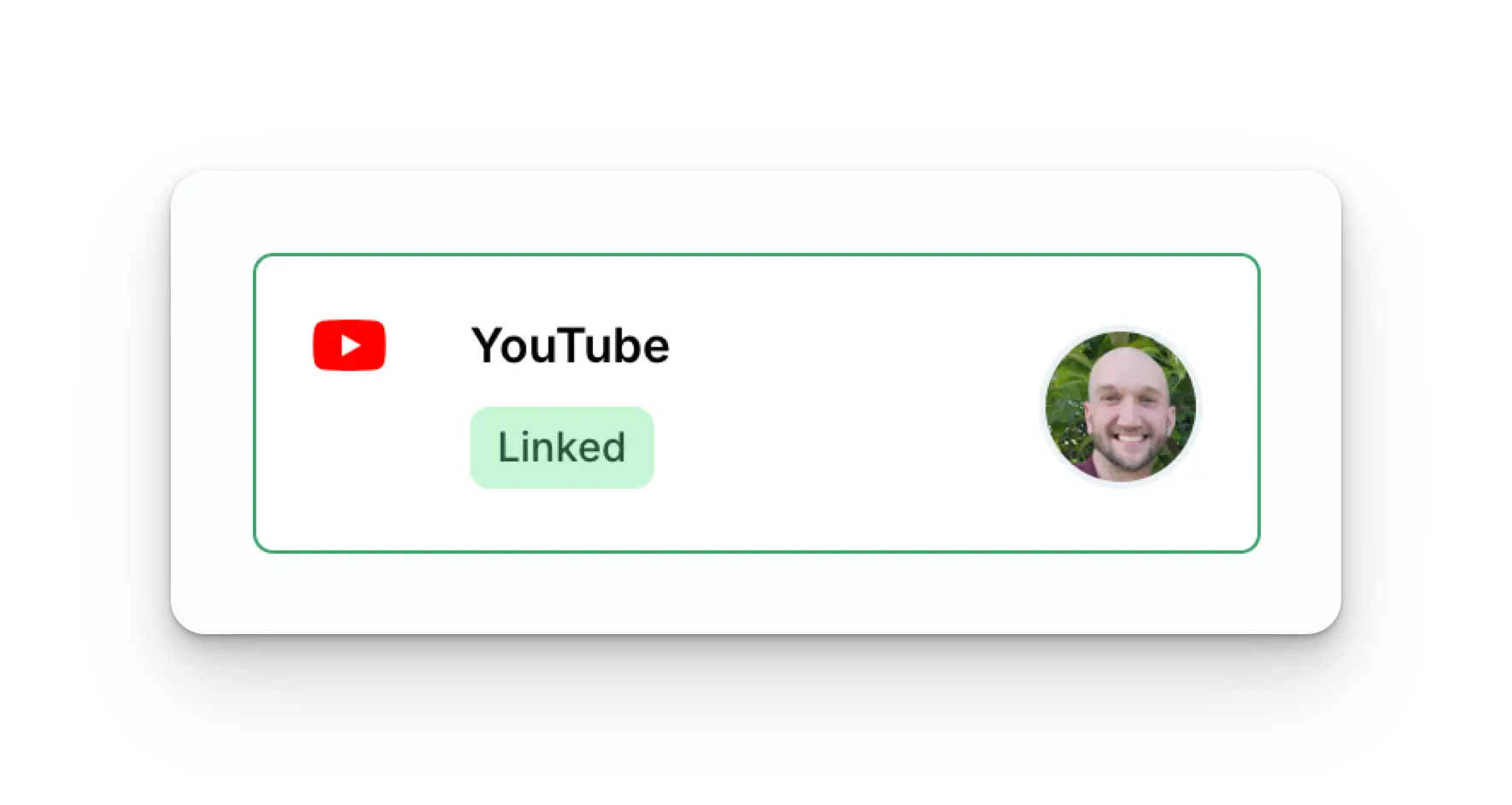
完了すると、Ayrshare の social linking ページに戻ります。
Social Accounts ページが YouTube アカウントで更新されます。
接続する YouTube チャンネルを選択します。
その後、権限を要求する 1〜2 個の画面が表示される場合があります。各画面で *Continue* をクリックしてください。
完了すると、Ayrshare の social linking ページに戻ります。
Social Accounts ページが YouTube アカウントで更新されます。
 ## YouTube 連携のトラブルシューティング
YouTube への投稿には、YouTube アカウントに少なくとも 1 つのチャンネルが必要で、あなたがそのチャンネルの所有者である必要があります。
YouTube チャンネルを作成するには、YouTube Dashboard のプロフィールをクリックし、「Create a Channel」を選択してください。
チャンネルが存在しない場合、次の直接リンクを使って YouTube チャンネルを作成することもできます: [http://m.youtube.com/create\_channel](http://m.youtube.com/create_channel)
YouTube チャンネルの表示に問題がある場合は、[トラブルシューティングガイド](/help-center/technical-support/youtube_channels_not_showing) をご覧ください。
## YouTube の補足情報
* 詳細については、[YouTube への投稿](/apis/post/social-networks/youtube)、[分析の取得](/apis/analytics/overview)、[コメントの管理](/apis/comments/overview)、または[履歴の取得](/apis/history/overview) をご覧ください。
* 推奨画像サイズの詳細については、以下をご覧ください:
## YouTube 連携のトラブルシューティング
YouTube への投稿には、YouTube アカウントに少なくとも 1 つのチャンネルが必要で、あなたがそのチャンネルの所有者である必要があります。
YouTube チャンネルを作成するには、YouTube Dashboard のプロフィールをクリックし、「Create a Channel」を選択してください。
チャンネルが存在しない場合、次の直接リンクを使って YouTube チャンネルを作成することもできます: [http://m.youtube.com/create\_channel](http://m.youtube.com/create_channel)
YouTube チャンネルの表示に問題がある場合は、[トラブルシューティングガイド](/help-center/technical-support/youtube_channels_not_showing) をご覧ください。
## YouTube の補足情報
* 詳細については、[YouTube への投稿](/apis/post/social-networks/youtube)、[分析の取得](/apis/analytics/overview)、[コメントの管理](/apis/comments/overview)、または[履歴の取得](/apis/history/overview) をご覧ください。
* 推奨画像サイズの詳細については、以下をご覧ください: