> ## Documentation Index
> Fetch the complete documentation index at: https://www.ayrshare.com/docs/llms.txt
> Use this file to discover all available pages before exploring further.
# Instagram投稿問題のトラブルシューティング | Ayrshareドキュメント
> Ayrshareにおける一般的なInstagram投稿の問題(公開失敗、メディア形式エラー、アカウント権限など)を段階的な解決策で修正します。
Facebookアカウントを連携済みであっても、Instagramの権限に関する問題やアカウントが連携されていないというエラーが投稿時に表示される場合、一部のアクセス権限が付与されていない可能性があります。
例えば、以下のエラーが表示される場合:
-
*Unsupported post request. Object with ID \[id number] does not exist,
cannot be loaded due to missing permissions, or does not support this
operation. Please read the Graph API documentation*
または
- *There is an issue with your Instagram account type or permissions.*
以下の手順を実行してください:
### 1. InstagramビジネスアカウントがまだFacebookページに接続されているか確認する
Facebookページの連携を使用していた場合、Instagramがビジネスアカウントであり、Facebookページに接続されていることを確認してください。
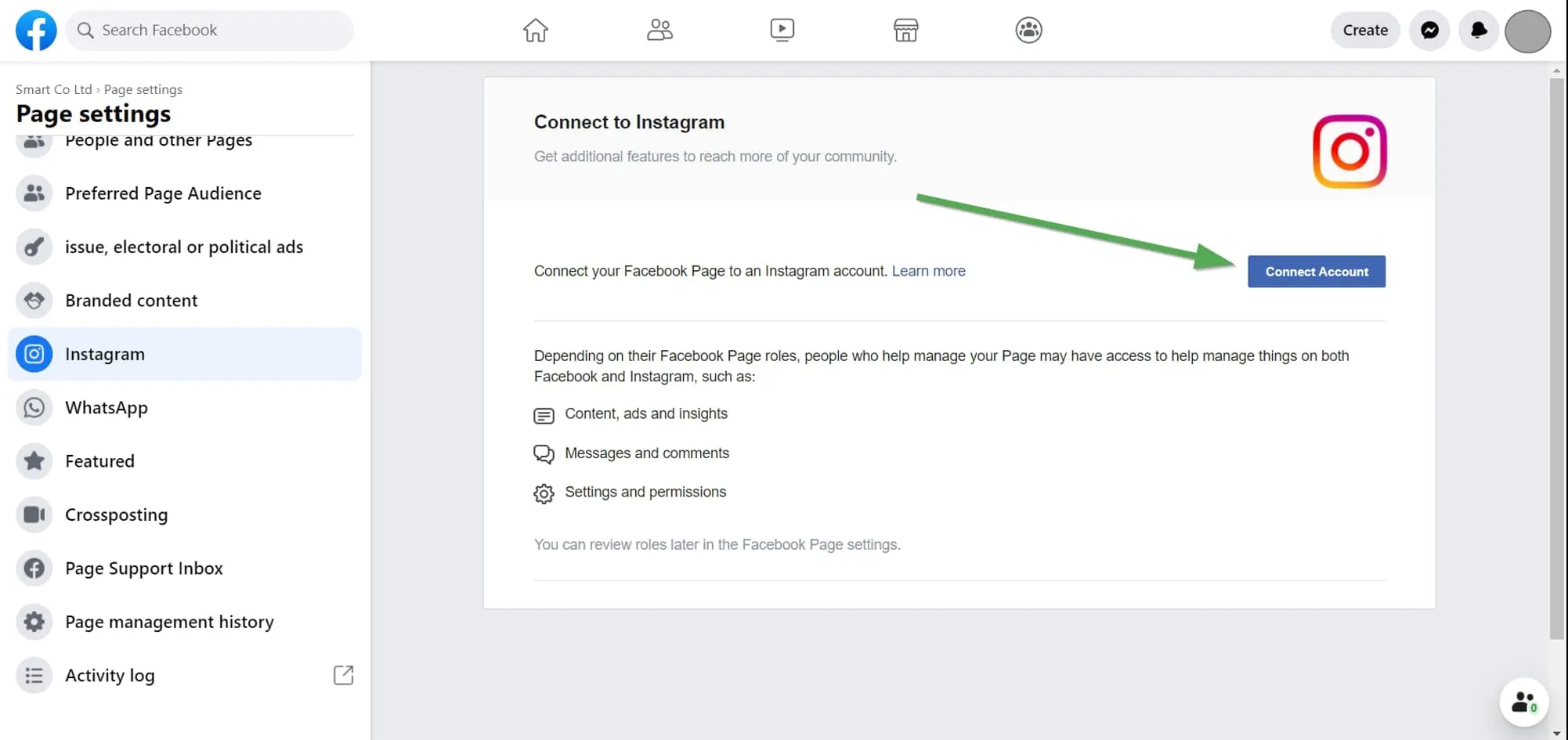
1. Facebookにログインし、Facebookページに移動します。画面左のメニューから「Settings」をクリックします。
2. 「Instagram」を選択し、Instagramアカウントが連携されていることを確認するか、「Connect Account」をクリックします。
3. Ayrshareダッシュボードの「Social Accounts」でInstagramアカウントの連携を解除し、再連携します。
 詳細については、こちらをご覧ください:
### 2. Instagramの権限を確認する
問題が解決しない場合は、Ayrshareに付与された権限を確認してください。
Facebookにログインし、「Setting」-> 「Settings & Privacy」-> 「Security & Login」-> 「Business Integration」に移動します。
直接リンクはこちらをクリック
[Business Integrationページ](https://www.facebook.com/help/405094243235242/)で、Ayrshareアプリをクリックします。
詳細については、こちらをご覧ください:
### 2. Instagramの権限を確認する
問題が解決しない場合は、Ayrshareに付与された権限を確認してください。
Facebookにログインし、「Setting」-> 「Settings & Privacy」-> 「Security & Login」-> 「Business Integration」に移動します。
直接リンクはこちらをクリック
[Business Integrationページ](https://www.facebook.com/help/405094243235242/)で、Ayrshareアプリをクリックします。
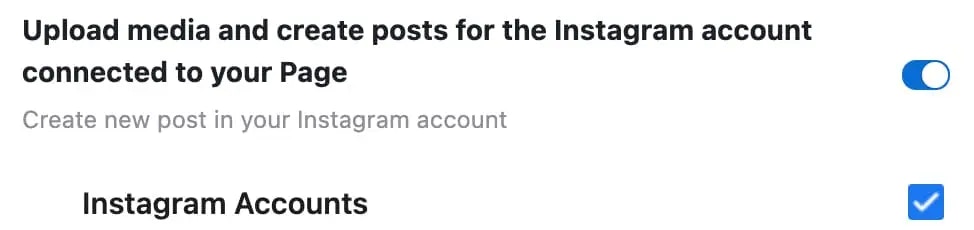
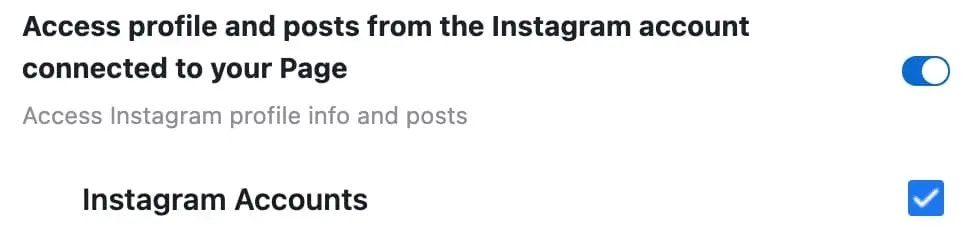
 ポップアップが表示されます。下にスクロールして「Upload media and create post for Instagram」および「Access profile and posts for Instagram」まで進みます。両方の「Instagram Accounts」のチェックボックスをオンにします:
 「Save」をクリックします。
Ayrshareダッシュボードに戻り、Instagramの連携を解除して再連携します。これで正しい権限が付与されているはずです。
「Save」をクリックします。
Ayrshareダッシュボードに戻り、Instagramの連携を解除して再連携します。これで正しい権限が付与されているはずです。