> ## Documentation Index
> Fetch the complete documentation index at: https://www.ayrshare.com/docs/llms.txt
> Use this file to discover all available pages before exploring further.
# Build Your Own Linking Popup
> Direct mode — connect one network at a time from your own button, with a popup you open and watch yourself.
export const PlansAvailable = ({plans = [], maxPackRequired}) => {
let displayPlans = plans;
if (plans && plans.length === 1) {
const lowerCasePlan = plans[0].toLowerCase();
if (lowerCasePlan === "business") {
displayPlans = ["Launch", "Business", "Enterprise"];
} else if (lowerCasePlan === "premium") {
displayPlans = ["Premium", "Launch", "Business", "Enterprise"];
}
}
return
Available on {displayPlans.length === 1 ? "the " : ""}
{displayPlans.join(", ").replace(/\b\w/g, l => l.toUpperCase())}{" "}
{displayPlans.length > 1 ? "plans" : "plan"}.
{maxPackRequired && window.open('https://www.ayrshare.com/docs/additional/maxpack', '_self')} className="flex items-center mt-2 cursor-pointer">
Max Pack required
}
;
};
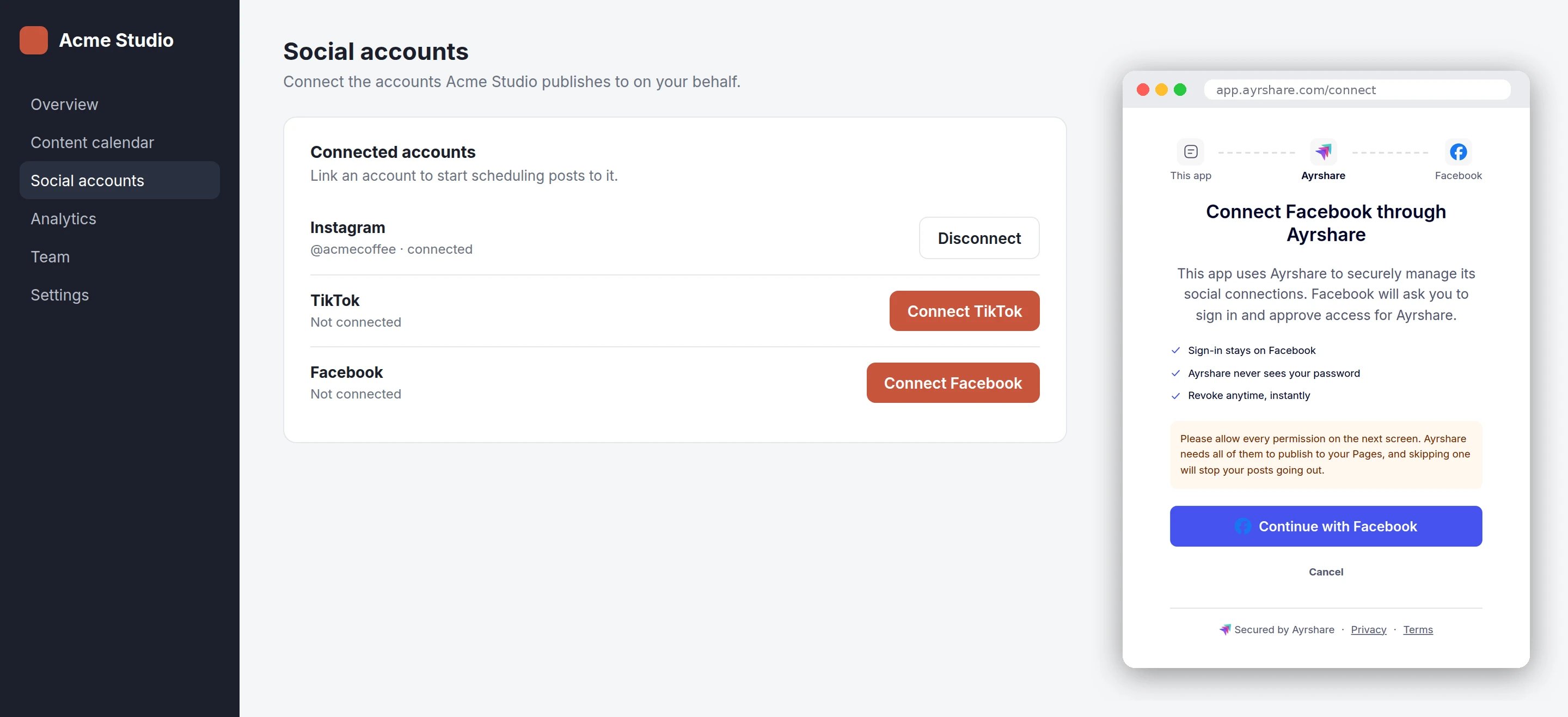
Direct mode connects **one social network at a time**, from a button in your own dashboard. You
create a link session for that network, open the URL it returns in a popup, and your page hears
what happened. Your user never sees a page listing every network, and never leaves your app for
longer than the network's own login takes.
## Which Surface You Want
Three shapes, and the first two are the same integration. This page is the one you build
yourself.
| Surface | Your user sees | White-labelling | Choose it when |
| ------------------------------------------------------------------------------------------------------------------- | ----------------------------------------------------------------------- | ------------------------------------------------------------------------------- | --------------------------------------------------------------------------------------------- |
| **Widget — embedded frames** ([mount](/docs/multiple-users/connect-widget#mount-a-slot)) | our buttons inline in your own layout; no popup until the network's own | **Strongest.** Your page, your fonts and colours, and your user never leaves it | you have a dashboard with a row per network and want linking to happen in place. Max Pack. |
| **Widget — your own button** ([popup](/docs/multiple-users/connect-widget#your-own-button)) | your button, then one popup for the network | **Strong.** The popup is ours, but it is brief and inherits your appearance | you want your own button and styling, and no frames in your layout. Max Pack. |
| **Hosted linking page** ([how to](/docs/multiple-users/api-integration-business#single-sign-on-with-jwt-authentication)) | a page we host, carrying your logo, colours and custom CSS | **Weakest.** It is our page, and your user leaves yours to use it | you want one link to hand out, or you are onboarding by email. Nothing to build, no Max Pack. |
**Direct mode is the third row's popup without our script.** If your page can load the script, the
[widget](/docs/multiple-users/connect-widget) does everything on this page for you — it opens and
watches the popup itself, and it can embed frames as well. Direct mode is what you want when your
page cannot load a third-party script, or the surface is a native app rather than a browser.
 ## What You Build
Four steps. The first is on your server, the rest are in your page.
From your backend, call
[Create a Link Session](/docs/apis/profiles/create-link-session) with `mode: "connect"`, the
`network`, and the `origin` your page runs on.
```javascript Your backend theme={"system"}
const response = await fetch("https://api.ayrshare.com/api/profiles/link-sessions", {
method: "POST",
headers: {
"Content-Type": "application/json",
Authorization: `Bearer ${process.env.AYRSHARE_API_KEY}`,
"Profile-Key": profileKey,
},
body: JSON.stringify({
mode: "connect",
network: "reddit",
origin: "https://app.example.com",
}),
});
const { url } = await response.json();
```
You get back a `url` pointing at a single-network connect page, and no `token` — the token is
inside the URL. Treat the whole URL like a password: it signs your user into their User
Profile.
Create the session on your server, never in the browser. The call needs your API key.
The popup has to be opened by `window.open` **in the click handler itself**. A browser only
permits a popup while it is still processing your user's click, and that permission does not
survive an `await` — so fetching the URL first and opening it in the callback is reliably
popup-blocked.
Fetch the URL when you render the button, or when your user hovers it. By click time you
should already have it.
```javascript Your page theme={"system"}
// `url` was fetched earlier. Nothing async between the click and window.open.
button.addEventListener("click", () => {
const popup = window.open(url, "ayrshare-connect", "width=600,height=800");
if (!popup) {
showError("Allow popups for this site to connect an account.");
return;
}
listenForOutcome(popup, url);
});
```
Because you passed `origin`, the popup posts an event to your page for each thing that
happens in it: `connect:success`, `connect:error`, `connect:cancelled`, and progress events
in between. Exactly one of those three arrives per connection.
[Link Completion Events](/docs/multiple-users/link-completion-events) has the full event table and a
copy-paste listener — `listenForOutcome` above is that snippet. Two parts of it are easy to
leave out and both cause real bugs:
* **Check `event.origin`** against the origin of the URL you opened. Any page can post a
message to your window, and the origin is the only part of a message that cannot be faked.
* **Poll `popup.closed`**, with a short grace window before you conclude anything. A popup
your user closed by hand sends nothing at all, and without the grace window a successful
connection can be reported as cancelled.
| Ending | What it means | What to do |
| ------------------- | ---------------------------------------------------------------------------------------- | ------------------------------------------------------------------------------------------------------- |
| `connect:success` | the account is connected **and saved** | refresh that row. A [`GET /user`](/docs/apis/user/profile-details) straight after already shows it. |
| `connect:error` | the connection failed | show `message`. `code` is present when the failure has a catalogued code and absent when it does not. |
| `connect:cancelled` | your user backed out, or closed the window | leave the row as it was. `reason` is `popupClosed`, `scopesDenied` or `userCancelled`. |
| nothing arrives | the link was expired, revoked or unknown, so the page never learned where to send events | poll [Get a Link Session](/docs/apis/profiles/get-link-session), which reports those states authoritatively. |
Add `&autoClose=false` to the URL while you are building. The popup then stays open after every
outcome instead of closing itself, so you can read what it says.
## Per-Network Notes
Most networks are one popup and nothing else: your user clicks, authorizes at the network, and
the popup closes. These are the exceptions worth knowing before you build.
X in direct mode uses **your** X Developer App credentials, supplied when you create the
session as the `X-Twitter-OAuth1-Api-Key` and `X-Twitter-OAuth1-Api-Secret` headers on
[Create a Link Session](/docs/apis/profiles/create-link-session).
A session created for `twitter` or `x` **without** those headers is refused when the popup
opens: your user is told the connection is not available and is shown no form, and your page
receives `connect:error` with a `message` and **no `code`**. That is deliberate. The missing
credential is yours, not your user's, and end users must never be asked to type your API keys.
Contrast Bluesky, where the app password is the end user's own credential — that one the
connect page does collect, in a form inside the popup.
`network: "facebook"` shows a single button in the popup, and Meta's own login opens from
that click — Meta requires its login to be started by a click inside the page that hosts its
SDK. Your user clicks twice rather than once; nothing else differs.
Instagram behaves the same way when it is linked **via a Facebook Page** — that is, when the
session carries `instagramLinkMethod: "facebook"`, or when your account's
[Instagram Login](/docs/multiple-users/manage-user-profiles#instagram-login) setting selects that
flow. With direct Instagram Login there is no extra button.
Neither sends your user to a network login. The popup renders content instead: a handle and
app-password form for Bluesky, and a code to use for Telegram. The outcome events are the
same either way.
X does not belong in this group. With your keys on the session it completes without prompting
your user for anything, and without them it is refused — see above.
Telegram shows a code rather than redirecting anywhere, and the connection completes when your
user uses that code — after the popup is gone. There is no browser event to wait for, so poll
[Get a Link Session](/docs/apis/profiles/get-link-session) and watch `completedNetworks`.
Facebook Groups is not a link target, so `network: "fbg"` returns `code: 508` when you create
the session.
WhatsApp **is** available in direct mode. It opens Meta's Embedded Signup in the popup, and the
outcome events are the same as any other network.
## Native Apps
A native app opens the same `url`, in the **system browser**, and finds out the result by polling
[Get a Link Session](/docs/apis/profiles/get-link-session). Set `origin` to your custom scheme
(`myapp://connected`) so the page has a way back to your app; a custom scheme cannot receive
events, because there is no browser window to post them to.
* **iOS** — `ASWebAuthenticationSession`, or `SFSafariViewController`.
* **Android** — Chrome Custom Tabs.
**Never open a linking URL in an embedded webview** (`WKWebView`, `UIWebView`, Android
`WebView`). The social networks refuse to authenticate in one: Google rejects the sign-in with
`disallowed_useragent`, and Meta blocks it outright. Your user sees the network's own error page,
not ours, and nothing you can change on your side fixes it. The system browser components above
exist for exactly this reason and keep the user inside your app.
## What Direct Mode Requires
## What You Build
Four steps. The first is on your server, the rest are in your page.
From your backend, call
[Create a Link Session](/docs/apis/profiles/create-link-session) with `mode: "connect"`, the
`network`, and the `origin` your page runs on.
```javascript Your backend theme={"system"}
const response = await fetch("https://api.ayrshare.com/api/profiles/link-sessions", {
method: "POST",
headers: {
"Content-Type": "application/json",
Authorization: `Bearer ${process.env.AYRSHARE_API_KEY}`,
"Profile-Key": profileKey,
},
body: JSON.stringify({
mode: "connect",
network: "reddit",
origin: "https://app.example.com",
}),
});
const { url } = await response.json();
```
You get back a `url` pointing at a single-network connect page, and no `token` — the token is
inside the URL. Treat the whole URL like a password: it signs your user into their User
Profile.
Create the session on your server, never in the browser. The call needs your API key.
The popup has to be opened by `window.open` **in the click handler itself**. A browser only
permits a popup while it is still processing your user's click, and that permission does not
survive an `await` — so fetching the URL first and opening it in the callback is reliably
popup-blocked.
Fetch the URL when you render the button, or when your user hovers it. By click time you
should already have it.
```javascript Your page theme={"system"}
// `url` was fetched earlier. Nothing async between the click and window.open.
button.addEventListener("click", () => {
const popup = window.open(url, "ayrshare-connect", "width=600,height=800");
if (!popup) {
showError("Allow popups for this site to connect an account.");
return;
}
listenForOutcome(popup, url);
});
```
Because you passed `origin`, the popup posts an event to your page for each thing that
happens in it: `connect:success`, `connect:error`, `connect:cancelled`, and progress events
in between. Exactly one of those three arrives per connection.
[Link Completion Events](/docs/multiple-users/link-completion-events) has the full event table and a
copy-paste listener — `listenForOutcome` above is that snippet. Two parts of it are easy to
leave out and both cause real bugs:
* **Check `event.origin`** against the origin of the URL you opened. Any page can post a
message to your window, and the origin is the only part of a message that cannot be faked.
* **Poll `popup.closed`**, with a short grace window before you conclude anything. A popup
your user closed by hand sends nothing at all, and without the grace window a successful
connection can be reported as cancelled.
| Ending | What it means | What to do |
| ------------------- | ---------------------------------------------------------------------------------------- | ------------------------------------------------------------------------------------------------------- |
| `connect:success` | the account is connected **and saved** | refresh that row. A [`GET /user`](/docs/apis/user/profile-details) straight after already shows it. |
| `connect:error` | the connection failed | show `message`. `code` is present when the failure has a catalogued code and absent when it does not. |
| `connect:cancelled` | your user backed out, or closed the window | leave the row as it was. `reason` is `popupClosed`, `scopesDenied` or `userCancelled`. |
| nothing arrives | the link was expired, revoked or unknown, so the page never learned where to send events | poll [Get a Link Session](/docs/apis/profiles/get-link-session), which reports those states authoritatively. |
Add `&autoClose=false` to the URL while you are building. The popup then stays open after every
outcome instead of closing itself, so you can read what it says.
## Per-Network Notes
Most networks are one popup and nothing else: your user clicks, authorizes at the network, and
the popup closes. These are the exceptions worth knowing before you build.
X in direct mode uses **your** X Developer App credentials, supplied when you create the
session as the `X-Twitter-OAuth1-Api-Key` and `X-Twitter-OAuth1-Api-Secret` headers on
[Create a Link Session](/docs/apis/profiles/create-link-session).
A session created for `twitter` or `x` **without** those headers is refused when the popup
opens: your user is told the connection is not available and is shown no form, and your page
receives `connect:error` with a `message` and **no `code`**. That is deliberate. The missing
credential is yours, not your user's, and end users must never be asked to type your API keys.
Contrast Bluesky, where the app password is the end user's own credential — that one the
connect page does collect, in a form inside the popup.
`network: "facebook"` shows a single button in the popup, and Meta's own login opens from
that click — Meta requires its login to be started by a click inside the page that hosts its
SDK. Your user clicks twice rather than once; nothing else differs.
Instagram behaves the same way when it is linked **via a Facebook Page** — that is, when the
session carries `instagramLinkMethod: "facebook"`, or when your account's
[Instagram Login](/docs/multiple-users/manage-user-profiles#instagram-login) setting selects that
flow. With direct Instagram Login there is no extra button.
Neither sends your user to a network login. The popup renders content instead: a handle and
app-password form for Bluesky, and a code to use for Telegram. The outcome events are the
same either way.
X does not belong in this group. With your keys on the session it completes without prompting
your user for anything, and without them it is refused — see above.
Telegram shows a code rather than redirecting anywhere, and the connection completes when your
user uses that code — after the popup is gone. There is no browser event to wait for, so poll
[Get a Link Session](/docs/apis/profiles/get-link-session) and watch `completedNetworks`.
Facebook Groups is not a link target, so `network: "fbg"` returns `code: 508` when you create
the session.
WhatsApp **is** available in direct mode. It opens Meta's Embedded Signup in the popup, and the
outcome events are the same as any other network.
## Native Apps
A native app opens the same `url`, in the **system browser**, and finds out the result by polling
[Get a Link Session](/docs/apis/profiles/get-link-session). Set `origin` to your custom scheme
(`myapp://connected`) so the page has a way back to your app; a custom scheme cannot receive
events, because there is no browser window to post them to.
* **iOS** — `ASWebAuthenticationSession`, or `SFSafariViewController`.
* **Android** — Chrome Custom Tabs.
**Never open a linking URL in an embedded webview** (`WKWebView`, `UIWebView`, Android
`WebView`). The social networks refuse to authenticate in one: Google rejects the sign-in with
`disallowed_useragent`, and Meta blocks it outright. Your user sees the network's own error page,
not ours, and nothing you can change on your side fixes it. The system browser components above
exist for exactly this reason and keep the user inside your app.
## What Direct Mode Requires
-
The **[Max Pack](/docs/additional/maxpack)**. Creating a connect-mode session without it returns
`code: 504`, whatever else the request says.
-
An **`origin`** on every session. There is no allowlist and no registration step — you send it
per call. Omitting it returns `code: 505`; a value that is not an `https` origin, a custom
scheme, or `http://localhost` returns `code: 506`.
-
A **`network`** that your account has enabled. An unrecognized name returns `code: 508`; a
recognized one your account has not enabled returns `code: 509`, which you can fix on your
[Social Networks](/docs/multiple-users/manage-user-profiles#set-social-networks-access) page.
-
**Not** `allowedSocial`. It cannot be combined with `network` (`code: 507`) — a single-network
session is already its own allowlist.
Every one of these is in the
[Link Session Errors](/docs/errors/errors-ayrshare#link-session-errors) reference, with the message the
API returns.
## Next Steps
Every event the popup sends, and the listener to receive them.
## Related
The `mode`, `origin` and `network` parameters, and the response shapes.
Poll for completion when you cannot use a popup.