> ## Documentation Index
> Fetch the complete documentation index at: https://www.ayrshare.com/docs/llms.txt
> Use this file to discover all available pages before exploring further.
# Bubble.io
> Use the Bubble Ayrshare plugin or API Connector to manage your users' social media accounts
## Overview
[Bubble.io](https://www.bubble.io), a popular no-code platform, enables you to build web and mobile apps without writing a single line of code.
By integrating Ayrshare's social media API, you can manage your users' social media accounts directly within your Bubble app.
There are two ways to achieve this:
**Bubble Ayrshare Plugin**: This user-friendly option requires minimal set up. However, it has
limited functionality compared to the Bubble API Connector.
**Bubble API Connector**: For greater flexibility and control, utilize the Bubble API Connector.
This approach allows you to directly interact with Ayrshare's API, enabling a wider range of
functionalities within your Bubble.io app.
This guide will walk you through both integration options.
## Quick Start: The Bubble.io Ayrshare Plugin
[Bubble is one of the most powerful no-code software development platforms](https://www.ayrshare.com/the-definitive-bubble-review-a-flexible-no-code-app-builder-growing-over-50/). The simplest way to get started is with Ayrshare's [Bubble.io Plugin](https://bubble.io/plugin/ayrshare-social-media-api-1607956467620x490188301088063500). See below for a more [advanced Bubble integration](/packages-guides/bubble#the-bubble-api-connector-plugin).
First create an account at [ayrshare.com](https://www.ayrshare.com). Then connect your social media accounts.
Once your accounts are connected you can navigate to the API Dashboard and copy your API key.
Remember that when you paste in your API key in your Bubble app, to include the word "Bearer" in front of your API key.
For example:
`Bearer bf55cc6f-76ac-46ce-b497-439d766f6c12`
Add the Ayrshare plugin via the Bubble plugin marketplace to your Bubble app. In the plugin field "API Key" enter your API Key.
Now you can send posts via your Bubble app to your social media accounts.
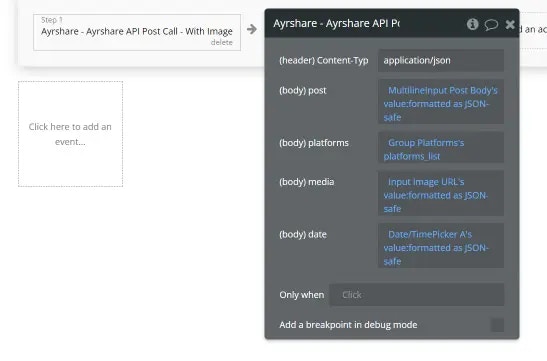
The image below is an example workflow call in Bubble to the plugin for an post with an image.
The video above explains this in more detail. Ensure that you are using the following parameter types:
post: a text formatted as JSON-safe
platforms: a list of texts where each text has parenthesis around it, such as
`"facebook","instagram"`
media: a text URL formatted as JSON-safe
date: a date/time formatted as JSON-safe
The Ayrshare Plugin allows you to post and delete posts. To unlock the full power of Ayrshare, we recommend you use the Bubble API Connector Plugin and configure it with the endpoints that you need for your app.
## The Bubble API Connector Plugin
Alternatively, you can use the Bubble API Connector Plugin to access the full power of the Ayrshare API. Here is a video which will get you started using the Bubble API connector with Ayrshare and walks you through how to post multiple images per post.
Bubble's API Connector can sometimes be tricky where missing a single closing quote or space can
cause the connection to fail. We recommend watching the below videos carefully and re-reviewing if
something isn't working.
Below is another tutorial video showing how to get social profile analytics in Bubble.
## Post to Multiple Social Media Accounts
Here is a article with an overview:
## Validate Bubble Post Data
When posting to Bubble via the API Connector, it can be difficult to determine if you are sending valid JSON. Often if the JSON posted to Ayrshare is invalid the response will be HTML.
Ayrshare has a /validateJSON URL that allow you to post to instead of the typical /post endpoint. It will return "Valid" or "Not Valid". Be sure to set the Content-Type as `text/plain` instead of the typical `application/json`.
Click the Troubleshooting link for "Response Returns as Bad Request" to see the details.
## Upload Media Files in Bubble
Use Bubble's File Uploader to upload your media files. These files are stored on Amazon's S3. You will receive back a URL that can be used in the `mediaUrls` body parameter of the `/post` endpoint.
## Generate JWT Token in Bubble
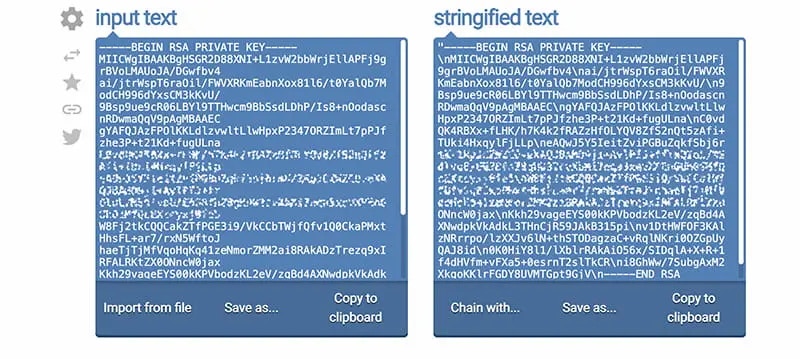
To generate a JWT Token in Bubble, first you need to Stringify the private.key you send to the [/profiles/generateJWT](/apis/profiles/generate-jwt) endpoint.
**Step 1:** Go to [https://onlinetexttools.com/json-stringify-text](https://onlinetexttools.com/json-stringify-text) and paste in your private.key in the left-hand input text section. Then copy the stringified text on the right side to your clipboard.
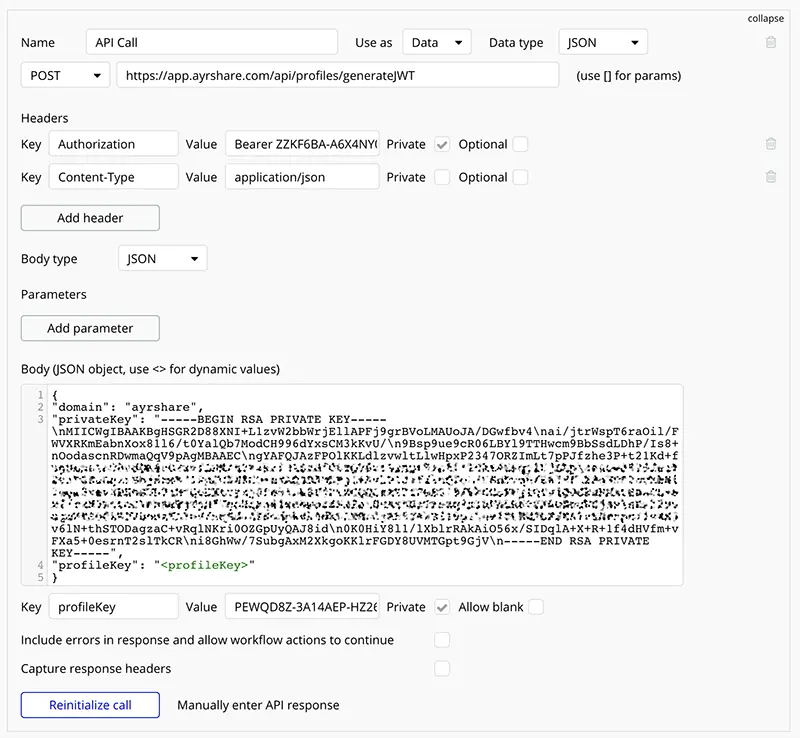
**Step 2:** In your Bubble app, create a new call with the API Connector as shown below. The text in the `privateKey` field in the Body area is the stringified text that you created in step 1 above.
Also include your provided `domain` and `profileKey` as shown below.
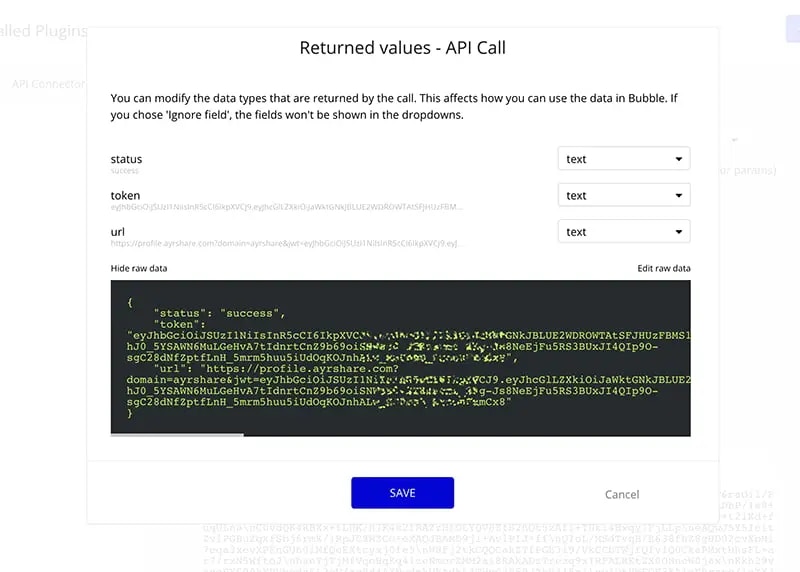
**Step 3:** Click the **Initialize call** button and save the response. The `url` field in the response is what your user will click to access the social media accounts linking page.
## Allow Users to Link Their Social Accounts
If you are using the Launch Plan, Business Plan, or Enterprise Plan, this video shows you how to set up Bubble to enable all your users to link their social accounts.
## Rewrite Text and Post to Social with AI in Bubble
How you can use Ayrshare and Bubble.io to build a rewriting and social posting app. The app takes some text, rewrites it 5 different ways, and posts it to your social accounts.
## Bubble API Connector
We recommend using the [Bubble API Connector](https://manual.bubble.io/account-and-marketplace/building-plugins/adding-api-connections) to make your Ayrshare API calls.
Please note that Bubble will time out all API calls after 150 seconds and then retry the call once more. Large video might take longer than 150 seconds, which will cause Bubble to automatically try the post once more and result in a duplicate post error. We recommend using a [schedule post](/help-center/technical-support/response_bad_gateway_502_or_504_error) for larger videos.
## Useful Bubble Blog Articles
* [Build a Social Media Posting Mobile App with No Code](https://www.ayrshare.com/build-a-social-media-posting-mobile-app-with-no-code/).
* [How to Create a Social Media Scheduling App with No Code.](https://www.ayrshare.com/how-to-create-a-social-media-scheduling-app-with-no-code/)
 The Ayrshare Plugin allows you to post and delete posts. To unlock the full power of Ayrshare, we recommend you use the Bubble API Connector Plugin and configure it with the endpoints that you need for your app.
## The Bubble API Connector Plugin
Alternatively, you can use the Bubble API Connector Plugin to access the full power of the Ayrshare API. Here is a video which will get you started using the Bubble API connector with Ayrshare and walks you through how to post multiple images per post.
The Ayrshare Plugin allows you to post and delete posts. To unlock the full power of Ayrshare, we recommend you use the Bubble API Connector Plugin and configure it with the endpoints that you need for your app.
## The Bubble API Connector Plugin
Alternatively, you can use the Bubble API Connector Plugin to access the full power of the Ayrshare API. Here is a video which will get you started using the Bubble API connector with Ayrshare and walks you through how to post multiple images per post.
 **Step 2:** In your Bubble app, create a new call with the API Connector as shown below. The text in the `privateKey` field in the Body area is the stringified text that you created in step 1 above.
Also include your provided `domain` and `profileKey` as shown below.
**Step 2:** In your Bubble app, create a new call with the API Connector as shown below. The text in the `privateKey` field in the Body area is the stringified text that you created in step 1 above.
Also include your provided `domain` and `profileKey` as shown below.
 **Step 3:** Click the **Initialize call** button and save the response. The `url` field in the response is what your user will click to access the social media accounts linking page.
 ## Allow Users to Link Their Social Accounts
If you are using the Launch Plan, Business Plan, or Enterprise Plan, this video shows you how to set up Bubble to enable all your users to link their social accounts.
## Allow Users to Link Their Social Accounts
If you are using the Launch Plan, Business Plan, or Enterprise Plan, this video shows you how to set up Bubble to enable all your users to link their social accounts.