> ## Documentation Index
> Fetch the complete documentation index at: https://www.ayrshare.com/docs/llms.txt
> Use this file to discover all available pages before exploring further.
# Documentation MCP
> Kết nối server Ayrshare Documentation MCP chỉ đọc với AI agent của bạn để tìm kiếm tài liệu API của Ayrshare
Đây là **Documentation MCP** chỉ đọc (nó tìm kiếm tài liệu API của Ayrshare). Để cho phép một AI agent **điều khiển** Ayrshare API, hãy xem [MCP Server](/additional/mcp-action-server) (Action MCP).
Model Context Protocol (MCP) là một tiêu chuẩn mở cho phép các ứng dụng chia sẻ ngữ cảnh và công cụ với Large Language Models (LLMs).
Bằng cách kết nối server MCP tài liệu API của Ayrshare với các công cụ phát triển AI như Cursor hoặc Claude Desktop, bạn có thể cấp cho AI agent của mình quyền truy cập trực tiếp vào tài liệu của Ayrshare.
Tích hợp này cho phép AI agent của bạn:
- Tìm kiếm qua tài liệu API của Ayrshare
- Hiểu các endpoint và tham số có sẵn
- Tạo mã sử dụng đúng các API của Ayrshare
- Cung cấp các gợi ý chính xác theo ngữ cảnh khi làm việc với các dịch vụ Ayrshare
Điều này có nghĩa là thay vì tra cứu thủ công chi tiết API, trợ lý AI của bạn có thể tham chiếu tài liệu trực tiếp và giúp bạn triển khai chức năng Ayrshare hiệu quả hơn.
## Cách bắt đầu
Server MCP của Ayrshare có sẵn tại `https://www.ayrshare.com/docs/mcp`.
### Claude Desktop
1. Điều hướng đến trang Connectors trong cài đặt Claude.
2. Chọn Add custom connector.
3. Thêm `Ayrshare MCP` hoặc bất kỳ tên nào bạn thích làm tên MCP server và `https://www.ayrshare.com/docs/mcp` làm URL MCP server.
4. Chọn Add.
5. Khi sử dụng Claude, chọn nút đính kèm (biểu tượng dấu cộng).
6. Chọn MCP server của bạn.
### Claude Code
```bash theme={"system"}
claude mcp add --transport http ayrshare https://www.ayrshare.com/docs/mcp
```
### VS Code
[](https://insiders.vscode.dev/redirect?url=vscode:mcp/install?%7B%22type%22%3A%22http%22%2C%22name%22%3A%22Ayrshare-MCP%22%2C%22url%22%3A%22https%3A%2F%2Fwww.ayrshare.com%2Fdocs%2Fmcp%22%7D)
1. Tạo tệp .vscode/mcp.json.
2. Trong mcp.json, cấu hình server của bạn:
```json theme={"system"}
{
"servers": {
"Ayrshare MCP": {
"type": "http",
"url": "https://www.ayrshare.com/docs/mcp"
}
}
}
```
### Cursor
[](cursor://anysphere.cursor-deeplink/mcp/install?name=Ayrshare-MCP\&config=eyJ1cmwiOiJodHRwczovL3d3dy5heXJzaGFyZS5jb20vZG9jcy9tY3AifQ==)
1. Sử dụng Command + Shift + P (Ctrl + Shift + P trên Windows) để mở command palette.
2. Tìm kiếm "Open MCP settings".
3. Chọn Add custom MCP. Điều này sẽ mở tệp mcp.json.
4. Trong mcp.json, cấu hình server của bạn:
```json theme={"system"}
{
"mcpServers": {
"Ayrshare MCP": {
"url": "https://www.ayrshare.com/docs/mcp"
}
}
}
```
## Sử dụng kết nối MCP Server
Khởi động lại ứng dụng để áp dụng các thay đổi.
Trong Cursor, bạn có thể kiểm thử MCP connector bằng cách gõ `How do you publish a post in Ayrshare. Use the MCP server.`
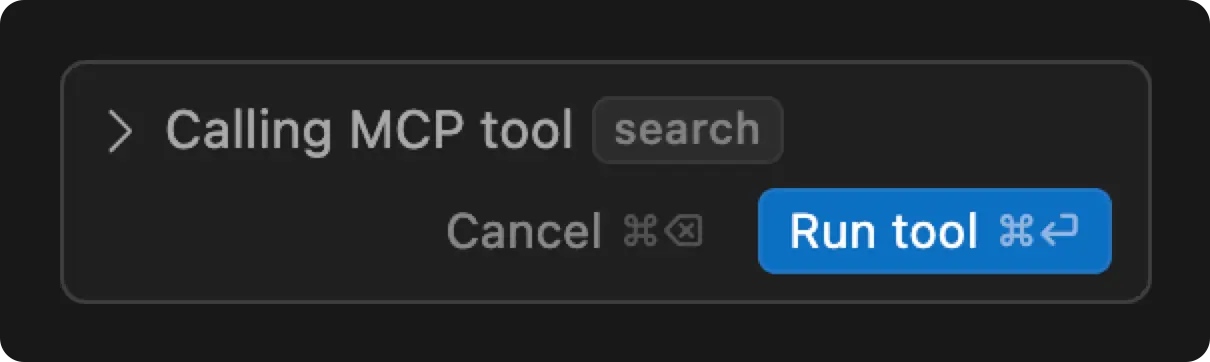 Bạn sẽ thấy yêu cầu "Run tool" và Cursor sẽ truy cập MCP server để lấy phản hồi.