> ## Documentation Index
> Fetch the complete documentation index at: https://www.ayrshare.com/docs/llms.txt
> Use this file to discover all available pages before exploring further.
# Thay đổi kích thước Hình ảnh
> Thay đổi kích thước hình ảnh theo kích thước mạng xã hội, thêm watermark hoặc cắt hình
export const HeaderAPI = ({noProfileKey, profileKeyRequired}) => <>
API Key of the Primary Profile.
Format: Authorization: Bearer API_KEY
{!noProfileKey && (profileKeyRequired ?
Profile Key of a User Profile.
Format: Profile-Key: PROFILE_KEY
:
Profile Key of a User Profile.
Format: Profile-Key: PROFILE_KEY
)}
;
export const PlansAvailable = ({plans = [], maxPackRequired}) => {
let displayPlans = plans;
if (plans && plans.length === 1) {
const lowerCasePlan = plans[0].toLowerCase();
if (lowerCasePlan === "business") {
displayPlans = ["Launch", "Business", "Enterprise"];
} else if (lowerCasePlan === "premium") {
displayPlans = ["Premium", "Launch", "Business", "Enterprise"];
}
}
return
Available on {displayPlans.length === 1 ? "the " : ""}
{displayPlans.join(", ").replace(/\b\w/g, l => l.toUpperCase())}{" "}
{displayPlans.length > 1 ? "plans" : "plan"}.
{maxPackRequired && window.open('https://www.ayrshare.com/docs/additional/maxpack', '_self')} className="flex items-center mt-2 cursor-pointer">
Max Pack required
}
;
};
Các mạng xã hội có [yêu cầu cụ thể](/media-guidelines) đối với hình ảnh trên mạng xã hội. Endpoint resize cho phép bạn chọn kích thước hình ảnh tương thích với mạng xã hội, thêm watermark, thay đổi nền, thêm hiệu ứng, cắt hình và nhiều hơn nữa.
Theo mặc định, việc thay đổi kích thước sẽ thay đổi kích thước của hình ảnh, nhưng không cắt hình ảnh. Thay vào đó, bạn có thể cắt hình ảnh. Xem chi tiết bên dưới.
## Tham số Header
## Tham số Body
URL của hình ảnh cần thay đổi kích thước. Phải bắt đầu bằng `https://`
Nền tảng mạng xã hội mà URL sẽ được thay đổi kích thước cho. Xem [tùy chọn nền
tảng](/apis/media/resize#platform-options) để biết chi tiết.
Gửi tệp media dưới dạng đối tượng multipart form-data. Bắt buộc nếu `imageUrl` không có mặt.
URL và vị trí tùy chọn của watermark sẽ được áp dụng lên hình ảnh đã thay đổi kích thước. Watermark sẽ xuất hiện
ở góc dưới bên phải của hình ảnh theo mặc định. Xem [watermark](/apis/media/resize#watermark)
để biết chi tiết.
Thay đổi độ mờ, màu sắc, v.v. Xem [tùy chọn hiệu ứng](/apis/media/resize#effects-options) để biết
chi tiết.
Đối tượng chỉ định `width` và `height` để thay đổi kích thước. Nếu cắt hình, bạn có thể tùy chọn chỉ định tọa độ trung tâm `x` và `y`.
Mặc định là trung tâm của hình ảnh.
```json Dimensions theme={"system"}
{
"width": 500,
"height": 500,
"xCoordinate": 35, // tùy chọn cho chế độ cắt
"yCoordinate": 50 // tùy chọn cho chế độ cắt
}
```
Width và height bắt buộc nếu không chỉ định platform.
Giá trị: `resize`, `blur`, hoặc `crop`. Xem [mode](/apis/media/resize#mode) để biết chi tiết.
Tự động chuyển đổi sang tệp JPG, chẳng hạn từ PNG sang tệp JPG. Chất lượng 75% sẽ được sử dụng.
Xem [convert to a JPG](/apis/media/resize#convert-to-a-jpg-or-webp) để biết chi tiết.
Tự động chuyển đổi sang tệp WebP, chẳng hạn từ PNG sang tệp WebP. Chất lượng 75% sẽ được sử dụng.
Xem [convert to a WebP](/apis/media/resize#convert-to-a-jpg-or-webp) để biết chi tiết.
### Tùy chọn Nền tảng
Chỉ định một platform dưới dạng String để sử dụng kích thước được định nghĩa trước của hình ảnh, hoặc bạn có thể chỉ định kích thước của riêng mình bằng trường `dimensions`.
Ví dụ `"platform": "facebook"` sẽ đặt kích thước của hình ảnh là width 1200px và height 630px.
- `facebook`: width 1200px, height 630px.
- `instagram`: width 1080px, height 1080px.
- `instagram_landscape`: width 1080px, height 680px.
- `instagram_portrait`: width 1080px, height 1920px.
- `instagram_special`: width 1080px, height 800px.
- `linkedin`: width 1200px, height 627px.
- `pinterest`: width 1080px, height 1920px.
- `tiktok`: width 1080px, height 1920px.
- `twitter`: width 1600px, height 900px.
Lưu ý rằng thay đổi kích thước theo các kích thước này sẽ không cắt hình ảnh.
Nếu bạn muốn cắt hình ảnh, bạn có thể sử dụng tham số `mode` đặt thành `crop` với các trường `dimensions` và `xCoordinate` và `yCoordinate`.
### Mode
#### Resize
Resize là chế độ mặc định sẽ thay đổi kích thước của hình ảnh trong khi vẫn giữ nguyên tỷ lệ khung hình.
Thay đổi kích thước hình ảnh theo kích thước được chỉ định mà không cắt bất kỳ nội dung nào.
Ví dụ JSON:
```json Resize theme={"system"}
{
"mediaUrl": "https://img.ayrshare.com/012/gb.jpg",
"platform": "instagram",
"mode": "resize"
}
```
Bạn cũng có thể chỉ định kích thước tùy chỉnh bằng trường `dimensions`:
```json Resize with Dimensions theme={"system"}
{
"mediaUrl": "https://img.ayrshare.com/012/gb.jpg",
"mode": "resize",
"dimensions": {
"width": 800,
"height": 600
}
}
```
Bắt buộc phải chỉ định `platform` hoặc các trường `width` và `height` trong dimensions.
#### Crop
Crop sẽ cắt bỏ hình ảnh theo kích thước được chỉ định. Theo mặc định, tọa độ trung tâm sẽ là trung tâm của hình ảnh. Bạn cũng có thể chỉ định tọa độ x/y của riêng mình.
Ví dụ JSON:
```json Crop theme={"system"}
{
"mediaUrl": "https://img.ayrshare.com/012/gb.jpg",
"platform": "instagram",
"mode": "crop"
}
```
Bạn cũng có thể chỉ định kích thước tùy chỉnh và tọa độ cắt tùy chọn bằng trường `dimensions`:
```json Crop with Dimensions theme={"system"}
{
"mediaUrl": "https://img.ayrshare.com/012/gb.jpg",
"mode": "crop",
"dimensions": {
"width": 1080,
"height": 1080,
"xCoordinate": 35,
"yCoordinate": 50
}
}
```
Bắt buộc phải chỉ định `platform` hoặc các trường `width` và `height` trong dimensions.
Đối với các cắt vuông, nếu `width` hoặc `height` nhỏ hơn kích thước của hình ảnh được cung cấp, giá trị nhỏ hơn giữa `width` hoặc `height` sẽ được sử dụng. Ví dụ, nếu hình ảnh là 1200x800 và yêu cầu cắt là 1080x1080, hình ảnh trả về sẽ là 800x800.
#### Blur
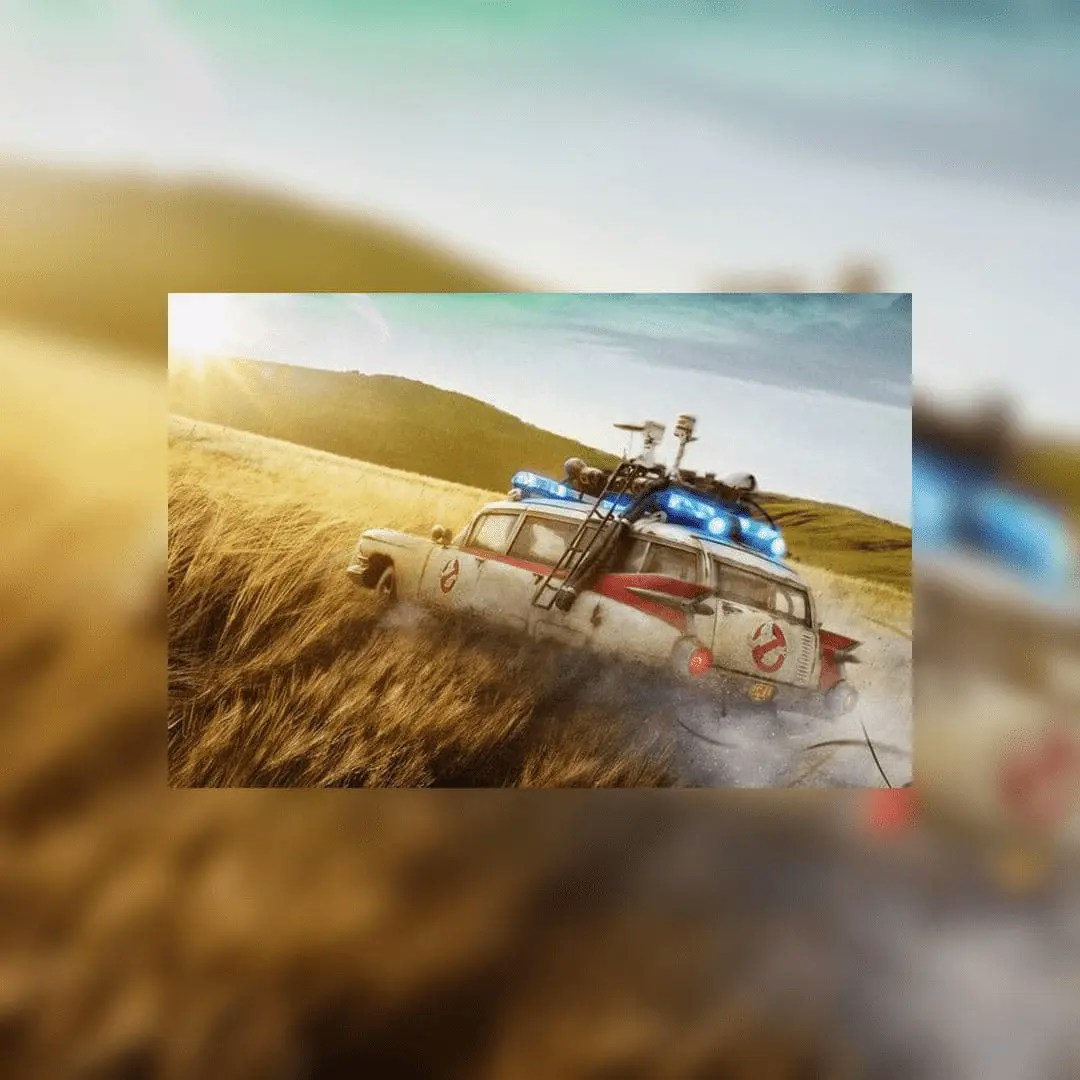
Hiệu ứng blur sẽ nhân đôi hình ảnh làm nền và làm mờ hình ảnh.
Ví dụ JSON blur:
```json Blur theme={"system"}
{
"mediaUrl": "https://img.ayrshare.com/012/gb.jpg",
"platform": "instagram",
"mode": "blur"
}
```
Ví dụ hình ảnh blur:
 ### Watermark
#### Tổng quan về Watermark
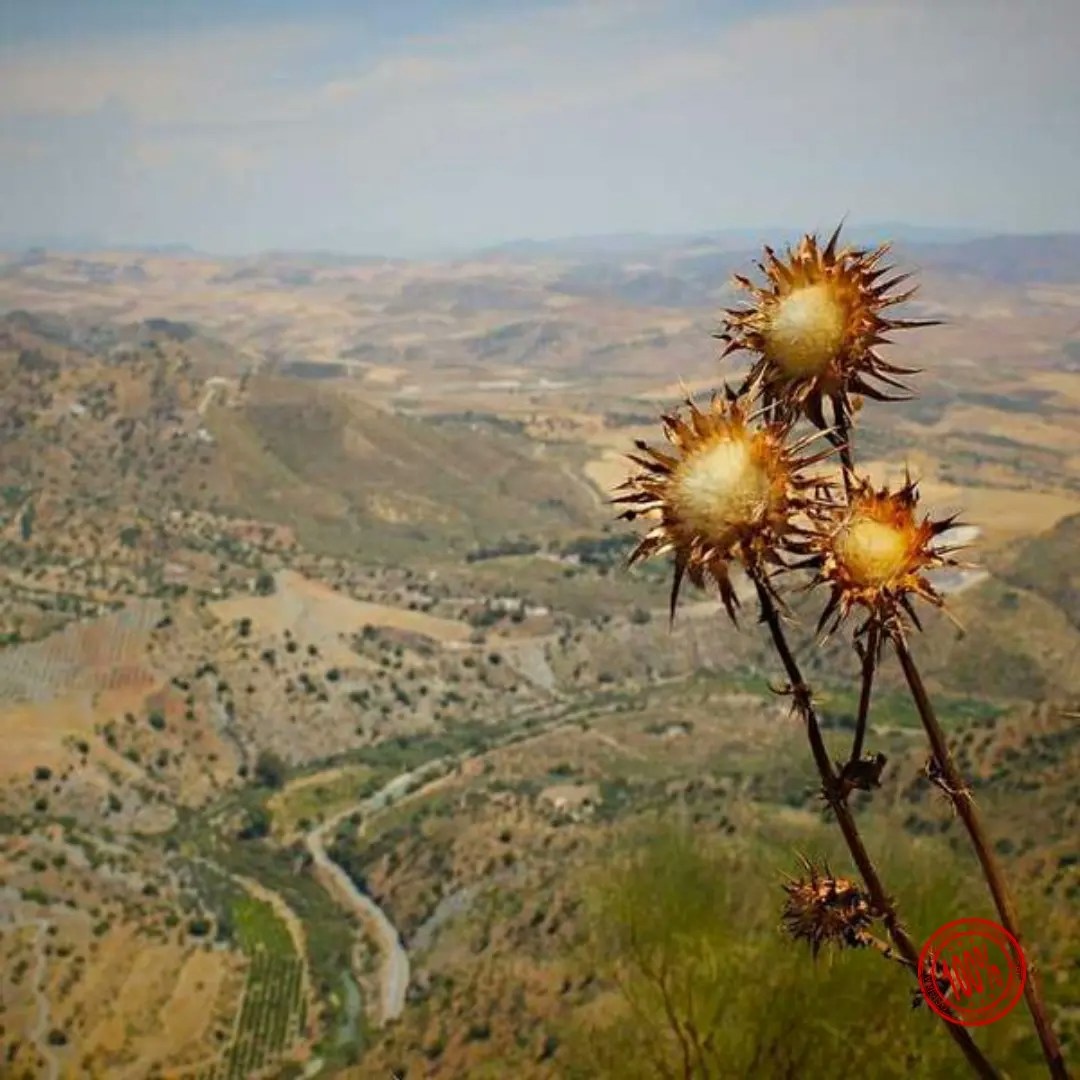
Bạn có thể thêm watermark vào hình ảnh bằng cách cung cấp URL, phải bắt đầu bằng `https://` và một vị trí tùy chọn.
Watermark sẽ mặc định xuất hiện ở góc dưới bên phải của hình ảnh - `southeast`.
Chúng tôi khuyến nghị một tệp PNG với nền trong suốt.
Ví dụ JSON watermark:
```json Watermark theme={"system"}
{
"mediaUrl": "https://img.ayrshare.com/random/photo-13.jpg",
"platform": "instagram",
"watermark": {
"url": "https://img.ayrshare.com/012/100-percent.png",
"position": "northeast" // tùy chọn
}
}
```
Ví dụ hình ảnh watermark ở vị trí southeast:
### Watermark
#### Tổng quan về Watermark
Bạn có thể thêm watermark vào hình ảnh bằng cách cung cấp URL, phải bắt đầu bằng `https://` và một vị trí tùy chọn.
Watermark sẽ mặc định xuất hiện ở góc dưới bên phải của hình ảnh - `southeast`.
Chúng tôi khuyến nghị một tệp PNG với nền trong suốt.
Ví dụ JSON watermark:
```json Watermark theme={"system"}
{
"mediaUrl": "https://img.ayrshare.com/random/photo-13.jpg",
"platform": "instagram",
"watermark": {
"url": "https://img.ayrshare.com/012/100-percent.png",
"position": "northeast" // tùy chọn
}
}
```
Ví dụ hình ảnh watermark ở vị trí southeast:
 #### Vị trí Watermark
Vị trí của watermark có thể là một trong các giá trị sau:
#### Vị trí Watermark
Vị trí của watermark có thể là một trong các giá trị sau:
- `north`
- `northeast`
- `east`
- `southeast`
- `south`
- `southwest`
- `west`
- `northwest`
- `center`
### Tùy chọn Hiệu ứng
#### Màu Hexadecimal
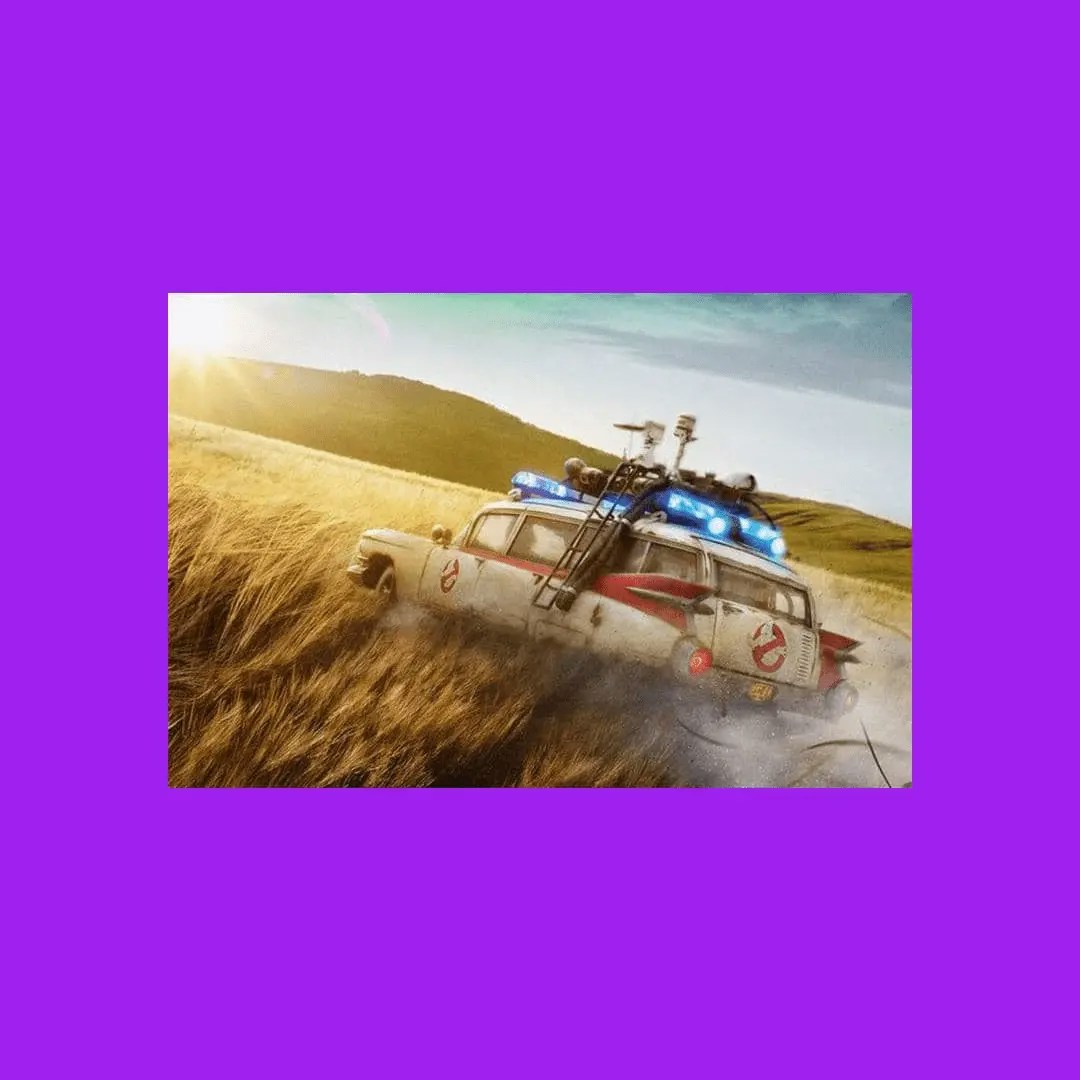
Giá trị hexadecimal cho màu nền của blur. Chỉ áp dụng nếu `"mode": "blur"`. Giá trị chuỗi, ví dụ `"#A020F0"`
Ví dụ JSON nền màu:
```json Color Background theme={"system"}
{
"mediaUrl": "https://img.ayrshare.com/012/gb.jpg",
"platform": "instagram",
"mode": "blur",
"effects": {
"color": "#A020F0"
}
}
```
Ví dụ hình ảnh nền màu:
 #### Màu: Grayscale, Sepia, Invert
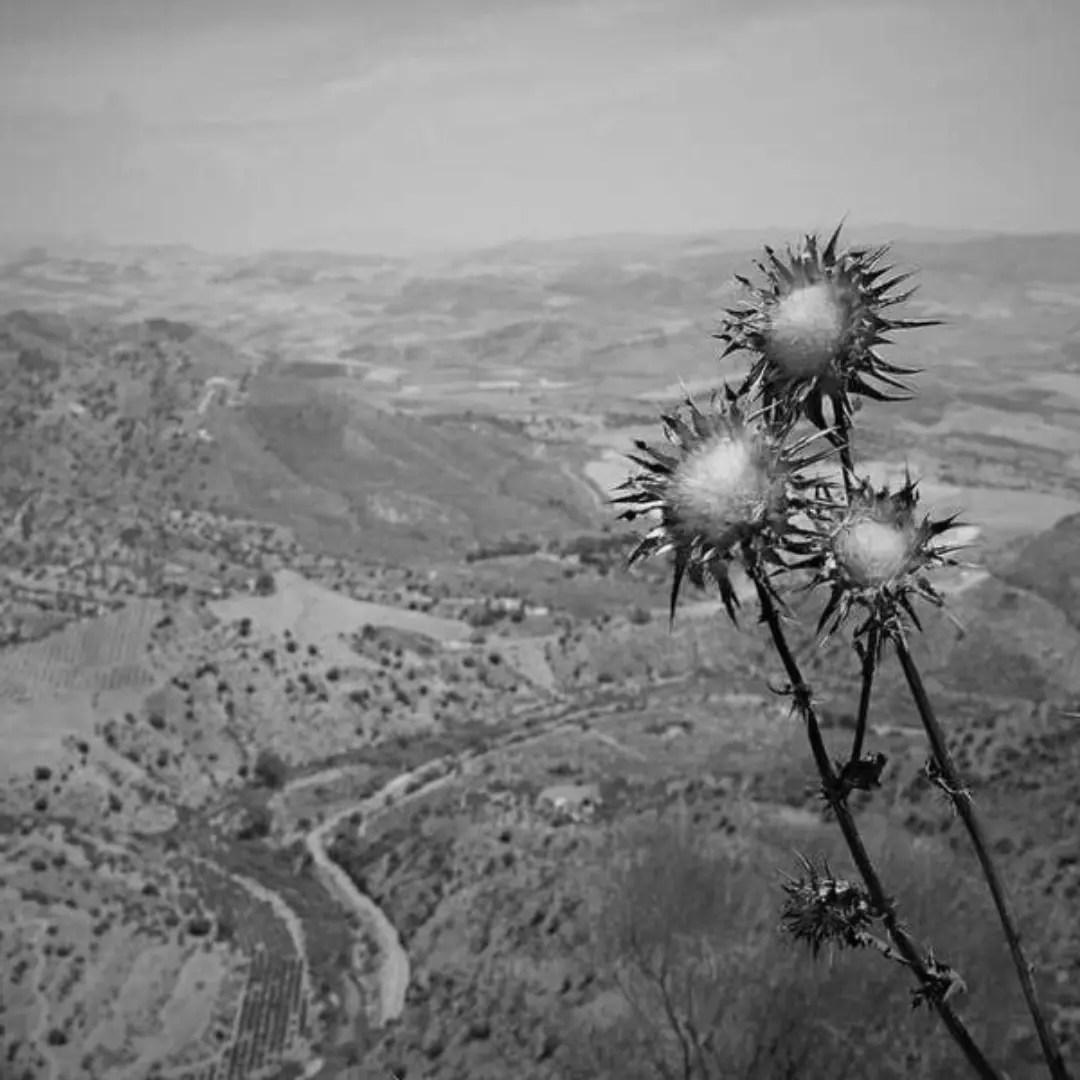
Bạn có thể thay đổi màu chính của hình ảnh bằng cách chỉ định `grayscale`, `sepia`, hoặc `invert`. Trường `"blur": true` không bắt buộc và không nên được sử dụng nếu bạn không muốn có nền.
Ví dụ JSON grayscale:
```json Grayscale theme={"system"}
{
"mediaUrl": "https://img.ayrshare.com/random/photo-13.jpg",
"platform": "instagram",
"effects": {
"color": "grayscale"
}
}
```
Ví dụ hình ảnh grayscale:
#### Màu: Grayscale, Sepia, Invert
Bạn có thể thay đổi màu chính của hình ảnh bằng cách chỉ định `grayscale`, `sepia`, hoặc `invert`. Trường `"blur": true` không bắt buộc và không nên được sử dụng nếu bạn không muốn có nền.
Ví dụ JSON grayscale:
```json Grayscale theme={"system"}
{
"mediaUrl": "https://img.ayrshare.com/random/photo-13.jpg",
"platform": "instagram",
"effects": {
"color": "grayscale"
}
}
```
Ví dụ hình ảnh grayscale:
 #### Opacity
Đặt độ mờ của hình ảnh. Phạm vi giá trị số: 0 - 1.
Ví dụ JSON opacity:
```json Opacity theme={"system"}
{
"effects": {
"opacity": 0.2
}
}
```
#### Quality
Đối với hình ảnh JPG hoặc JPEG, chỉ định chất lượng, hoặc mức độ nén, của hình ảnh.
Số càng thấp thì độ nén càng cao, nhưng chất lượng hình ảnh càng thấp.
Số càng cao thì độ nén càng thấp, nhưng chất lượng hình ảnh càng cao. Phạm vi giá trị số: 0 - 100.
Ví dụ JSON quality:
```json Quality theme={"system"}
{
"effects": {
"quality": 20
}
}
```
### Chuyển đổi sang JPG hoặc WebP
Các tùy chọn `convertToJpg` và `convertToWebP` cho phép bạn chuyển đổi hình ảnh từ định dạng ban đầu (như PNG) sang định dạng JPG hoặc WebP tương ứng.
Theo mặc định, các hình ảnh đã chuyển đổi sẽ có cài đặt chất lượng 75%.
Bạn có thể tùy chỉnh mức độ nén bằng tham số [quality](/apis/media/resize#quality) trong đối tượng effects.
Lưu ý rằng nếu hình ảnh gốc của bạn đã là JPG và bạn sử dụng `convertToJpg`, API sẽ chỉ đơn giản thay đổi kích thước hình ảnh theo kích thước bạn chỉ định mà không thay đổi định dạng.
Ví dụ chuyển đổi sang JPG:
```json Convert to JPG theme={"system"}
{
"convertToJpg": true
}
```
Ví dụ chuyển đổi sang WebP:
```json Convert to WebP theme={"system"}
{
"convertToWebP": true
}
```
```bash cURL theme={"system"}
curl \
-H "Authorization: Bearer API_KEY" \
-H 'Content-Type: application/json' \
-d '{"mediaUrl": "https://img.ayrshare.com/012/gb.jpg", "platform": "instagram"' \
-X POST https://api.ayrshare.com/api/media/resize
```
```javascript JavaScript theme={"system"}
const API_KEY = "API_KEY";
fetch("https://api.ayrshare.com/api/media/resize", {
method: "POST",
headers: {
"Content-Type": "application/json",
Authorization: `Bearer ${API_KEY}`
},
body: JSON.stringify({
mediaUrl: "https://img.ayrshare.com/012/gb.jpg", // bắt buộc
platform: "instagram"
})
})
.then((res) => res.json())
.then((json) => console.log(json))
.catch(console.error);
```
```python Python theme={"system"}
import requests
payload = {'mediaUrl': 'https://img.ayrshare.com/012/gb.jpg',
'platforms': 'instagram'}
headers = {'Content-Type': 'application/json',
'Authorization': 'Bearer API_KEY'}
r = requests.post('https://api.ayrshare.com/api/media/resize',
json=payload,
headers=headers)
print(r.json())
```
```php PHP theme={"system"}
"https://img.ayrshare.com/012/gb.jpg",
"platforms" => "instagram"
);
curl_setopt_array($curl, array(
CURLOPT_URL => 'https://api.ayrshare.com/api/media/resize',
CURLOPT_RETURNTRANSFER => true,
CURLOPT_ENCODING => '',
CURLOPT_MAXREDIRS => 10,
CURLOPT_TIMEOUT => 0,
CURLOPT_FOLLOWLOCATION => true,
CURLOPT_HTTP_VERSION => CURL_HTTP_VERSION_1_1,
CURLOPT_CUSTOMREQUEST => 'POST',
CURLOPT_POSTFIELDS => http_build_query($data),
CURLOPT_HTTPHEADER => array(
'Authorization: Bearer API_KEY',
'Accept-Encoding: gzip'
),
));
$response = curl_exec($curl);
curl_close($curl);
echo $response;
```
```csharp C# theme={"system"}
using System;
using System.Net.Http;
using System.Text;
using System.Text.Json;
using System.Threading.Tasks;
public class AyrshareApiClient
{
private readonly HttpClient _httpClient;
private readonly string _apiKey;
private const string BaseUrl = "https://api.ayrshare.com/api";
public AyrshareApiClient(string apiKey)
{
_apiKey = apiKey ?? throw new ArgumentNullException(nameof(apiKey));
_httpClient = new HttpClient();
_httpClient.DefaultRequestHeaders.Add("Authorization", $"Bearer {_apiKey}");
}
public async Task ResizeMediaAsync(string mediaUrl, string platform)
{
try
{
var requestData = new
{
mediaUrl = mediaUrl,
platform = platform
};
var content = new StringContent(
JsonSerializer.Serialize(requestData),
Encoding.UTF8,
"application/json"
);
var response = await _httpClient.PostAsync($"{BaseUrl}/media/resize", content);
response.EnsureSuccessStatusCode();
var jsonResponse = await response.Content.ReadAsStringAsync();
return jsonResponse;
}
catch (HttpRequestException ex)
{
throw new Exception($"Failed to resize media: {ex.Message}", ex);
}
}
public void Dispose()
{
_httpClient.Dispose();
}
}
```
```json 200: Success theme={"system"}
{
"status": "success",
"url": "https://media.ayrshare.com/9abf1426d6ce9122ef11c72bd62e59807c5cc083/8UbyBjHTxgHkAC1I37e6O.jpg",
"platform": "instagram",
"mode": "blur",
"effects": {
"color": "#A020F0"
}
}
```
```json 400: Failed Resize theme={"system"}
{
"action": "resize",
"status": "error",
"code": 312,
"message": "Invalid extension type. Extension: null. Please verify the extension is one of the following: png, jpg, jpeg and the file is accessible."
}
```
#### Opacity
Đặt độ mờ của hình ảnh. Phạm vi giá trị số: 0 - 1.
Ví dụ JSON opacity:
```json Opacity theme={"system"}
{
"effects": {
"opacity": 0.2
}
}
```
#### Quality
Đối với hình ảnh JPG hoặc JPEG, chỉ định chất lượng, hoặc mức độ nén, của hình ảnh.
Số càng thấp thì độ nén càng cao, nhưng chất lượng hình ảnh càng thấp.
Số càng cao thì độ nén càng thấp, nhưng chất lượng hình ảnh càng cao. Phạm vi giá trị số: 0 - 100.
Ví dụ JSON quality:
```json Quality theme={"system"}
{
"effects": {
"quality": 20
}
}
```
### Chuyển đổi sang JPG hoặc WebP
Các tùy chọn `convertToJpg` và `convertToWebP` cho phép bạn chuyển đổi hình ảnh từ định dạng ban đầu (như PNG) sang định dạng JPG hoặc WebP tương ứng.
Theo mặc định, các hình ảnh đã chuyển đổi sẽ có cài đặt chất lượng 75%.
Bạn có thể tùy chỉnh mức độ nén bằng tham số [quality](/apis/media/resize#quality) trong đối tượng effects.
Lưu ý rằng nếu hình ảnh gốc của bạn đã là JPG và bạn sử dụng `convertToJpg`, API sẽ chỉ đơn giản thay đổi kích thước hình ảnh theo kích thước bạn chỉ định mà không thay đổi định dạng.
Ví dụ chuyển đổi sang JPG:
```json Convert to JPG theme={"system"}
{
"convertToJpg": true
}
```
Ví dụ chuyển đổi sang WebP:
```json Convert to WebP theme={"system"}
{
"convertToWebP": true
}
```
```bash cURL theme={"system"}
curl \
-H "Authorization: Bearer API_KEY" \
-H 'Content-Type: application/json' \
-d '{"mediaUrl": "https://img.ayrshare.com/012/gb.jpg", "platform": "instagram"' \
-X POST https://api.ayrshare.com/api/media/resize
```
```javascript JavaScript theme={"system"}
const API_KEY = "API_KEY";
fetch("https://api.ayrshare.com/api/media/resize", {
method: "POST",
headers: {
"Content-Type": "application/json",
Authorization: `Bearer ${API_KEY}`
},
body: JSON.stringify({
mediaUrl: "https://img.ayrshare.com/012/gb.jpg", // bắt buộc
platform: "instagram"
})
})
.then((res) => res.json())
.then((json) => console.log(json))
.catch(console.error);
```
```python Python theme={"system"}
import requests
payload = {'mediaUrl': 'https://img.ayrshare.com/012/gb.jpg',
'platforms': 'instagram'}
headers = {'Content-Type': 'application/json',
'Authorization': 'Bearer API_KEY'}
r = requests.post('https://api.ayrshare.com/api/media/resize',
json=payload,
headers=headers)
print(r.json())
```
```php PHP theme={"system"}
"https://img.ayrshare.com/012/gb.jpg",
"platforms" => "instagram"
);
curl_setopt_array($curl, array(
CURLOPT_URL => 'https://api.ayrshare.com/api/media/resize',
CURLOPT_RETURNTRANSFER => true,
CURLOPT_ENCODING => '',
CURLOPT_MAXREDIRS => 10,
CURLOPT_TIMEOUT => 0,
CURLOPT_FOLLOWLOCATION => true,
CURLOPT_HTTP_VERSION => CURL_HTTP_VERSION_1_1,
CURLOPT_CUSTOMREQUEST => 'POST',
CURLOPT_POSTFIELDS => http_build_query($data),
CURLOPT_HTTPHEADER => array(
'Authorization: Bearer API_KEY',
'Accept-Encoding: gzip'
),
));
$response = curl_exec($curl);
curl_close($curl);
echo $response;
```
```csharp C# theme={"system"}
using System;
using System.Net.Http;
using System.Text;
using System.Text.Json;
using System.Threading.Tasks;
public class AyrshareApiClient
{
private readonly HttpClient _httpClient;
private readonly string _apiKey;
private const string BaseUrl = "https://api.ayrshare.com/api";
public AyrshareApiClient(string apiKey)
{
_apiKey = apiKey ?? throw new ArgumentNullException(nameof(apiKey));
_httpClient = new HttpClient();
_httpClient.DefaultRequestHeaders.Add("Authorization", $"Bearer {_apiKey}");
}
public async Task ResizeMediaAsync(string mediaUrl, string platform)
{
try
{
var requestData = new
{
mediaUrl = mediaUrl,
platform = platform
};
var content = new StringContent(
JsonSerializer.Serialize(requestData),
Encoding.UTF8,
"application/json"
);
var response = await _httpClient.PostAsync($"{BaseUrl}/media/resize", content);
response.EnsureSuccessStatusCode();
var jsonResponse = await response.Content.ReadAsStringAsync();
return jsonResponse;
}
catch (HttpRequestException ex)
{
throw new Exception($"Failed to resize media: {ex.Message}", ex);
}
}
public void Dispose()
{
_httpClient.Dispose();
}
}
```
```json 200: Success theme={"system"}
{
"status": "success",
"url": "https://media.ayrshare.com/9abf1426d6ce9122ef11c72bd62e59807c5cc083/8UbyBjHTxgHkAC1I37e6O.jpg",
"platform": "instagram",
"mode": "blur",
"effects": {
"color": "#A020F0"
}
}
```
```json 400: Failed Resize theme={"system"}
{
"action": "resize",
"status": "error",
"code": 312,
"message": "Invalid extension type. Extension: null. Please verify the extension is one of the following: png, jpg, jpeg and the file is accessible."
}
```