> ## Documentation Index
> Fetch the complete documentation index at: https://www.ayrshare.com/docs/llms.txt
> Use this file to discover all available pages before exploring further.
# Liên kết Snapchat
> Uỷ quyền Snapchat với Ayrshare
## Cách liên kết Snapchat với Ayrshare
### Thiết lập Snapchat Public Profile
Trước khi liên kết tài khoản Snapchat, bạn phải thiết lập một Snapchat Public Profile.
Các hồ sơ không public không thể liên kết với Ayrshare.
Ngoài ra, public profile phải được chuyển sang Professional Profile.
Nếu không có professional profile, một số tính năng như đăng stories sẽ không
được phép.
Nếu bạn chưa có public profile, vui lòng làm theo các bước dưới đây.
Nếu bạn đã có public profile, vui lòng chuyển sang bước 3.
Nếu public profile của bạn đã là professional profile, vui lòng chuyển đến [Liên kết Snapchat](/dashboard/connect-social-accounts/snapchat#linking-snapchat).
Mở Snapchat và chạm vào biểu tượng của bạn ở góc trên bên trái.
 Nhấp vào nút **Public Profile** và làm theo hướng dẫn để thiết lập public profile của bạn.
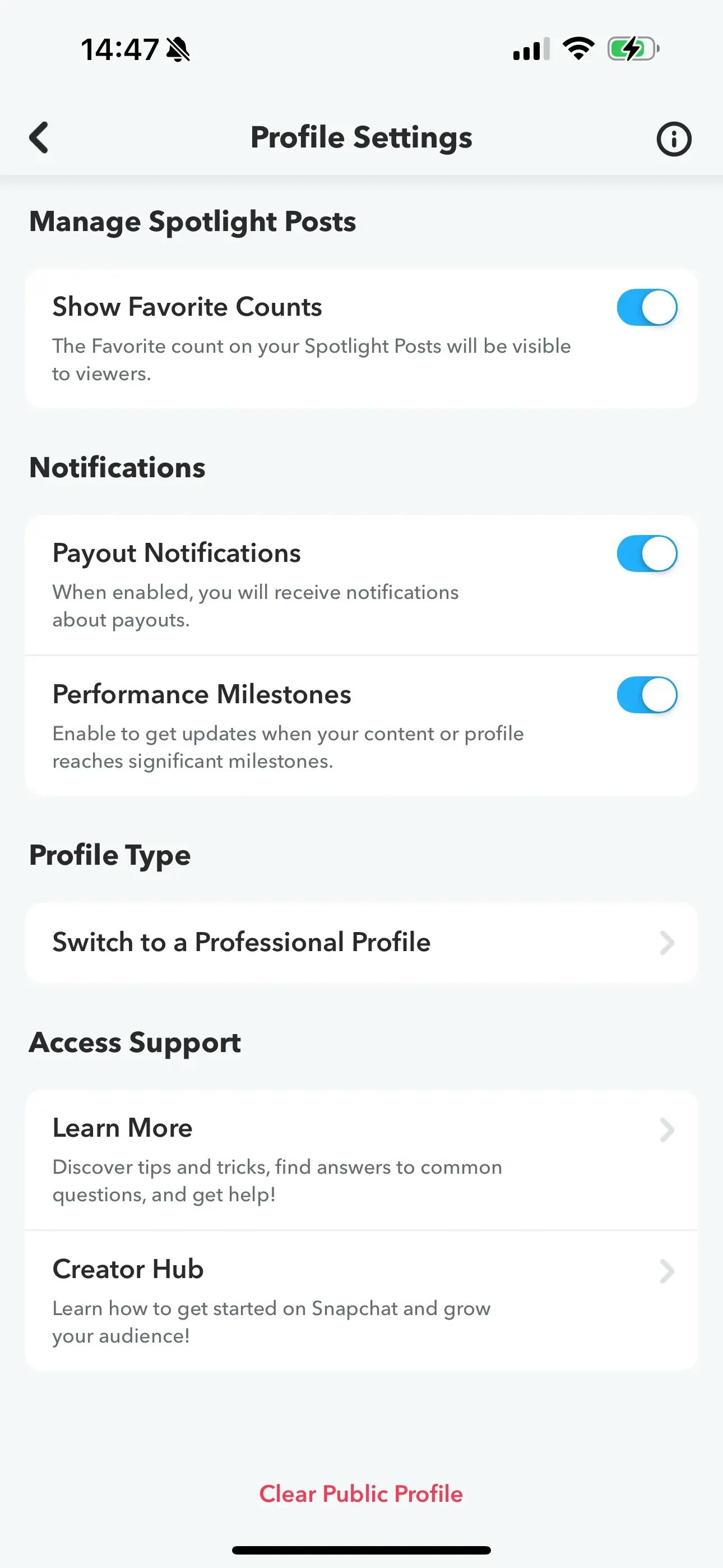
 Vào tuỳ chọn **Switch to a Professional Profile** trong Profile Settings.
Làm theo hướng dẫn, chọn một danh mục và nhấp **Confirm** để chuyển
sang professional profile.
Vào tuỳ chọn **Switch to a Professional Profile** trong Profile Settings.
Làm theo hướng dẫn, chọn một danh mục và nhấp **Confirm** để chuyển
sang professional profile.
 ### Liên kết Snapchat
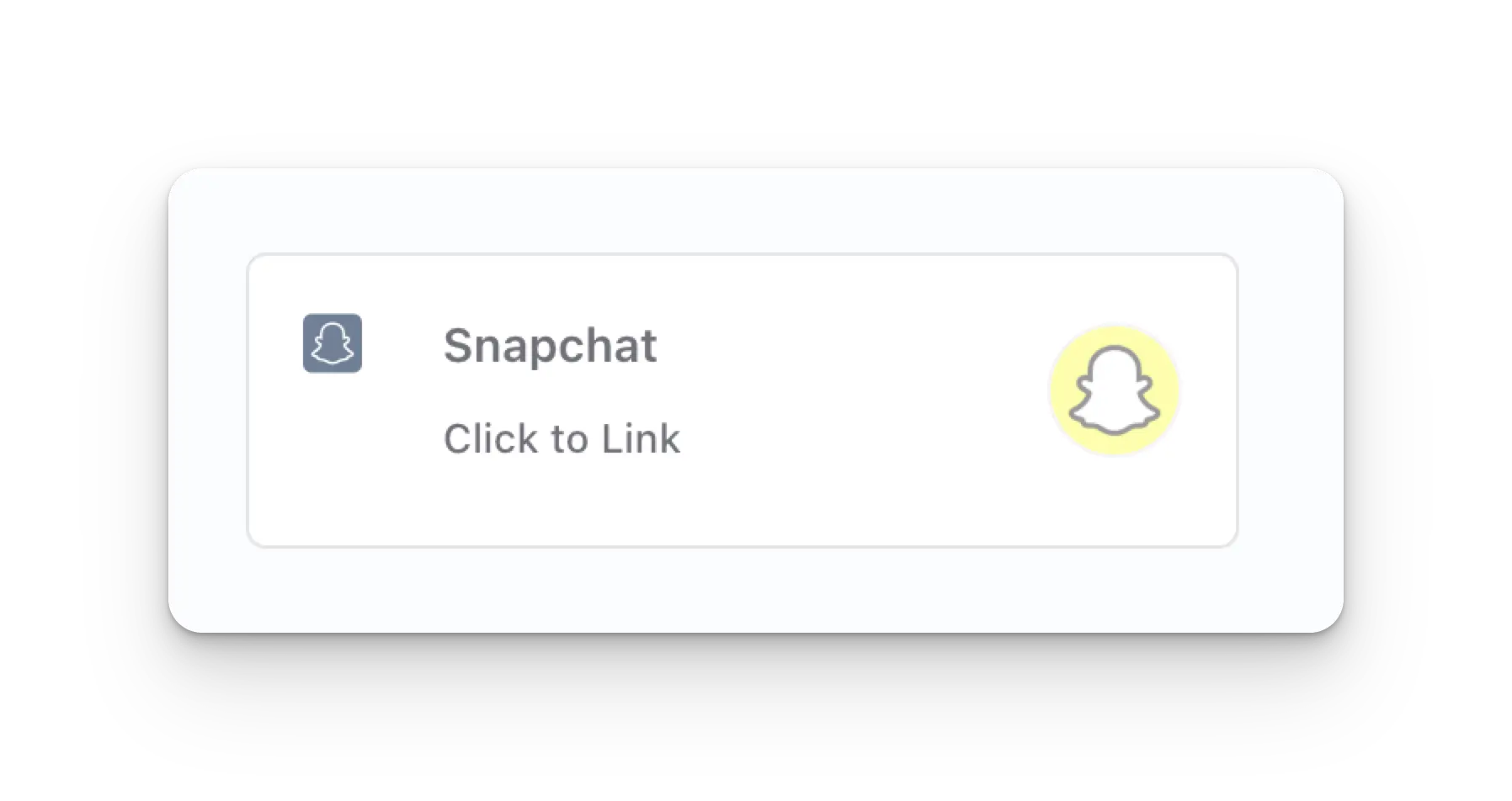
Nhấp vào biểu tượng Snapchat trên trang Social Accounts.
### Liên kết Snapchat
Nhấp vào biểu tượng Snapchat trên trang Social Accounts.
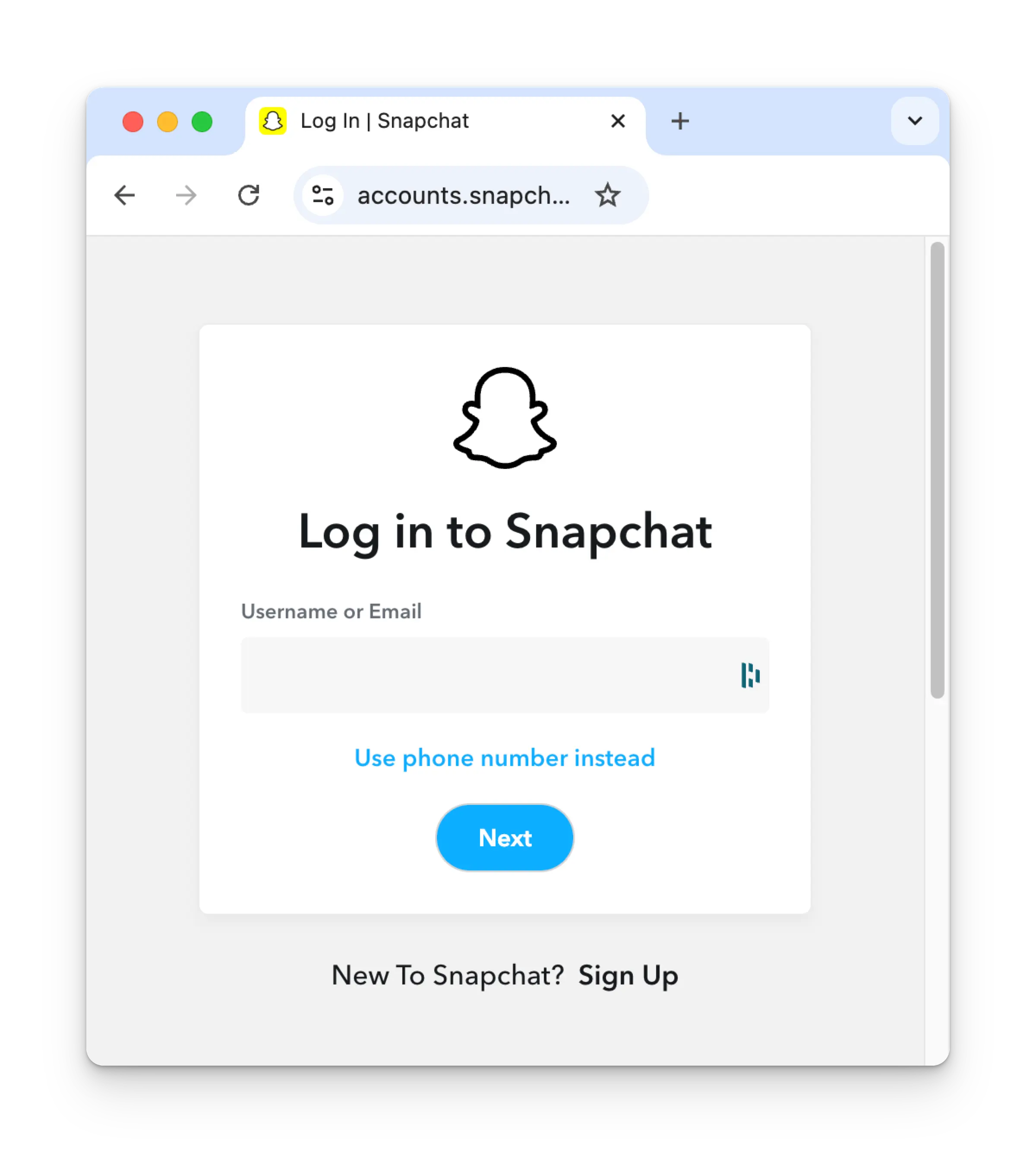
 Nếu bạn chưa đăng nhập, bạn sẽ được chuyển đến trang đăng nhập Snapchat. Nhập thông tin đăng nhập
tương ứng. Nếu bạn đã đăng nhập, vui lòng chuyển sang bước tiếp theo.
Nếu bạn chưa đăng nhập, bạn sẽ được chuyển đến trang đăng nhập Snapchat. Nhập thông tin đăng nhập
tương ứng. Nếu bạn đã đăng nhập, vui lòng chuyển sang bước tiếp theo.
 Xem lại các quyền và nhấp **Continue** trên trang uỷ quyền.
 Trang Social Accounts của bạn giờ đã được cập nhật với tài khoản Snapchat.
 ## Thông tin bổ sung về Snapchat
* Vui lòng xem chi tiết về
[đăng bài lên Snapchat](/apis/post/social-networks/snapchat),
[lấy analytics](/apis/analytics/overview),
[quản lý bình luận](/apis/comments/overview), hoặc
[truy xuất lịch sử](/apis/history/overview).
* Để biết thêm thông tin về kích thước hình ảnh và video được khuyến nghị, vui lòng xem:
## Thông tin bổ sung về Snapchat
* Vui lòng xem chi tiết về
[đăng bài lên Snapchat](/apis/post/social-networks/snapchat),
[lấy analytics](/apis/analytics/overview),
[quản lý bình luận](/apis/comments/overview), hoặc
[truy xuất lịch sử](/apis/history/overview).
* Để biết thêm thông tin về kích thước hình ảnh và video được khuyến nghị, vui lòng xem: