> ## Documentation Index
> Fetch the complete documentation index at: https://www.ayrshare.com/docs/llms.txt
> Use this file to discover all available pages before exploring further.
# 調整圖片大小
> 將圖片調整為社群媒體尺寸、加入浮水印或裁切
export const HeaderAPI = ({noProfileKey, profileKeyRequired}) => <>
API Key of the Primary Profile.
Format: Authorization: Bearer API_KEY
{!noProfileKey && (profileKeyRequired ?
Profile Key of a User Profile.
Format: Profile-Key: PROFILE_KEY
:
Profile Key of a User Profile.
Format: Profile-Key: PROFILE_KEY
)}
;
export const PlansAvailable = ({plans = [], maxPackRequired}) => {
let displayPlans = plans;
if (plans && plans.length === 1) {
const lowerCasePlan = plans[0].toLowerCase();
if (lowerCasePlan === "business") {
displayPlans = ["Launch", "Business", "Enterprise"];
} else if (lowerCasePlan === "premium") {
displayPlans = ["Premium", "Launch", "Business", "Enterprise"];
}
}
return
Available on {displayPlans.length === 1 ? "the " : ""}
{displayPlans.join(", ").replace(/\b\w/g, l => l.toUpperCase())}{" "}
{displayPlans.length > 1 ? "plans" : "plan"}.
{maxPackRequired && window.open('https://www.ayrshare.com/docs/additional/maxpack', '_self')} className="flex items-center mt-2 cursor-pointer">
Max Pack required
}
;
};
社群網路對社群媒體圖片有[特定要求](/media-guidelines)。resize 端點可讓您選擇符合社群網路的圖片尺寸、加入浮水印、變更背景、加入特效、裁切等等。
預設情況下,調整大小會變更圖片尺寸,但不會裁切圖片。您也可以改為裁切圖片。詳細內容請參見下方說明。
## 標頭參數
## 主體參數
要調整大小的圖片 URL。必須以 `https://` 開頭
要為其調整 URL 大小的社群媒體平台。詳細內容請參見[平台選項](/apis/media/resize#platform-options)。
以 multipart form-data 物件傳送媒體檔案。若未提供 `imageUrl` 則為必填。
要套用至調整大小後圖片的浮水印 URL 與可選的位置。浮水印預設會出現在圖片的右下角。詳細內容請參見[浮水印](/apis/media/resize#watermark)。
變更透明度、顏色等等。詳細內容請參見[特效選項](/apis/media/resize#effects-options)。
指定 `width` 與 `height` 的物件,用於調整大小。若進行裁切,可另外指定中心的 `x` 與 `y` 座標。
預設為圖片中央。
```json Dimensions theme={"system"}
{
"width": 500,
"height": 500,
"xCoordinate": 35, // 裁切模式下為可選
"yCoordinate": 50 // 裁切模式下為可選
}
```
若未指定平台,則 width 與 height 為必填。
值:`resize`、`blur` 或 `crop`。詳細內容請參見[模式](/apis/media/resize#mode)。
自動轉換為 JPG 檔案,例如將 PNG 轉為 JPG 檔。將使用 75% 品質。
詳細內容請參見[轉換為 JPG](/apis/media/resize#convert-to-a-jpg-or-webp)。
自動轉換為 WebP 檔案,例如將 PNG 轉為 WebP 檔。將使用 75% 品質。
詳細內容請參見[轉換為 WebP](/apis/media/resize#convert-to-a-jpg-or-webp)。
### 平台選項
以字串指定平台以使用該圖片的預設尺寸,或使用 `dimensions` 欄位自行指定。
例如 `"platform": "facebook"` 會將圖片尺寸設定為寬 1200px、高 630px。
- `facebook`:寬 1200px,高 630px。
- `instagram`:寬 1080px,高 1080px。
- `instagram_landscape`:寬 1080px,高 680px。
- `instagram_portrait`:寬 1080px,高 1920px。
- `instagram_special`:寬 1080px,高 800px。
- `linkedin`:寬 1200px,高 627px。
- `pinterest`:寬 1080px,高 1920px。
- `tiktok`:寬 1080px,高 1920px。
- `twitter`:寬 1600px,高 900px。
請注意,調整為這些尺寸並不會裁切圖片。
如果想裁切圖片,可將 `mode` 參數設為 `crop`,並搭配 `dimensions` 及 `xCoordinate`、`yCoordinate` 欄位。
### 模式
#### Resize
Resize 是預設模式,會變更圖片的尺寸並維持其長寬比。
將圖片調整為指定尺寸而不裁切任何內容。
範例 JSON:
```json Resize theme={"system"}
{
"mediaUrl": "https://img.ayrshare.com/012/gb.jpg",
"platform": "instagram",
"mode": "resize"
}
```
您也可以使用 `dimensions` 欄位指定自訂尺寸:
```json Resize with Dimensions theme={"system"}
{
"mediaUrl": "https://img.ayrshare.com/012/gb.jpg",
"mode": "resize",
"dimensions": {
"width": 800,
"height": 600
}
}
```
`platform` 或 dimensions 欄位中的 `width` 與 `height` 必須至少指定一個。
#### Crop
Crop 會將圖片「裁切」至指定尺寸。預設會以圖片中央作為中心座標。您也可以自行指定 x/y 座標。
範例 JSON:
```json Crop theme={"system"}
{
"mediaUrl": "https://img.ayrshare.com/012/gb.jpg",
"platform": "instagram",
"mode": "crop"
}
```
您也可以使用 `dimensions` 欄位指定自訂尺寸與可選的裁切座標:
```json Crop with Dimensions theme={"system"}
{
"mediaUrl": "https://img.ayrshare.com/012/gb.jpg",
"mode": "crop",
"dimensions": {
"width": 1080,
"height": 1080,
"xCoordinate": 35,
"yCoordinate": 50
}
}
```
`platform` 或 dimensions 欄位中的 `width` 與 `height` 必須至少指定一個。
若進行方形裁切,且 `width` 或 `height` 小於提供圖片的尺寸,則會採用 `width` 或 `height` 中較小者。例如,若圖片是 1200x800、要求的裁切為 1080x1080,則傳回的圖片將是 800x800。
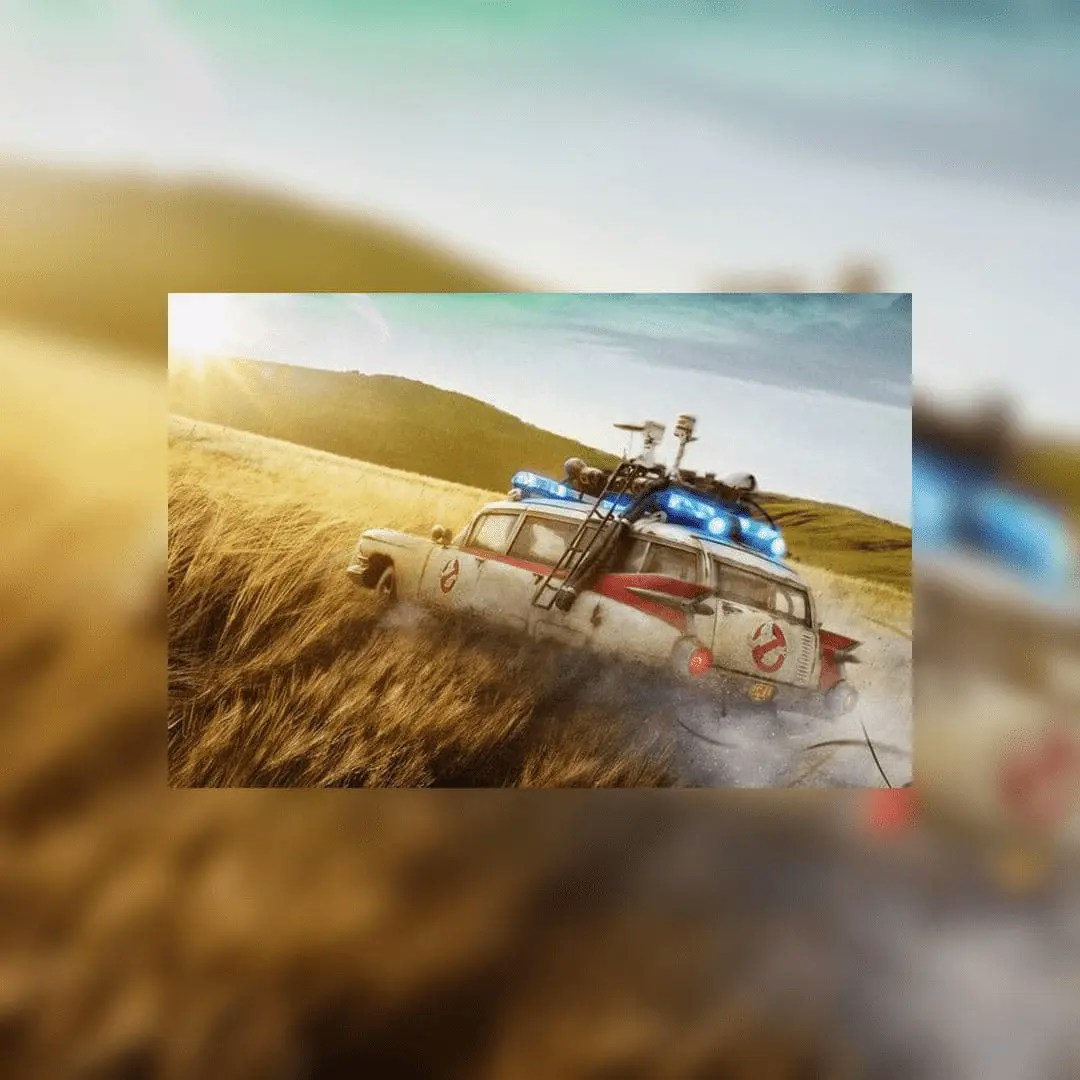
#### Blur
Blur 特效會將圖片複製為背景並對其進行模糊處理。
範例 blur JSON:
```json Blur theme={"system"}
{
"mediaUrl": "https://img.ayrshare.com/012/gb.jpg",
"platform": "instagram",
"mode": "blur"
}
```
範例 blur 圖片:
 ### 浮水印
#### 浮水印概覽
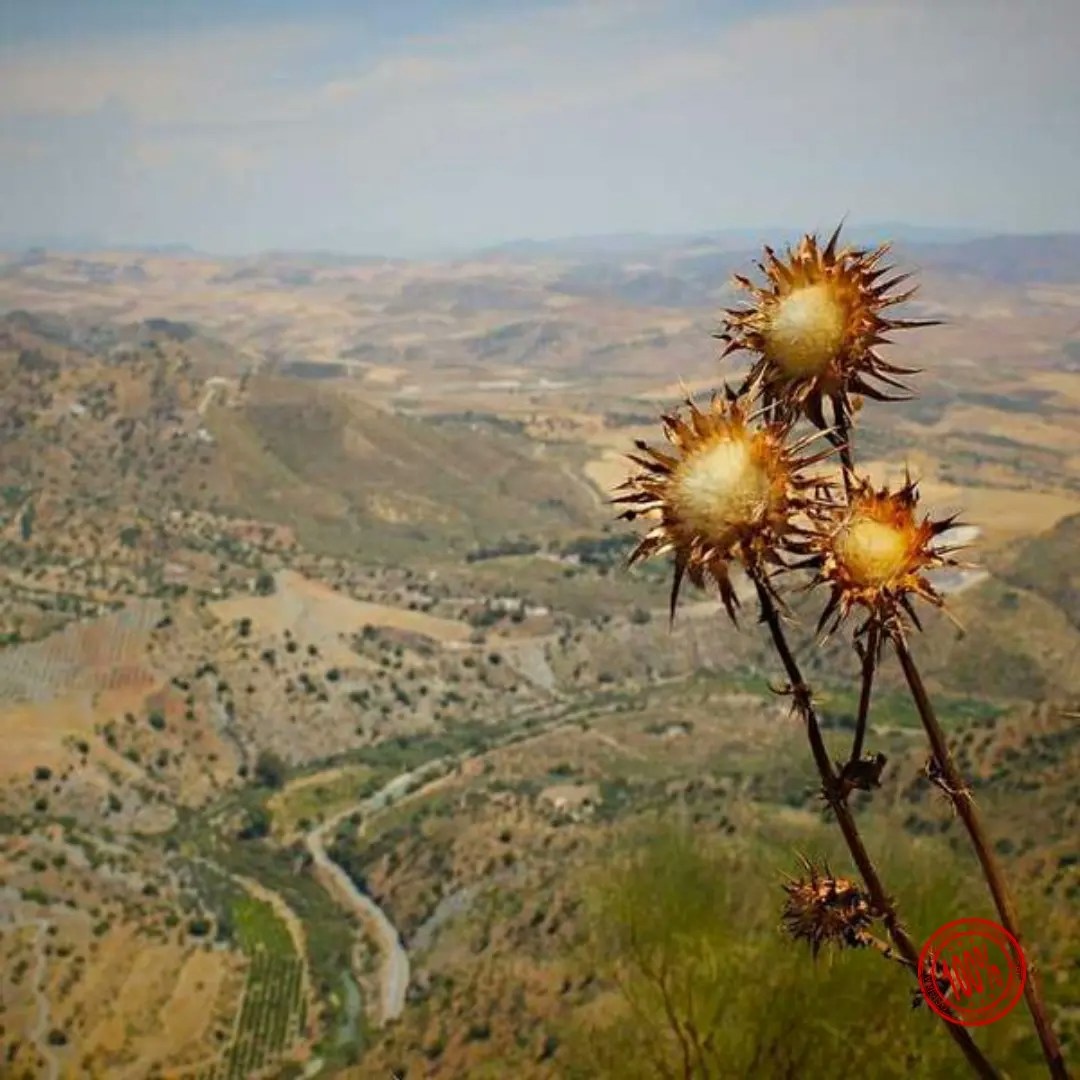
您可以透過提供 URL(必須以 `https://` 開頭)與可選的位置,為圖片加上浮水印。
浮水印預設會出現在圖片的右下角 — `southeast`。
我們建議使用背景透明的 PNG 檔。
範例浮水印 JSON:
```json Watermark theme={"system"}
{
"mediaUrl": "https://img.ayrshare.com/random/photo-13.jpg",
"platform": "instagram",
"watermark": {
"url": "https://img.ayrshare.com/012/100-percent.png",
"position": "northeast" // 可選
}
}
```
浮水印位於右下角 (southeast) 的範例圖片:
### 浮水印
#### 浮水印概覽
您可以透過提供 URL(必須以 `https://` 開頭)與可選的位置,為圖片加上浮水印。
浮水印預設會出現在圖片的右下角 — `southeast`。
我們建議使用背景透明的 PNG 檔。
範例浮水印 JSON:
```json Watermark theme={"system"}
{
"mediaUrl": "https://img.ayrshare.com/random/photo-13.jpg",
"platform": "instagram",
"watermark": {
"url": "https://img.ayrshare.com/012/100-percent.png",
"position": "northeast" // 可選
}
}
```
浮水印位於右下角 (southeast) 的範例圖片:
 #### 浮水印位置
浮水印的位置可以是下列其中之一:
#### 浮水印位置
浮水印的位置可以是下列其中之一:
- `north`
- `northeast`
- `east`
- `southeast`
- `south`
- `southwest`
- `west`
- `northwest`
- `center`
### 特效選項
#### 顏色十六進位值
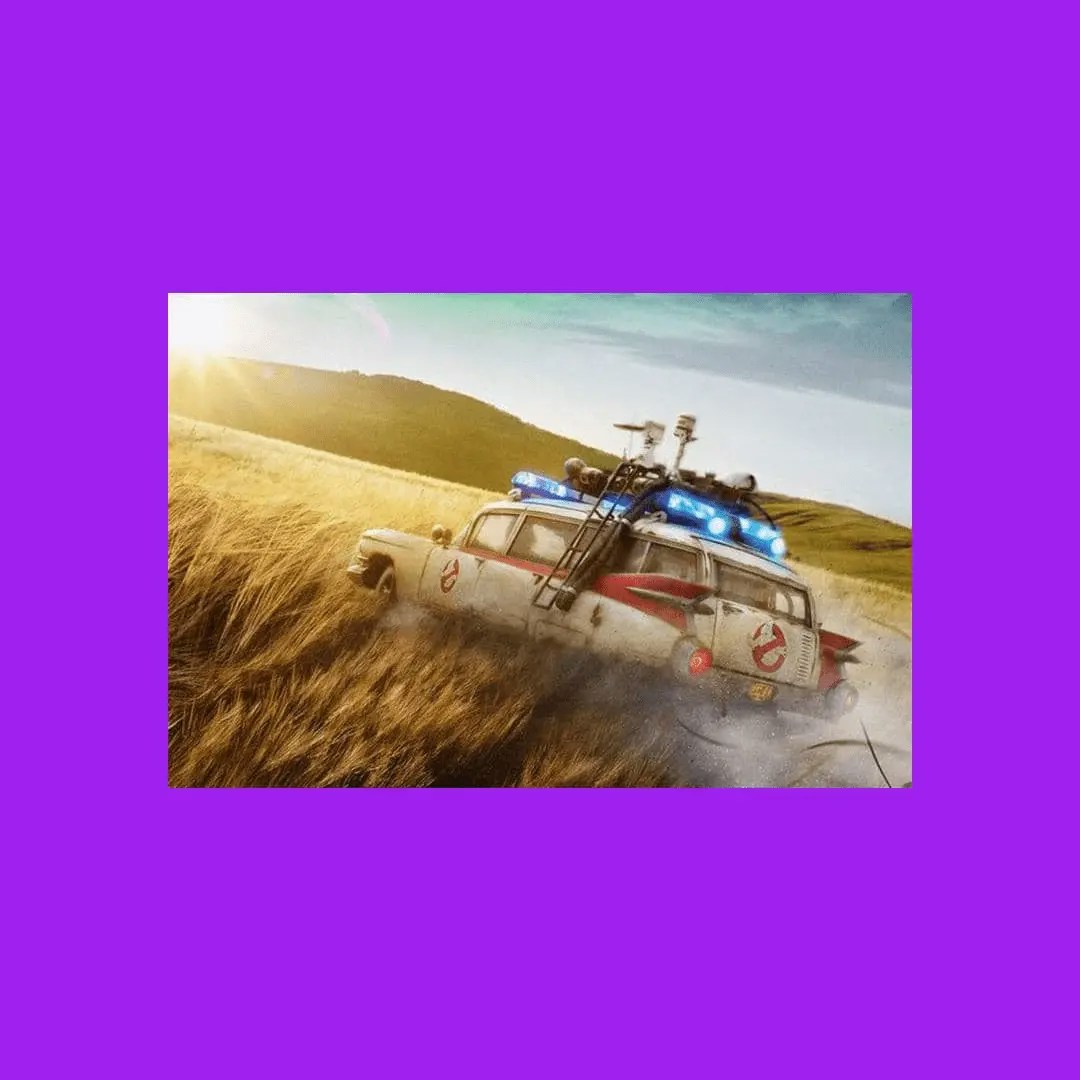
用於 blur 背景顏色的十六進位值。僅適用於 `"mode": "blur"`。字串值,例如 `"#A020F0"`
範例背景顏色 JSON:
```json Color Background theme={"system"}
{
"mediaUrl": "https://img.ayrshare.com/012/gb.jpg",
"platform": "instagram",
"mode": "blur",
"effects": {
"color": "#A020F0"
}
}
```
範例背景顏色圖片:
 #### 顏色:Grayscale、Sepia、Invert
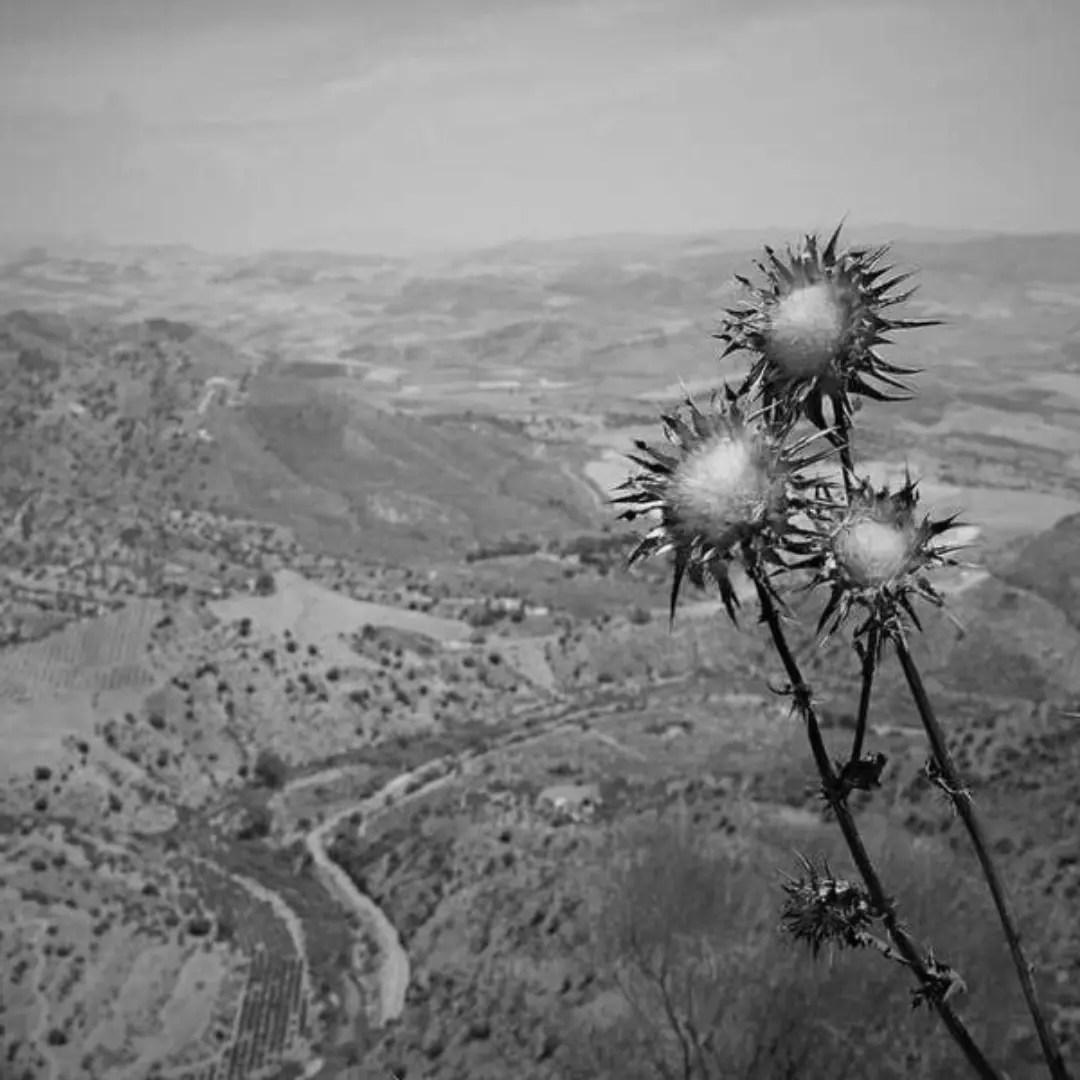
您可以透過指定 `grayscale`、`sepia` 或 `invert` 來變更主圖的顏色。並不需要 `"blur": true` 欄位,如果不想要背景就不應該使用它。
範例 grayscale JSON:
```json Grayscale theme={"system"}
{
"mediaUrl": "https://img.ayrshare.com/random/photo-13.jpg",
"platform": "instagram",
"effects": {
"color": "grayscale"
}
}
```
範例 grayscale 圖片:
#### 顏色:Grayscale、Sepia、Invert
您可以透過指定 `grayscale`、`sepia` 或 `invert` 來變更主圖的顏色。並不需要 `"blur": true` 欄位,如果不想要背景就不應該使用它。
範例 grayscale JSON:
```json Grayscale theme={"system"}
{
"mediaUrl": "https://img.ayrshare.com/random/photo-13.jpg",
"platform": "instagram",
"effects": {
"color": "grayscale"
}
}
```
範例 grayscale 圖片:
 #### 透明度
設定圖片的透明度。數值範圍:0 - 1。
範例透明度 JSON:
```json Opacity theme={"system"}
{
"effects": {
"opacity": 0.2
}
}
```
#### 品質
對於 JPG 或 JEPG 圖片,可指定圖片的品質,或壓縮量。
數字越低,壓縮越高,但圖片品質越低。
數字越高,壓縮越低,但圖片品質越好。數值範圍:0 - 100。
範例品質 JSON:
```json Quality theme={"system"}
{
"effects": {
"quality": 20
}
}
```
### 轉換為 JPG 或 WebP
`convertToJpg` 與 `convertToWebP` 選項可讓您將圖片從原始格式(例如 PNG)分別轉換為 JPG 或 WebP 格式。
預設情況下,轉換後的圖片會使用 75% 的品質設定。
您可以在 effects 物件中使用 [quality](/apis/media/resize#quality) 參數來自訂壓縮程度。
請注意,如果來源圖片已經是 JPG 且您使用了 `convertToJpg`,API 會直接將圖片調整為您指定的尺寸,而不會變更格式。
範例:轉換為 JPG:
```json Convert to JPG theme={"system"}
{
"convertToJpg": true
}
```
範例:轉換為 WebP:
```json Convert to WebP theme={"system"}
{
"convertToWebP": true
}
```
```bash cURL theme={"system"}
curl \
-H "Authorization: Bearer API_KEY" \
-H 'Content-Type: application/json' \
-d '{"mediaUrl": "https://img.ayrshare.com/012/gb.jpg", "platform": "instagram"' \
-X POST https://api.ayrshare.com/api/media/resize
```
```javascript JavaScript theme={"system"}
const API_KEY = "API_KEY";
fetch("https://api.ayrshare.com/api/media/resize", {
method: "POST",
headers: {
"Content-Type": "application/json",
Authorization: `Bearer ${API_KEY}`
},
body: JSON.stringify({
mediaUrl: "https://img.ayrshare.com/012/gb.jpg", // required
platform: "instagram"
})
})
.then((res) => res.json())
.then((json) => console.log(json))
.catch(console.error);
```
```python Python theme={"system"}
import requests
payload = {'mediaUrl': 'https://img.ayrshare.com/012/gb.jpg',
'platforms': 'instagram'}
headers = {'Content-Type': 'application/json',
'Authorization': 'Bearer API_KEY'}
r = requests.post('https://api.ayrshare.com/api/media/resize',
json=payload,
headers=headers)
print(r.json())
```
```php PHP theme={"system"}
"https://img.ayrshare.com/012/gb.jpg",
"platforms" => "instagram"
);
curl_setopt_array($curl, array(
CURLOPT_URL => 'https://api.ayrshare.com/api/media/resize',
CURLOPT_RETURNTRANSFER => true,
CURLOPT_ENCODING => '',
CURLOPT_MAXREDIRS => 10,
CURLOPT_TIMEOUT => 0,
CURLOPT_FOLLOWLOCATION => true,
CURLOPT_HTTP_VERSION => CURL_HTTP_VERSION_1_1,
CURLOPT_CUSTOMREQUEST => 'POST',
CURLOPT_POSTFIELDS => http_build_query($data),
CURLOPT_HTTPHEADER => array(
'Authorization: Bearer API_KEY',
'Accept-Encoding: gzip'
),
));
$response = curl_exec($curl);
curl_close($curl);
echo $response;
```
```csharp C# theme={"system"}
using System;
using System.Net.Http;
using System.Text;
using System.Text.Json;
using System.Threading.Tasks;
public class AyrshareApiClient
{
private readonly HttpClient _httpClient;
private readonly string _apiKey;
private const string BaseUrl = "https://api.ayrshare.com/api";
public AyrshareApiClient(string apiKey)
{
_apiKey = apiKey ?? throw new ArgumentNullException(nameof(apiKey));
_httpClient = new HttpClient();
_httpClient.DefaultRequestHeaders.Add("Authorization", $"Bearer {_apiKey}");
}
public async Task ResizeMediaAsync(string mediaUrl, string platform)
{
try
{
var requestData = new
{
mediaUrl = mediaUrl,
platform = platform
};
var content = new StringContent(
JsonSerializer.Serialize(requestData),
Encoding.UTF8,
"application/json"
);
var response = await _httpClient.PostAsync($"{BaseUrl}/media/resize", content);
response.EnsureSuccessStatusCode();
var jsonResponse = await response.Content.ReadAsStringAsync();
return jsonResponse;
}
catch (HttpRequestException ex)
{
throw new Exception($"Failed to resize media: {ex.Message}", ex);
}
}
public void Dispose()
{
_httpClient.Dispose();
}
}
```
```json 200: Success theme={"system"}
{
"status": "success",
"url": "https://media.ayrshare.com/9abf1426d6ce9122ef11c72bd62e59807c5cc083/8UbyBjHTxgHkAC1I37e6O.jpg",
"platform": "instagram",
"mode": "blur",
"effects": {
"color": "#A020F0"
}
}
```
```json 400: Failed Resize theme={"system"}
{
"action": "resize",
"status": "error",
"code": 312,
"message": "Invalid extension type. Extension: null. Please verify the extension is one of the following: png, jpg, jpeg and the file is accessible."
}
```
#### 透明度
設定圖片的透明度。數值範圍:0 - 1。
範例透明度 JSON:
```json Opacity theme={"system"}
{
"effects": {
"opacity": 0.2
}
}
```
#### 品質
對於 JPG 或 JEPG 圖片,可指定圖片的品質,或壓縮量。
數字越低,壓縮越高,但圖片品質越低。
數字越高,壓縮越低,但圖片品質越好。數值範圍:0 - 100。
範例品質 JSON:
```json Quality theme={"system"}
{
"effects": {
"quality": 20
}
}
```
### 轉換為 JPG 或 WebP
`convertToJpg` 與 `convertToWebP` 選項可讓您將圖片從原始格式(例如 PNG)分別轉換為 JPG 或 WebP 格式。
預設情況下,轉換後的圖片會使用 75% 的品質設定。
您可以在 effects 物件中使用 [quality](/apis/media/resize#quality) 參數來自訂壓縮程度。
請注意,如果來源圖片已經是 JPG 且您使用了 `convertToJpg`,API 會直接將圖片調整為您指定的尺寸,而不會變更格式。
範例:轉換為 JPG:
```json Convert to JPG theme={"system"}
{
"convertToJpg": true
}
```
範例:轉換為 WebP:
```json Convert to WebP theme={"system"}
{
"convertToWebP": true
}
```
```bash cURL theme={"system"}
curl \
-H "Authorization: Bearer API_KEY" \
-H 'Content-Type: application/json' \
-d '{"mediaUrl": "https://img.ayrshare.com/012/gb.jpg", "platform": "instagram"' \
-X POST https://api.ayrshare.com/api/media/resize
```
```javascript JavaScript theme={"system"}
const API_KEY = "API_KEY";
fetch("https://api.ayrshare.com/api/media/resize", {
method: "POST",
headers: {
"Content-Type": "application/json",
Authorization: `Bearer ${API_KEY}`
},
body: JSON.stringify({
mediaUrl: "https://img.ayrshare.com/012/gb.jpg", // required
platform: "instagram"
})
})
.then((res) => res.json())
.then((json) => console.log(json))
.catch(console.error);
```
```python Python theme={"system"}
import requests
payload = {'mediaUrl': 'https://img.ayrshare.com/012/gb.jpg',
'platforms': 'instagram'}
headers = {'Content-Type': 'application/json',
'Authorization': 'Bearer API_KEY'}
r = requests.post('https://api.ayrshare.com/api/media/resize',
json=payload,
headers=headers)
print(r.json())
```
```php PHP theme={"system"}
"https://img.ayrshare.com/012/gb.jpg",
"platforms" => "instagram"
);
curl_setopt_array($curl, array(
CURLOPT_URL => 'https://api.ayrshare.com/api/media/resize',
CURLOPT_RETURNTRANSFER => true,
CURLOPT_ENCODING => '',
CURLOPT_MAXREDIRS => 10,
CURLOPT_TIMEOUT => 0,
CURLOPT_FOLLOWLOCATION => true,
CURLOPT_HTTP_VERSION => CURL_HTTP_VERSION_1_1,
CURLOPT_CUSTOMREQUEST => 'POST',
CURLOPT_POSTFIELDS => http_build_query($data),
CURLOPT_HTTPHEADER => array(
'Authorization: Bearer API_KEY',
'Accept-Encoding: gzip'
),
));
$response = curl_exec($curl);
curl_close($curl);
echo $response;
```
```csharp C# theme={"system"}
using System;
using System.Net.Http;
using System.Text;
using System.Text.Json;
using System.Threading.Tasks;
public class AyrshareApiClient
{
private readonly HttpClient _httpClient;
private readonly string _apiKey;
private const string BaseUrl = "https://api.ayrshare.com/api";
public AyrshareApiClient(string apiKey)
{
_apiKey = apiKey ?? throw new ArgumentNullException(nameof(apiKey));
_httpClient = new HttpClient();
_httpClient.DefaultRequestHeaders.Add("Authorization", $"Bearer {_apiKey}");
}
public async Task ResizeMediaAsync(string mediaUrl, string platform)
{
try
{
var requestData = new
{
mediaUrl = mediaUrl,
platform = platform
};
var content = new StringContent(
JsonSerializer.Serialize(requestData),
Encoding.UTF8,
"application/json"
);
var response = await _httpClient.PostAsync($"{BaseUrl}/media/resize", content);
response.EnsureSuccessStatusCode();
var jsonResponse = await response.Content.ReadAsStringAsync();
return jsonResponse;
}
catch (HttpRequestException ex)
{
throw new Exception($"Failed to resize media: {ex.Message}", ex);
}
}
public void Dispose()
{
_httpClient.Dispose();
}
}
```
```json 200: Success theme={"system"}
{
"status": "success",
"url": "https://media.ayrshare.com/9abf1426d6ce9122ef11c72bd62e59807c5cc083/8UbyBjHTxgHkAC1I37e6O.jpg",
"platform": "instagram",
"mode": "blur",
"effects": {
"color": "#A020F0"
}
}
```
```json 400: Failed Resize theme={"system"}
{
"action": "resize",
"status": "error",
"code": 312,
"message": "Invalid extension type. Extension: null. Please verify the extension is one of the following: png, jpg, jpeg and the file is accessible."
}
```