> ## Documentation Index
> Fetch the complete documentation index at: https://www.ayrshare.com/docs/llms.txt
> Use this file to discover all available pages before exploring further.
# Messages API 概覽
> 在 Facebook、Instagram 與 X/Twitter 上收發私訊 (DM)
export const PlansAvailable = ({plans = [], maxPackRequired}) => {
let displayPlans = plans;
if (plans && plans.length === 1) {
const lowerCasePlan = plans[0].toLowerCase();
if (lowerCasePlan === "business") {
displayPlans = ["Launch", "Business", "Enterprise"];
} else if (lowerCasePlan === "premium") {
displayPlans = ["Premium", "Launch", "Business", "Enterprise"];
}
}
return
Available on {displayPlans.length === 1 ? "the " : ""}
{displayPlans.join(", ").replace(/\b\w/g, l => l.toUpperCase())}{" "}
{displayPlans.length > 1 ? "plans" : "plan"}.
{maxPackRequired && window.open('https://www.ayrshare.com/docs/additional/maxpack', '_self')} className="flex items-center mt-2 cursor-pointer">
Max Pack required
}
;
};
Messaging API 讓您可以管理 User Profile 與對方之間的私訊 (DM)。
correspondent(對方)是指與您的使用者(User Profile)進行通訊的人。
conversation(對話)則是您的使用者(User Profile)與其對方之間的一系列訊息。
-
Messaging API 已隨所有 Ayrshare Business Plan 提供,也作為 Premium plan 的付費附加功能。
-
無論是 Business 或 Premium 方案,您都必須在 Ayrshare 儀表板的 Account 頁面中啟用 Messaging。
-
Messaging 可用於 Facebook Messenger、Instagram Direct Messenger 與 X Direct Messages。
## 主要訊息功能
- 管理您使用者與對方的對話。
-
代表您的使用者傳送文字、圖片、影片與表情符號訊息。
- 擷取完整的對話歷程。
- 設定自動化的訊息回覆。
-
透過 webhook 即時接收訊息接收、訊息反應、已讀回條等更新。
## 啟用 Messaging
### 啟用您的 Ayrshare 帳號與 User Profile
您必須先為整個 Ayrshare 帳號啟用 messaging,才能管理 DM。請在 Ayrshare 儀表板的 [Account 頁面](https://app.ayrshare.com/account)中點擊「Learn More」按鈕,然後點擊「Enable」。此時您已為整個帳號啟用 messaging,*但尚未為個別 User Profile 啟用 messaging*。
您可以在 [User Profiles 頁面](https://app.ayrshare.com/manage-profiles)中為每個個人檔案點擊「Messaging Active」核取方塊,或使用建立或更新[profiles 端點](/apis/profiles/overview)來為個別 User Profile 啟用 messaging。
為 User Profile 啟用 messaging 後,您必須在 Social Accounts / Social Linking 頁面重新連結社群帳號(Facebook 與 Instagram)。
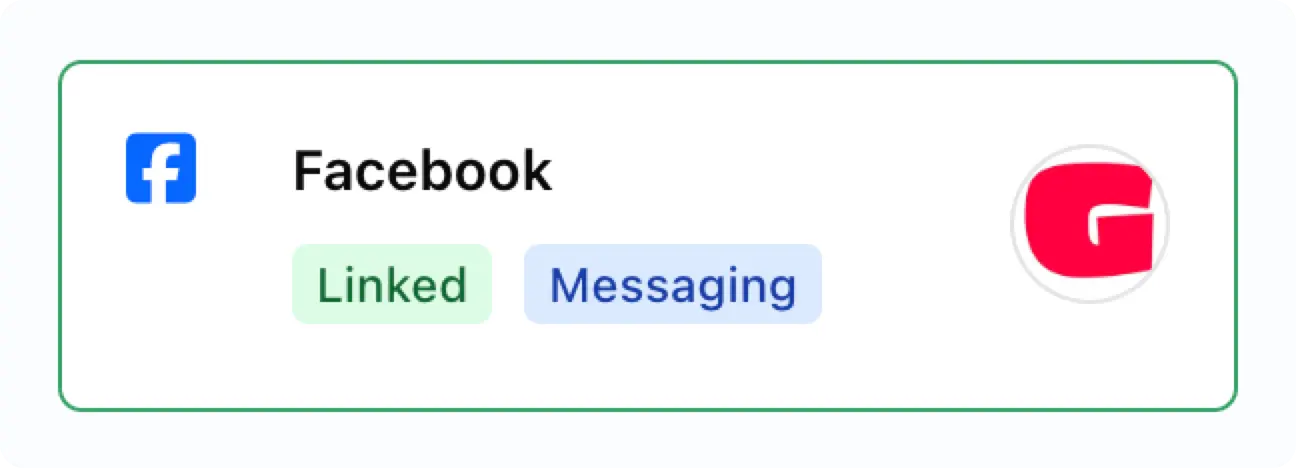
啟用後,您會在已連結的社群帳號上看到「Messaging」徽章。
 ### 在 Instagram App 中啟用 Messaging
您可能需要為 Instagram 帳號啟用 messaging:
### 在 Instagram App 中啟用 Messaging
您可能需要為 Instagram 帳號啟用 messaging:
-
在 Instagram 行動 App 中前往您的個人檔案,點選右上角的選單圖示 ≡ 進入 **Settings and activity** 頁面。
- 向下捲動至 **How others can interact with you** 區段。
- 點擊 **Messages and story replies**。
- 點擊 **Message requests**。
-
在 **Connected tool** 下方,開啟 **Allow access to messages** 開關。
## 關於 Messaging 的重要資訊
**對話必須由對方發起。** 一旦對話已建立,您就可以自由地代表使用者傳送訊息、接收訊息、取得反應(例如按讚)或取得已讀回條。
**您的使用者必須在對方上一則訊息後 7 天內回覆 Instagram 對話。** 若對方超過 7 天未傳送訊息,該對話會被視為非活躍狀態,無法再回覆。
### Facebook 與 Instagram 的訊息歷程擷取
當您第一次為已連結 Facebook 或 Instagram 的 user profile 啟用 messaging 時,存取對話歷程有一些重要限制:
#### 初始連結限制
-
Facebook 與 Instagram 僅允許在您首次為 messaging 連結帳號時擷取現有對話中**最後 20 則訊息**
-
若對話包含超過 20 則訊息,初始只能存取最近的 20 則
#### 初始設定之後
-
啟用 messaging 之後,所有**新傳送與接收的訊息**都可完整存取
-
Ayrshare 會維護後續完整的對話歷程
-
舉例:若您初始擷取到 20 則訊息,之後交換了 100 則新訊息,您將能存取全部 120 則訊息
此限制只適用於啟用 messaging 之前既有的歷史訊息 — Facebook 與 Instagram 未來的所有對話活動都會完整保留並可存取。
### 對話限制與計費
-
每個 Ayrshare User Profile 每個計費週期最多可有 **1,000 個活躍對話**。活躍對話數是跨所有社群網路的總和。
-
**Premium plan**:Messaging 為每個帳號每月固定 **\$49** 的附加功能。
-
**Launch 與 Business plan**:Messaging 依 **每個活躍對話 \$0.09** 計費,透過 Stripe metered billing。有依用量提供的折扣;詳情請聯絡您的 Ayrshare 客戶代表。
-
當您在計費週期內傳送訊息給收件者時,該對話就會被計為活躍。單純收到來自對方的訊息本身並不會將對話標記為活躍。
-
若已達 1,000 個對話上限,您仍可接收訊息,但在下個計費週期開始前將無法回覆。
-
在活躍對話中傳送或接收的訊息數量不受限制。
-
如果您需要提高對話上限,請聯絡您的 Ayrshare 客戶代表。
您可以透過 [user 端點](/apis/user/overview)查看目前的對話計數。
### Facebook 與 Instagram 上的訊息控制問題
Meta(Facebook 與 Instagram)在訊息對話中使用「thread control」系統。這意味著每次只有一個 app 可以在對話中傳送訊息,其他 app 則只能接收訊息。
#### 這代表什麼?
如果您看到錯誤 **「Message failed to send because another app is controlling this thread now」**,代表:
* 另一個第三方 app 目前控制該對話
* Ayrshare 只能在該對話中接收訊息
* Ayrshare 必須重新取得控制權,才能傳送訊息
#### 如何解決此問題
若要讓 Ayrshare 能重新傳送訊息,您必須移除正在控制該對話的第三方 app。
請注意,Meta(Facebook 與 Instagram)可能會更新移除第三方 app 的流程,因此以下步驟僅供一般參考。
**針對 Facebook Pages:**
1. 前往 [Facebook.com](https://facebook.com) 並登入您的帳號
2. 點擊右上角的選單 (☰) → **Settings & Privacy** → **Settings**
3. 在左側邊欄點擊 **Apps and Websites**
4. 找到正在控制您 messaging 的第三方 app
5. 點擊該 app 旁的 **Remove**
6. 確認移除
**針對 Instagram Business 帳號:**
1. 在手機上開啟 Instagram app
2. 前往您的 **Profile** → 點選選單 (☰) → **Settings and Privacy**
3. 點選 **Apps and Websites**
4. 找到並移除該第三方 app
**Instagram 的替代方案:**
1. 前往 [business.facebook.com](https://business.facebook.com)
2. 導覽至 **Business Settings**
3. 在 **Accounts** 底下點擊 **Instagram Accounts**
4. 選擇您的 Instagram 帳號
5. 檢查已連結的 app,並移除有問題的那一個
#### 移除之後
當您移除該第三方 app 之後:
- Thread control 會自動回到 Ayrshare
- 您應該就能正常傳送訊息
- 您無需再進行任何操作
若在移除 app 之後仍持續遇到問題,請聯絡我們的支援團隊。
## Message Webhooks
請參閱 [Messages Webhooks](/apis/webhooks/actions#messages-action) 以自動接收訊息、已讀回條或反應。