> ## Documentation Index
> Fetch the complete documentation index at: https://www.ayrshare.com/docs/llms.txt
> Use this file to discover all available pages before exploring further.
# Instagram 連結
> 使用 Ayrshare 授權 Instagram
## 如何連結 Instagram
以下是連結 Instagram 的指南。有兩種方式可連結 Instagram:
1. [直接將 Instagram 帳戶連結到 Ayrshare。](#linking-instagram-directly)
2. [透過 Facebook 專頁將 Instagram 帳戶連結到 Ayrshare。](#linking-instagram-through-facebook-facebook-page-required)
選項 1 是預設選項。若你偏好選項 2,請在儀表板設定中停用 [Instagram Login](/multiple-users/manage-user-profiles#instagram-login),以使用需要 Instagram 帳戶與 Facebook 專頁關聯的驗證流程。
Instagram 不支援個人 Facebook 帳戶、Creator Studio 帳戶,以及發布到 IGTV。
[請參見下方](/dashboard/connect-social-accounts/instagram#enabling-an-instagram-business-or-creator-account) 了解詳情。
### 直接連結 Instagram
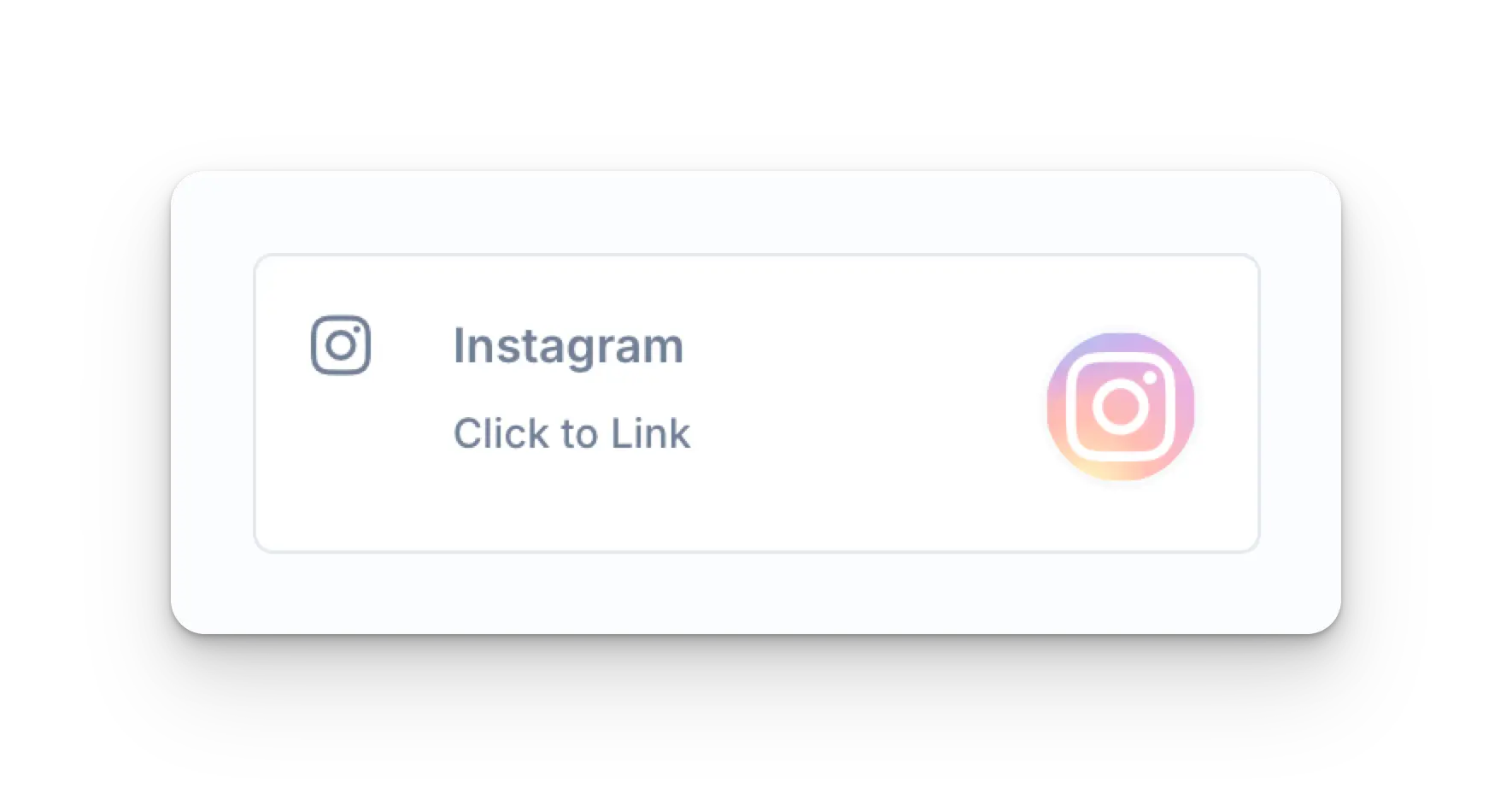
在 Social Accounts 頁面上點擊 Instagram 圖示。
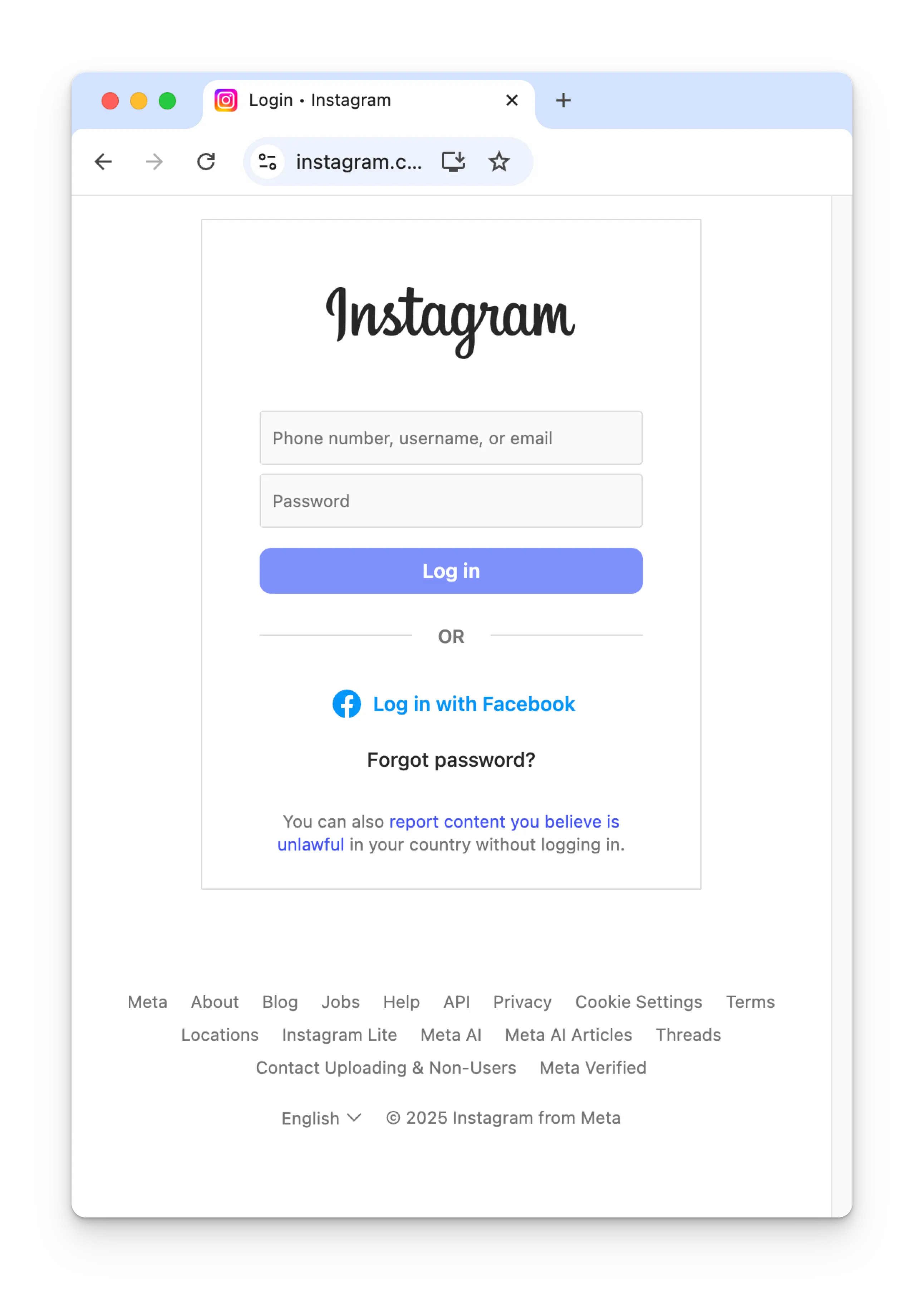
 輸入你的憑證並點擊 **Log in**。
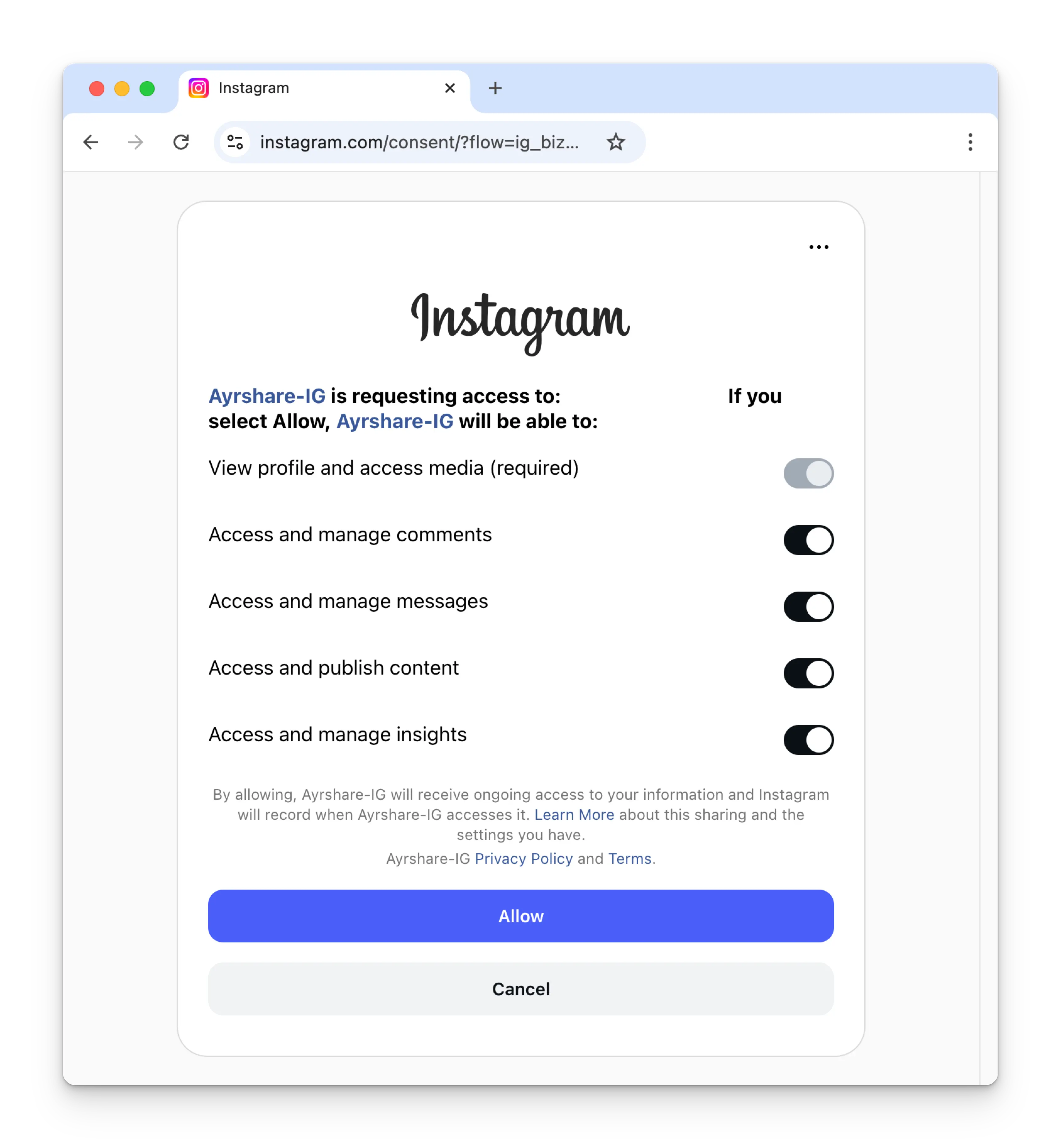
 將 Instagram 的所有權限切換為開啟,並點擊 **Allow**。
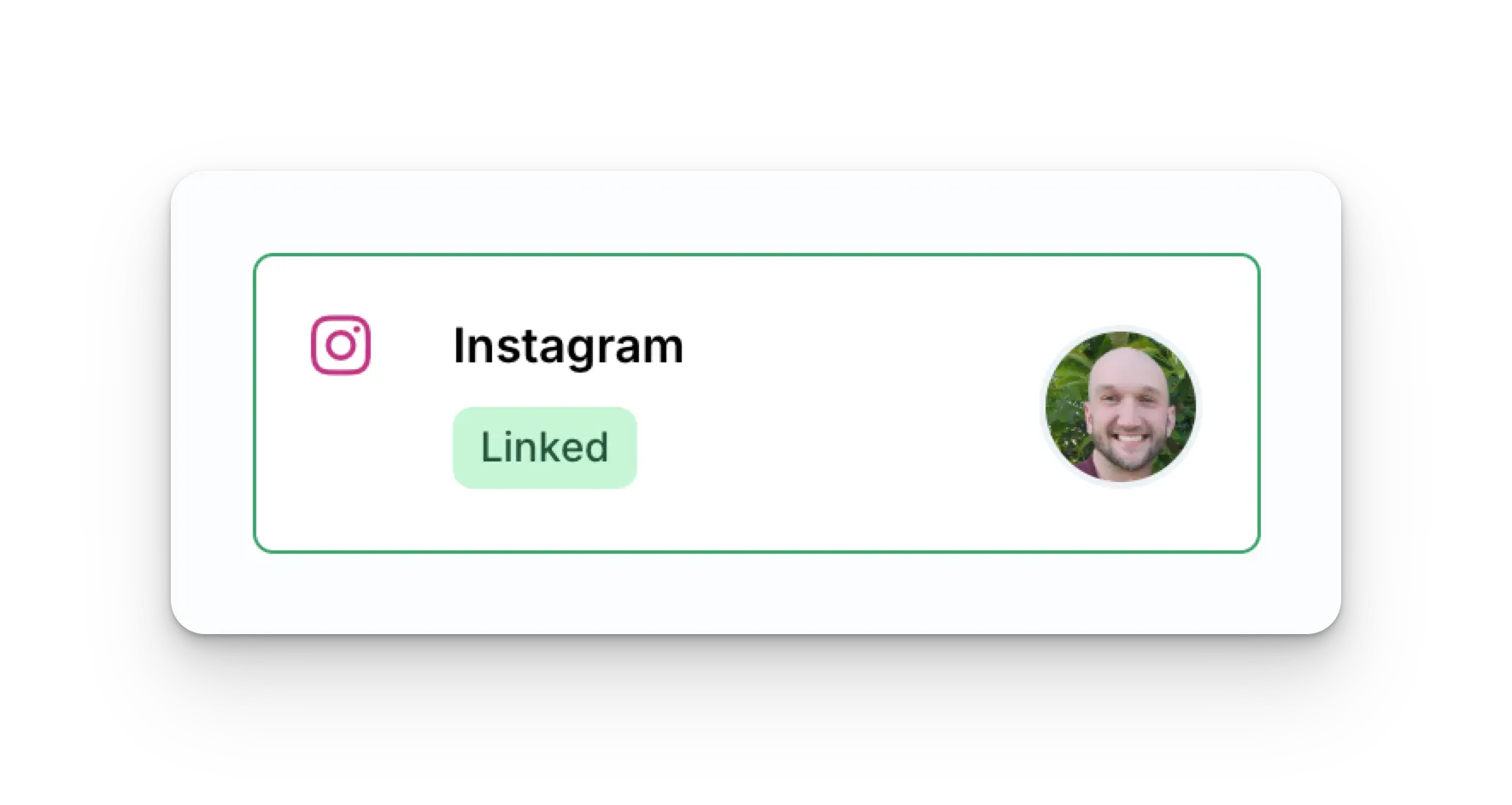
 你的 Social Accounts 頁面現在會更新顯示你的 Instagram 帳戶。
 ### 透過 Facebook 連結 Instagram(需要 Facebook 專頁)
請確認你是該 Facebook 專頁的管理員,並**授予所有權限**給
Pages、Instagram 帳戶及各項選項。若未授予,
可能導致無法成功發布。
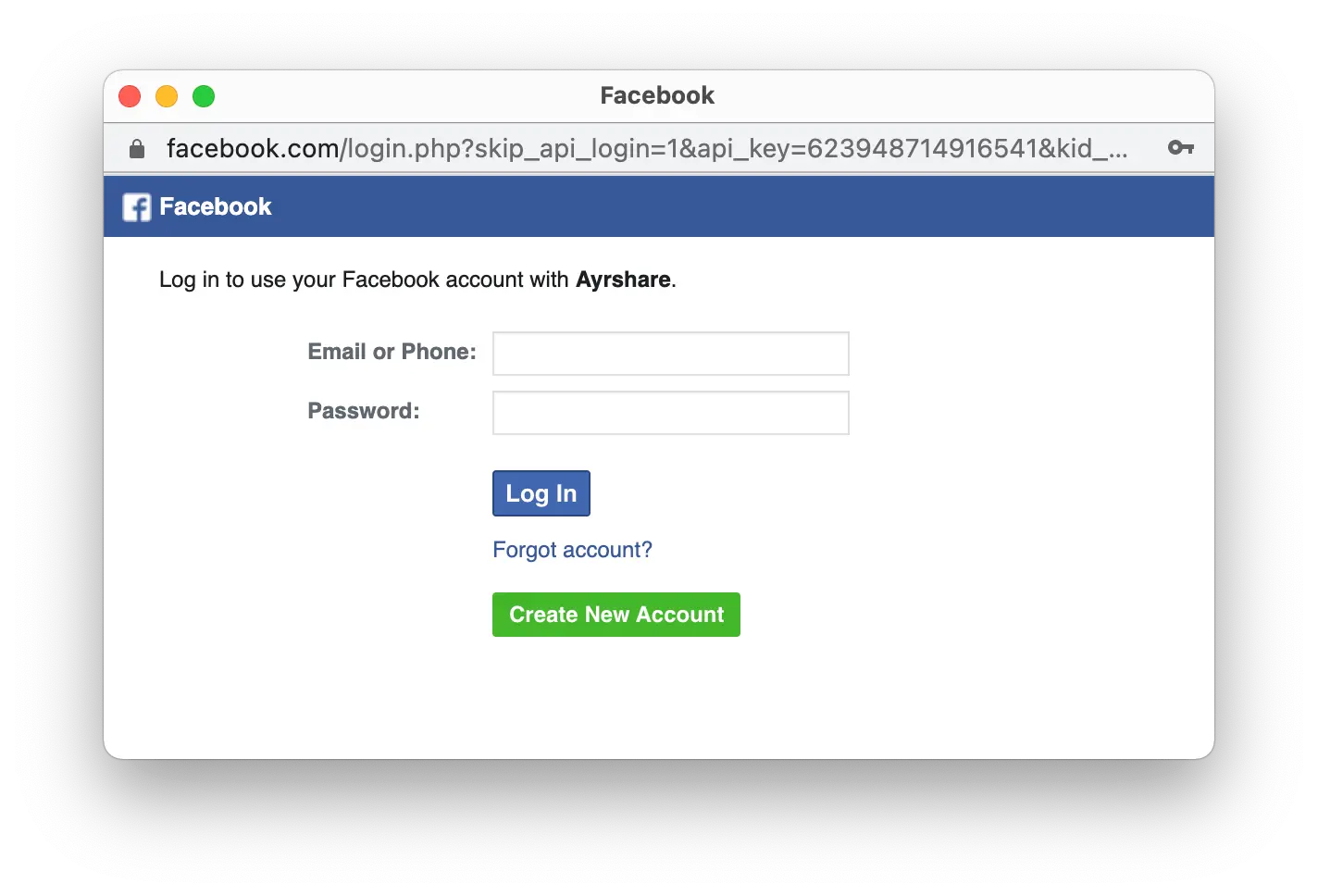
此 Instagram 連結流程會透過 Facebook 進行驗證,因此當你
在 Social Accounts 頁面點擊 Instagram 圖示時,會彈出 Facebook 登入視窗
* *請確認你允許彈出視窗*。
在 Social Accounts 頁面上點擊 Instagram 圖示。
第一次連結 Instagram 時,你會被要求透過 Facebook 進行驗證。
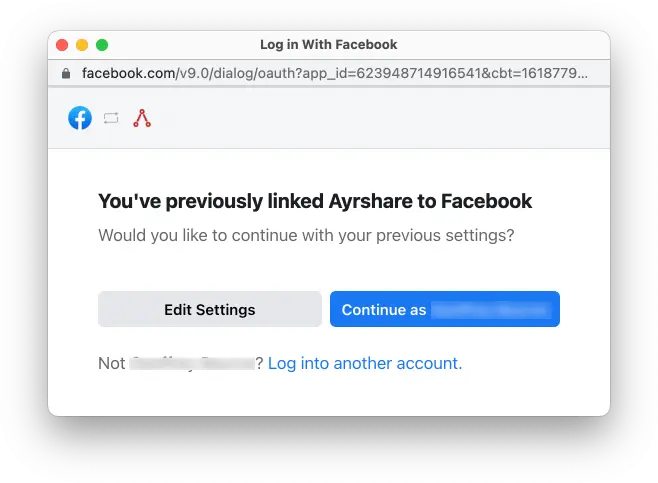
若你先前已將 Ayrshare 與 Facebook 連結過,且未看到此圖,請直接跳到步驟 3。
### 透過 Facebook 連結 Instagram(需要 Facebook 專頁)
請確認你是該 Facebook 專頁的管理員,並**授予所有權限**給
Pages、Instagram 帳戶及各項選項。若未授予,
可能導致無法成功發布。
此 Instagram 連結流程會透過 Facebook 進行驗證,因此當你
在 Social Accounts 頁面點擊 Instagram 圖示時,會彈出 Facebook 登入視窗
* *請確認你允許彈出視窗*。
在 Social Accounts 頁面上點擊 Instagram 圖示。
第一次連結 Instagram 時,你會被要求透過 Facebook 進行驗證。
若你先前已將 Ayrshare 與 Facebook 連結過,且未看到此圖,請直接跳到步驟 3。
 在初次設定過程中點擊 **Edit Settings**。
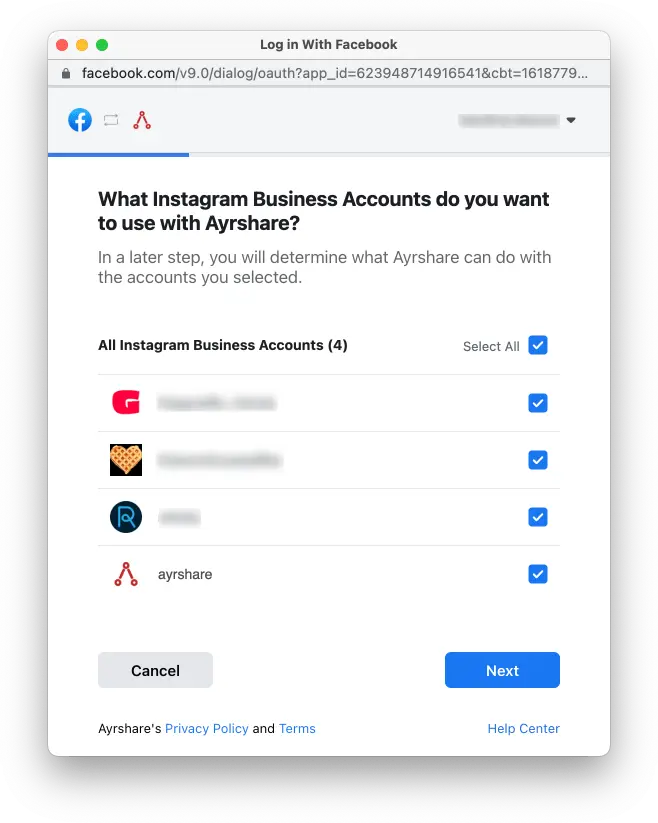
 勾選所有 **Instagram Business Accounts** 或 **Instagram Creator Accounts**。點擊 **Next**。
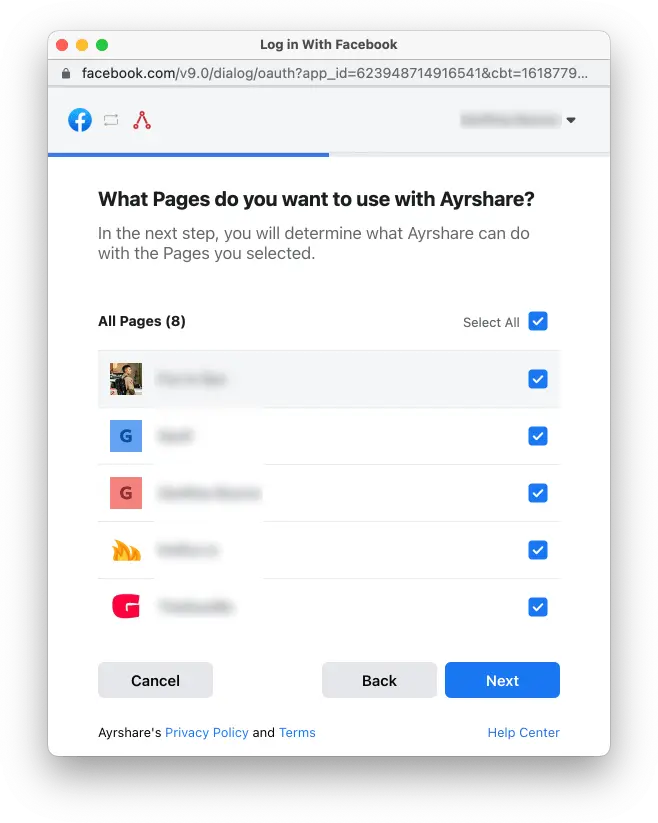
 勾選所有 **Facebook Pages**。點擊 **Next**。
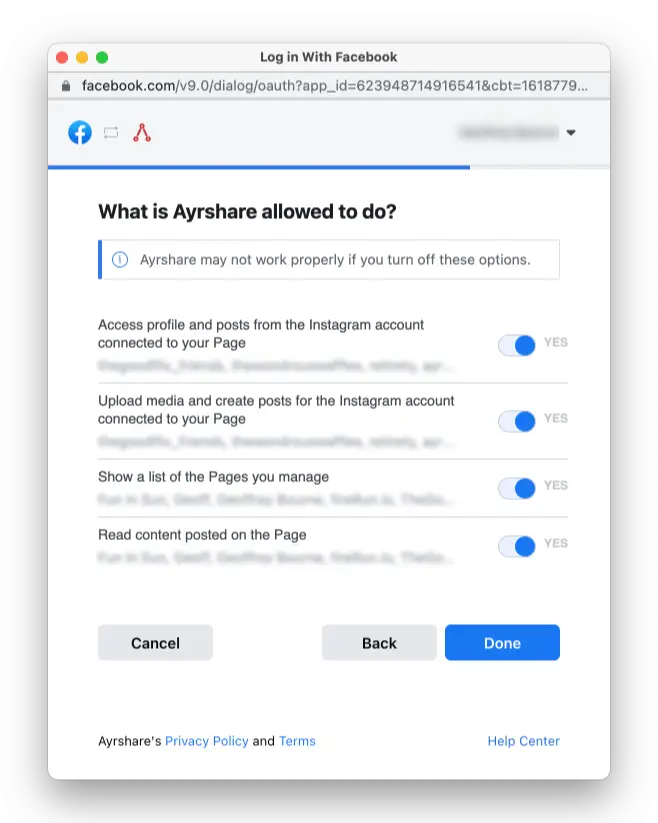
 將所有權限切換為 **Yes**。點擊 **Done**。接著你會被要求
選擇要與 Ayrshare 連結的特定 Instagram 帳戶。選擇後你的
連結即完成,並可開始發布到 Instagram。
將所有權限切換為 **Yes**。點擊 **Done**。接著你會被要求
選擇要與 Ayrshare 連結的特定 Instagram 帳戶。選擇後你的
連結即完成,並可開始發布到 Instagram。
 你的 Social Accounts 頁面現在會更新顯示你的 Instagram 帳戶。
## 啟用 Instagram Business 或 Creator 帳戶
Instagram 要求你的帳戶必須是 **Instagram Business** 或 **Instagram Creator** 帳戶。
進一步了解 [Instagram Business 與 Creator 帳戶](https://www.ayrshare.com/blog/understanding-the-difference-between-the-instagram-business-creator-and-personal-profiles/)。
### 從 Personal 切換到 Business 或 Creator 帳戶
如果你的 Instagram 是個人帳戶,請開啟 Instagram 手機 App:
你的 Social Accounts 頁面現在會更新顯示你的 Instagram 帳戶。
## 啟用 Instagram Business 或 Creator 帳戶
Instagram 要求你的帳戶必須是 **Instagram Business** 或 **Instagram Creator** 帳戶。
進一步了解 [Instagram Business 與 Creator 帳戶](https://www.ayrshare.com/blog/understanding-the-difference-between-the-instagram-business-creator-and-personal-profiles/)。
### 從 Personal 切換到 Business 或 Creator 帳戶
如果你的 Instagram 是個人帳戶,請開啟 Instagram 手機 App:
-
前往你的個人資料,點擊右上角的選單圖示 ≡ 進入 **Settings and activity** 頁面。
- 向下捲動到 **For professionals** 區段。
- 點擊 **Account type and tools**。
- 點擊 **Switch to professional account**。
-
依步驟設定你的帳戶,並選擇 **Creator** 或 **Business**。
### 在 Business 與 Creator 之間切換
若你想從 Business 帳戶切換到 Creator 帳戶或反向切換:
-
前往你的個人資料,點擊右上角的選單圖示 ≡ 進入 **Settings and activity** 頁面。
- 向下捲動到 **For professionals** 區段。
- 點擊 **Creator (or Business) tools and controls**。
- 向下捲動並點擊 **Switch account type**。
- 選擇切換到 **Creator** 或 **Business**。
若你已擁有 Business 或 Creator 帳戶,但在連結 Ayrshare 時
收到帳戶不是 Creator 或 Business 的錯誤,請嘗試
將你的 Instagram 切換回 **Personal**,再切回 **Creator** 或
**Business**。這通常會重置帳戶類型,讓你可以連結
Ayrshare。
## 將 Facebook 專頁連結到 Instagram
若你已有 Instagram Business 或 Creator 帳戶並想連結 Facebook 專頁,請參閱[詳細說明](https://www.facebook.com/business/help/898752960195806)。
或是若你想[建立新的 Facebook 專頁](https://www.facebook.com/pages/create/?ref_type=site_footer)。
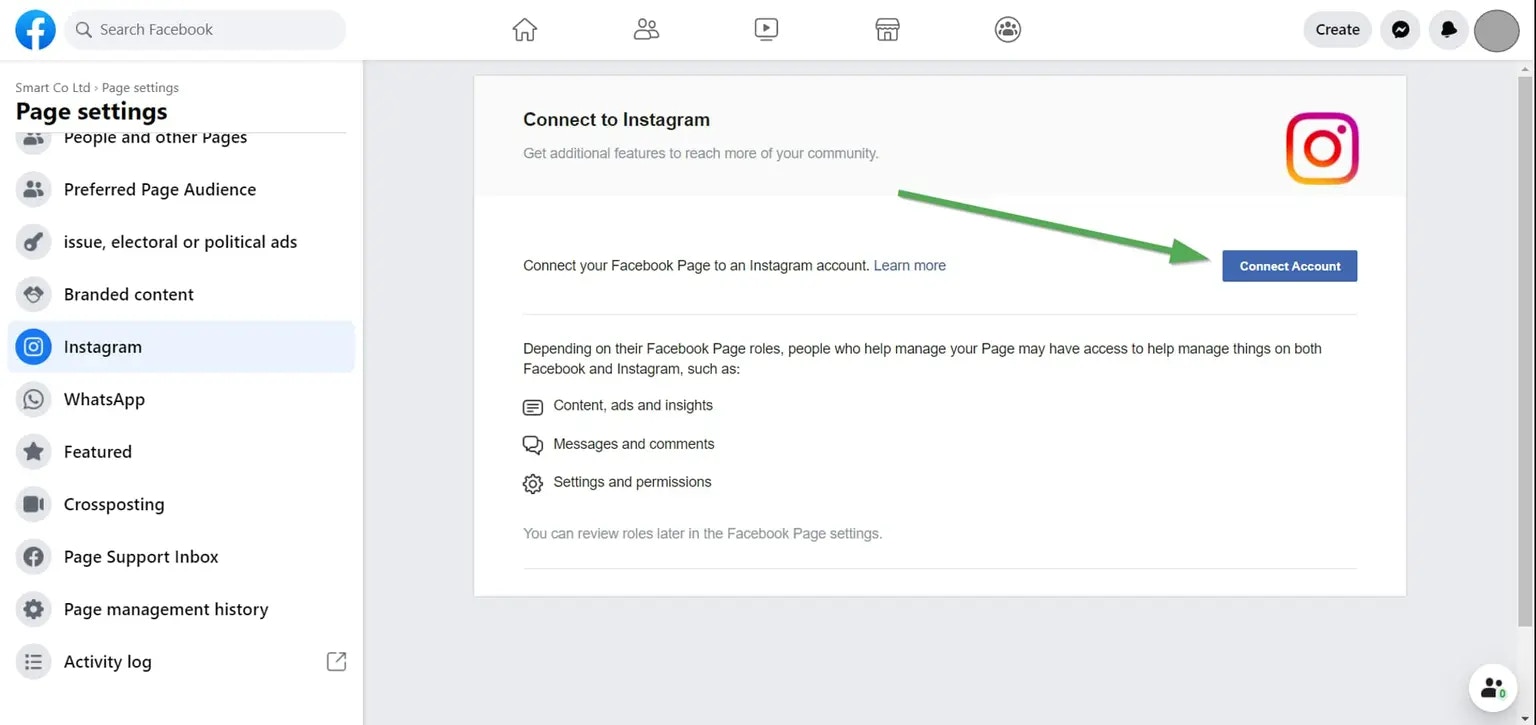
你可以檢查你的 Facebook 專頁是否已連結 Instagram 帳戶:
* 在桌面上登入 Facebook [www.facebook.com。](http://www.facebook.com。)
* 前往你身為管理員的其中一個 Facebook 專頁,這將是你要與 Instagram 帳戶連結的專頁。
* 在左側「Manage Page」下方點擊「Settings」,通常位於下方。
* 在 Page Settings 中點擊「Instagram」。
若已連結,最上方標題會顯示「Connected Instagram Account」。否則你可以在此連結一個。
 ## Instagram 疑難排解
若你在 Instagram 遇到問題,請參閱[疑難排解指南](/help-center/technical-support/facebook_or_instagram_linking_issues)。
## 其他 Instagram 資訊
Instagram 對圖片尺寸有非常嚴格的要求。圖片寬度必須至少 1080 像素,且長寬比介於 1.91:1 與 4:5 之間。
Ayrshare 會偵測你的圖片尺寸是否正確,若不正確會回應錯誤。
* 詳情請參閱:[發布到 Instagram](/apis/post/social-networks/instagram)、[取得分析資料](/apis/analytics/overview)、[管理留言](/apis/comments/overview),或 [取得歷史紀錄。](/apis/history/overview)
* 如需更多推薦圖片尺寸的資訊,請參閱:
## Instagram 疑難排解
若你在 Instagram 遇到問題,請參閱[疑難排解指南](/help-center/technical-support/facebook_or_instagram_linking_issues)。
## 其他 Instagram 資訊
Instagram 對圖片尺寸有非常嚴格的要求。圖片寬度必須至少 1080 像素,且長寬比介於 1.91:1 與 4:5 之間。
Ayrshare 會偵測你的圖片尺寸是否正確,若不正確會回應錯誤。
* 詳情請參閱:[發布到 Instagram](/apis/post/social-networks/instagram)、[取得分析資料](/apis/analytics/overview)、[管理留言](/apis/comments/overview),或 [取得歷史紀錄。](/apis/history/overview)
* 如需更多推薦圖片尺寸的資訊,請參閱: