> ## Documentation Index
> Fetch the complete documentation index at: https://www.ayrshare.com/docs/llms.txt
> Use this file to discover all available pages before exploring further.

# Pinterest 連結

> 使用 Ayrshare 授權 Pinterest

## 如何將 Pinterest 與 Ayrshare 連結

### Pinterest 看板設定

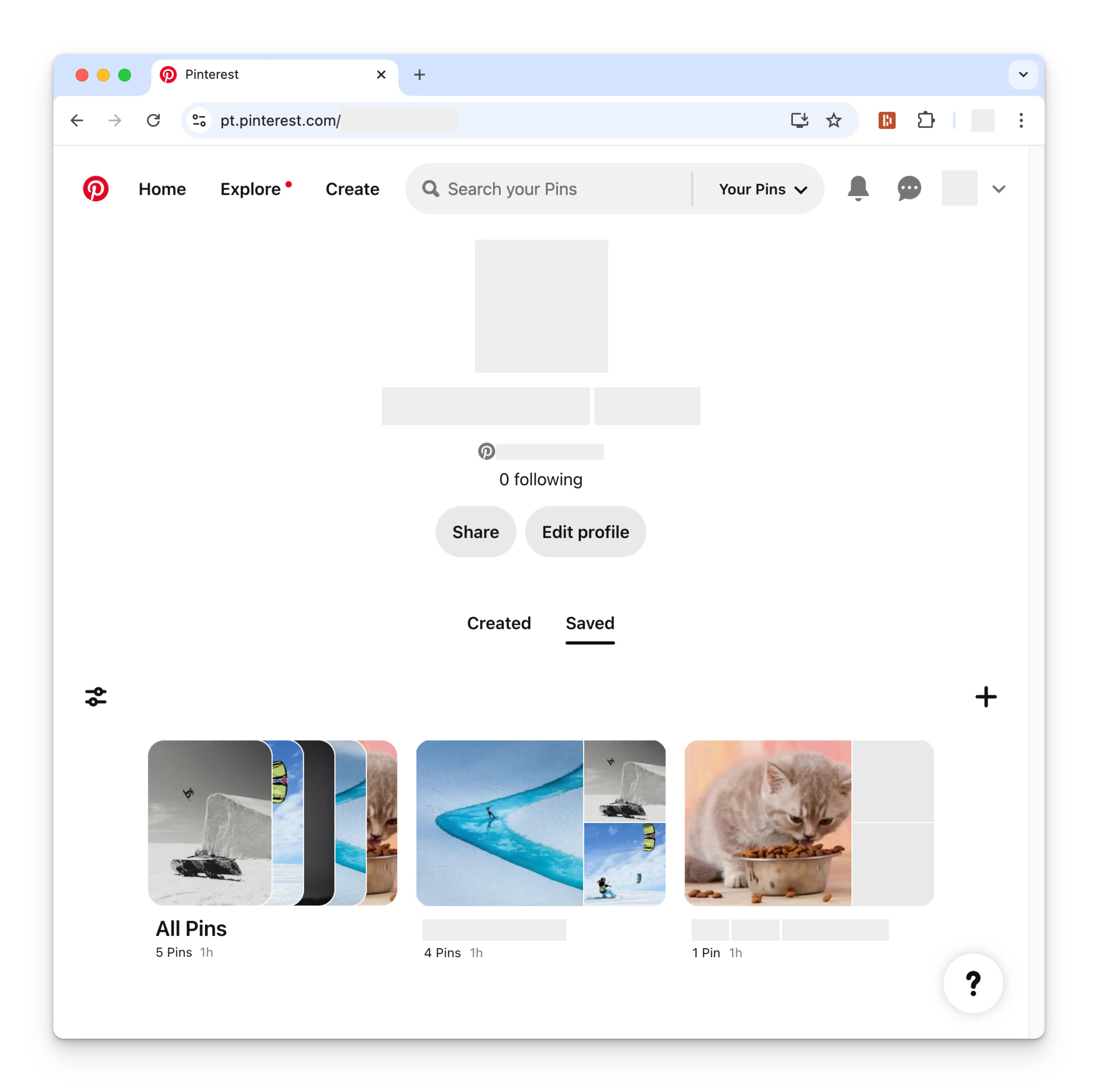
在連結你的 Pinterest 帳戶之前，你必須先建立至少一個 Pinterest
看板。前往你的 Pinterest 個人資料頁面，點擊 **+**（加號）符號。
依指示建立新看板。

<img class="center" width="500" src="https://mintcdn.com/ayrshare-docs/BkNwRAXLA9nG0LQA/images/dashboard/pinterest-board.webp?fit=max&auto=format&n=BkNwRAXLA9nG0LQA&q=85&s=eba429e465ae28058bc7a396031af07f" alt="Pinterest Profile" data-path="images/dashboard/pinterest-board.webp" />

### 連結 Pinterest

<Steps>
  <Step title="點擊以連結 Pinterest">
    在 Social Accounts 頁面上點擊 Pinterest 圖示。

    <img class="center" width="500" src="https://mintcdn.com/ayrshare-docs/BkNwRAXLA9nG0LQA/images/dashboard/pinterest-click-to-link.webp?fit=max&auto=format&n=BkNwRAXLA9nG0LQA&q=85&s=9a6d8164646cd91d19c2ae731869840f" alt="Pinterest Click to Link" data-path="images/dashboard/pinterest-click-to-link.webp" />
  </Step>

  <Step title="首次登入 Pinterest">
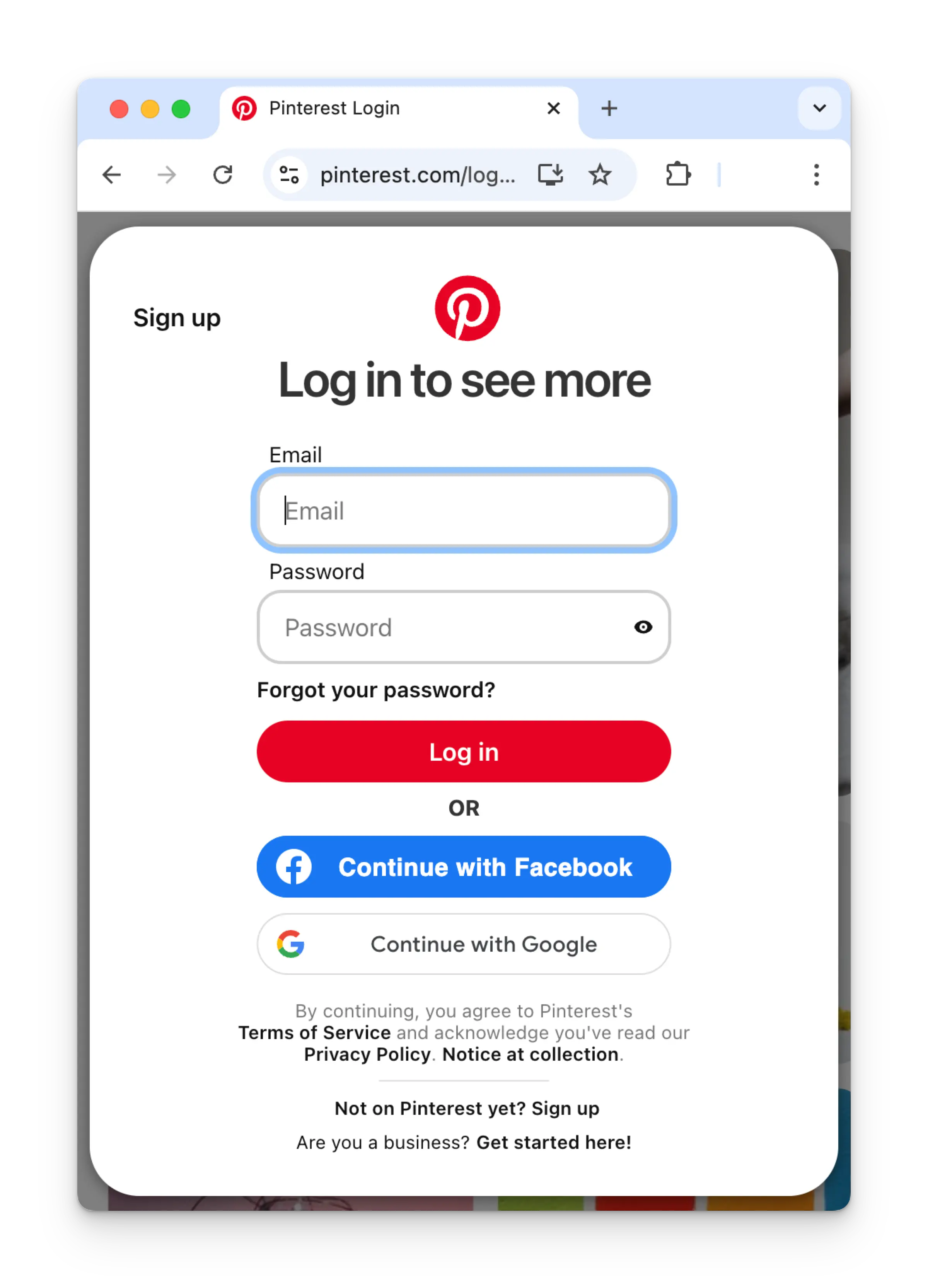
    如果你尚未登入，你會被導向到 Pinterest 登入頁面。
    請依照要求輸入你的憑證。

    若你已經登入，請繼續進行下一步。

    <img class="center" width="500" src="https://mintcdn.com/ayrshare-docs/BkNwRAXLA9nG0LQA/images/dashboard/pinterest-login.webp?fit=max&auto=format&n=BkNwRAXLA9nG0LQA&q=85&s=f10b9bf82822f656d3ae8971ad4753a0" alt="Login via Pinterest" data-path="images/dashboard/pinterest-login.webp" />
  </Step>

  <Step title="授權 App">
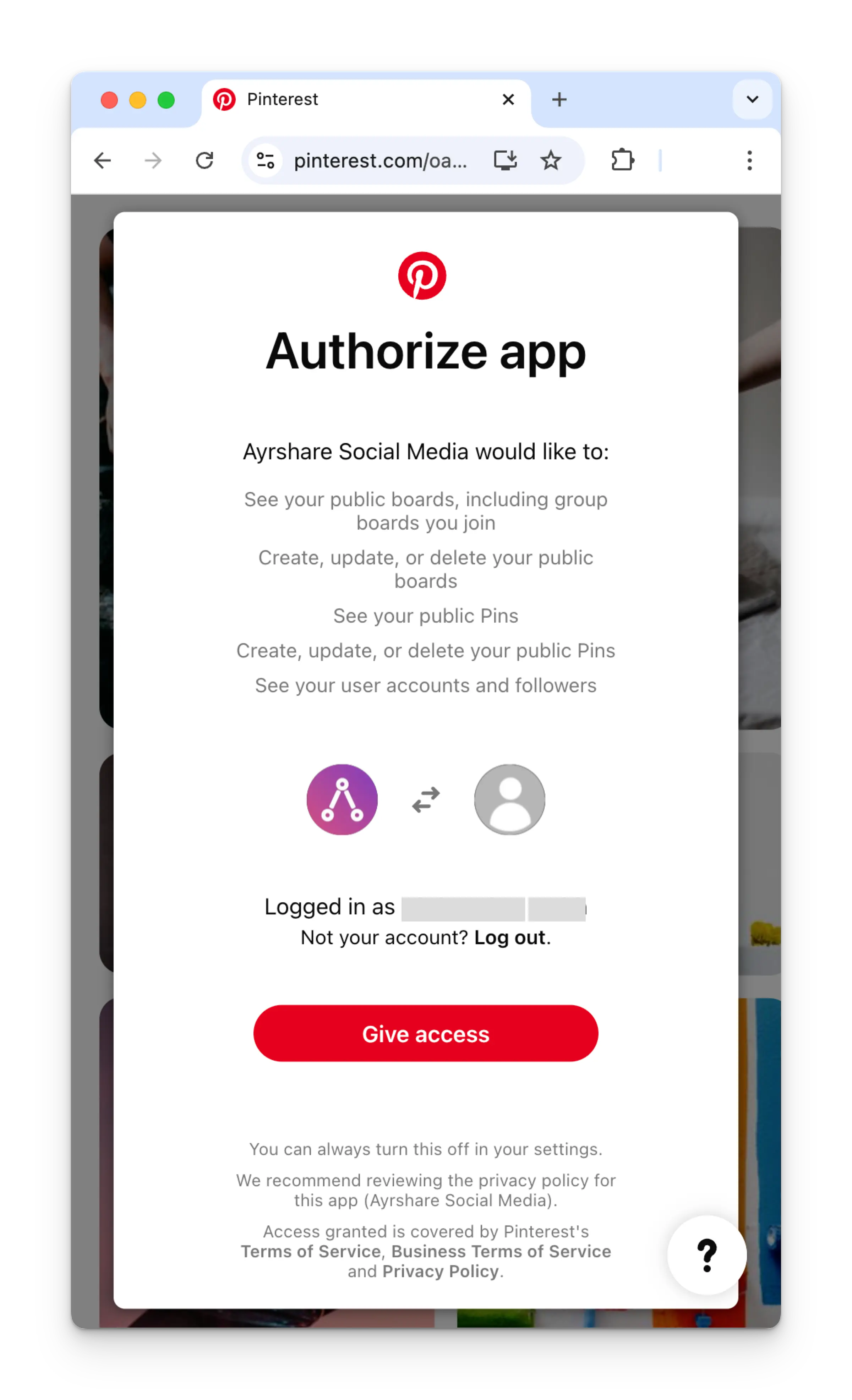
    若已登入，請在 Authorize app 頁面點擊 **Give access**。

    <img class="center" width="500" src="https://mintcdn.com/ayrshare-docs/BkNwRAXLA9nG0LQA/images/dashboard/pinterest-authorize.webp?fit=max&auto=format&n=BkNwRAXLA9nG0LQA&q=85&s=f2ff042bc9e5a65c281719d7457cde78" alt="Authorize app" data-path="images/dashboard/pinterest-authorize.webp" />
  </Step>

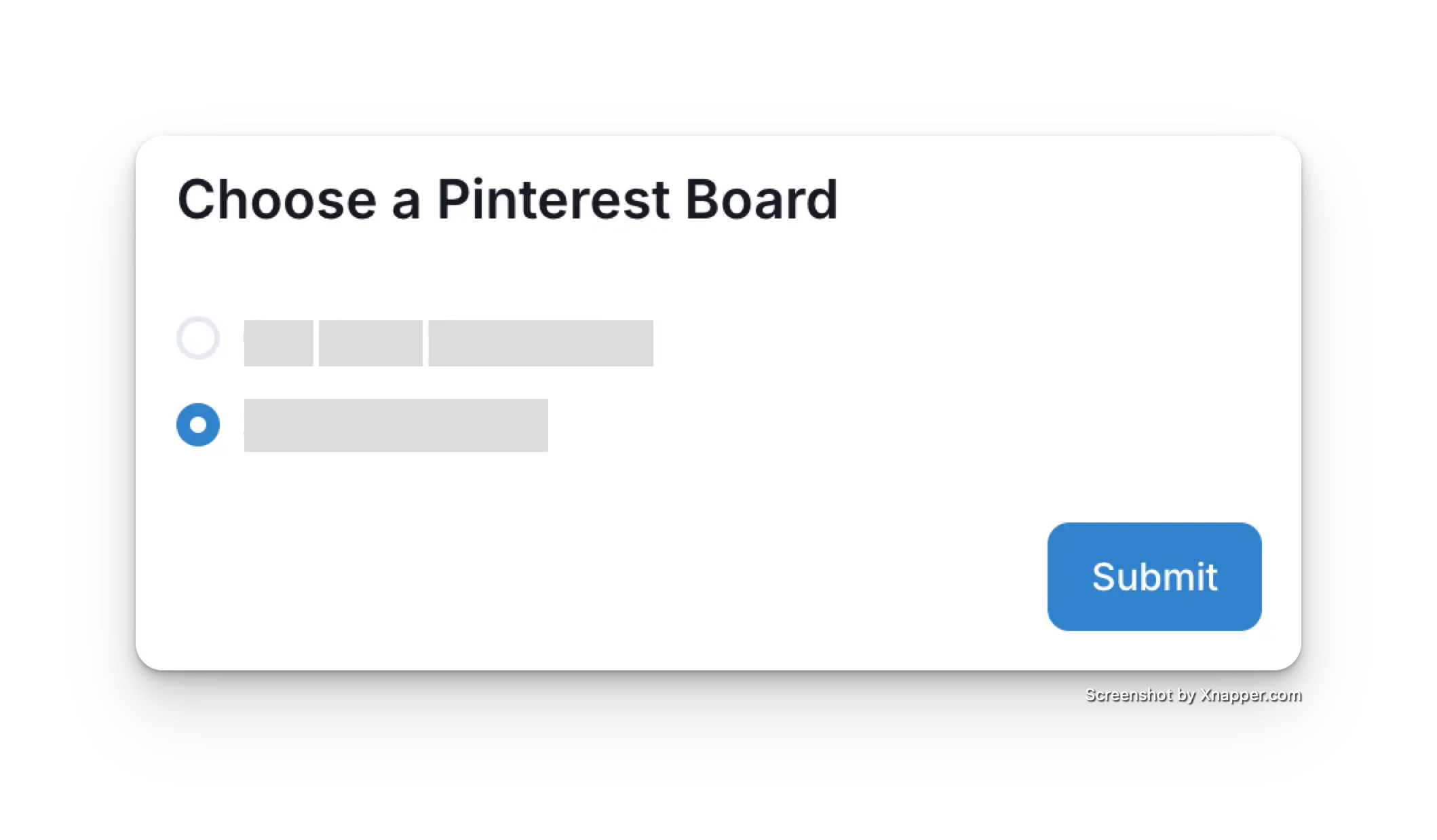
  <Step title="選擇 Pinterest 看板">
    回到 Ayrshare 儀表板後，選擇要連結的 Pinterest 看板。

    <img class="center" width="500" src="https://mintcdn.com/ayrshare-docs/BkNwRAXLA9nG0LQA/images/dashboard/pinterest-select-board.webp?fit=max&auto=format&n=BkNwRAXLA9nG0LQA&q=85&s=ae5b89fa3f3f2983568d831642c09d95" alt="Choose a Pinterest board" data-path="images/dashboard/pinterest-select-board.webp" />
  </Step>

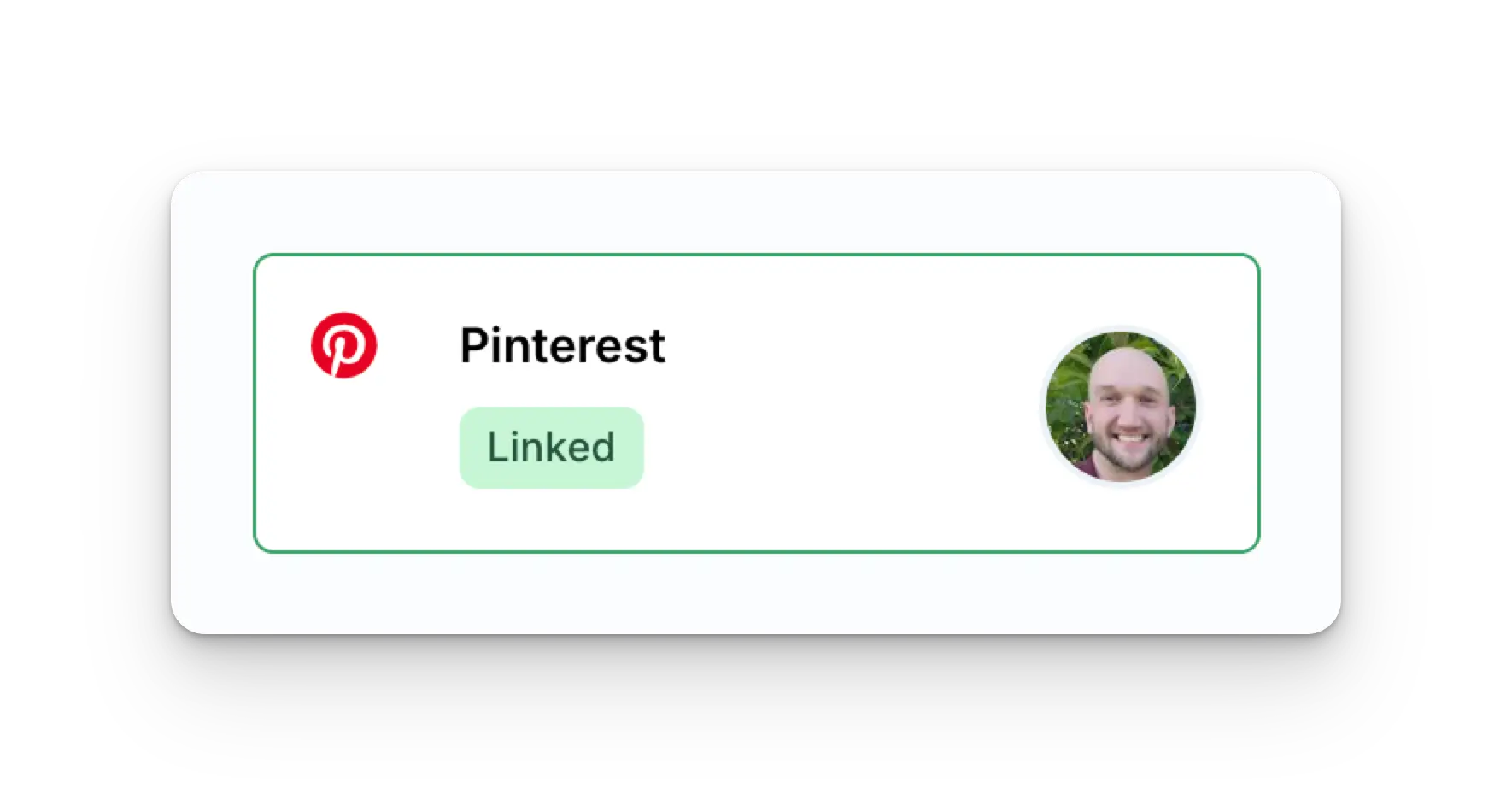
  <Step title="確認">
    你的 Social Accounts 頁面現在會更新顯示你的 Pinterest 帳戶。
    <img class="center" width="500" src="https://mintcdn.com/ayrshare-docs/BkNwRAXLA9nG0LQA/images/dashboard/pinterest-linked.webp?fit=max&auto=format&n=BkNwRAXLA9nG0LQA&q=85&s=99c8828d3b99eb46302a380affcacb95" alt="Pinterest Confirmation" data-path="images/dashboard/pinterest-linked.webp" />
  </Step>
</Steps>

## 其他 Pinterest 資訊

* 詳情請參閱：
  [發布到 Pinterest](/apis/post/social-networks/pinterest)、
  [取得分析資料](/apis/analytics/overview)、
  [管理留言](/apis/comments/overview)，或
  [取得歷史紀錄。](/apis/history/overview)
* 如需更多推薦圖片尺寸的資訊，請參閱：

<Card title="圖片與影片指南" icon="link" href="/media-guidelines/pinterest" horizontal />