> ## Documentation Index
> Fetch the complete documentation index at: https://www.ayrshare.com/docs/llms.txt
> Use this file to discover all available pages before exploring further.

# Snapchat 連結

> 使用 Ayrshare 授權 Snapchat

## 如何將 Snapchat 與 Ayrshare 連結

### Snapchat 公開個人檔案設定

在連結你的 Snapchat 帳戶之前，你必須先建立 Snapchat 公開個人檔案（Public Profile）。
非公開個人檔案無法連結到 Ayrshare。
此外，該公開個人檔案必須切換為專業個人檔案（Professional Profile）。
若沒有專業個人檔案，某些功能（例如發布 Story）將不被允許。

若你尚未建立公開個人檔案，請依照下列步驟操作。
若你已擁有公開個人檔案，請直接跳到步驟 3。
若你的公開個人檔案已經是專業個人檔案，請前往 [連結 Snapchat](/dashboard/connect-social-accounts/snapchat#linking-snapchat)。

<Steps>
  <Step title="開啟 Snapchat 並點擊左上角">
    開啟 Snapchat 並點擊左上角的圖示。

    <img class="center" width="500" src="https://mintcdn.com/ayrshare-docs/dKBti0xVDJrOZ19f/images/dashboard/snapchat-select-account.webp?fit=max&auto=format&n=dKBti0xVDJrOZ19f&q=85&s=cb798dd4ff78529150de7a49ce3841d5" alt="Snapchat Select Account" data-path="images/dashboard/snapchat-select-account.webp" />
  </Step>

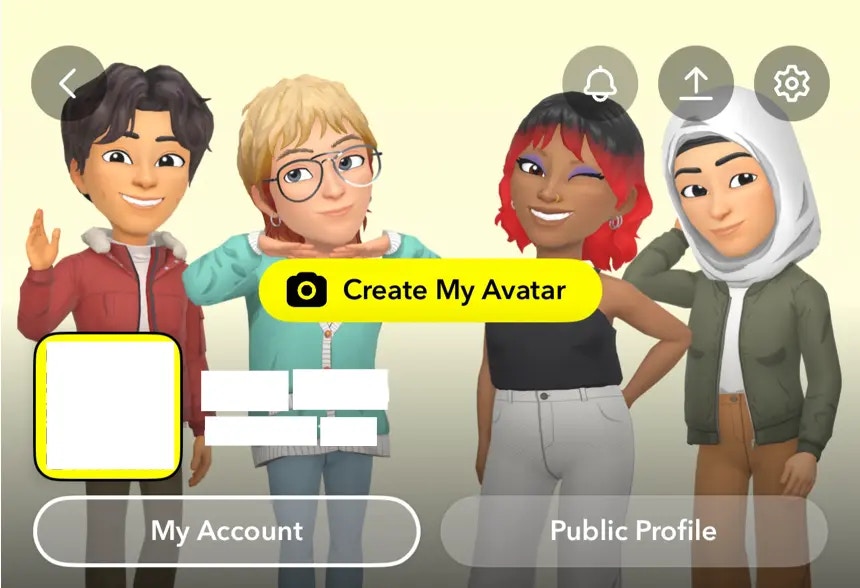
  <Step title="公開個人檔案">
    點擊 **Public Profile** 按鈕，並依照指示設定你的公開個人檔案。

    <img class="center" width="500" src="https://mintcdn.com/ayrshare-docs/dKBti0xVDJrOZ19f/images/dashboard/snapchat-public-profile.webp?fit=max&auto=format&n=dKBti0xVDJrOZ19f&q=85&s=80a18c781b6ebb0d3e6fecb9df34e62f" alt="Snapchat Public Profile" data-path="images/dashboard/snapchat-public-profile.webp" />
  </Step>

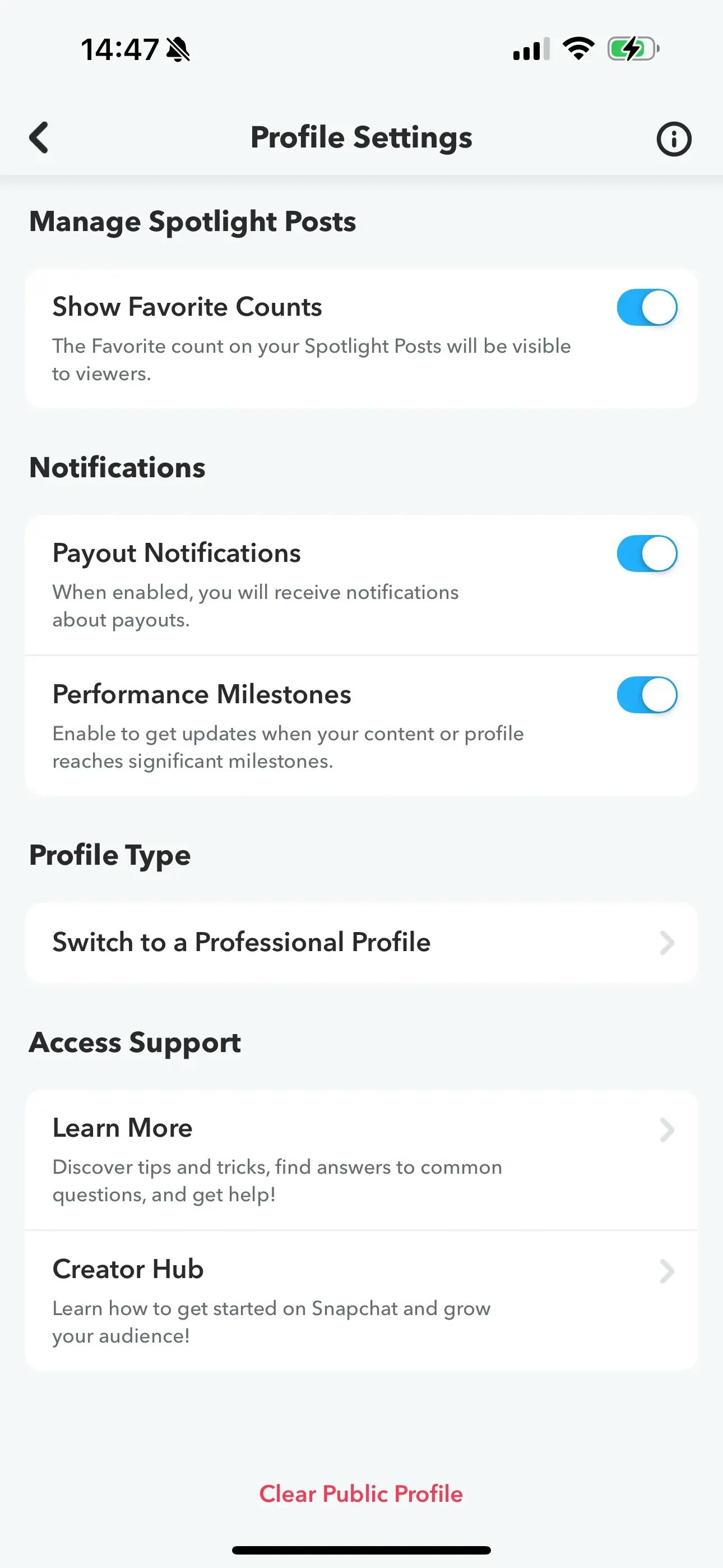
  <Step title="專業個人檔案設定">
    在 Profile Settings 中前往 **Switch to a Professional Profile** 選項。
    依照指示操作，選擇一個分類，並點擊 **Confirm** 切換
    為專業個人檔案。

    <img class="center" width="500" src="https://mintcdn.com/ayrshare-docs/5hN3anTnqVsc57i1/images/dashboard/snapchat-profile-settings.webp?fit=max&auto=format&n=5hN3anTnqVsc57i1&q=85&s=dd64d26c9766444b43fac8f4c9bf306d" alt="Snapchat Professional Profile" data-path="images/dashboard/snapchat-profile-settings.webp" />
  </Step>
</Steps>

### 連結 Snapchat

<Steps>
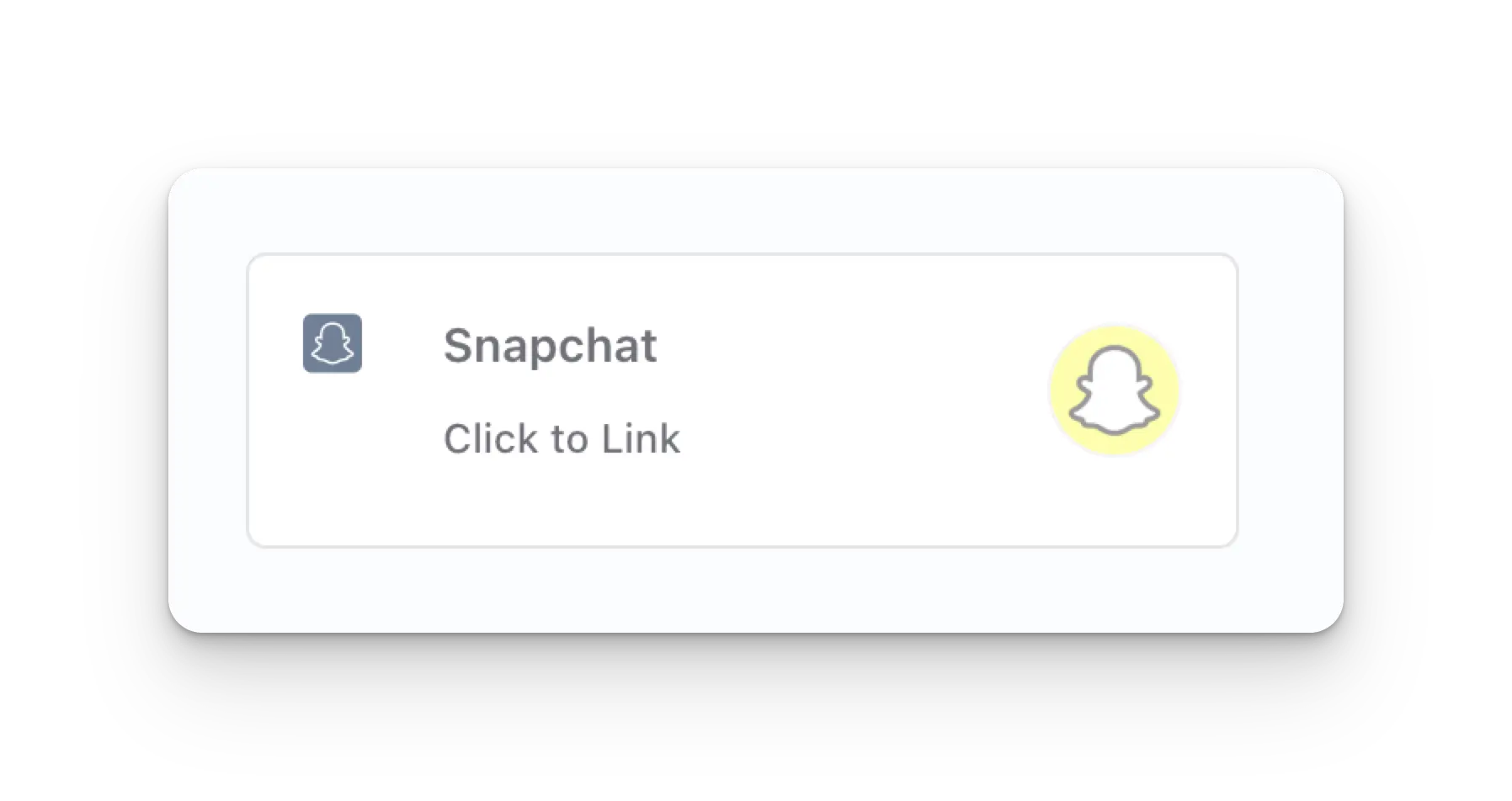
  <Step title="點擊以連結 Snapchat">
    在 Social Accounts 頁面上點擊 Snapchat 圖示。

    <img class="center" width="500" src="https://mintcdn.com/ayrshare-docs/BkNwRAXLA9nG0LQA/images/dashboard/snapchat-click-to-link.webp?fit=max&auto=format&n=BkNwRAXLA9nG0LQA&q=85&s=b5c5287381f437f2c70e5e449ee1b367" alt="Snapchat Click to Link" data-path="images/dashboard/snapchat-click-to-link.webp" />
  </Step>

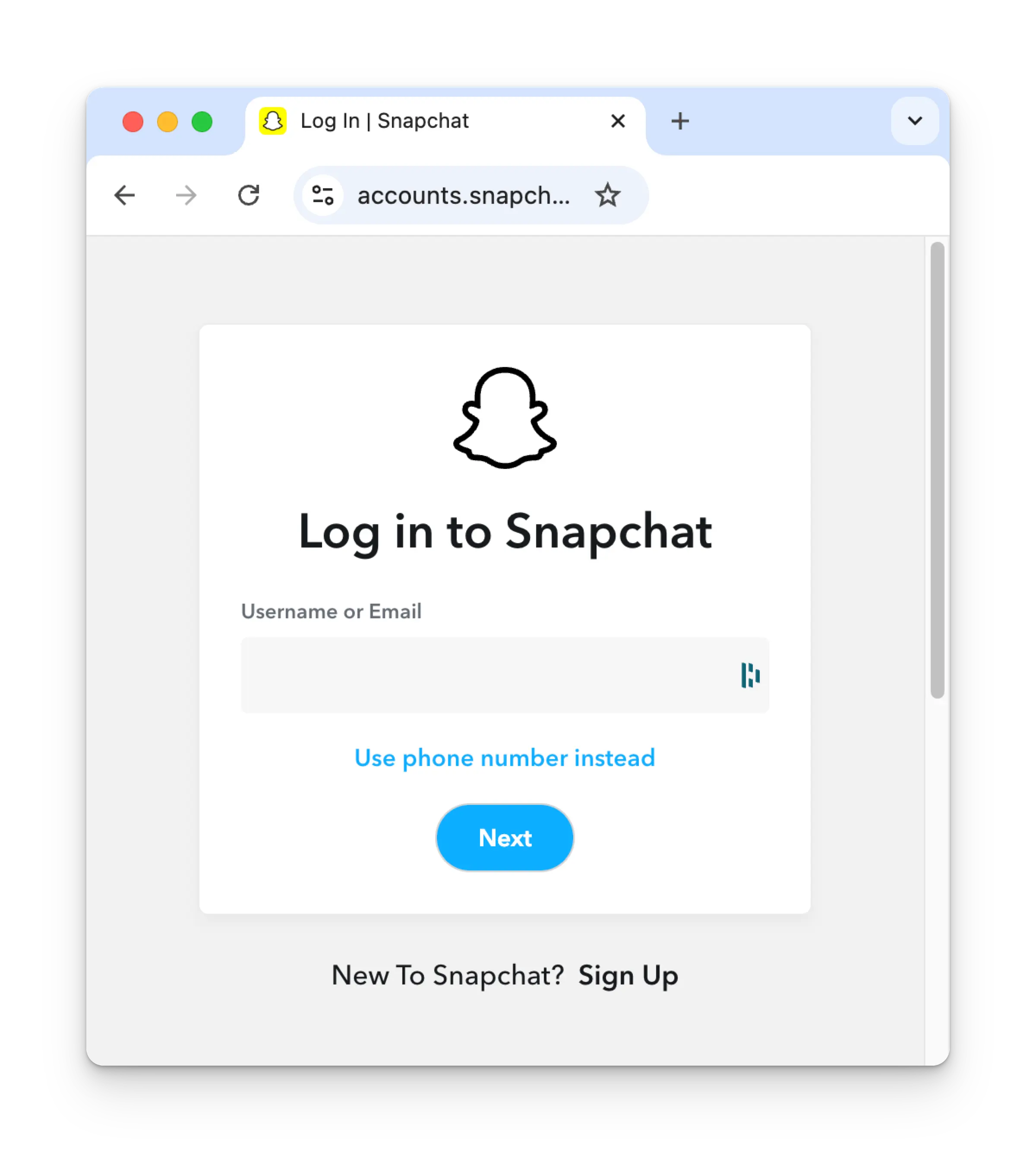
  <Step title="首次登入 Snapchat">
    若你尚未登入，你會被導向到 Snapchat 登入頁面。請依要求輸入你的
    憑證。若你已經登入，請繼續進行下一步。

    <img class="center" width="500" src="https://mintcdn.com/ayrshare-docs/dKBti0xVDJrOZ19f/images/dashboard/snapchat-login.webp?fit=max&auto=format&n=dKBti0xVDJrOZ19f&q=85&s=90f1ff90cf065efe97644fea596b381c" alt="Login via Snapchat" data-path="images/dashboard/snapchat-login.webp" />
  </Step>

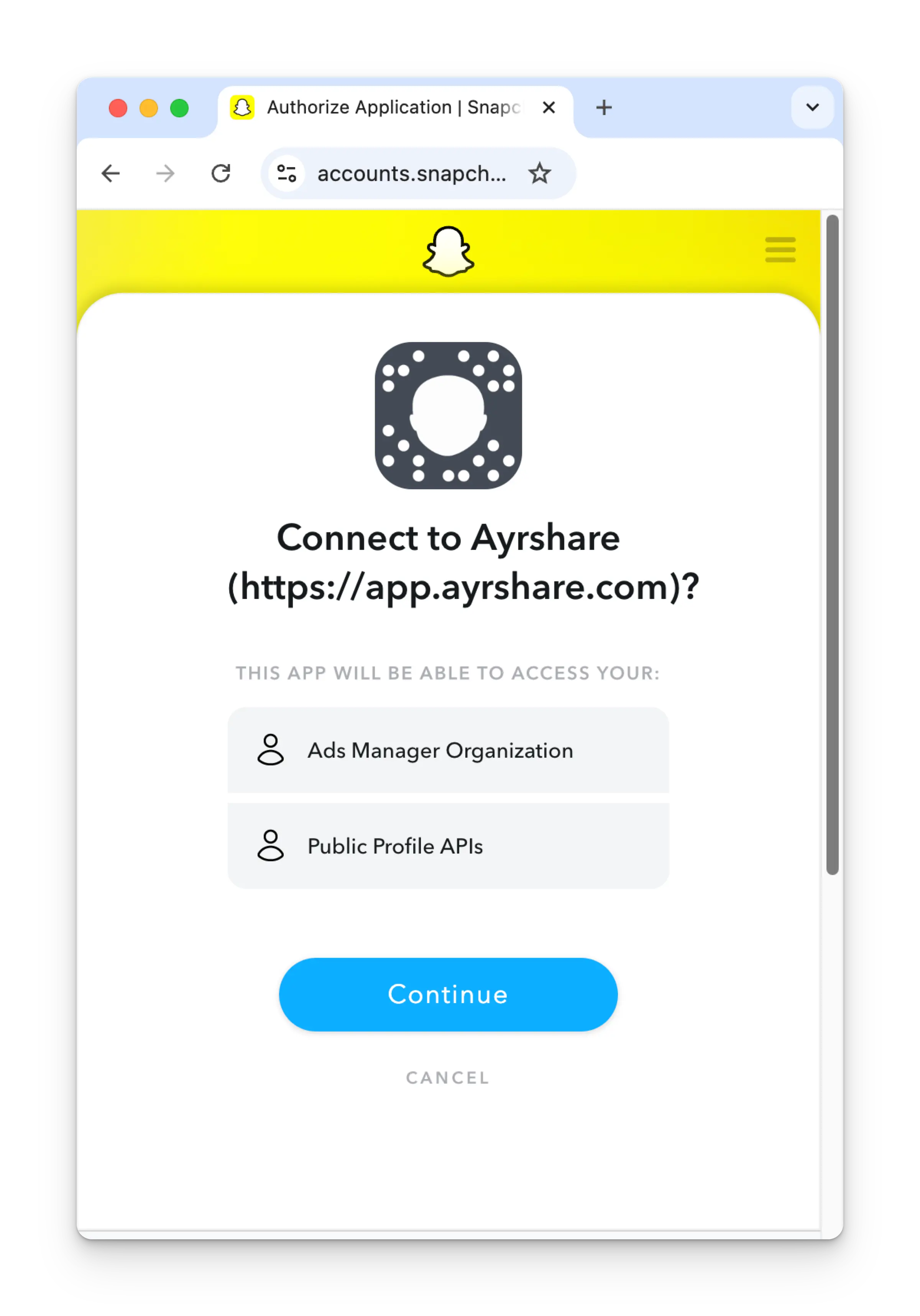
  <Step title="授權 App">
    檢閱權限，並在授權頁面上點擊 **Continue**。

    <img class="center" width="500" src="https://mintcdn.com/ayrshare-docs/dKBti0xVDJrOZ19f/images/dashboard/snapchat-permissions.webp?fit=max&auto=format&n=dKBti0xVDJrOZ19f&q=85&s=46312134a3d6dffb5ed002af330d6f5d" alt="Authorize app" data-path="images/dashboard/snapchat-permissions.webp" />
  </Step>

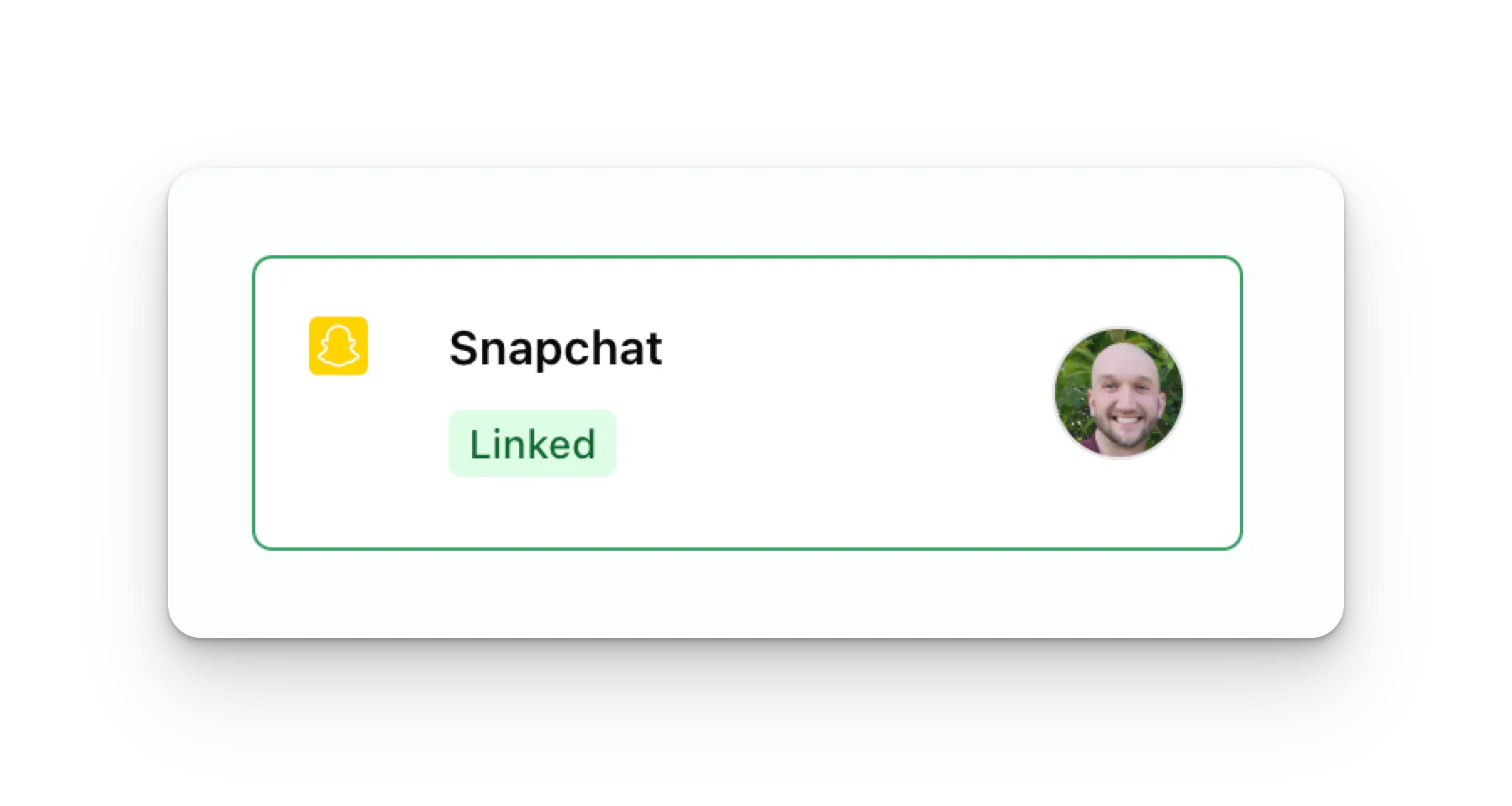
  <Step title="確認">
    你的 Social Accounts 頁面現在會更新顯示你的 Snapchat 帳戶。
    <img class="center" width="500" src="https://mintcdn.com/ayrshare-docs/dKBti0xVDJrOZ19f/images/dashboard/snapchat-linked.webp?fit=max&auto=format&n=dKBti0xVDJrOZ19f&q=85&s=ea84f985496601f37cf7c8932bbcbd81" alt="Snapchat Confirmation" data-path="images/dashboard/snapchat-linked.webp" />
  </Step>
</Steps>

## 其他 Snapchat 資訊

* 詳情請參閱：
  [發布到 Snapchat](/apis/post/social-networks/snapchat)、
  [取得分析資料](/apis/analytics/overview)、
  [管理留言](/apis/comments/overview)，或
  [取得歷史紀錄](/apis/history/overview)。
* 如需更多推薦圖片與影片尺寸的資訊，請參閱：

<Card title="圖片與影片指南" icon="link" href="/media-guidelines/snapchat" horizontal />