> ## Documentation Index
> Fetch the complete documentation index at: https://www.ayrshare.com/docs/llms.txt
> Use this file to discover all available pages before exploring further.
# 將 Telegram 群組或頻道連結到 Ayrshare
> 將 @AyrshareBot 新增為管理員,把 Telegram 連結到 Ayrshare,以便在你的群組或頻道發布與刪除貼文。
Telegram 透過機器人(bot)發布到你的群組或頻道。
你需要透過 Telegram 手機 App 授予 Ayrshare Telegram Bot 管理員權限,才能啟用發布與刪除功能。
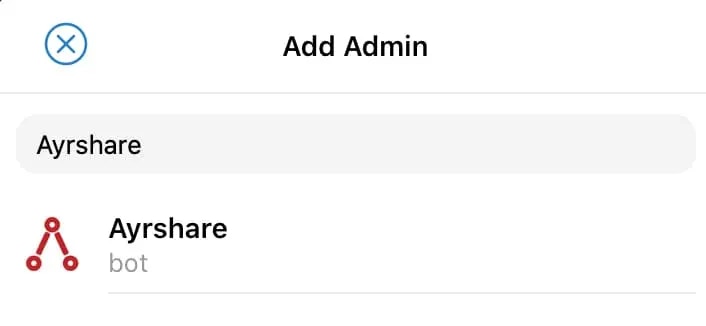
**請新增正確的機器人:`@AyrshareBot`**(其顯示名稱為 "Ayrshare",並帶有下方所示的紅色標誌)。
 在 Telegram 搜尋 "Ayrshare" 會出現數個名稱或標誌相近的機器人,這些**都不是**我們的官方機器人——
例如帳號 `@AyrShareSocialMediaBot`、`@ayrshare_bot`、`@kylo_post_bot` 以及 `@AyrshareTestbot`。
只有 **`@AyrshareBot`** 可以與 Ayrshare 搭配使用。若你新增了其他機器人,你的連結代碼將永遠不會被接收,
也不會有任何反應。在新增之前,請開啟該機器人並確認其帳號名稱正是 **`@AyrshareBot`**。
你必須擁有該頻道或群組的管理員權限才能新增機器人。Telegram 頻道貼文
會顯示頻道名稱與標誌為作者;Telegram 群組貼文則會顯示 Ayrshare 名稱與標誌
為作者。
**機器人必須是 Administrator——而不能只是一般成員。** `@AyrshareBot` 啟用了 Telegram Privacy
Mode,因此若僅將其加入為成員,它將永遠不會收到你的 `Code:` 訊息,連結會靜默失敗且不會顯示任何錯誤。
請在你貼上代碼的同一個頻道或群組中,將它提升為 Administrator。
## 如何將 Telegram 與 Ayrshare 連結
1. 在 Telegram 手機 App 中,前往你要發布的頻道或群組。點擊右上角的三個橫向點,並前往 **Info**。
在 Telegram 搜尋 "Ayrshare" 會出現數個名稱或標誌相近的機器人,這些**都不是**我們的官方機器人——
例如帳號 `@AyrShareSocialMediaBot`、`@ayrshare_bot`、`@kylo_post_bot` 以及 `@AyrshareTestbot`。
只有 **`@AyrshareBot`** 可以與 Ayrshare 搭配使用。若你新增了其他機器人,你的連結代碼將永遠不會被接收,
也不會有任何反應。在新增之前,請開啟該機器人並確認其帳號名稱正是 **`@AyrshareBot`**。
你必須擁有該頻道或群組的管理員權限才能新增機器人。Telegram 頻道貼文
會顯示頻道名稱與標誌為作者;Telegram 群組貼文則會顯示 Ayrshare 名稱與標誌
為作者。
**機器人必須是 Administrator——而不能只是一般成員。** `@AyrshareBot` 啟用了 Telegram Privacy
Mode,因此若僅將其加入為成員,它將永遠不會收到你的 `Code:` 訊息,連結會靜默失敗且不會顯示任何錯誤。
請在你貼上代碼的同一個頻道或群組中,將它提升為 Administrator。
## 如何將 Telegram 與 Ayrshare 連結
1. 在 Telegram 手機 App 中,前往你要發布的頻道或群組。點擊右上角的三個橫向點,並前往 **Info**。
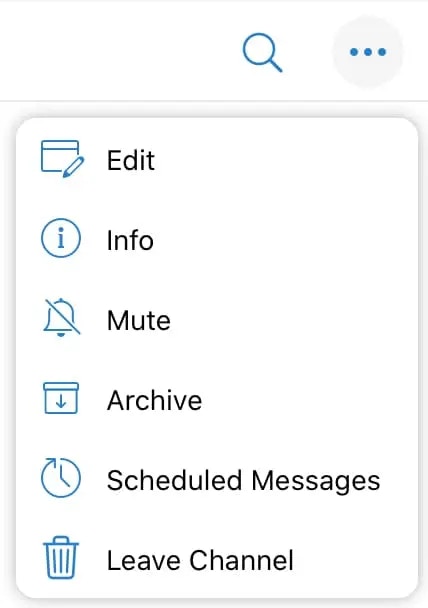 2. 將 Ayrshare 新增為管理員:
- 若為 *頻道*,選擇 **Administrators** 與 **Add Admin**。
-
若為 *群組*,先點擊「+ Add」將 Ayrshare 新增為成員,並搜尋 **Ayrshare** 加入
為成員。接著在右上角選擇 **Edit**,點擊 **Administrators**,
再點擊 **Add Admin**。
3. 搜尋 **Ayrshare**,並選擇官方機器人 **`@AyrshareBot`**(顯示名稱為 "Ayrshare")。請勿選擇任何名稱相近的仿冒機器人——請參閱上方警告。
 4. 你會被要求選擇機器人的權限。請選取除最後兩項以外的所有權限,讓機器人可以代表你進行發布與刪除。
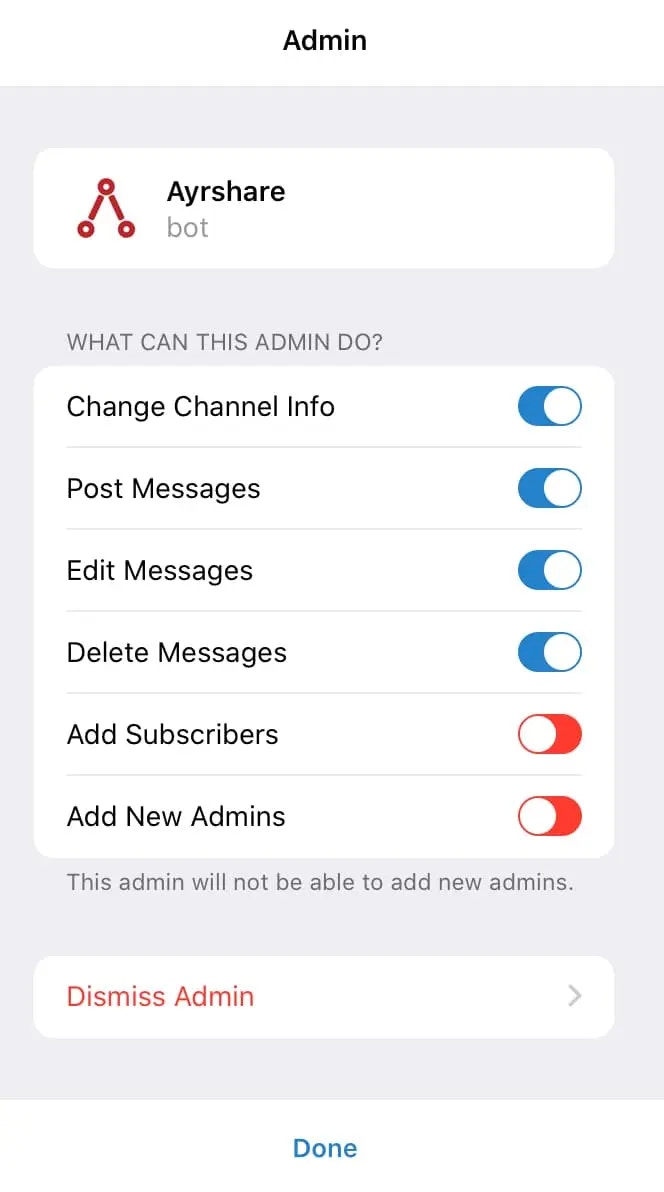 5. 完成後點擊 **Done**。
6. 在 Ayrshare 儀表板的 Social Accounts 中,點擊 Telegram 圖示後會取得一個 Telegram 存取碼。
7. 複製包含「Code:」在內的整段代碼。
5. 完成後點擊 **Done**。
6. 在 Ayrshare 儀表板的 Social Accounts 中,點擊 Telegram 圖示後會取得一個 Telegram 存取碼。
7. 複製包含「Code:」在內的整段代碼。
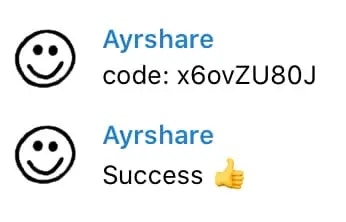
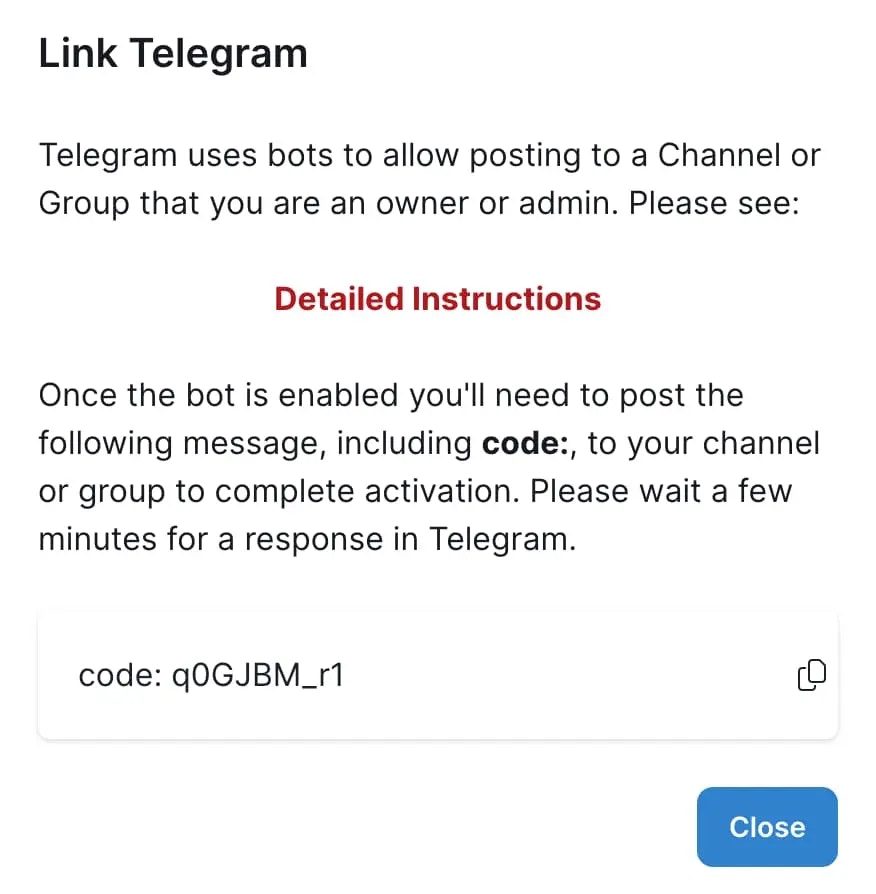 8. 在你的 Telegram 群組或頻道的對話輸入框中貼上這段代碼,並按下 Enter/點擊發送按鈕。若成功,你會在該頻道或群組中收到成功訊息回覆。
在你輸入代碼訊息後,Telegram 最多可能需要 **5 分鐘** 才會傳送成功訊息,
請耐心等候。
8. 在你的 Telegram 群組或頻道的對話輸入框中貼上這段代碼,並按下 Enter/點擊發送按鈕。若成功,你會在該頻道或群組中收到成功訊息回覆。
在你輸入代碼訊息後,Telegram 最多可能需要 **5 分鐘** 才會傳送成功訊息,
請耐心等候。
 Telegram 整合已完成。你現在可以透過 API 或網頁應用發布。
若你需要協助或有疑問,請 window.Intercom && window.Intercom('show')}>與我們聊聊 或 [聯絡我們](mailto:support@ayrshare.com)。
## 其他 Telegram 資訊
詳情請參閱:[發布到 Telegram](/apis/post/social-networks/telegram)、[取得分析資料](/apis/analytics/overview)、[管理留言](/apis/comments/overview),或 [取得歷史紀錄。](/apis/history/overview)
Telegram 整合已完成。你現在可以透過 API 或網頁應用發布。
若你需要協助或有疑問,請 window.Intercom && window.Intercom('show')}>與我們聊聊 或 [聯絡我們](mailto:support@ayrshare.com)。
## 其他 Telegram 資訊
詳情請參閱:[發布到 Telegram](/apis/post/social-networks/telegram)、[取得分析資料](/apis/analytics/overview)、[管理留言](/apis/comments/overview),或 [取得歷史紀錄。](/apis/history/overview)