> ## Documentation Index
> Fetch the complete documentation index at: https://www.ayrshare.com/docs/llms.txt
> Use this file to discover all available pages before exploring further.
# YouTube 連結
> 使用 Ayrshare 授權 YouTube
## 如何將 YouTube 頻道與 Ayrshare 連結
你可以將 YouTube 頻道與 Ayrshare 連結。
使用 Ayrshare 授權 YouTube 時,你會被重新導向到 Google 進行登入、授權 Ayrshare,並選擇一個 YouTube 頻道。
請確認你的 Google 帳戶有權管理你想連接的 YouTube 頻道,且該頻道為公開。
若你在連結 YouTube 頻道時遇到問題,請參閱 [YouTube 頻道權限指南](/help-center/technical-support/youtube_channels_not_showing) 以了解更多資訊。
YouTube 不支援 Service Accounts。
Service account 無法用於 YouTube Data API 呼叫,因為 service account 需要有關聯的 YouTube 頻道,而你無法將新的或既有的頻道與 service account 關聯。
在 Ayrshare Social Account 連結頁面上點擊 YouTube 圖示。
 頁面會被重新導向到 Google 登入頁面,或目前已登入的 Google 帳戶列表。
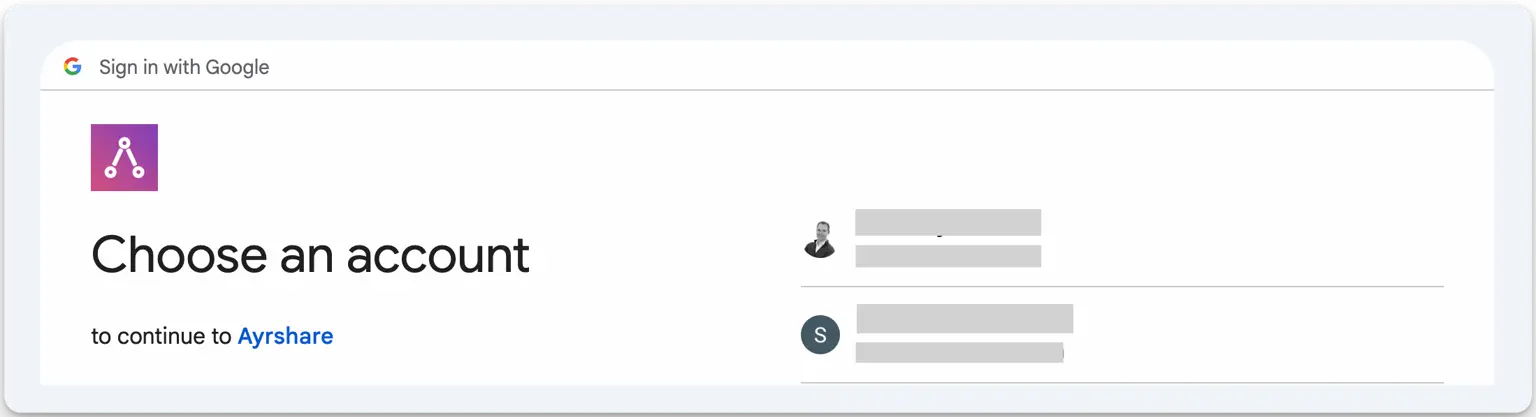 選擇與你想連接的 YouTube 頻道相關的 Google 帳戶。
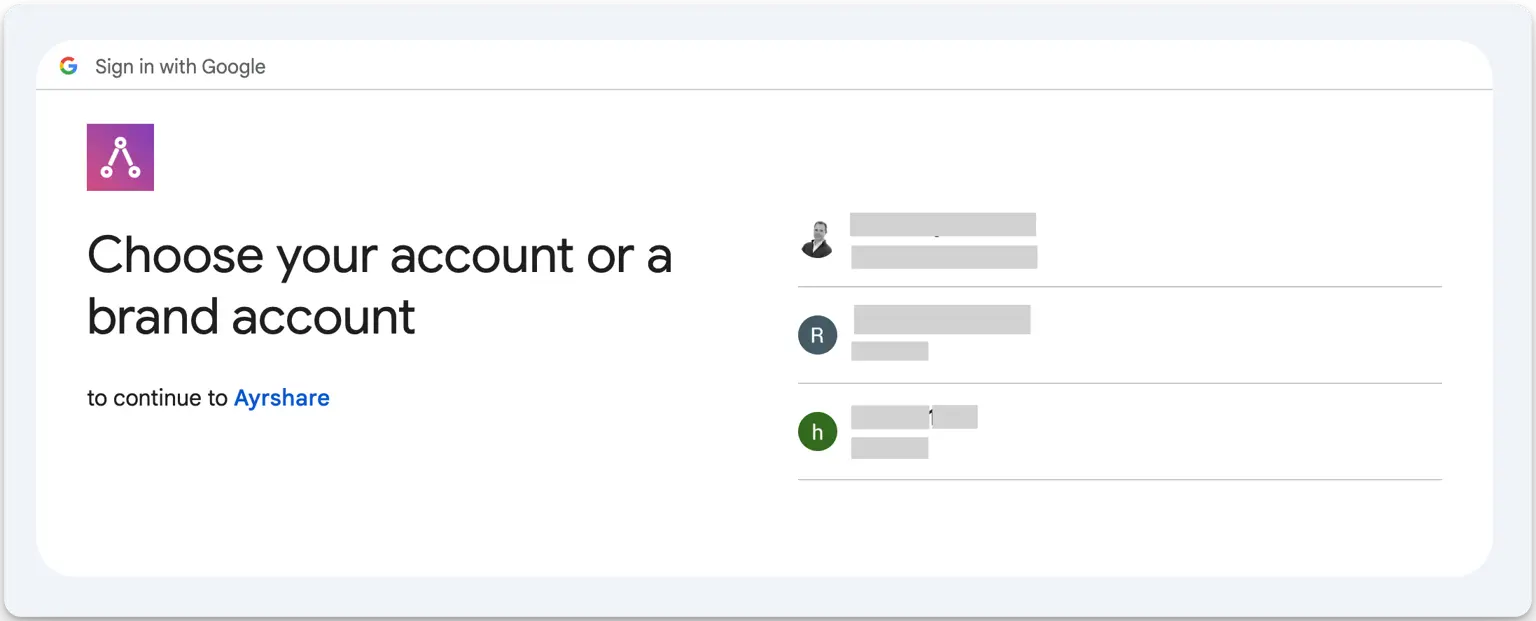 選擇你要連接的 YouTube 頻道。
接著你可能會看到一或兩個要求權限的畫面。在每個畫面上點擊 *Continue*。
完成後你會回到 Ayrshare 社群連結頁面。
你的 Social Accounts 頁面現在會更新顯示你的 YouTube 帳戶。
選擇你要連接的 YouTube 頻道。
接著你可能會看到一或兩個要求權限的畫面。在每個畫面上點擊 *Continue*。
完成後你會回到 Ayrshare 社群連結頁面。
你的 Social Accounts 頁面現在會更新顯示你的 YouTube 帳戶。
 ## YouTube 連結疑難排解
YouTube 發布要求你的 YouTube 帳戶至少有一個頻道,且你為該頻道的擁有者。
若要建立 YouTube 頻道,請在 YouTube 儀表板中點擊你的個人資料,並選擇「Create a Channel」。
若尚無 YouTube 頻道,你也可以直接使用此連結建立:[http://m.youtube.com/create\_channel](http://m.youtube.com/create_channel)
若你在檢視 YouTube 頻道時遇到問題,請參閱[疑難排解指南](/help-center/technical-support/youtube_channels_not_showing)。
## 其他 YouTube 資訊
* 詳情請參閱:[發布到 YouTube](/apis/post/social-networks/youtube)、[取得分析資料](/apis/analytics/overview)、[管理留言](/apis/comments/overview),或 [取得歷史紀錄。](/apis/history/overview)
* 如需更多推薦圖片尺寸的資訊,請參閱:
## YouTube 連結疑難排解
YouTube 發布要求你的 YouTube 帳戶至少有一個頻道,且你為該頻道的擁有者。
若要建立 YouTube 頻道,請在 YouTube 儀表板中點擊你的個人資料,並選擇「Create a Channel」。
若尚無 YouTube 頻道,你也可以直接使用此連結建立:[http://m.youtube.com/create\_channel](http://m.youtube.com/create_channel)
若你在檢視 YouTube 頻道時遇到問題,請參閱[疑難排解指南](/help-center/technical-support/youtube_channels_not_showing)。
## 其他 YouTube 資訊
* 詳情請參閱:[發布到 YouTube](/apis/post/social-networks/youtube)、[取得分析資料](/apis/analytics/overview)、[管理留言](/apis/comments/overview),或 [取得歷史紀錄。](/apis/history/overview)
* 如需更多推薦圖片尺寸的資訊,請參閱: