> ## Documentation Index
> Fetch the complete documentation index at: https://www.ayrshare.com/docs/llms.txt
> Use this file to discover all available pages before exploring further.
# Facebook Page 授權指南 | Ayrshare 文件
> 了解如何為 Ayrshare 授權正確的 Facebook Page 權限、為何授權很重要,以及發文時如何修復權限遺失錯誤。
如果你在向 Facebook 或 Instagram 發文時收到以下錯誤訊息:
「Please visit facebook.com from a desktop browser and complete the required
security check or confirmation steps. Once confirmed, try your call again. If
problems persist, try unlinking and then relinking your account with Ayrshare.」
此錯誤可能是因為 Meta 為提高高潛在觸及率之 Facebook Page 的責任機制,要求這些專頁必須通過安全檢查。若未授權,該 Facebook Page 將無法發佈貼文。
Facebook 專頁以及與 Facebook Page 連結的 Instagram 帳戶都會受到影響。
### 如何取得授權
在桌面瀏覽器登入你的 Facebook 帳戶。完成必要的安全檢查或確認步驟。這些步驟可能包含:
-
為你的 Facebook 帳戶開啟[雙重驗證](https://www.facebook.com/help/148233965247823)。
-
在行動裝置上開啟[位置服務](https://www.facebook.com/help/275925085769221)以確認你的位置。
更新你 Facebook Page 上顯示的目前城市,接著從目前所在位置開啟 Facebook 可協助 Facebook 判斷你所在的國家。
Facebook 確認位置可能需要一些時間。
-
如果你的 Facebook Page 有 System User,請驗證所有 Business Manager 帳戶,讓你的 System User 能在你的專頁發佈。
更多資訊請參閱[如何在 Meta 上驗證你的商家](https://www.facebook.com/business/help/2058515294227817)。
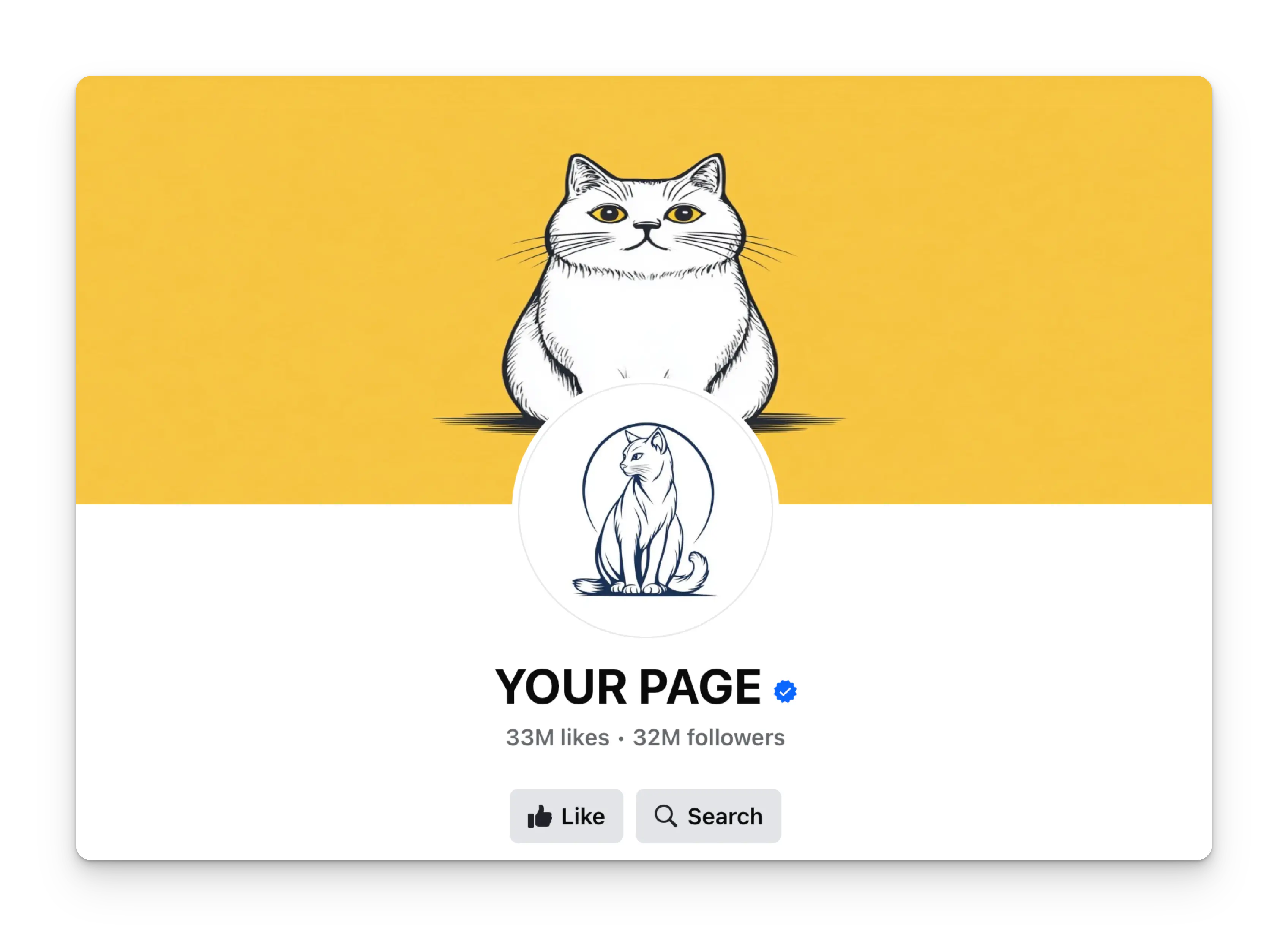
當授權完成後,你的 Facebook Page 名稱旁會顯示帶有白色勾號的藍色徽章。