How to Manage Multiple Client Social Media Accounts with AI Agents
November 17, 2026
10 min read
Author: John Fáwọlé

John Fáwọlé
Developer Advocate
John is a guest writer, developer and developer advocate. He enjoys writing content for developers and runs his own YouTube channel.
Article content
Share Article
Ask AI about this article
Opens your AI assistant in a new tab with this article preloaded.
If you run a social media agency, the hardest part of scaling is not writing more posts. It is keeping every client account cleanly separated while your team, or now an AI agent, works across all of them.
At that point, the bigger risk becomes mixing up client context, pulling data from the wrong profile, or scheduling the right post to the wrong account.
That is why many social media agencies are currently using Ayrshare's MCP server.
If you're a social media agency founder or executive, this article will show you how to set up and use the MCP to manage multiple client accounts with an AI agent, while keeping each client's context and workflow separate.
Why Managing Multiple Client Accounts Gets Complicated
Managing multiple clients gets harder with every new account because each one comes with its own platforms, approvals, and content rules.
Also, their tone, posting schedule, campaign goals, and performance targets can all be different. As the client list grows, those details become easier to mix up.
These are some factors to consider:
Shared logins create security and access problems
Multiple social media passwords can be difficult to manage and create unnecessary risk. Password changes, 2FA, staff changes, and client offboarding can also break access at any time.
Posting from the wrong account
When several client accounts sit inside the same workflow, one wrong profile selection can send content to the wrong audience.
Different social network, different rules
Character limits, media formats, aspect ratios, and publishing requirements vary between platforms. Some platforms also introduce extra requirements, e.g., X now requires users of third-party tools like Ayrshare to provide their own X API credentials.
How Ayrshare's MCP Helps Social Media Agencies
Ayrshare's MCP gives an AI agent a direct way to work with social media accounts through Ayrshare's API.
Its Action MCP currently exposes 27 tools for things like publishing, post history, analytics, comments, direct messages, profile management, media, webhooks, and error handling.
For agencies, one of the most useful features is profile scoping.
Most Ayrshare MCP tools accept a profileKey, which tells the agent exactly which client profile it should work with. So the same AI agent can handle Client A, switch to Client B, and still keep each action tied to the correct account.
Some of the most useful tools for a multi-client workflow include:
| Tool | Agency use |
|---|---|
| list_profiles | See the available client profiles |
| create_profile | Add a new client profile |
| generate_jwt_social_linking_url | Let a client securely connect their own social accounts |
| get_platform_history | Pull existing content for the selected client |
| validate_post | Check a client's post before scheduling |
| create_post | Publish or schedule for the selected profile |
| get_post_analytics | Retrieve performance for a specific post |
| get_social_network_analytics | Pull account-level analytics for a client |
| get_comments / get_messages | Handle engagement within the selected profile |
Prerequisites
Before setting up the multi-client workflow, make sure you have:
- Claude Code installed and ready to use.
- An Ayrshare account and API key to connect Claude to Ayrshare's MCP Server.
- Access to the client social accounts.
- X developer credentials, if any client account will publish to X.
Sign up for Ayrshare and get your API key
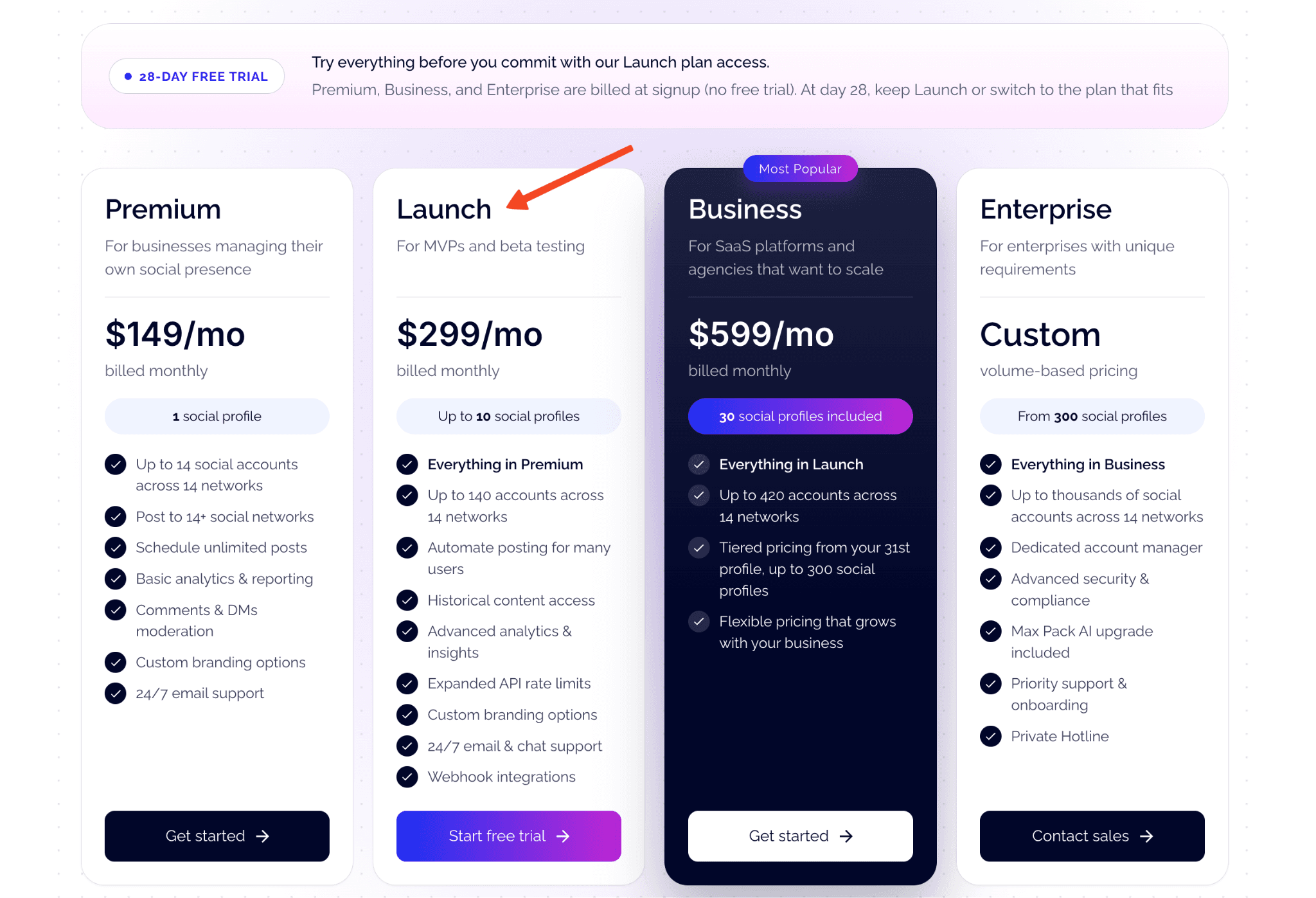
If you do not already have an Ayrshare account, you can start with the Launch plan's 28-day free trial. The plan includes API access and supports up to 10 social profiles, which is enough to test the workflow across several client accounts.
- Choose the Launch plan and start the free trial.
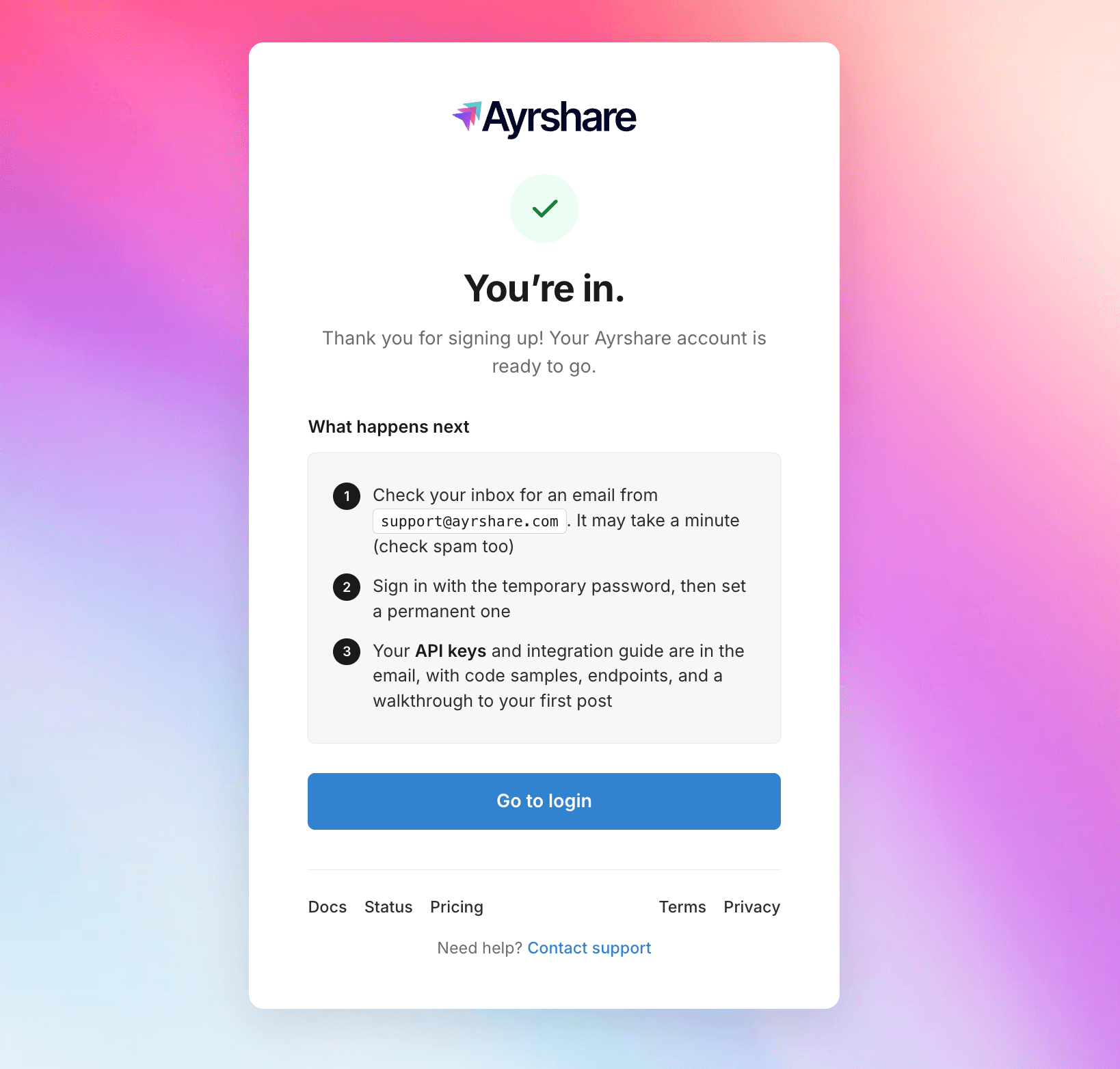
- Create your Ayrshare account. Ayrshare will send a welcome email with the information needed to access the dashboard.
- From the Ayrshare dashboard, open API Key from the left sidebar.
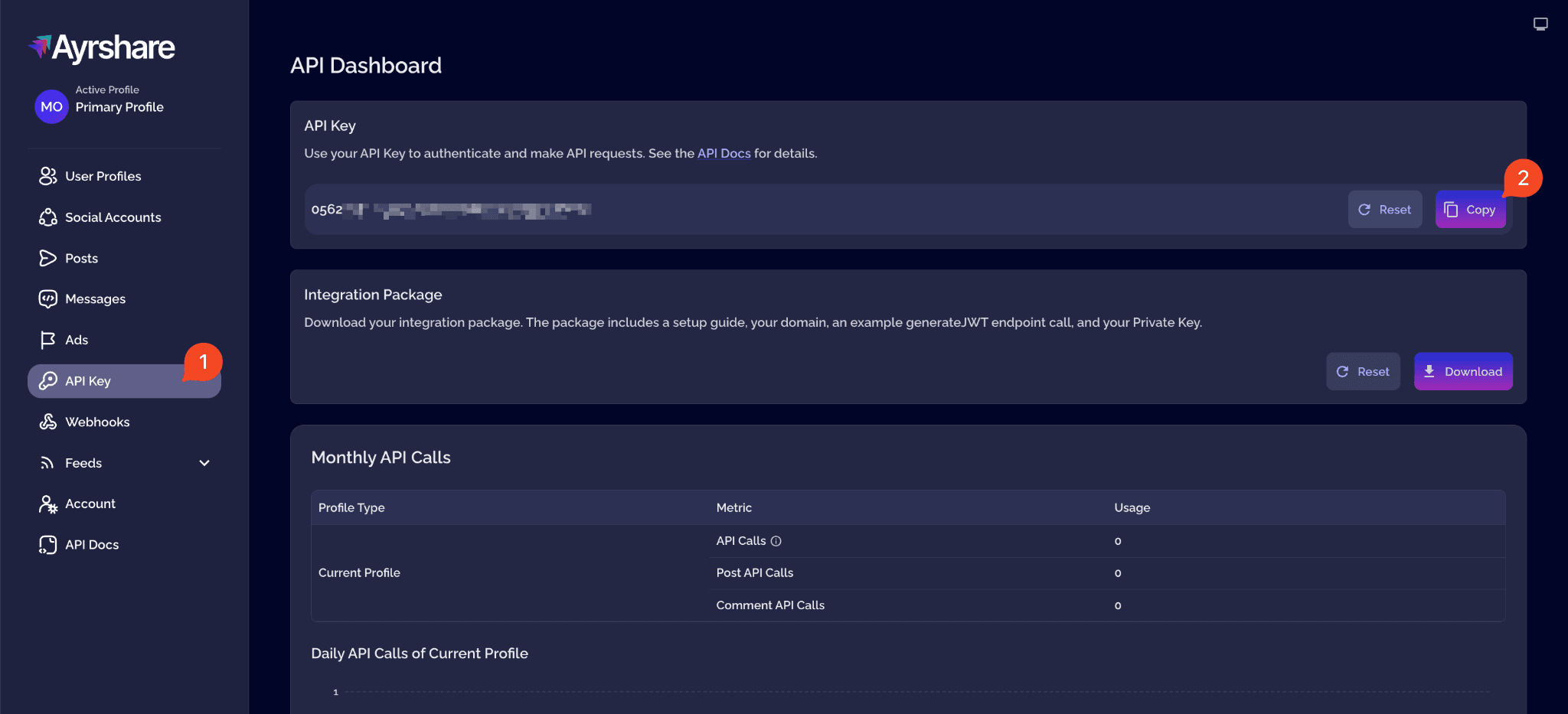
Click Copy to save the API key. We will use it shortly when connecting Claude Code to Ayrshare's MCP Server.
Set Up Separate Profiles for Each Client
In Ayrshare, a profile works like an isolated workspace for one brand or client. It keeps that profile's social connections, post history, analytics, and publishing actions separate from the others.
For this walkthrough, we'll use two real LinkedIn pages with very different audiences. Each account will have its own Ayrshare profile, connected social account, and Profile Key.
| Profile | Connected account | Content context |
|---|---|---|
| Blockchain Alpha | Web3, developer education, and technical marketing | |
| CNCF chapter | Cloud-native community updates, events, and educational content |
This gives us a simple way to test whether the same AI agent can work across multiple accounts without mixing their content or context.
Create a profile for each account
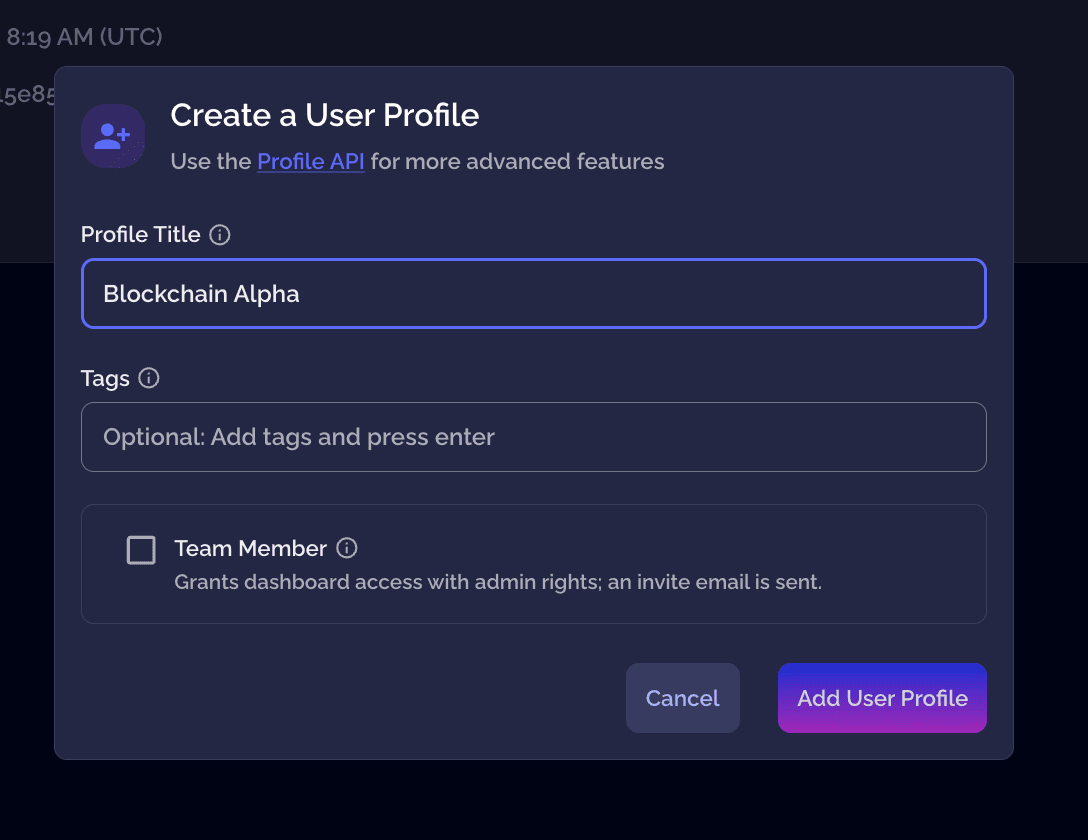
From the Ayrshare dashboard, open User Profiles and click Add Profile. We'll create one profile for Blockchain Alpha, then create another for the CNCF Chapter.
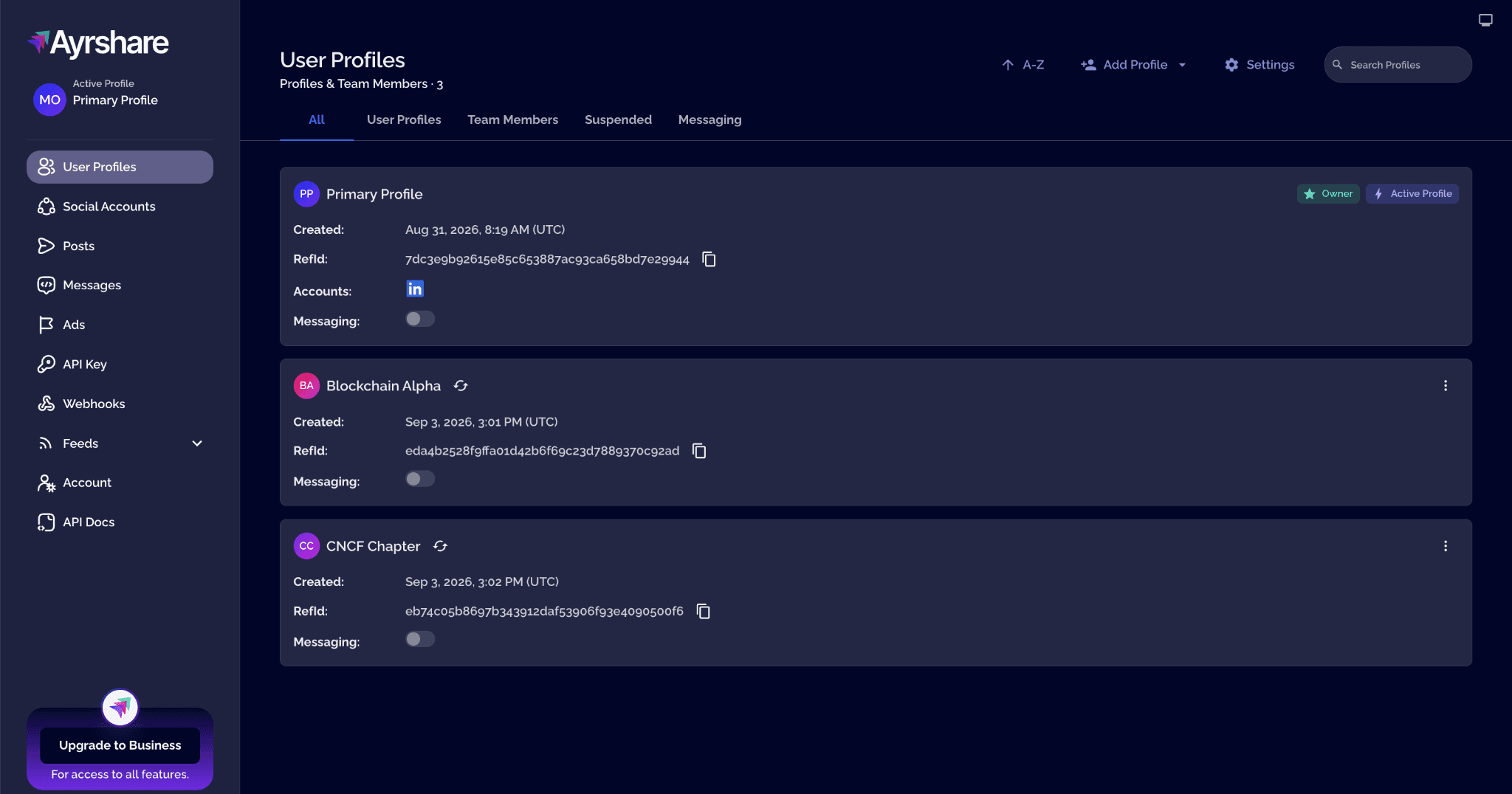
The Primary Profile can remain as the main account used to manage everything. The two new User Profiles are where the client social accounts will live.
Each profile will have its own Profile Key. That key is what Ayrshare uses to identify which account an action belongs to.
Connect the social accounts
Once the profiles are created, connect the matching LinkedIn page to each one. To do this, go into User Profiles and click the switch-profile icon beside your profile name.
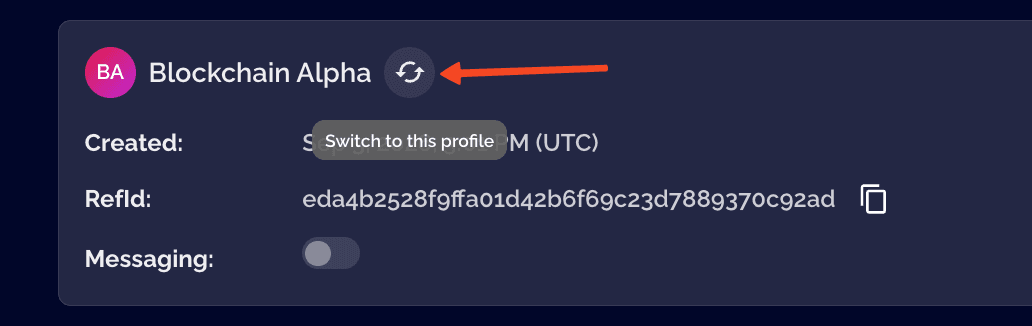
Now open Social Accounts and connect the social media page. Once that is done, return to User Profiles, switch to the other profile(s), and repeat the same process.
Connect Your AI Agent to Ayrshare
Once the client profiles are set up and their social accounts are connected, the next step is to connect the AI agent to Ayrshare.
To do this, we'll use Claude Code with Ayrshare's official plugin so Claude can access tools for profile management, validation, scheduling and more.
Install the Ayrshare Claude Code plugin
In Claude Code, install the plugin with:
Bash
claude plugin install github:ayrshare/ayrshare-social-media-api-claude-pluginThen install Ayrshare:
Bash
claude plugin install ayrshare@ayrshareInside Claude Code, run:
Plain text
/ayrshare:setupEnter your Ayrshare API key when prompted, then restart Claude Code so the MCP connection can initialize with the new credentials.
To find a client's Profile Key, switch to that User Profile in the Ayrshare dashboard and open Profile Key from the left sidebar. Repeat this for each client profile.
Manage Content Across Multiple Client Accounts
With the profiles created and the agent connected, day-to-day work comes down to naming the client for every action you want to take.
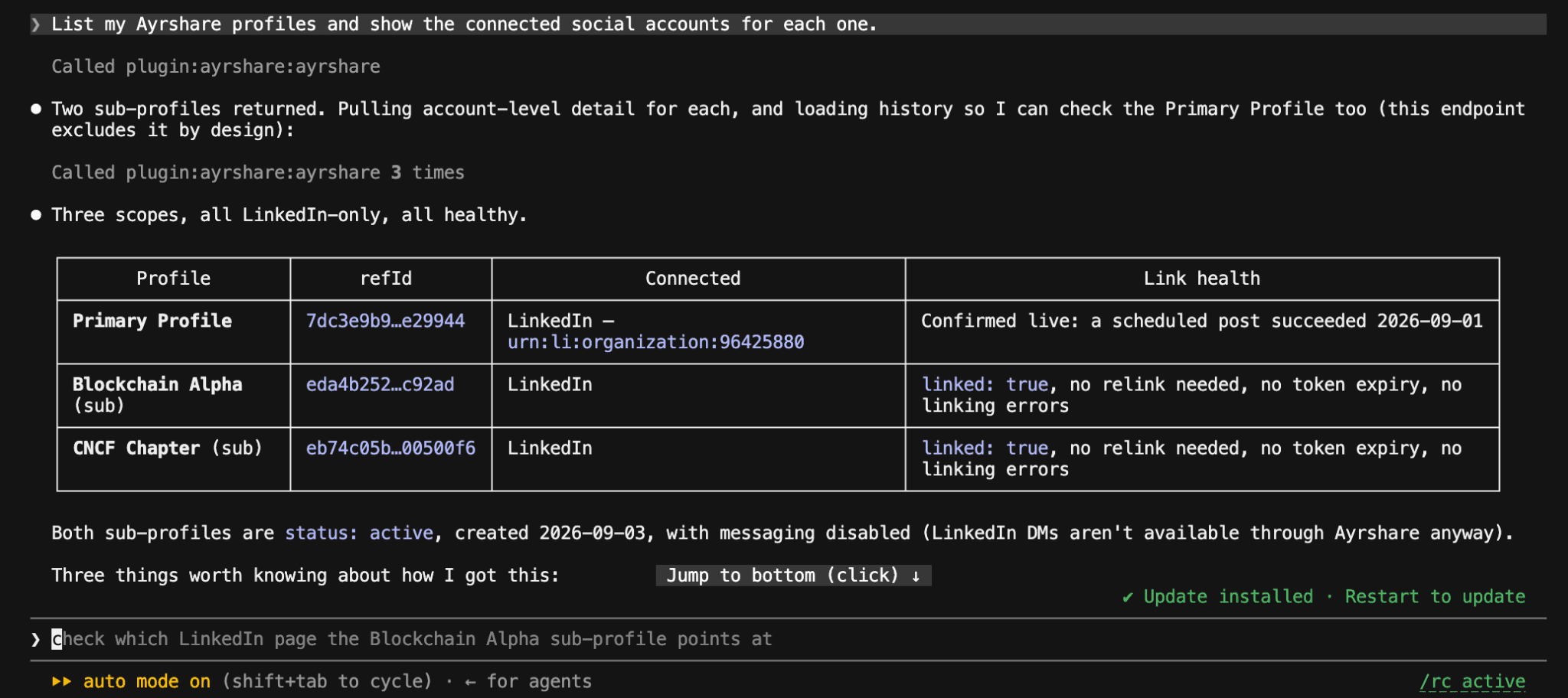
Start by confirming Claude can see both profiles. In Claude Code, prompt:
Plain text
List my Ayrshare profiles and show the connected social accounts for each one.Claude calls list_profiles and returns Blockchain Alpha and the CNCF chapter, along with the LinkedIn page linked to each. This is a good first check. If a profile is missing here, the agent cannot act on it.
Map each client to its Profile Key
list_profiles does not return Profile Keys for security reasons. Ayrshare requires each User Profile's key to be retrieved separately from the dashboard.
Because Profile Keys are sensitive credentials, avoid pasting them directly into prompts. For a local setup, store them in environment variables or another secure secrets store instead:
Bash
AYRSHARE_PROFILE_BLOCKCHAIN_ALPHA=[PROFILE_KEY]AYRSHARE_PROFILE_CNCF_CHAPTER=[PROFILE_KEY]
Now you can refer to clients by name in your prompts and let the agent resolve the key from the environment.
Work with each client separately
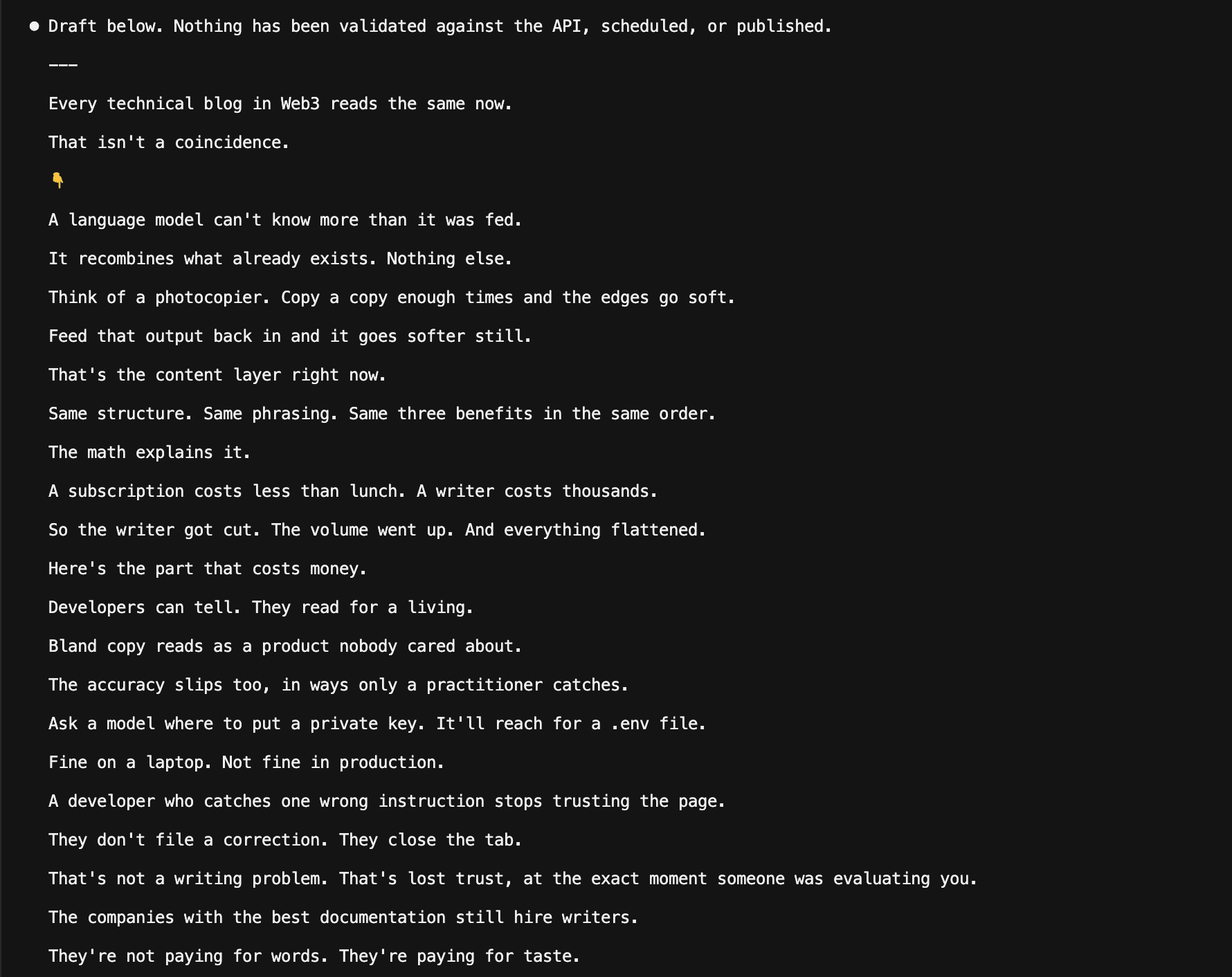
From here, the prompts themselves can stay simple, and we can run each client request as a separate prompt. For example, we'll use this prompt for the first client:
Plain text
For the Blockchain Alpha profile, draft a LinkedIn post based on this article:https://blockchainalpha.tech/why-blogs-and-docs-now-read-the-same-lately/
Turn the main idea into a concise LinkedIn post that fits the brand's existing style.
Draft only. Do not schedule or publish anything yet.
Here's the initial draft we got from Claude:
After reviewing that draft, we can send a second prompt for the other account in the same session:
Plain text
Now work with the CNCF Chapter profile.
Draft a LinkedIn post about next month's meetup. Keep it community-focused and informative rather than promotional.
Draft only. Do not schedule or publish anything yet.
Claude Code generates an entirely different draft with no shared context:
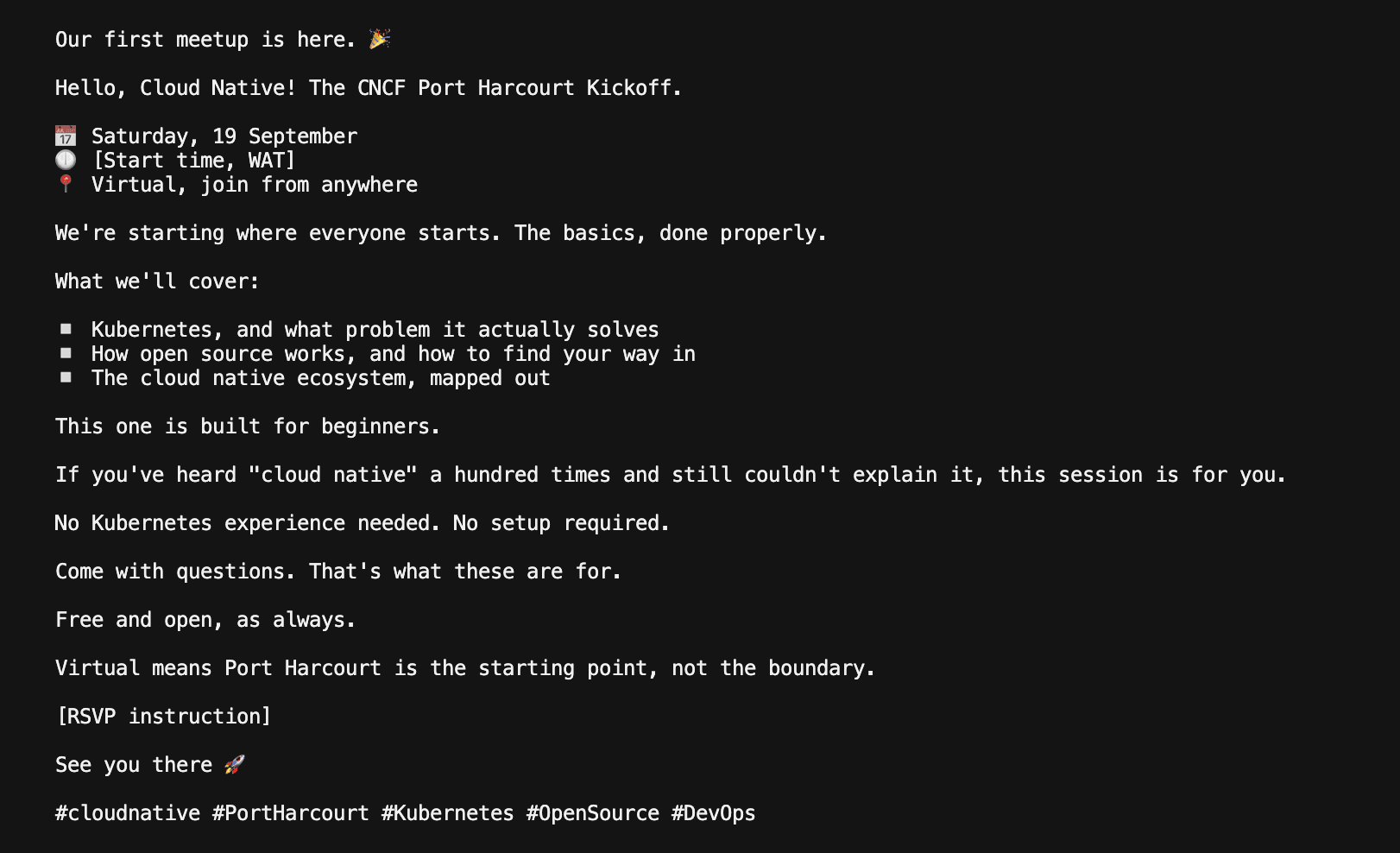
You can move between clients in the same session, as long as each request names the profile, while the profile mapping ensures each Ayrshare action stays attached to the correct account.
Keep Each Client's Brand Voice and Context Separate
The profileKey keeps Ayrshare actions tied to the right social account, but Claude still needs a separate writing context for each client.
A simple way to handle this is to generate one CONTEXT.md file per client from that account's existing post history.
For the first client, prompt:
Plain text
Analyze the available LinkedIn post history for the Blockchain Alpha profile.
Identify recurring patterns in tone, sentence structure, hooks, formatting, CTA style, technical depth, promotional language, and anything the brand consistently avoids.
Turn the findings into a concise CONTEXT.md file that Claude can use when writing future posts for this client.
Save the file as blockchain-alpha-CONTEXT.md.
Then run a separate prompt for the next client:
Plain text
Now switch to the CNCF Chapter profile.
Analyze the available LinkedIn post history for this account only.
Create a separate CONTEXT.md file based on its tone, audience, formatting, CTA style, event-focused language, and other recurring writing patterns.
Do not reuse writing patterns from the previous client.
Save the file as cncf-chapter-CONTEXT.md.
Once those files are created, Claude can use the matching context file whenever it drafts for that client. If you switch clients in the same session, make that clear in the prompt so the previous brand voice does not carry over.
Approve, Schedule, and Publish Posts
Nothing should reach a client's audience without a human seeing it first. Ayrshare gives agencies two useful approval gates here:
Use the plugin's confirmation step
The Ayrshare Claude Code plugin validates posts and asks for confirmation before publishing or scheduling by default. The agent drafts, shows you the post, and waits for you to approve it.
Validation runs as part of this. The validate_post tool checks the content against the target network's rules, things like length, media format, and aspect ratio, before anything is queued for publishing.
For example:
Plain text
Validate this post for the Blockchain Alpha profile before scheduling anything.
Tell me what would fail and why.
Hold posts for client approval
The confirmation step works when the person using Claude is also the approver, but that is not always the case for agencies. A client, account lead, or legal reviewer may need to approve the post first.
Ayrshare's Post API supports this with requiresApproval: true. The post stays in an awaiting approval state until it is approved separately. Notes can also be added to show who needs to review it.
For example:
Plain text
Schedule the Blockchain Alpha post for September 10 at 2 PM UTC, but hold it for approval.
Note that the account lead needs to sign off on it.
After approval, Claude can use create_post with the correct profileKey to schedule each post for the intended client. Both posts were published to their respective LinkedIn pages through Ayrshare.
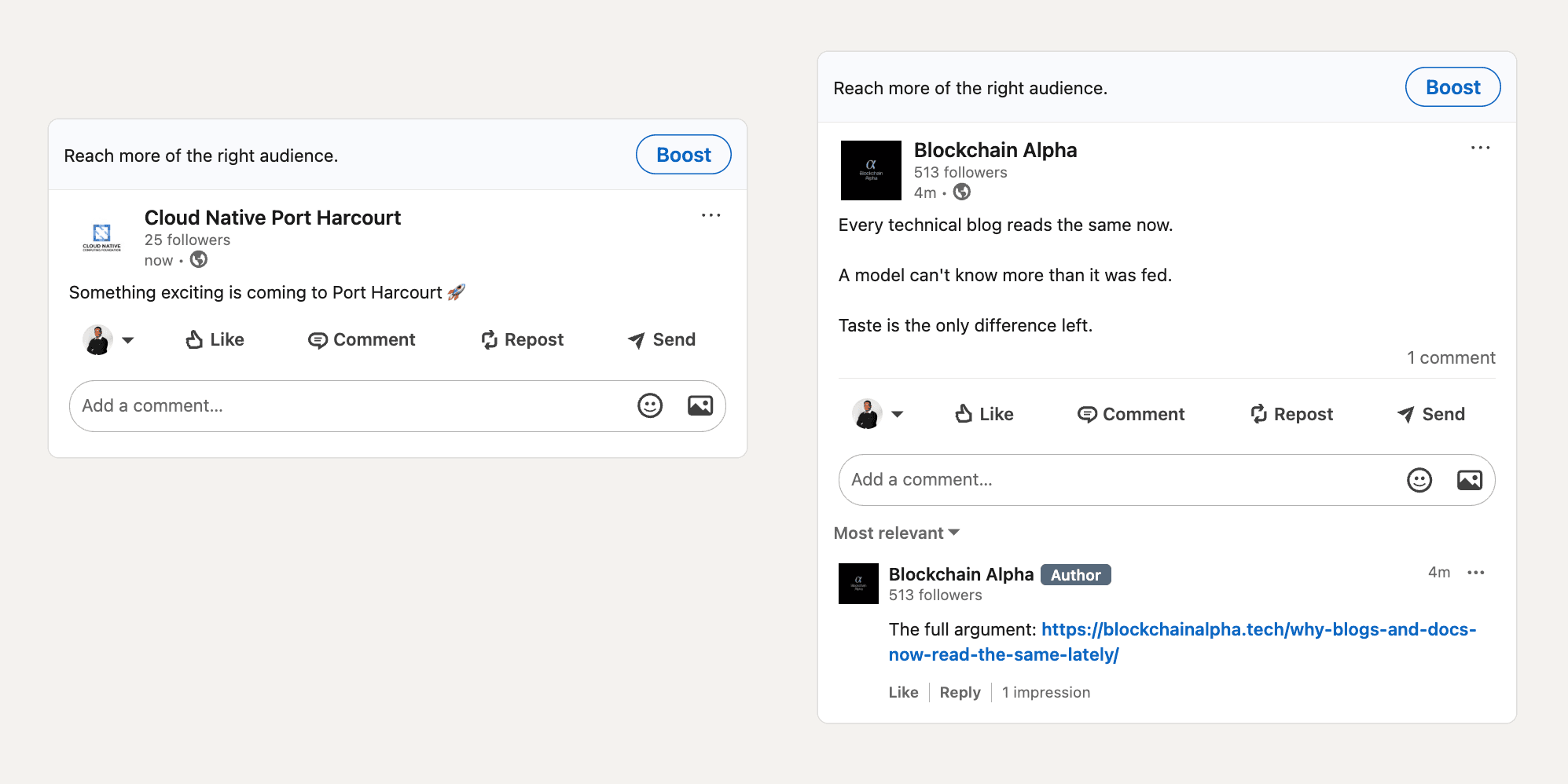
This is the final result: each post went to the correct client profile, with its own content and audience kept separate throughout the workflow.
Track Performance Across Client Accounts
Once the posts are live, the same agent can also pull performance data for each client. Ayrshare provides post-level and account-level analytics tools, so reports can stay tied to the correct profile instead of being mixed together.
Plain text
Pull the last 30 days of available analytics for both client profiles.
Keep the reports separate.
For each client, summarize the strongest posts, the main engagement trends, and 3 recommendations for the next content cycle.
Claude can use tools like get_post_analytics for individual posts and get_social_network_analytics for wider account performance.
For scheduled content, Ayrshare webhooks can also notify your system when a post is processed and whether it succeeded or failed.
Best Practices for Managing Multiple Client Accounts with AI Agents
Here are some best practices for managing multiple client accounts with Ayrshare:
One profile per client
Do not let two brands share a profile because they are small, or because they belong to the same parent company. Keeping them in separate profiles reduces the chance of mixing accounts, history, or publishing actions.
Never put Profile Keys in prompts
Store them in environment variables or a secrets manager and map them to clients internally. The agent should work with the client name, not the credential itself.
Give each client their own context file
Each brand should have its own CONTEXT.md file that gets updated as the agent learns from new posts and performance data.
Separate drafting from publishing
Let the agent draft first, validate next, then schedule only after approval.
Use approval for sensitive content
Product announcements, pricing changes, legal claims, customer stories, and crisis responses should still get a human review.
Final Thoughts
As a social media agency founder, you mostly do your best to have a good number of enterprise clients. However, that desire soon becomes a pain in the neck as personal management of many accounts can be indeed tedious.
AI agents have proven to be effective tools for scaling social media management. Supercharged by Ayrshare MCP, you can have more granular control over your AI agents to put your workflow on autopilot.
Ready to get started with Ayrshare in your social media agency? Start with the Business Plan today; you can use it to manage up to 420 accounts!
Written by: John Fáwọlé
John is a guest writer, developer and developer advocate. He enjoys writing content for developers and runs his own YouTube channel.
John Fáwọlé
Developer Advocate
John is a guest writer, developer and developer advocate. He enjoys writing content for developers and runs his own YouTube channel.
Ask AI about this article
Opens your AI assistant in a new tab with this article preloaded.
FAQ
Yes. The same agent can work across several User Profiles by using the correct profileKey for each client-specific action.
No. Clients can connect their own social accounts through Ayrshare's linking flow, so the agency does not need to collect or store their login credentials.
Keep a separate context file for each client and make the active client explicit whenever you switch accounts.
Yes. Ayrshare supports validation and approval workflows.